
Ọrọ Iṣaaju
O ṣeun fun riraasing the INGA Computer Speaker MZ-631. This USB plug-and-play desktop speaker is designed to provide enhanced stereo sound and deep bass for your computer, laptop, or Mac. Its convenient clamp design allows for easy attachment to most monitors, saving valuable desk space. This manual provides detailed instructions for setup, operation, maintenance, and troubleshooting to ensure optimal performance and longevity of your speaker.
Package Awọn akoonu
Jọwọ ṣayẹwo package fun awọn nkan wọnyi:
- 1 x INGA Computer Speaker (Model MZ-631)
- 1 x Itọsọna olumulo
- 1 x USB-C to USB-A Adapter (included for versatile connectivity)
Ọja Pariview
The INGA MZ-631 speaker features a compact design with an integrated clamping mechanism for monitor attachment. It delivers 10 Watts of stereo sound with enhanced bass through dual precision-tuned speakers and a passive radiator. Connectivity is simplified with a single USB cable for both audio and power.
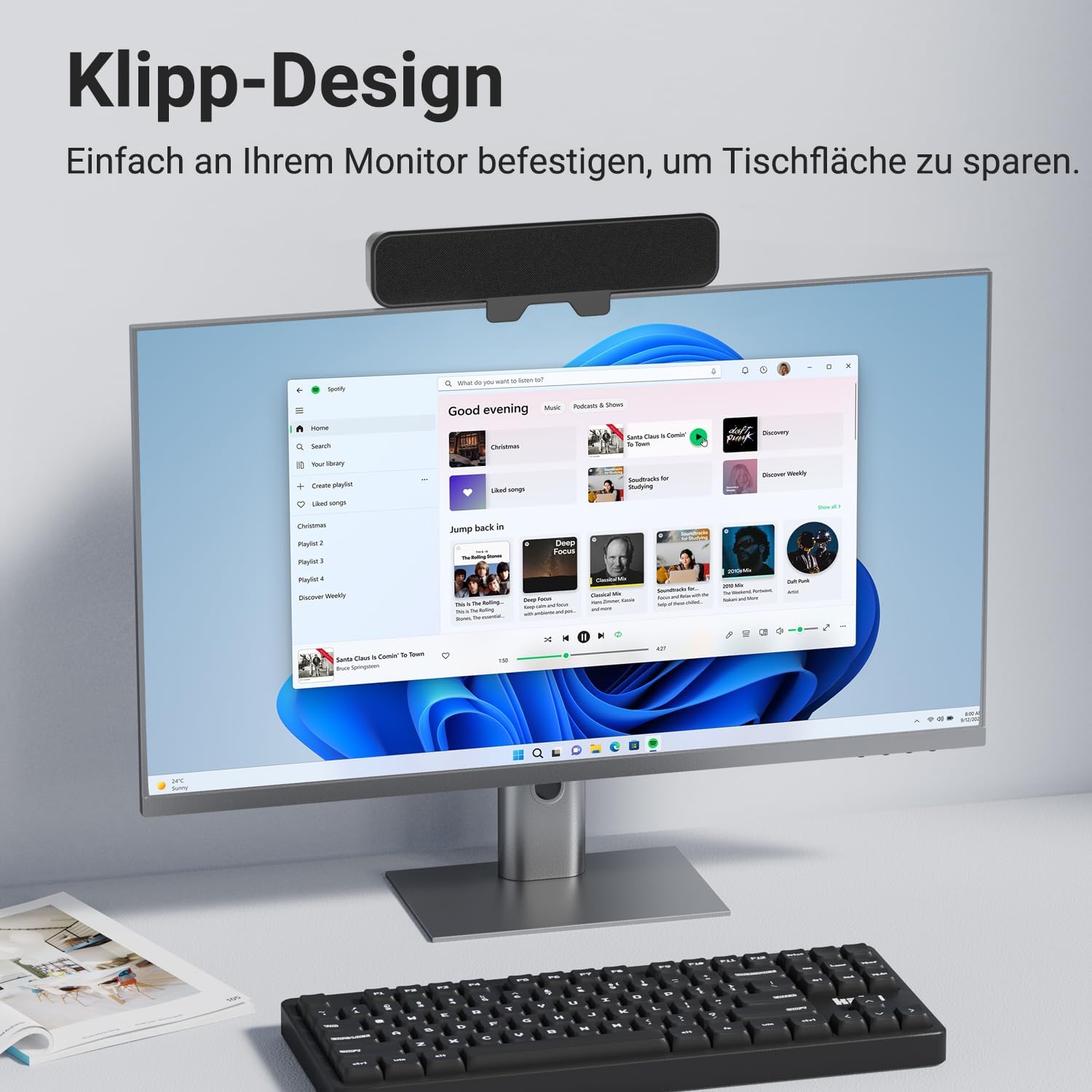
Aworan: Iwaju view of the INGA Computer Speaker MZ-631, shown clamped to the top of a computer monitor, displaying its sleek design and space-saving placement.
Awọn ẹya pataki:
- Enhanced Stereo Sound with Rich Audio & Deep Bass: Dual speakers and a passive radiator provide balanced, powerful, and clear audio.
- Instant Plug & Play Setup: Single USB cable for audio and power, no additional drivers or software needed.
- Secure Clip System: Enhanced clamping mechanism fits most monitors up to 1.5 inches thick, with protective silicone pads. (Note: Not compatible with curved-back monitors.)
- Multi-Function Controls: Top-mounted buttons for Volume Down, Mute, Volume Up, and Power.
- Ibamu Agbaye: Works with PC, Mac, Laptops, and other devices via USB.
Awọn ilana iṣeto
1. Connecting the Speaker
- Locate the USB cable attached to the INGA Computer Speaker.
- Plug the USB connector into an available USB port on your computer (PC or Mac). If your computer only has USB-C ports, use the included USB-C to USB-A adapter.
- The speaker will automatically power on and be recognized by your operating system as an audio output device.

Image: The INGA Computer Speaker connected via its USB cable to a laptop, illustrating the plug-and-play setup. The control buttons (Volume+, Mute, Volume-, Power) are visible on top.
2. Audio Output Selection
After connecting, ensure your computer's audio output is set to the INGA speaker.
- Windows: Right-click the speaker icon in the taskbar, select "Sound settings" or "Playback devices," and choose "INGA Speaker" as the default output device.
- MacOS: Go to System Settings > Sound > Output, and select "INGA Speaker."
Installation (Monitor Mounting)
The INGA MZ-631 speaker is designed for easy and secure attachment to most flat-panel monitors.
- rọra ṣii clamping mechanism on the back of the speaker.
- Position the speaker on top of your monitor, ensuring the front grille faces you.
- Ṣe atunṣe clamp so that it securely grips the top edge of your monitor. The protective silicone pads will prevent scratches and ensure a firm hold.
- Ensure the speaker is stable and does not obstruct your monitor's view tàbí afẹ́fẹ́.
Akiyesi pataki: This speaker is not compatible with curved-back monitors due to its mounting requirements. The clamping mechanism is designed for monitors up to 1.5 inches (approximately 3.8 cm) thick.

Aworan: A alaye view of the speaker's clamping mechanism, showing how it securely attaches to the top edge of a monitor, highlighting the 1-inch (2.54 cm) thickness capacity.
Alternative Placement: Desktop
If monitor mounting is not suitable, the speaker can also be placed directly on your desk in front of your monitor. Ensure it is on a stable, flat surface.

Image: Demonstrates various placement options for the speaker, including clamping to the top or bottom of a monitor, or resting on a desk surface.
Awọn ilana Iṣiṣẹ
The INGA MZ-631 speaker features intuitive controls located on the top panel.
Aworan: A sunmọ-soke view of the speaker's top panel, clearly showing the four control buttons: Volume Down, Mute, Volume Up, and Power.
- Bọtini agbara (⏻): Tẹ lati tan tabi paa agbohunsoke.
- Bọtini Iwọn didun soke (+): Tẹ lati mu iwọn didun pọ si.
- Bọtini isalẹ iwọn didun (-): Tẹ lati dinku iwọn didun.
- Bọtini Parẹ🔇): Press to instantly mute or unmute the audio.
Iriri ohun
The speaker is engineered to deliver a rich audio experience with clear dialogues and powerful bass, suitable for various applications including music, movies, and online meetings.

Image: An internal diagram of the speaker, highlighting its dual speaker drivers and passive radiator, which contribute to its 10W audio output and enhanced sound quality.
Itoju
To ensure the longevity and optimal performance of your INGA Computer Speaker, follow these simple maintenance guidelines:
- Ninu: Use a soft, dry cloth to wipe the speaker's surface. Do not use liquid cleaners, aerosols, or solvents, as these may damage the finish or internal components.
- Ibi ipamọ: Nigbati o ko ba wa ni lilo fun awọn akoko ti o gbooro sii, tọju agbohunsoke ni itura, ibi gbigbẹ kuro lati orun taara ati awọn iwọn otutu to gaju.
- Mimu: Yẹra fún fífi ohùn sílẹ̀ tàbí kí o fi agbára mú un.
- Ayika: Keep the speaker away from water, moisture, and excessive dust.
Laasigbotitusita
If you encounter issues with your INGA Computer Speaker, please refer to the following common problems and solutions:
| Isoro | Owun to le Fa | Ojutu |
|---|---|---|
| Ko si ohun lati agbọrọsọ. |
|
|
| Ohun ti daru tabi koyewa. |
|
|
| Speaker does not clamp securely to monitor. |
|
|
If the problem persists after trying these solutions, please contact INGA Customer Service for further assistance.
Awọn pato
| Ẹya ara ẹrọ | Ẹ̀kúnrẹ́rẹ́ |
|---|---|
| Orukọ awoṣe | MZ-631 |
| Brand | INGA |
| Agbọrọsọ Iru | Agbọrọsọ Atẹle |
| Asopọmọra Technology | USB |
| Ipo Ijade Ohun | Sitẹrio |
| Kakiri Ohun ikanni iṣeto ni | 2.0 |
| Agbọrọsọ Agbara Ijade ti o pọju | 10 Wattis |
| Idahun Igbohunsafẹfẹ | 20000 kHz |
| Iṣagbewọle Voltage | 5 Volts (DC) |
| Orisun agbara | Okun Itanna (USB) |
| Iṣagbesori Iru | Agekuru |
| Ohun elo | Ṣiṣu |
| Àwọ̀ | Dudu |
| Ọja Mefa | 8"D x 2"W x 3"H (isunmọ. 20.3cm D x 5.1cm W x 7.6cm H) |
| Iwọn Nkan | 12.3 iwon (nipa 348 giramu) |
| Ọna Iṣakoso | Titari Bọtini |
| Awọn ẹrọ ibaramu | Desktop, Laptop, MAC, PC, Smartphone, Tablet |
| Pataki Awọn ẹya ara ẹrọ | Bass Boost, Clip-on, Hi Res Audio, Portable, USB-C to USB Port |
Atilẹyin ọja ati Support
Alaye atilẹyin ọja
The INGA Computer Speaker MZ-631 comes with a Limited Warranty. Please refer to the warranty card included in your package for specific terms and conditions.
Onibara Support
INGA is committed to providing lifetime technical support for its products. If you have any questions, concerns, or require assistance with your speaker, please do not hesitate to contact our Customer Service team. We aim to resolve all inquiries within 24 hours.
Ibi iwifunni:
Please visit the official INGA website or refer to the contact details provided on your product packaging or warranty card.