
1. Ifihan
This manual provides detailed instructions for the VOPLLS Q5 Smart Mini Projector. Please read this manual thoroughly before using the product to ensure proper operation and to maximize your viewiriri iriri. Jeki iwe afọwọkọ yii fun itọkasi ọjọ iwaju.
2. Ohun ti o wa ninu Apoti
- VOPLLS Q5 Smart Mini Projector
- 360° Iduro Yiyi
- Iṣakoso latọna jijin (awọn batiri ko si)
- HDMI Cable (1.5m/4.92ft)
- Power Cord (2m/6.56ft)
- Afowoyi Olumulo (iwe-ipamọ yii)
3. Key Awọn ẹya ara ẹrọ
- Officially-Licensed Apps: Pre-installed streaming services like Netflix, YouTube, and Prime Video, with support for 4K HDR content within the app.
- Din & Apẹrẹ Agbekale: Ultra-thin at 1.81 inches and lightweight (0.79 kg / 1.74 lbs) for easy transport.
- Automatic Focus & Keystone Correction: Features automatic fast focus and 6D all-around keystone correction for instant clarity and precise image alignment.
- Native 1080P Resolution: Delivers vivid, color-accurate, and sharp visuals with native Full HD 1080P resolution and 4K playback compatibility.
- 360° Adjustable Stand: Integrated rotatable stand allows for flexible projection angles, including ceiling projection.
- Ilọsiwaju Asopọmọra: Equipped with WiFi 6 for stable, rapid signal transmission and Bluetooth 5.2 for seamless audio sync with external speakers.
- Authentic Brightness: Certified 320 ANSI lumens for clear visuals in various environments.
4. Ọja Ipariview

Nọmba 4.1: VOPLLS Q5 Smart Mini Projector on its adjustable stand.

Nọmba 4.2: Pariview of key features and design elements.
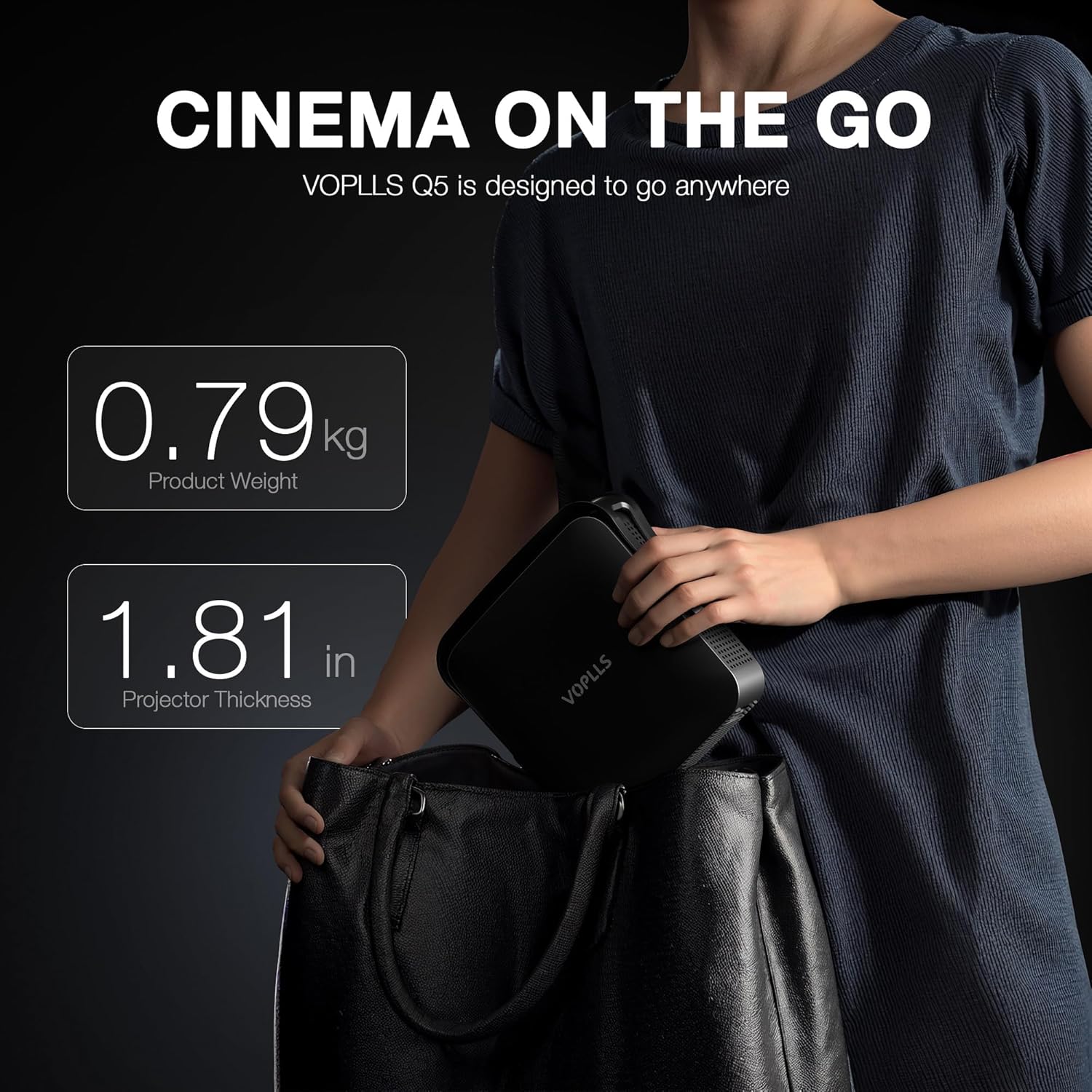
Nọmba 4.3: The compact size of the VOPLLS Q5, ideal for portability.
Fidio 4.1: A alaye loriview of the VOPLLS Q5 projector's features, app interface, and video quality demonstrations.
4.1. Awọn irinše
- Iwaju: Projection Lens, Auto-Focus Sensor.
- Ẹyìn: USB Port, 3.5mm Audio Jack, HDMI Input, Power Button, Power Input.
- Awọn ẹgbẹ: Speaker Grilles, Ventilation.
- Isalẹ: Tripod Mounting Point (compatible with standard camera tripods).
5. Awọn ilana iṣeto
- Yọọ kuro: Ni ifarabalẹ yọ gbogbo awọn paati kuro ninu apoti.
- Ibi: Place the projector on a stable, flat surface. Utilize the 360° rotating stand to adjust the projection angle as desired. For ceiling projection, ensure the projector is securely mounted.
- Asopọ agbara: So okun agbara pọ si titẹ agbara pirojekito ati lẹhinna si iṣan itanna kan.
- Agbara Tan: Press the power button on the projector or the remote control to turn on the device. The projector will perform an initial auto-focus and keystone correction.
- Isopọ nẹtiwọki: Navigate to the 'Network' settings to connect to your Wi-Fi network. This is essential for accessing streaming apps and online features.
Fidio 5.1: A short demonstration of the projector's portability and ease of setup.
6. Awọn ilana Iṣiṣẹ
6.1. Lilọ kiri ati wiwo olumulo
The VOPLLS Q5 features a user-friendly operating system. Use the provided remote control to navigate through menus and select options. The home screen displays trending content and quick access to pre-installed applications.

Nọmba 6.1: The user-friendly operating system interface.
6.2. Streaming Applications
Access a wide range of entertainment through pre-installed and downloadable apps:
- Pre-installed: Netflix, YouTube, Prime Video.
- Downloadable: Visit the 'Play Store' to download additional apps like Hulu, HBO Max, Peacock, Paramount+, Tubi, and more.

Nọmba 6.2: Access to a wide selection of streaming applications.

Nọmba 6.3: Official Netflix compatibility for seamless streaming.
6.3. Asopọmọra
- HDMI: Connect external devices such as laptops, gaming consoles, or Blu-ray players using the HDMI cable. Select 'HDMI' as the input source.
- USB: Fi awakọ USB kan sinu ibudo USB si view local media files (videos, pictures, documents). Access these files via the 'Files' application on the home screen.
- Bluetooth 5.2: Pair with external Bluetooth speakers or headphones for enhanced audio. Go to 'Settings' > 'Network' > 'Bluetooth' to manage devices. (Note: Bluetooth supports audio transmission only, not video).
- WiFi 6: Ensures stable and fast internet connection for streaming and online features. Configured during initial setup.
- TV Casting: Mirror content from your smartphone or tablet to the projector screen. Select 'TV Casting' from the home screen and follow the on-screen instructions.
6.4. Atunṣe Aworan
- Idojukọ aifọwọyi: The projector automatically adjusts focus upon power-on or when moved. This feature can be toggled in 'Settings' > 'Lens' > 'Autofocus settings'.
- Atunse okuta bọtini: Automatic 6D keystone correction adjusts the image shape. For manual adjustments, go to 'Settings' > 'Lens' > 'Keystone correction' and use the 4-corner correction option.
- Sun-un oni-nọmba: Adjust the screen size without moving the projector. Found in 'Settings' > 'Lens' > 'Digital zoom'.
- Ilana Isọtẹlẹ: Adjust the image orientation if the projector is mounted in different positions (e.g., ceiling, rear projection). Navigate to 'Settings' > 'Lens' > 'Projection direction'.
6.5. Aworan ati Ohun Eto
- Eto aworan: Customize brightness, contrast, saturation, sharpness, color tone, and color temperature. Access these in 'Settings' > 'Picture'. An 'Eye Protection Mode' is available to reduce blue light.
- Eto Ohun: Adjust audio balance and select sound modes (Standard, Music, Movie, News, Game, User). Manage audio output devices in 'Settings' > 'Sound'.
7. Itọju
- Fifọ lẹnsi: Lo aṣọ rirọ, tí kò ní àwọ̀ tí a ṣe pàtó fún àwọn lẹ́nsì ojú láti fọ lẹ́nsì àwòjìji náà pẹ̀lú ìrọ̀rùn. Yẹra fún àwọn ohun èlò ìfọ́ tàbí àwọn kẹ́míkà líle.
- Isọsọ gbogboogbo: Mu ese pirojekito nu pẹlu asọ ti o gbẹ. Ma ṣe lo awọn olutọpa omi taara lori ẹrọ naa.
- Afẹfẹ: Ensure the ventilation grilles on the sides of the projector are clear of obstructions to prevent overheating.
- Ibi ipamọ: When not in use, store the projector in a cool, dry place, away from direct sunlight and extreme temperatures. The integrated stand helps protect the lens during storage.
8. Laasigbotitusita
- Ko si Agbara: Ensure the power cord is securely connected to both the projector and the power outlet. Try a different outlet.
- Ko si Aworan: Check the input source selection (HDMI, USB, etc.) to ensure it matches your connected device. Verify that the connected device is powered on and outputting a signal.
- Aworan blurry: The projector features auto-focus. If the image remains blurry, manually trigger auto-focus via the remote or check 'Settings' > 'Lens' > 'Autofocus settings'. Ensure the projection surface is flat.
- Àwòrán tí ó yípadà (Àwòrán Trapezoid): The projector has auto keystone correction. If needed, go to 'Settings' > 'Lens' > 'Keystone correction' for manual 4-corner adjustment.
- Ko si Ohun: Check the volume level on both the projector and the connected source device. If using Bluetooth, ensure the external audio device is properly paired and selected as the output.
- Awọn oran Isopọ nẹtiwọki: Verify your Wi-Fi password. Try restarting your router and the projector. Ensure the projector is within range of your Wi-Fi signal.
- Apps Not Working: Ensure the projector is connected to the internet. Check for app updates in the Play Store or system software updates in 'Settings' > 'Software Update'.
9. Awọn pato
| Ẹya ara ẹrọ | Apejuwe |
|---|---|
| Brand | VOPLLS |
| Nọmba awoṣe | Q5 |
| Ipinnu Ifihan | Native 1920 x 1080 (1080P) |
| 4K atilẹyin | Supported for playback within the APP only. Not via USB drives or HDMI input. |
| Imọlẹ | 320 ANSI Lumens |
| Asopọmọra Technology | 3.5mm Jack, Bluetooth 5.2, HDMI, USB, Wi-Fi 6 |
| Ọja Mefa | 6.93 x 1.81 x 6.93 inches (17.7 x 4.59 x 17.7 cm) |
| Iwọn Nkan | 3.3 poun (0.79 kg) |
| Pataki Awọn ẹya ara ẹrọ | Smart TV Operating System, 360° rotating stand, Auto Focus, 4P/6D Keystone Correction, Officially-Licensed APPS |
| Niyanju Lilo | Business, Education, ere, Home Cinema |
10. Atilẹyin ọja ati Support
For warranty information, please refer to the documentation provided at the time of purchase or contact VOPLLS customer support directly. For technical assistance or further inquiries, please visit the official VOPLLS webojula tabi kan si wọn onibara iṣẹ egbe.