
1. Ifihan
Thank you for choosing the Pisichen 24 inch Touch Screen Gaming Monitor. This manual provides essential information for setting up, operating, and maintaining your monitor. Please read it thoroughly before use to ensure optimal performance and safety.
This monitor features a 24-inch QHD (2560x1440P) display with a 165Hz refresh rate, 2ms response time, and 10-point projected capacitive touchscreen functionality. It supports FreeSync and HDR, offering a vibrant and responsive visual experience for both gaming and professional applications.

Image: The Pisichen 24-inch 2K 165Hz Touch Screen Monitor highlighting its key features like HDR, IPS Panel, and 10-point Touch.
2. Package Awọn akoonu
Ṣaaju ki o to tẹsiwaju pẹlu eto naa, jọwọ rii daju pe gbogbo awọn paati wa ninu package naa:
- Pisichen 24 inch Touch Screen Monitor
- Iduro Iduro (Ipilẹ ati Ọrun)
- DP Cable
- Okun HDMI
- USB B Touch Cable
- Okun CC USB
- DC Agbara Adaṣe
- Afowoyi Olumulo (iwe-ipamọ yii)
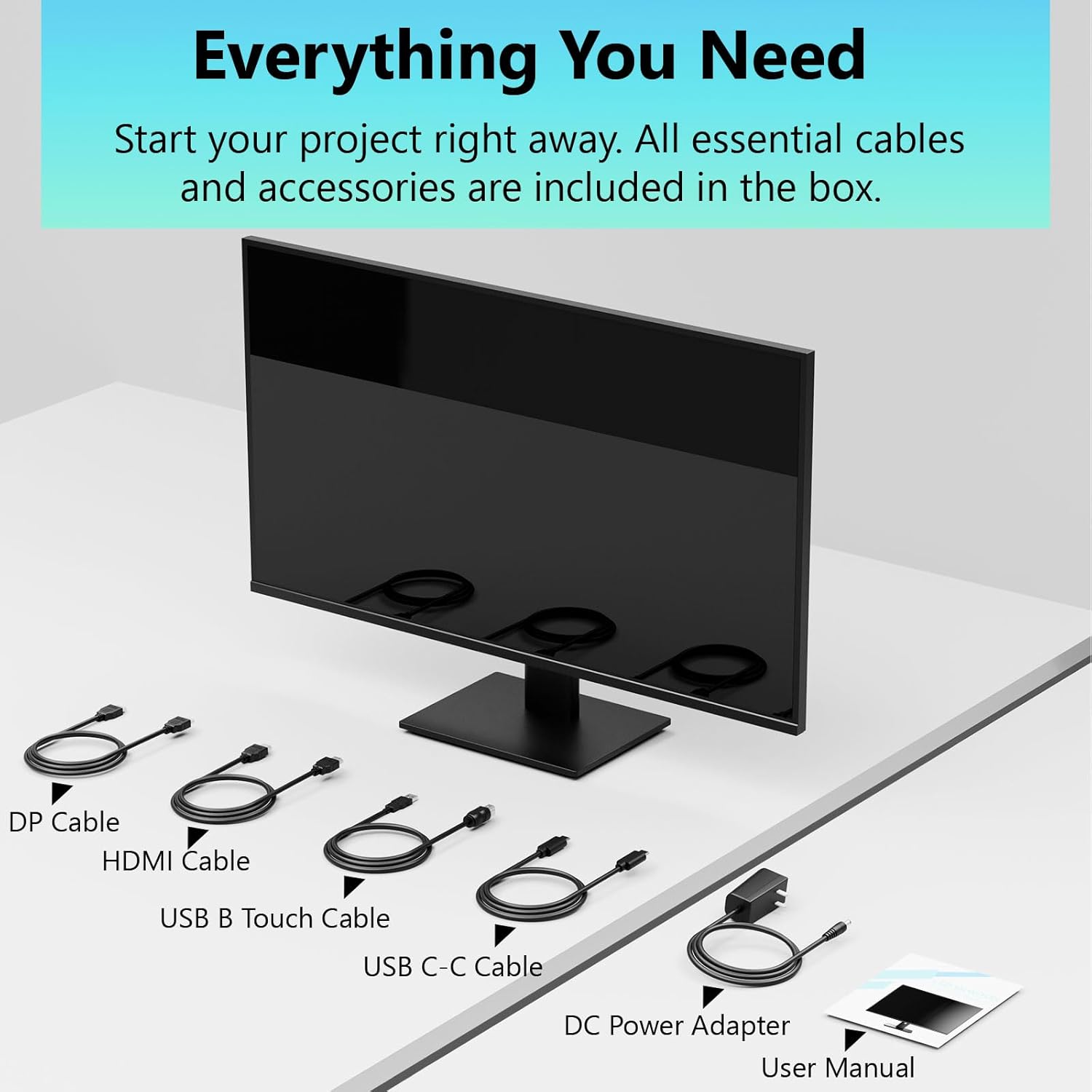
Image: All essential cables and accessories included in the box for the monitor setup.
3. Awọn ilana iṣeto
3.1 Nto Iduro
- Fi pẹ̀lẹ́pẹ̀lẹ́ yọ àwo mótò náà kúrò nínú àpótí rẹ̀, kí o sì gbé e sí orí ilẹ̀ rírọ̀ tí ó mọ́ kí ó má baà jẹ́ kí ó fọ́.
- Attach the stand neck to the monitor's rear panel.
- So ipilẹ iduro naa mọ ọrùn iduro naa nipa lilo awọn skru ti a pese.
- Rí i dájú pé gbogbo ìsopọ̀ mọ́ ara wọn ló dúró ṣinṣin kí o tó gbé àtẹ̀gùn náà sókè.
3.2 Fifi sori ẹrọ VESA Mount (Aṣayan)
This monitor supports VESA mounting. If you plan to use a VESA-compatible arm or wall mount, remove the stand and attach the VESA mount according to the mount's instructions. The VESA pattern is typically 75x75mm or 100x100mm (refer to specifications for exact details).
3.3 Nsopọ si ẹrọ kan
Atẹle naa nfunni ni awọn aṣayan Asopọmọra pupọ:
- HDMI: So opin okun HDMI kan pọ mọ ibudo HDMI ti atẹle naa ati opin keji si ifihan HDMI ti kọnputa rẹ.
- DisplayPort (DP): Connect one end of the DP cable to the monitor's DP port and the other end to your computer's DP output.
- USB Iru-C: For compatible devices, connect the USB C-C cable to the monitor's USB Type-C port and your device's USB Type-C port. This single cable can transmit video, data, and power (charging).
- USB Type-B (for Touch Functionality): To enable the touch screen feature, connect the USB B Touch Cable from the monitor's USB Type-B port to an available USB Type-A port on your computer.

Image: The monitor's rear panel with various connectivity options, including HDMI, DisplayPort, and USB-C ports.
3.4 Asopọ agbara
Connect the DC Power Adapter to the monitor's power input port, then plug the adapter into a power outlet.
3.5 Initial Power On and Touch Compatibility
Press the power button on the monitor. The display should light up. If no image appears, ensure all cables are securely connected and the correct input source is selected on the monitor (via the OSD menu).
For touch functionality, ensure the USB B Touch Cable is connected to your computer. Touch compatibility may vary by operating system and device. Most Windows PCs support multi-touch. For Mac devices, single-touch click is generally supported, but multi-touch may require specific drivers or configurations. Game consoles (PS3/4/5, Xbox, Steam Deck) and some other devices (Fire TV, Apple products like iPhone/iPad) typically do not support touch functionality.

Image: A compatibility chart illustrating which devices support multi-touch or single-touch, and which devices do not support touch functionality with the monitor.
4. Awọn ilana Iṣiṣẹ
4.1 Agbara Tan / Pa
Press the power button located on the monitor to turn it on or off. The power indicator light will show the monitor's status.
4.2 Lori-iboju Ifihan (OSD) Akojọ aṣyn
The OSD menu allows you to adjust various monitor settings. Use the control buttons (usually located on the back or bottom of the monitor) to navigate the menu. Common menu options include:
- Eto aworan: Brightness, Contrast, Sharpness, Color Temperature, HDR mode.
- Awọn Eto Ifihan: Aspect Ratio, Input Source selection (HDMI, DP, USB-C).
- Ètò Àwọn Ere: FreeSync, Response Time (Overdrive), Crosshair.
- Eto ohun: Volume (if internal speakers or audio output are present).
- Eto Eto: Èdè, Ìfihàn OSD, Ṣàtúntò sí Àìṣeédáṣe Ilé-iṣẹ́.
4.3 Iṣẹ́ Ibojú Fọwọkan
The monitor supports 10-point multi-touch, allowing for intuitive interaction directly on the screen. Ensure the USB B Touch Cable is connected to your computer for this feature to work.
- Tẹ ni kia kia Equivalent to a left-click.
- Fọwọ ba Mu: Ni deede si titẹ-ọtun.
- Fun pọ-si- Sun-un: Lo ika meji lati sun-un sinu tabi ita.
- Ra: Navigate through content or scroll.

Image: A user interacting with the monitor's touch screen, highlighting its precision and responsiveness for creative tasks.
4.4 Ergonomic Awọn atunṣe
The monitor stand allows for tilt adjustments to achieve the most comfortable viewing and touch angle. Gently adjust the screen to your preferred position.
4.5 Oju Itọju Awọn ẹya ara ẹrọ
The monitor includes advanced eye-comfort features such as Flicker-Free technology and Low Bluelight mode to reduce eye strain during prolonged use. These settings can typically be adjusted within the OSD menu.

Image: Visual representation of the monitor's advanced eye-comfort features, including Flicker-Free and Low Bluelight technologies.
5. Itọju
5.1 Ninu Atẹle
- Nigbagbogbo pa atẹwo naa kuro ki o yọọ okun agbara ṣaaju ṣiṣe mimọ.
- Lo asọ rirọ, ti ko ni lint ni sere dampened pẹlu omi tabi ìwọnba, ti kii-abrasive iboju regede.
- Maṣe fun sokiri regede taara sori iboju. Lo akọkọ si asọ.
- Yẹra fún lílo àwọn ohun ìfọmọ́ tí ó ní benzene, tín-tín, tí ó ní ammonia, tàbí àwọn ohun èlò ìpara, nítorí pé àwọn wọ̀nyí lè ba ojú ìbòjú náà jẹ́.
5.2 Ibi ipamọ
When storing the monitor for an extended period, ensure it is powered off, unplugged, and stored in a cool, dry place away from direct sunlight and extreme temperatures. Use the original packaging if available for best protection.
6. Laasigbotitusita
Ti o ba pade awọn ọran pẹlu atẹle rẹ, tọka si awọn igbesẹ laasigbotitusita ti o wọpọ wọnyi:
- Ko si Agbara: Rii daju pe ohun ti nmu badọgba agbara ti sopọ ni aabo si atẹle mejeeji ati iṣan agbara iṣẹ kan. Ṣayẹwo boya ina Atọka agbara wa ni titan.
- Kò sí Àwòrán/Àmì:
- Verify that the video cable (HDMI, DP, or USB-C) is securely connected to both the monitor and your computer.
- Rí i dájú pé a yan orísun ìtẹ̀wọlé tó tọ́ nínú àkójọ OSD ti monitor.
- Check your computer's display settings to ensure the monitor is detected and enabled.
- No Touch Functionality:
- Confirm the USB B Touch Cable is connected from the monitor to your computer.
- Check your computer's device manager to see if the touch screen driver is installed and functioning correctly.
- Refer to the "Initial Power On and Touch Compatibility" section for device-specific limitations.
- Yiyi tabi Aworan Daru:
- Ṣayẹwo okun fidio fun ibajẹ tabi awọn asopọ alaimuṣinṣin.
- Gbiyanju okun fidio tabi ibudo fidio miiran.
- Ṣatunṣe oṣuwọn isọdọtun ninu awọn eto ifihan kọnputa rẹ.
- Awọn piksẹli ti o ku: A small number of bright or dark pixels are common in LCD/LED technology and are not considered a defect unless they exceed manufacturer specifications.
Ti iṣoro naa ba wa lẹhin igbiyanju awọn igbesẹ wọnyi, jọwọ kan si atilẹyin alabara.
7. Awọn pato
| Ẹya ara ẹrọ | Sipesifikesonu |
|---|---|
| Brand | Pisichen |
| Nọmba awoṣe | 24IN165HZ-QHD |
| Iwon iboju | 23.8 inches |
| Ipinnu | QHD Wide 1440p (2560 x 1440) |
| Apakan Ipin | 16:9 |
| Oṣuwọn sọtun | 165 Hz |
| Akoko Idahun | 2 Milise-aaya |
| Ifihan Iru | LED IPS |
| Imọlẹ | Káńdélà 400 (cd/m²) |
| Ipin Itansan | 3000:1 |
| Viewigun igun | Awọn iwọn 178 |
| Awọ Gamut | 99% |
| Picture Quality Enhancement | HDR |
| Amuṣiṣẹpọ Adaptive | FreeSync |
| Asopọmọra Technology | DisplayPort, HDMI, USB Type-C, USB Type-B |
| Afikun Awọn ẹya ara ẹrọ | Tilt Adjustment, 10-Point Touchscreen |
| Awọn iwọn Nkan (D x W x H) | 0.75"D x 21.5"W x 12.7"H |
| Iwọn Nkan | 5.38 kilo |
| Àwọ̀ | Dudu |
8. atilẹyin ọja Information
This product comes with a 1-year limited warranty from the date of purchase. The warranty covers manufacturing defects and workmanship under normal use. It does not cover damage caused by misuse, accidents, unauthorized modifications, or external factors. Please retain your proof of purchase for warranty claims.
9. Onibara Support
For technical assistance, warranty claims, or further inquiries, please contact Pisichen customer support. You may find contact information on the official Pisichen webojula tabi nipasẹ rẹ alagbata.
Fun afikun awọn orisun ati alaye ọja, ṣabẹwo si Pisichen Store on Amazon.