
1. Ifihan ati Loriview
This manual provides detailed instructions for the operation and maintenance of your Vandlion 64GB Digital Voice Recorder, Model V11B. This device is designed for high-fidelity audio capture in various environments, including lectures, meetings, and interviews. It features advanced AI noise reduction, 1536Kbps crystal audio recording, password protection for your files, and a voice activation function.

Figure 1: Vandlion V11B Digital Voice Recorder
2. Ohun ti o wa ninu Apoti
Upon unboxing your Vandlion V11B Digital Voice Recorder, please ensure all the following items are present:
- 1 x Digital Voice Recorder (Model V11B)
- 1 x USB-C Data Cable
- 1 x Agbekọri
- 1 x Itọsọna olumulo

Nọmba 2: Awọn akoonu Package
3. Awọn ẹya Ọja
- AI Noise Cancellation: The advanced AI chip identifies and eliminates over 95% of distracting sounds, focusing purely on human speech for clear audio.
- Big Storage & Ultra-Portable: Stores up to 900 hours of recordings with its 64GB memory. Crafted from lightweight yet durable zinc alloy, it offers portability and a solid feel. A 1.5-hour charge provides up to 20 hours of continuous recording.
- Gbigbasilẹ Bọtini Kan: Simple slide switch operation to initiate recording (slide to "REC") and save (slide to "SAVE").
- Iṣe imuṣiṣẹ ohun: When manually turned on, this feature allows the recorder to intelligently skip silent pauses and focus solely on active dialogues, providing condensed recordings. (Refer to the manual for activation steps).
- Idaabobo Ọrọigbaniwọle: Supports setting a 4-digit password to protect your recording files from unauthorized access.

Figure 3: AI Noise Cancellation Feature

Àwòrán 4: Apẹẹrẹ tó ṣeé gbé kiri

Figure 5: One-Button Recording

Figure 6: Voice Activated Recording
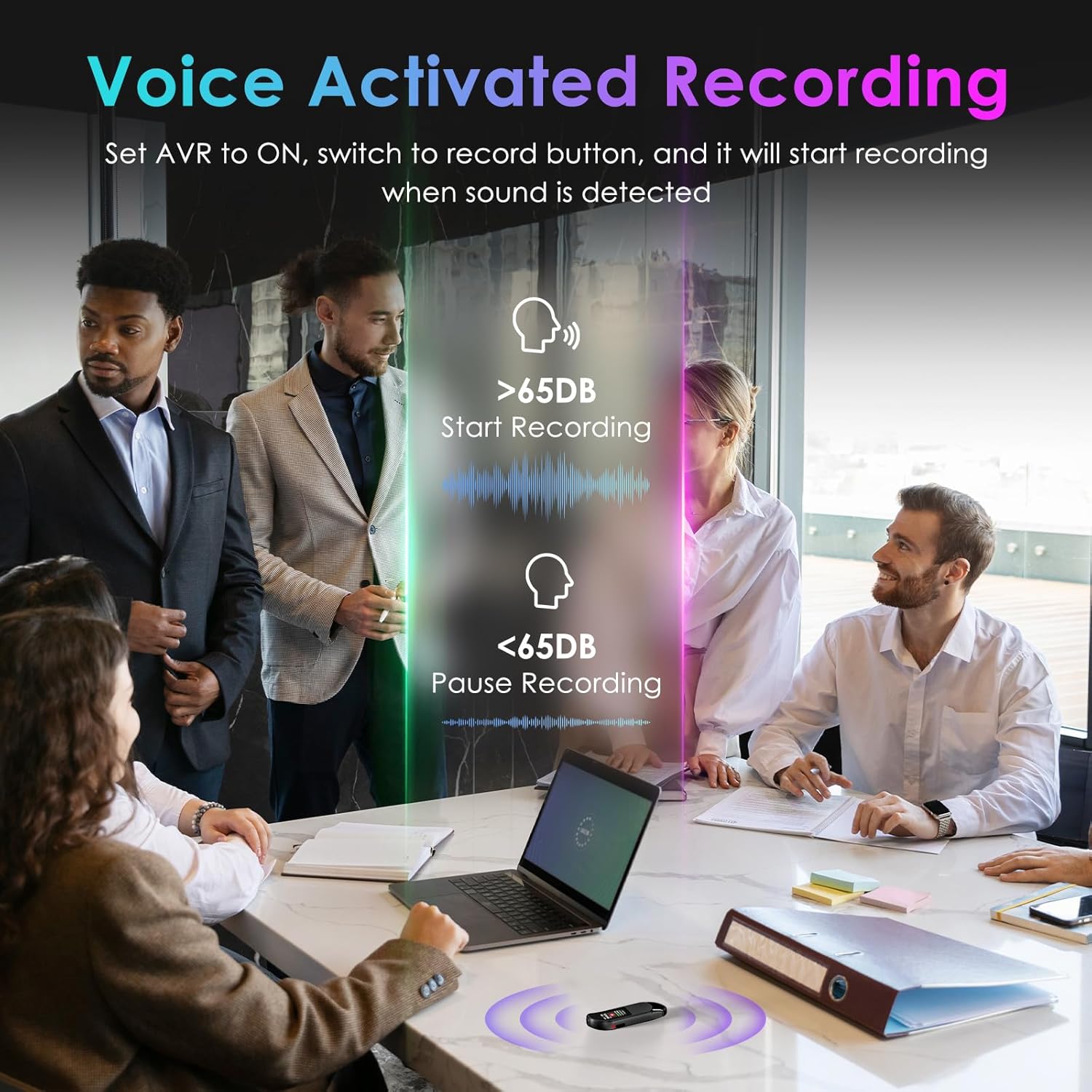
Figure 7: Password Protection Feature
4. Eto ati Ipilẹ isẹ
4.1 Ni ibẹrẹ Oṣo
Before first use, fully charge the device using the provided USB-C cable. Connect the cable to the recorder and a power source (e.g., computer USB port or USB wall adapter). The device will indicate charging status on its screen.
4.2 One-Button Recording
- To start recording, slide the 'REC' button upwards. The screen will display recording in progress.
- To save the recording, slide the 'SAVE' button downwards. The recording will be saved automatically.
4.3 Sisisẹsẹhin
The Vandlion V11B does not have a built-in speaker. To listen to recordings, you must connect the included headphones or transfer files to a computer or Android phone.
- Connect the remote control to the USB-C port of the recorder.
- Plug the headphones into the remote control.
- Use the buttons on the remote control to navigate through recordings, adjust volume, and play/pause.

Figure 8: Playback Setup
4.4 Voice Activated Recording (VOR)
To enable Voice Activated Recording:
- Connect the recorder to the remote control and headphones.
- Access the device menu (long press the 'M' button on the remote).
- Navigate to 'REC Setting' and then 'AVR Setting'.
- Change 'Set: OFF' to 'Set: ON' and adjust the AVR level as needed.
- Once enabled, slide the 'REC' button upwards. The recorder will automatically start recording when sound is detected (above 65dB) and pause during silence (below 65dB).
Video 1: How to Use the Digital Voice Recorder (Vandlion Official)
This video demonstrates the basic functions and settings of the Vandlion Digital Voice Recorder, including recording, playback, and menu navigation.
5. Data Gbigbe
To transfer your recorded files to a computer or Android phone:
- Connect the recorder to your computer or Android phone using the provided USB-C cable.
- For Android phones, ensure the OTG function is enabled in your phone's settings.
- The device will appear as a removable drive. You can then access and transfer your MP3 or WAV recording files.
Note: Do not format the voice recorder on a computer, as this may change the memory format and cause recording failure.

Figure 9: Charging and File Gbigbe
6. Ọrọigbaniwọle Idaabobo
To set up password protection for your recordings:
- Connect the recorder to the remote control and headphones.
- Access the device menu (long press the 'M' button on the remote).
- Navigate to 'Password Setting' and follow the on-screen prompts to set a 4-digit password.
- Once set, the password will be required to access your recording files.
7. Awọn pato
| Ẹya ara ẹrọ | Ẹ̀kúnrẹ́rẹ́ |
|---|---|
| Ọja Mefa | 0.39 x 0.86 x 2.99 inches |
| Iwọn Nkan | 1.41 iwon (40 Giramu) |
| Nọmba Awoṣe Nkan | V11B |
| Awọn batiri | Batiri AA 1 nilo (pẹlu) |
| Olupese | Vandlion |
| Awọn ẹrọ ibaramu | Kọmputa ti ara ẹni, Foonuiyara |
| Ni wiwo Hardware | USB Iru C |
| Gbohungbo Fọọmù ifosiwewe | Ti a ṣe sinu |
| Ọna kika | MP3 Audio, WAV |
| Awọn agbekọri Jack | 3.5 milimita |
| Agbara Ibi ipamọ Iranti | 64 GB |
8. Itọju
To ensure the longevity and optimal performance of your Vandlion V11B Digital Voice Recorder, please follow these maintenance guidelines:
- Jeki ẹrọ naa gbẹ ki o si kuro ni iwọn otutu to gaju.
- Nu ẹrọ naa pẹlu asọ ti o tutu, ti o gbẹ. Yago fun lilo awọn kẹmika lile tabi awọn ohun elo abrasive.
- Store the device in a safe place to prevent physical damage.
- Regularly back up your recordings to prevent data loss.
9. Laasigbotitusita
If you encounter any issues with your device, please refer to the following common troubleshooting tips:
- Ẹrọ ti ko tan: Ensure the device is fully charged. If the issue persists, try performing a reset using the 'RESET' button.
- Ko le gbe lọ files: Verify that the USB-C cable is securely connected to both the recorder and your computer/phone. For Android, ensure OTG is enabled. Try using the original cable provided.
- Didara gbigbasilẹ ti ko dara: Ensure the microphone is not obstructed. Check the recording settings (e.g., AI noise reduction, bitrate) and adjust as necessary.
- Ko si ohun lakoko ṣiṣiṣẹsẹhin: Confirm that headphones are properly connected to the remote control and the remote control is connected to the recorder. Check the volume level.
Video 2: Presentation about Digital Voice Recorder (Vandlion Official)
Yi fidio pese ohun loriview of the digital voice recorder's features and potential applications, which may help in understanding its functionality.
10. Atilẹyin ọja ati Support
Your Vandlion V11B Digital Voice Recorder comes with a manufacturer's warranty. Please refer to the warranty card included in your package for specific terms and conditions. For technical support, product inquiries, or warranty claims, please contact Vandlion customer service through the contact information provided in the warranty documentation or on the official Vandlion webojula.