
Ọrọ Iṣaaju
This manual provides essential information for the safe and efficient use of your Google Pixel 9 Pro 5G smartphone. Please read these instructions carefully before operating your device.
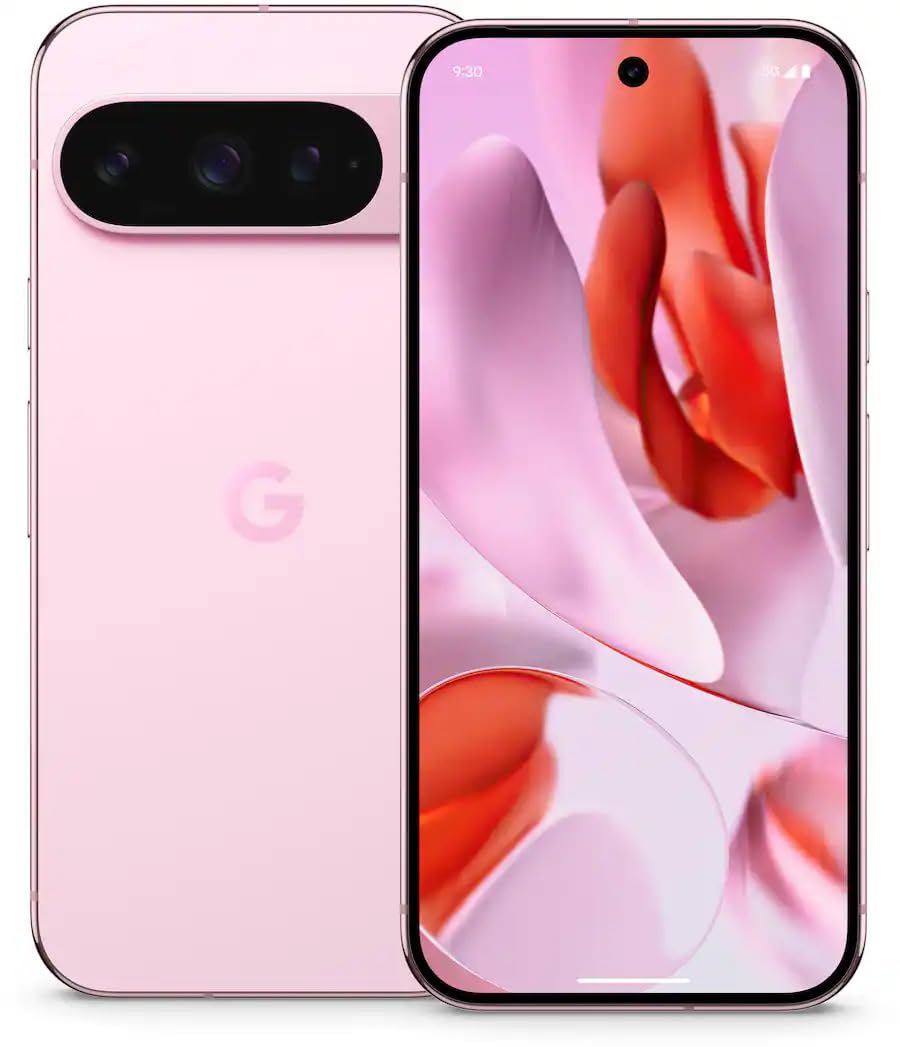
olusin 1: Iwaju view of the Google Pixel 9 Pro 5G.
Ohun ti o wa ninu Apoti
Daju pe gbogbo awọn nkan wa ninu apoti:
- Google Pixel 9 Pro Foonuiyara
- USB-C to USB-C Cable (1m, USB 2.0)
- SIM Atẹ ejector Ọpa
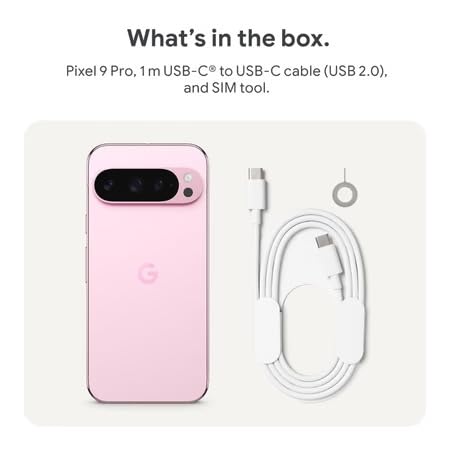
Figure 2: Included items in the Pixel 9 Pro packaging.
Ṣeto
1. SIM kaadi ifibọ
- Locate the SIM tray on the side of your Pixel 9 Pro.
- Insert the provided SIM ejector tool into the small hole on the SIM tray and press gently until the tray pops out.
- Place your Nano-SIM card into the tray with the gold contacts facing down. Ensure it is seated correctly.
- Carefully push the SIM tray back into the device until it is flush.
2. Gbigba agbara akọkọ
Ṣaaju lilo akọkọ, o niyanju lati gba agbara si ẹrọ rẹ ni kikun.
- So okun USB-C pọ si ibudo gbigba agbara ni isalẹ foonu rẹ.
- Connect the other end of the cable to a compatible USB power adapter (sold separately) and plug it into a power outlet.
- Aami batiri loju iboju yoo tọkasi ipo gbigba agbara.
3. Agbara lori / Paa
- Lati Fi agbara: Press and hold the Power button (located on the right side) until the Google logo appears on the screen.
- Lati Paarẹ: Tẹ mọlẹ bọtini agbara, lẹhinna tẹ 'Agbara kuro' loju iboju.
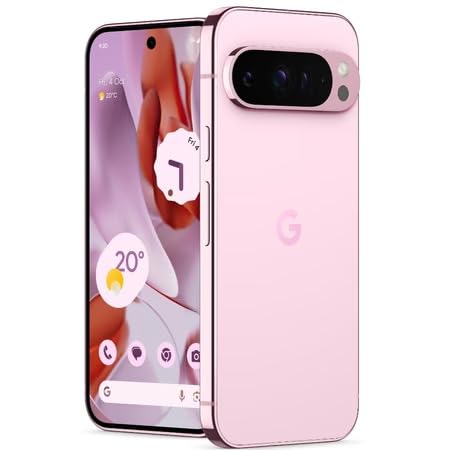
Figure 3: Power and volume buttons on the side of the device.
4. Olùṣètò Àkọ́kọ́
Upon powering on for the first time, follow the on-screen instructions to:
- Yan ede ati agbegbe rẹ.
- Sopọ si nẹtiwọki Wi-Fi kan.
- Wọle pẹlu akọọlẹ Google rẹ tabi ṣẹda tuntun kan.
- Set up security features such as fingerprint unlock, face unlock, PIN, pattern, or password.
- Gbigbe data lati ẹrọ atijọ kan (aṣayan).
Awọn ilana Iṣiṣẹ
Ipilẹ Lilọ kiri
- Awọn afarajuwe iboju ifọwọkan: Interact with the device using taps, swipes, pinches (for zoom), and long presses.
- Iboju ile: Access your applications, widgets, and customize your layout.
- Awọn iwifunni: Ra isalẹ lati oke iboju si view awọn iwifunni.
- Awọn Eto Yara: Swipe down twice from the top of the screen to access quick settings toggles (Wi-Fi, Bluetooth, etc.).
Isẹ kamẹra
The Pixel 9 Pro features a powerful triple rear camera system.
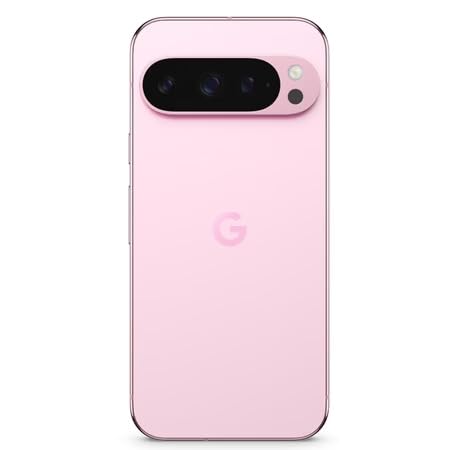
Figure 4: Rear camera system of the Pixel 9 Pro.
- Ṣiṣi Kamẹra: Tap the Camera app icon on your home screen or lock screen.
- Awọn lẹnsi Yipada: Tap the icons on the viewfinder to switch between wide, ultrawide, and 5x telephoto lenses.
- Awọn ọna Ibon: Select from various modes such as Night Sight for low-light conditions, Astrophotografi for capturing stars, Makiro for close-up shots, Ifihan gigun for creative effects, and Aworan for depth-of-field effects.
- Super Res Sun-un: Pinch the screen to digitally zoom up to 30x. For video, Super Res Zoom supports up to 20x.
- Awọn iṣakoso Pro: Access advanced camera settings like shutter speed and manual focus for greater creative control.
Iṣakoso batiri
- Ṣiṣayẹwo Ipele Batiri: View ogorun batiritage in the status bar or in Settings > Battery.
- Ipamọ Batiri to gaju: Enable this mode in Settings > Battery > Extreme Battery Saver to significantly extend battery life.
- Gbigba agbara: Use the provided USB-C cable and a compatible power adapter for optimal charging speed.
Aabo Awọn ẹya ara ẹrọ
Your Pixel 9 Pro incorporates multiple hardware security layers to protect your data.
- Ṣii silẹ Atẹtẹ ika: Register your fingerprints in Settings > Security & privacy > Device unlock.
- Ṣii silẹ oju: Set up facial recognition for convenient unlocking.
- PIN/Apẹẹrẹ/Ọrọigbaniwọle: Always set a strong screen lock method.
- Awọn imudojuiwọn sọfitiwia: Regularly install system updates to ensure your device has the latest security patches.
Sensọ iwọn otutu
The Pixel 9 Pro includes a thermometer for measuring temperature.
- Open the dedicated Thermometer app.
- Follow the on-screen instructions to measure body temperature or the temperature of objects.
- Temperature data can be saved and tracked within the Fitbit application.
Itoju
Ninu Ẹrọ Rẹ
- Use a soft, lint-free cloth to clean the screen and body of your phone.
- Avoid using abrasive materials, harsh chemicals, or aerosol sprays.
- Do not submerge the device in water, despite its water-resistant rating.
Awọn imudojuiwọn Software
Google regularly releases software updates to improve performance, add features, and enhance security.
- To check for updates, go to Settings > System > System update.
- Ensure your device is connected to Wi-Fi and has sufficient battery charge before installing updates.
Itọju Ti ara
The Pixel 9 Pro is built with Corning Gorilla Glass Victus 2 and is water-resistant, offering durability against everyday drops and spills.
- While durable, avoid excessive impacts or drops to prevent damage.
- Consider using a screen protector and a protective case for additional safeguarding.
Laasigbotitusita
Ẹrọ Ko Dahun
If your phone becomes unresponsive, perform a force restart:
- Press and hold the Power button for approximately 10-15 seconds until the device restarts.
Awọn ohun elo jija tabi Didi
- Ti ohun elo iṣoro naa pa ki o tun ṣii rẹ.
- Clear the app's cache: Go to Settings > Apps > See all apps > [App Name] > Storage & cache > Clear cache.
- Rii daju pe ohun elo naa ti ni imudojuiwọn si ẹya tuntun rẹ lati Ile itaja Google Play.
- Tun foonu rẹ bẹrẹ.
Network Connectivity Issues (Wi-Fi/Cellular)
- Toggle Wi-Fi or cellular data off and then back on.
- Tun foonu rẹ bẹrẹ.
- Verify that your SIM card is correctly inserted.
- Reset network settings: Go to Settings > System > Reset options > Reset Wi-Fi, mobile & Bluetooth.
Sisan batiri ni kiakia
- Ṣàyẹ̀wò lílo bátìrì ní Ètò > Bátìrì láti dá àwọn àpù tí ó ń gba agbára mọ̀.
- Reduce screen brightness and screen timeout duration.
- Disable unnecessary features like GPS, Bluetooth, and Wi-Fi when not in use.
- Enable Extreme Battery Saver mode.
Atunto ile-iṣẹ (Asegbeyin ti o kẹhin)
Warning: A factory reset will erase all data from your phone. Back up all important data before proceeding.
- Lọ si Eto> Eto> Awọn aṣayan atunto> Pa gbogbo data rẹ (atunṣe ile-iṣẹ).
- Confirm your decision when prompted.
Awọn pato
| Ẹya ara ẹrọ | Ẹ̀kúnrẹ́rẹ́ |
|---|---|
| Brand | |
| Awoṣe | Pixel 9 Pro |
| Eto isesise | Android 15 |
| isise | Google Tensor G4 (3.1 GHz) |
| Àgbo | 16 GB |
| Ibi ipamọ inu | 256 GB |
| Ifihan | 6.3 Inches LTPO OLED (Actua), 1280 x 2856 Pixels, 120 Hz Refresh Rate |
| Kamẹra ẹhin | 50 MP wide + 48 MP ultrawide (Macro) + 48 MP 5x telephoto |
| Kamẹra iwaju | 42 MP |
| Agbara Batiri | 4700 Milionuamp Hours (up to 24 hours average life) |
| Asopọmọra | 5G, Wi-Fi 7, Bluetooth 5.3, NFC, UWB, USB-C |
| Kaadi SIM | Single Nano SIM |
| Omi Resistance | Omi sooro |
| Awọn iwọn | 8 x 72 x 153 Milimita |
| Iwọn | 198 giramu |
Atilẹyin ọja ati Support
Alaye atilẹyin ọja
Your Google Pixel 9 Pro 5G comes with a 1 Odun olupese atilẹyin ọja lati ọjọ ti o ra. Atilẹyin ọja yi ni wiwa awọn abawọn iṣelọpọ labẹ lilo deede. Jọwọ ṣe idaduro ẹri rira rẹ fun awọn iṣeduro atilẹyin ọja.
Onibara Support
For technical assistance, warranty claims, or other support inquiries, please contact Google customer service:
- Olupese: Google LLC, 1600 Amphitheatre Parkway, Oke View, CA 94043, USA
- Phone Support (India): + 91 7718892303
- Importer Contact (India): Nexora Axis Private Limited (+91 7718892303)
For the most up-to-date support information, please visit the official Google Pixel support webojula.