
1. Ifihan
This manual provides detailed instructions for the installation, configuration, and operation of the D-Link Guardian 700 Pro Multi-Gig Business Router (DBR-700). The DBR-700 is designed to provide enterprise-level networking capabilities for small and medium businesses, offering high-speed connectivity, robust security features, and simplified management.
Key features include a 2.5GbE WAN port, six 2.5GbE LAN ports, a 2.5GbE SFP uplink for flexible fiber connections, Multi-WAN failover, SPI Firewall, VPN support (IPSec, WireGuard, OpenVPN), and centralized management for up to 15 D-Link Guardian Wi-Fi 6 Smart Access Points (DBR-X3000-AP, sold separately).

Image: The D-Link Guardian 700 Pro Multi-Gig Router (DBR-700) designed for small and medium business environments.
2. Package Awọn akoonu
Jẹrisi pe package rẹ ni awọn nkan wọnyi ninu:
- D-Link Guardian 700 Pro Multi-Gig Business Router (DBR-700)
- Adapter agbara
- Itọsọna fifi sori iyara (QIG)
Ti awọn ohun kan ba nsọnu tabi bajẹ, jọwọ kan si alatunta D-Link ti agbegbe rẹ.
3. Hardware Loriview
3.1. Igbimọ iwaju
The front panel of the DBR-700 features status indicators and network ports.

Aworan: Iwaju view of the DBR-700 router, showing LED indicators, Console port, LAN ports, WAN port, and LAN/WAN SFP port.
- SYS LED: Tọkasi ipo eto.
- LED SFP: Indicates status of the SFP port.
- Bọtini atunto: Used to reset the device or restore factory defaults.
- Ibudo Kọnsole: For command-line interface access.
- Awọn ibudo LAN (1-6): Six 2.5GbE LAN ports for connecting local network devices.
- Ibudo LAN/WAN: A 2.5GbE port configurable as either a LAN or WAN interface.
- Ibudo WAN: A dedicated 2.5GbE WAN port for internet connectivity.
- LAN/WAN SFP Port: A 2.5GbE/1GbE SFP port for fiber or copper connections, configurable as LAN or WAN.
3.2. Rule nronu
The rear panel includes the power input and power switch.

Aworan: Ẹyin view of the DBR-700 router, showing the DC 12V/2A power input and On/Off switch.
- DC 12V/2A: Asopọmọra titẹ agbara.
- Tan/Pa Yipada: Iṣakoso agbara fun ẹrọ.
4. fifi sori
Follow these steps for the initial setup of your DBR-700 router:
- Asopọ agbara: Connect the provided power adapter to the DC 12V/2A port on the rear panel of the router and plug it into a power outlet. Turn on the router using the On/Off switch.
- Asopọ WAN: Connect your internet service provider's modem or main network line to the WAN port on the router using an Ethernet cable. If using fiber, insert the SFP module (sold separately) into the LAN/WAN SFP port and connect the fiber cable.
- Asopọ LAN: Connect your local network devices (e.g., computers, switches, access points) to the LAN ports (1-6) or the configurable LAN/WAN port using Ethernet cables.
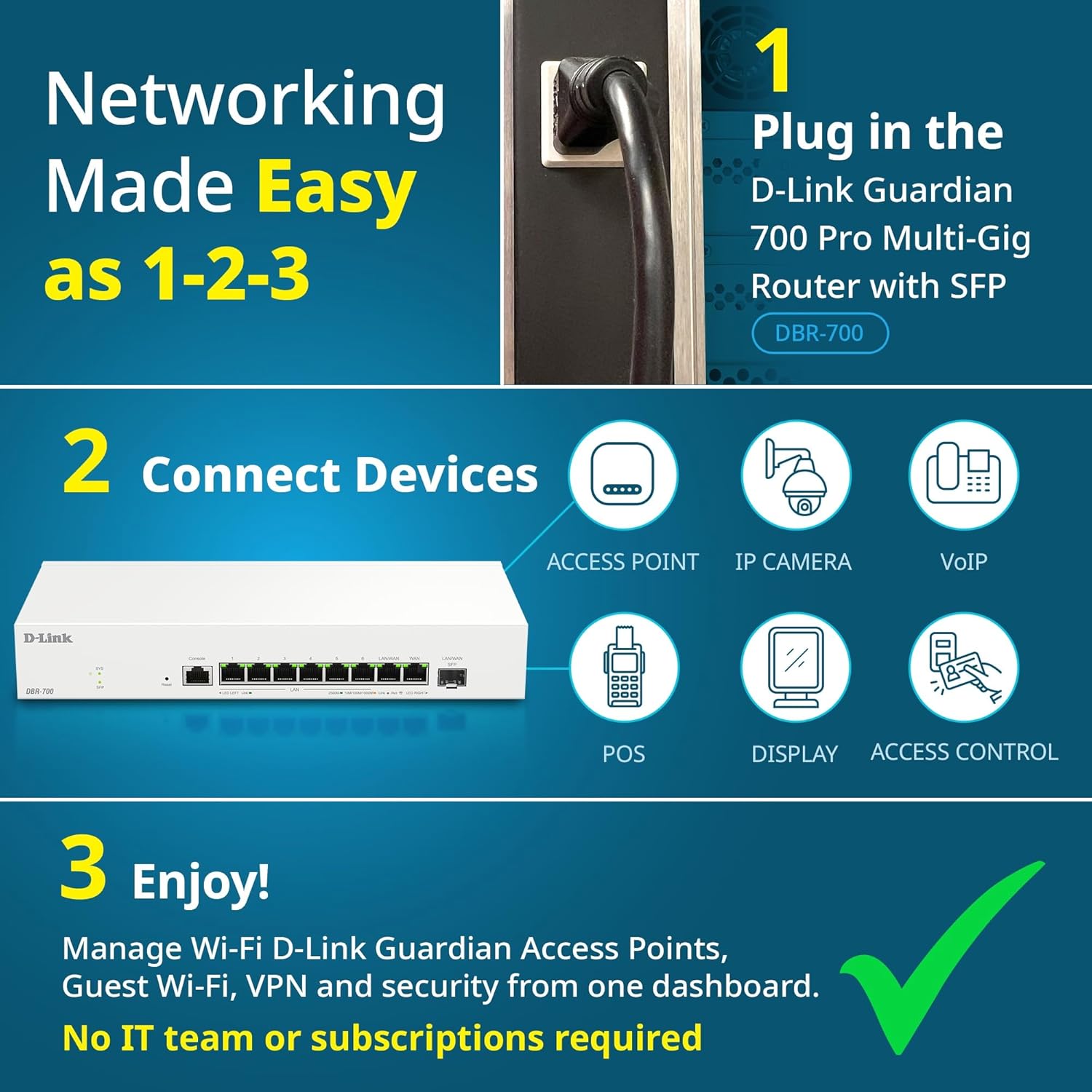
Image: Visual guide for router installation: 1. Plug in the DBR-700 router. 2. Connect devices like access points, IP cameras, VoIP, POS, displays, and access control. 3. Enjoy managed Wi-Fi, Guest Wi-Fi, VPN, and security from one dashboard.
5. Iṣeto ni
5.1. Iwọle si Web Ni wiwo
To configure the DBR-700, access its web-orisun isakoso ni wiwo:
- Rii daju pe kọmputa rẹ ti sopọ si ọkan ninu awọn ebute oko oju omi LAN ti olulana.
- Ṣii a web ẹrọ aṣawakiri (fun apẹẹrẹ, Chrome, Firefox, Edge).
- Enter the router's default IP address (typically
192.168.1.1or similar, refer to the Quick Installation Guide for the exact address) into the address bar and press Enter. - Enter the default username and password when prompted. (Refer to the Quick Installation Guide for default credentials).
5.2. Awọn Eto Nẹtiwọọki Ipilẹ
Once logged in, you can configure basic network settings:
- Eto WAN: Configure your internet connection type (e.g., DHCP, Static IP, PPPoE) as provided by your ISP.
- Eto LAN: Adjust the router's internal IP address, subnet mask, and DHCP server settings for your local network.
- Eto akoko: Set the correct time zone and synchronize the router's clock.
6. Awọn ẹya ara ẹrọ ti ilọsiwaju
6.1. Multi-WAN Failover
The DBR-700 supports Multi-WAN with intelligent failover, ensuring business continuity by providing redundant internet connections. If the primary WAN link fails, the router automatically switches to a secondary WAN link.

Image: The DBR-700's ports, illustrating the Primary 2.5GbE WAN, Secondary 2.5GbE LAN/WAN, and SFP Uplink for Multi-WAN failover capabilities.
6.2. VPN Configuration
The router includes built-in VPN support for IPSec, WireGuard, and OpenVPN, enabling secure remote access for employees and branch office connectivity. It supports up to 100 VPN tunnels.
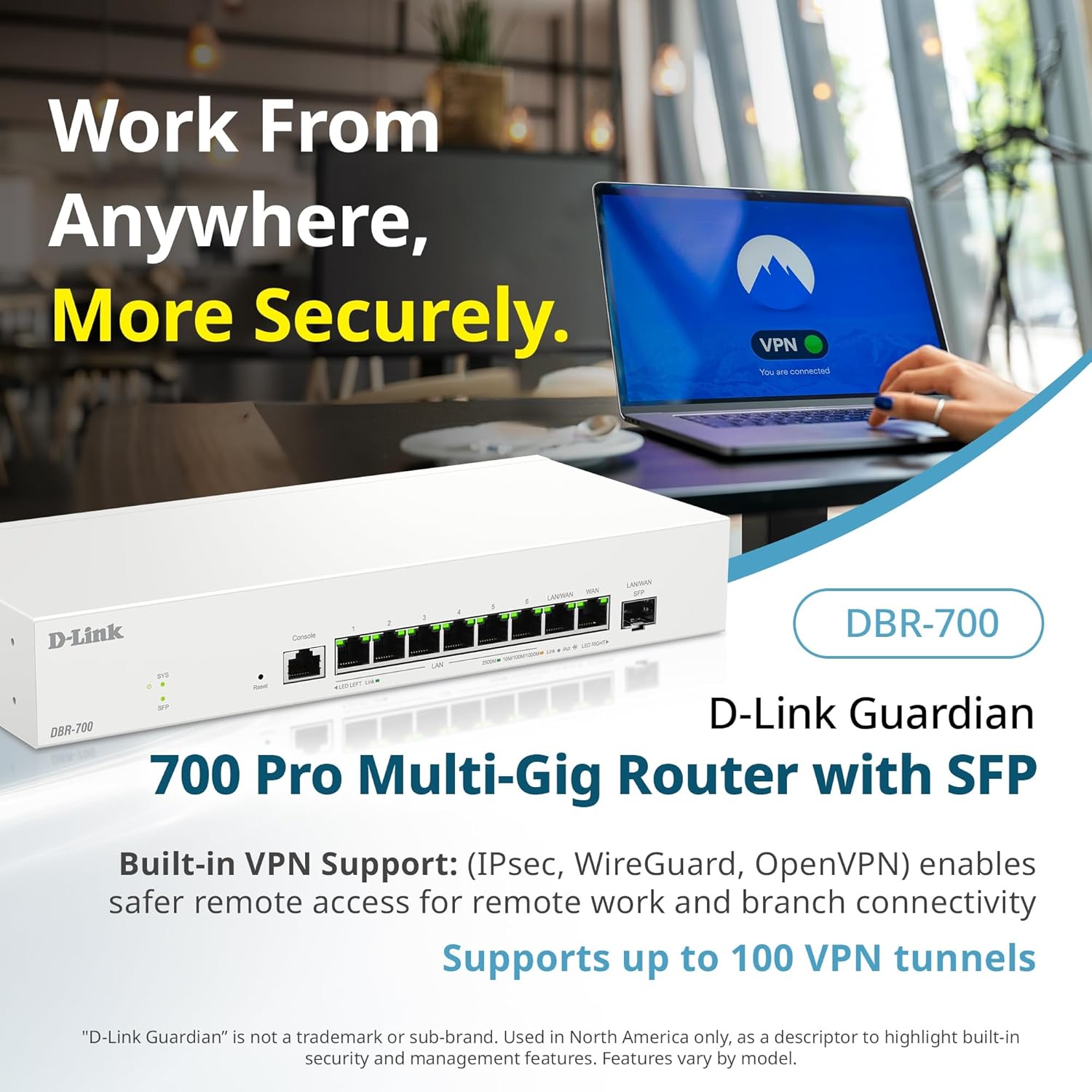
Image: A laptop displaying a 'VPN Connected' status, with the DBR-700 router in the foreground, illustrating secure remote access.
6.3. Centralized Access Point Management
The DBR-700 can discover and manage up to 15 D-Link Guardian Wi-Fi 6 Smart Access Points (DBR-X3000-AP, sold separately) from a single intuitive dashboard. This simplifies Wi-Fi network deployment and management.

Image: A tablet showing the D-Link Wi-Fi management dashboard, demonstrating centralized control over D-Link Guardian Access Points, with the DBR-700 router and a DBR-X3000-AP in the background.
6.4. Guest Wi-Fi Management
Set up and manage guest Wi-Fi networks with a Captive Portal. This allows for branded sign-in pages for guests while keeping business systems separate and secure. Configuration and management are done from the router dashboard.

Image: A smartphone screen showing a customizable guest Wi-Fi login portal, highlighting the DBR-700's ability to manage and customize guest networks.
7. Itọju
7.1. Awọn imudojuiwọn famuwia
Ṣayẹwo nigbagbogbo fun ati fi awọn imudojuiwọn famuwia sori ẹrọ lati rii daju iṣẹ ṣiṣe to dara julọ, aabo, ati iraye si awọn ẹya tuntun. Awọn imudojuiwọn famuwia le ṣee rii ni igbagbogbo lori atilẹyin D-Link webojula fun rẹ kan pato awoṣe.
7.2. Atunto ile-iṣẹ
If you encounter persistent issues or wish to clear all configurations, you can perform a factory reset. To do this, locate the Reset button on the front panel. With the router powered on, use a paperclip or similar pointed object to press and hold the Reset button for approximately 5-10 seconds until the SYS LED blinks. Release the button, and the router will restart with factory default settings.
8. Laasigbotitusita
This section addresses common issues you might encounter with your DBR-700 router.
8.1. Ko si Ayelujara Asopọ
- Ṣayẹwo Awọn okun: Ensure all Ethernet cables are securely connected to the correct ports (WAN, LAN).
- Ipo Modẹmu: Verify that your internet service provider's modem is working correctly and has an active internet connection.
- Iṣeto WAN: Wọle sinu awọn olulana ká web interface and verify that the WAN settings (e.g., IP address, DNS) are correctly configured according to your ISP's requirements.
- Awọn ẹrọ atunbere: Power cycle your modem, then the router, and then your connected devices.
8.2. Ko le Wiwọle Web Ni wiwo
- Adirẹsi IP: Ensure your computer is configured to obtain an IP address automatically (DHCP) or has a static IP address within the router's subnet.
- IP olulana: Double-check the router's default IP address. It might be printed on a label on the router itself or in the Quick Installation Guide.
- Ogiriina/Agbodiyan: Paarẹ fun igba diẹ eyikeyi ogiriina tabi sọfitiwia antivirus lori kọnputa rẹ ti o le dina wiwọle.
- Kaṣe aṣawakiri: Pa rẹ kuro web kaṣe aṣawakiri ati awọn kuki, tabi gbiyanju ẹrọ aṣawakiri miiran.
8.3. Slow Network Speeds
- Didara okun: Ensure you are using high-quality Ethernet cables (Cat5e or Cat6) for multi-gig connections.
- Ibamu Ẹrọ: Verify that connected devices and network adapters support 2.5GbE speeds.
- Iyara ISP: Confirm your internet service plan provides the expected speeds.
- Ìṣàkóso ìrìnàjò Check router settings for any Quality of Service (QoS) or bandwidth limits that might be affecting performance.
9. Imọ ni pato
| Ẹya ara ẹrọ | Sipesifikesonu |
|---|---|
| Brand | D-Ọna asopọ |
| Nọmba awoṣe | DBR-700 |
| Awọn ibudo WAN | 1x 2.5GbE WAN, 1x 2.5GbE/1GbE SFP (configurable as WAN) |
| Awọn ibudo LAN | 6x 2.5GbE LAN, 1x 2.5GbE (configurable as LAN) |
| VPN atilẹyin | IPSec, WireGuard, OpenVPN (up to 100 tunnels) |
| AP Isakoso | Manages up to 15 D-Link Guardian Wi-Fi 6 Smart Access Points |
| Aabo Awọn ẹya ara ẹrọ | SPI Firewall, WPA3 encryption, VLANs |
| Awọn iwọn (LxWxH) | 11.02 x 1.73 x 4.96 inches |
| Iwọn Nkan | 2 iwon |
| Voltage | 120 Volt (AC) |
| Àwọ̀ | Funfun |
10. Atilẹyin ọja ati Support
For detailed warranty information, technical support, and additional resources, please visit the official D-Link website. You can find product registration, FAQs, firmware downloads, and contact information for customer service.
D-Link Official Webojula: www.dlink.com
Please have your product model number (DBR-700) and serial number ready when contacting support.