
Proxicast MSNswitch MAX UIS-801bc 2-Outlet Internet Enabled Power Switch User Manual
Model: UIS-801bc
1. Ifihan
The Proxicast MSNswitch MAX UIS-801bc is a 2-outlet internet-enabled power switch designed to provide advanced power management and control for your electronic devices. It features automatic reboot capabilities for network equipment, real-time power metering, surge protection, and noise filtration. Control is accessible via a smartphone application, web browser, or API, offering flexible management options for various environments.
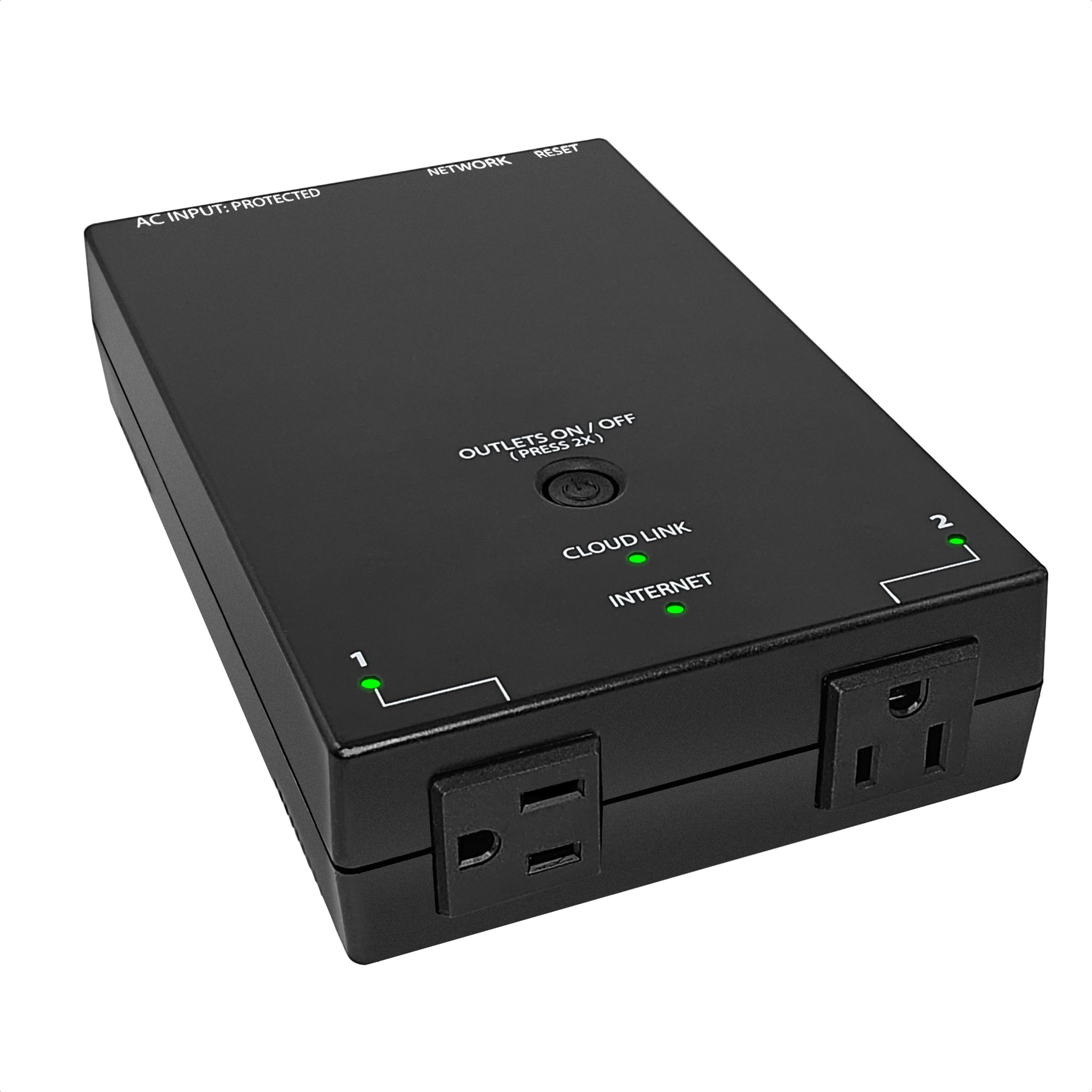
Figure 1: Proxicast MSNswitch MAX UIS-801bc Product Overview
2. Awọn ẹya Ọja
The MSNswitch MAX UIS-801bc offers a robust set of features for reliable power control and network stability:
- Automatic & Scheduled Power Cycles: Configure the device to automatically power cycle unresponsive equipment or set specific schedules.
- Iwọn agbara: Monitor real-time power consumption for connected devices.
- Surge Protection & Noise Filtration: Protect connected equipment from power fluctuations and electrical noise.
- Auto Reboot for Internet Self-Healing: Automatically reboots modems and routers upon detection of internet connection loss.
- Isakoṣo latọna jijin: Manage power outlets from anywhere using the ezDevice smartphone app, web browser, or API.
- Ethernet & Wi-Fi Connectivity: Flexible network connection options.
- Resettable Breaker: Integrated circuit breaker for overload protection.
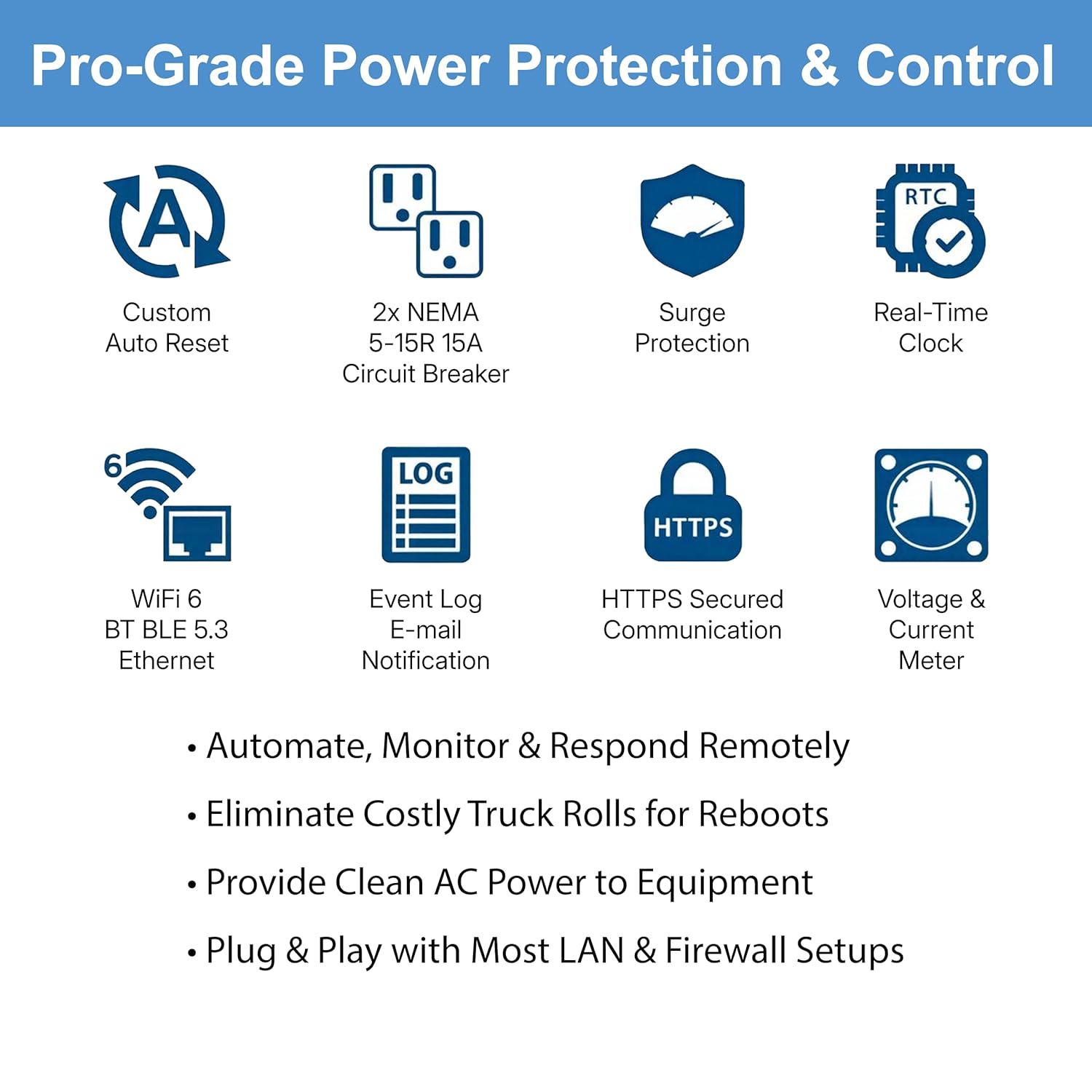
Figure 2: Key Features of the MSNswitch MAX
3. Awọn ilana iṣeto
3.1 Hardware Loriview
Familiarize yourself with the physical components of your MSNswitch MAX:

Figure 3: MSNswitch MAX Hardware Features
- Idapada si Bose wa tele: Bọtini lati mu awọn eto aiyipada pada.
- Ibudo RJ45: For Ethernet network connection.
- Awọn itọkasi LED: Provide status for Cloud Link, Internet, and Outlet activity.
- Outlets #1 & #2: Standard NEMA 5-15R outlets for connecting devices.
- Opin Iyika monamona: Resettable protection against overcurrent.
- Surge Protected Power Input: Main power connection for the unit.
- Bọtini agbara: Controls power to the outlets.
3.2 Ibẹrẹ Asopọ
- Asopọ agbara: Plug the MSNswitch MAX into a standard 120V AC power outlet.
- Isopọ nẹtiwọki: Connect the MSNswitch MAX to your network using either the RJ45 Ethernet port or configure Wi-Fi connectivity (refer to the device's web interface for Wi-Fi setup).
- Asopọmọra ẹrọ: Plug the devices you wish to control into Outlet #1 and/or Outlet #2. For auto-reboot functionality, connect your modem to one outlet and your router to the other, or both to separate outlets if applicable.

Figure 4: Typical Network Setup with MSNswitch MAX
3.3 Accessing the Device
The MSNswitch MAX can be accessed and configured through multiple methods:
- ezDevice Smartphone App: Download the free ezDevice app for iOS or Android to control and monitor your switch remotely.
- Cloud4UIS.com Web Iṣẹ: Access the Cloud4UIS management portal via a web browser for comprehensive control and monitoring.
- Ti abẹnu Web Olupin: Access the device's password-protected web interface directly via its local IP address on your network.
- HTTP REST API: For advanced users and integration into custom systems.
4. Awọn ilana Iṣiṣẹ
4.1 Automatic Internet Self-Healing (Auto Reboot)
The MSNswitch MAX can automatically detect internet outages and power cycle your modem and/or router to restore connectivity.
- Iṣeto: Configure the auto-reset settings via the ezDevice app, Cloud4UIS portal, or local web interface. You can specify target IP addresses for ping tests to determine internet connectivity.
- Isẹ: If the internet connection is lost (ping timeout), the MSNswitch MAX will automatically power cycle the designated outlets (e.g., Outlet #1 for modem, Outlet #2 for router).
- Iwifunni: The device can be configured to send email notifications when an auto-reboot event occurs.

Figure 5: Auto Reset Modem/Router Functionality
Video 1: Demonstration of automatic power cycling for modems and routers. This video features the ezOutlet5, which shares similar auto-reboot functionality with the MSNswitch MAX.
4.2 Latọna Power Iṣakoso
Control your connected devices from anywhere using the available management platforms:
- ezDevice App: Use the intuitive smartphone app to toggle outlets on/off, view status, and manage settings.
- Cloud4UIS.com: Awọn web portal provides a comprehensive interface for managing multiple MSNswitch devices, setting schedules, and monitoring data.
- Agbegbe Web Ni wiwo: Access the device directly on your local network for control without cloud dependency.

Figure 6: Control Options for MSNswitch MAX

Figure 7: Cloud4UIS Management Portal Interface
4.3 Power Monitoring & Alarming
The MSNswitch MAX provides detailed power consumption data for each outlet:
- Data-akoko gidi: View lọwọlọwọ, voltage, ati wattage for each connected outlet.
- Awọn itaniji: Configure alerts for power fluctuations or when consumption exceeds predefined thresholds.
- Data Itan: Access historical power usage logs through the management portal.

Figure 8: Power Monitoring and Alarming Data
4.4 Scheduled Power Cycling
Automate power control by setting up schedules for your outlets:
- Event-Based Schedules: Program outlets to turn on/off at specific times or days.
- Proactive Reboots: Schedule regular reboots for devices to maintain optimal performance.
5. Itọju
To ensure optimal performance and longevity of your MSNswitch MAX:
- Awọn imudojuiwọn famuwia: Regularly check for and apply firmware updates through the Cloud4UIS management portal or local web interface. These updates often include performance improvements and security enhancements.
- Ninu: Jẹ́ kí ẹ̀rọ náà mọ́ tónítóní kí ó má sì jẹ́ eruku. Lo aṣọ gbígbẹ tí ó rọ láti fi fọ nǹkan. Má ṣe lo àwọn ohun èlò ìfọmọ́ omi.
- Awọn ipo Ayika: Ensure the device is operated within its specified temperature and humidity ranges (refer to Specifications section).
- Opin Iyika monamona: If the circuit breaker trips, disconnect some devices, then press the breaker button to reset. Investigate the cause of the overload.
6. Laasigbotitusita
If you encounter issues with your MSNswitch MAX, consider the following:
- Ẹrọ Ko Dahun:
- Check power connection and ensure the unit is receiving power.
- Verify network connectivity (Ethernet cable or Wi-Fi signal). The Internet LED should be active.
- Attempt to access the device via its local IP address if cloud access is unavailable.
- Perform a soft reboot by unplugging and replugging the unit.
- Auto Reboot Not Working:
- Ensure the auto-reset feature is enabled and correctly configured in the settings.
- Verify the target IP addresses for ping tests are correct and reachable when the internet is functional.
- Check that the modem/router is connected to the correct outlet(s) designated for auto-reboot.
- Outlets Not Switching:
- Check the circuit breaker on the unit; if tripped, reset it.
- Ensure the device is not in a scheduled 'off' state or an auto-reboot cycle.
- Test with a different device to rule out issues with the connected appliance.
- Cannot Connect to Cloud4UIS / ezDevice App:
- Confirm your MSNswitch MAX has active internet access (Internet LED).
- Ensure your smartphone or computer has internet access.
- Verify your login credentials for the Cloud4UIS portal or ezDevice app.
For further assistance, refer to the manufacturer's support resources.
7. Awọn pato
Detailed technical specifications for the Proxicast MSNswitch MAX UIS-801bc:

Figure 9: MSNswitch MAX Dimensions
| Iwa | Iye |
|---|---|
| Olupese | Proxicast |
| Nọmba apakan | UIS-801bc |
| Nọmba Awoṣe Nkan | UIS-801bc |
| Ara | MAX |
| Ohun elo | Aluminiomu |
| Awọn iwọn Ọja (L x W x H) | 19.05 x 12.19 x 4.32 cm (7.5 x 4.8 x 1.7 inches) |
| Iwọn Nkan | 998 g |
| Wattage | 1650 watt |
| Awọn ọna Voltage | 120 Volts |
| Ti isiyi Rating | 13 Amps |
| Nọmba ti Awọn ipo | 2 |
| Iṣagbesori Iru | Wall or Desk Mount |
| International Idaabobo Rating | IP20 |
| Oke otutu Rating | Awọn iwọn Celsius 60 |
| Ọna Iṣakoso | Remote (App, Web, API) |
| Ti beere awọn batiri? | Rara |
8. Atilẹyin ọja ati Support
For information regarding product warranty, technical support, and additional resources, please visit the official Proxicast website or contact their customer service directly. Details are typically available in the product packaging or on the manufacturer's support pages.