
Fiteye TF15
Fiteye 15.6" Smart Digital Calendar (Model TF15)
Itọsọna olumulo
Ọrọ Iṣaaju
The Fiteye 15.6" Smart Digital Calendar is a versatile device designed to streamline family organization. Featuring an HD smart touch screen, it functions as a digital wall planner, allowing users to sync calendars, manage chore charts, plan meals, and conduct video calls. This manual provides essential information for setting up, operating, and maintaining your device.
Ṣeto
To begin using your Fiteye Smart Digital Calendar, follow these steps:
- Agbara Tan: Plug the device into a power outlet. The screen will automatically turn on.
- Asopọ Wi-Fi: Navigate to the settings menu on the touch screen to connect to your home Wi-Fi network. A stable internet connection is required for full functionality.
- Igbasilẹ ohun elo: Download the Fiteye companion app on your smartphone or tablet. This app is available on both Google Play and the App Store.
- Ohun elo Pipọ: Open the Fiteye app and follow the on-screen instructions to pair your device. You may need to scan a QR code displayed on the calendar or enter a pairing code.
- Calendar Sync: Once paired, you can link your existing digital calendars (Google, iCloud, Outlook, etc.) through the app or directly on the device.
- Awọn aṣayan iṣagbesori: The calendar can be mounted flush on a wall using the included wall mount or placed upright on a counter using its integrated stand.

Image: The Fiteye Smart Digital Calendar showing its auto-sync feature with various calendar applications and a smartphone app.
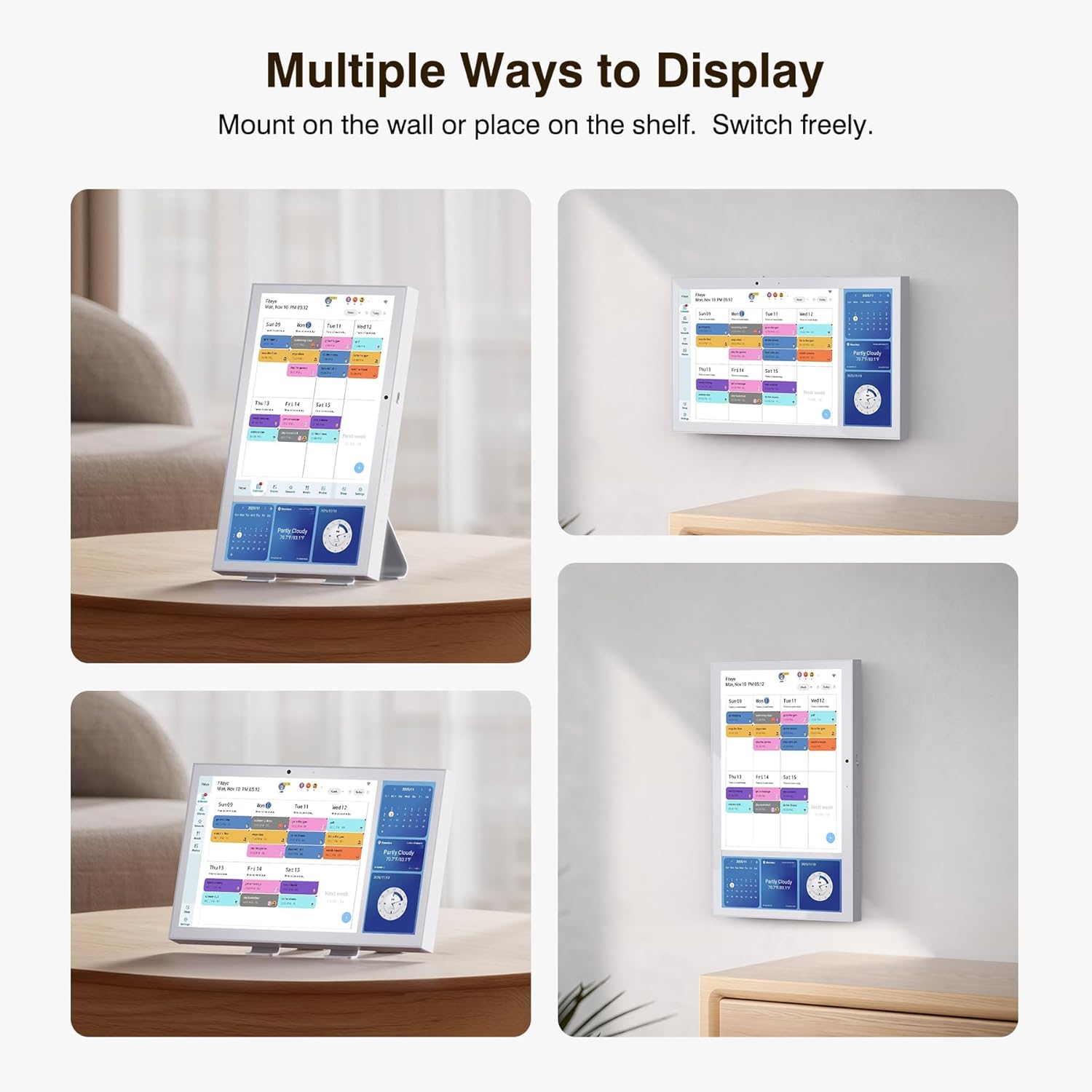
Image: The Fiteye Smart Digital Calendar demonstrating its flexible display options, including wall mounting and tabletop use.
Initial Configuration Video
Video: This video demonstrates the initial setup process, including navigating the user interface, selecting display modes (Photo Frame, Family Calendar, Art Gallery), and accessing various settings such as sleep time and display preferences.
Awọn ilana Iṣiṣẹ
The Fiteye Smart Digital Calendar offers a range of features to help organize your daily life:
- Calendar Management: View and manage schedules directly on the 15.6" touch screen or through the Fiteye app. Events can be color-coded for easy identification of different family members or activity types.
- Chore Chart: Create and assign chores to family members. The interactive chore chart helps track completion and can be integrated with a rewards system (Plus Plan feature).

Image: The Fiteye Smart Digital Calendar showing a chore chart interface with assigned tasks and a reward tracking system for family members.
- Eto Ounjẹ: Utilize the integrated meal planner to organize weekly meals. This feature helps reduce mealtime stress and can be updated from anywhere via the app.

Image: A woman cooking in a kitchen, with the Fiteye Smart Digital Calendar prominently displaying a meal planning interface.
- Video Calls & Camera: The built-in camera and microphone enable video calls, allowing family members to connect remotely. The camera can also be used for remote check-ins (subscription may be required for full functionality).

Image: A child interacting with the Fiteye Smart Digital Calendar, which is displaying a video call with another person.
- Photo and Video Playback: The device includes 32GB of built-in memory, with 16GB dedicated for photo and video storage, allowing you to display family memories.

Image: The Fiteye Smart Digital Calendar displaying a slideshow of family photos and videos, with a smartphone showing cloud storage options.
Itoju
To ensure the longevity and optimal performance of your Fiteye Smart Digital Calendar, follow these maintenance guidelines:
- Ninu: Gently wipe the screen and exterior surfaces with a soft, dry, lint-free cloth. Avoid using abrasive cleaners, solvents, or aerosol sprays, as these can damage the screen and finish.
- Awọn imudojuiwọn sọfitiwia: The device will periodically receive software updates to improve performance and add new features. Ensure your device is connected to Wi-Fi to receive these updates automatically.
- Awọn ipo Ayika: Operate the device in a dry environment and avoid exposure to extreme temperatures, direct sunlight, or high humidity.
Laasigbotitusita
If you encounter issues with your Fiteye Smart Digital Calendar, refer to the following common solutions:
- Ẹrọ Ko Dahun: If the screen is unresponsive, try restarting the device by unplugging it from the power source, waiting 10 seconds, and then plugging it back in.
- Awọn ọran Asopọmọra Wi-Fi: Ensure your Wi-Fi router is working correctly and the device is within range. Re-enter your Wi-Fi password in the device settings if necessary.
- Syncing Problems: Verify that the Fiteye app on your phone is updated to the latest version. Check the app's settings to ensure proper calendar accounts are linked and permissions are granted.
- Unable to Save Changes (e.g., chores, appointments): This may indicate a software issue or a temporary server problem. Try restarting the device and the companion app. If the problem persists, check for available software updates or contact customer support.
- Awọn ọran Ifihan iboju: If the display is dim or unclear, adjust the brightness settings in the device's display menu.
Awọn pato
| Ẹya ara ẹrọ | Ẹ̀kúnrẹ́rẹ́ |
|---|---|
| Brand | Fiteye |
| Nọmba awoṣe | TF15 |
| ASIN | B0FQB563N3 |
| Iwọn Ifihan | 15.6 inches |
| Ifihan Iru | HD Smart Touch Screen |
| Ohun elo | Akiriliki |
| Àwọ̀ | Funfun |
| Ibi ipamọ inu | 32GB (16GB for photo & video storage) |
| Asopọmọra | Wi-Fi |
| Awọn iwọn (Pace) | 41.2 x 27.1 x 2.21 cm |
| Ìwúwo (Àpò) | 3.05 kg |
| UPC | 850077067501 |
Atilẹyin ọja ati Support
For specific warranty information, please refer to the documentation included with your purchase or visit the official Fiteye website. For technical assistance, troubleshooting beyond this manual, or customer service inquiries, please contact Fiteye customer support directly.
Ask a question about this manual
Ask about setup, troubleshooting, compatibility, parts, safety, or missing instructions. Manuals+ will review the question and use this page’s manual context to help answer it.