
1. Ifihan
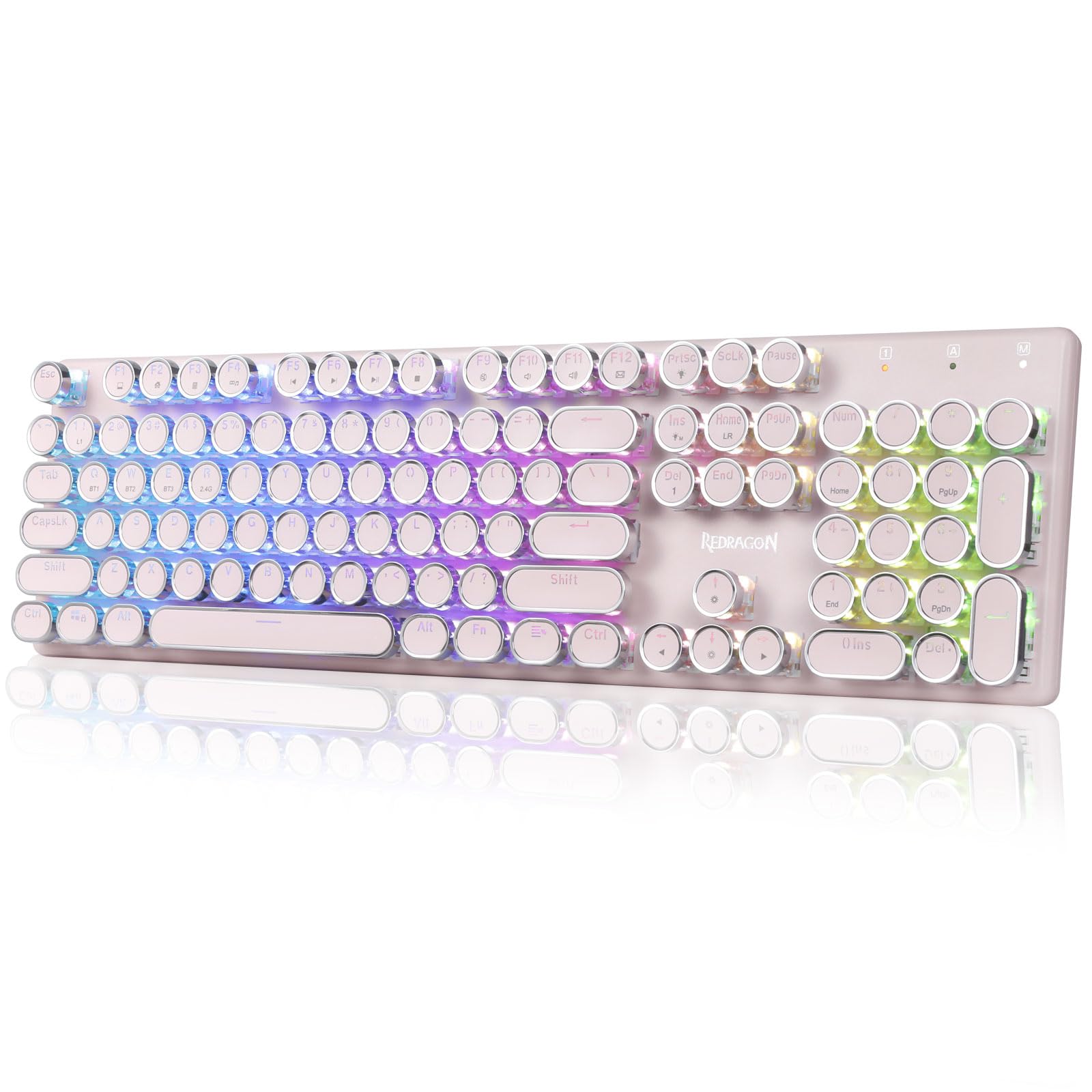
The Redragon K710 is a versatile mechanical gaming keyboard designed for a superior typing and gaming experience. It features a retro typewriter style with round keycaps and offers multiple connectivity options, vibrant RGB backlighting, and durable construction. This manual provides detailed instructions for setup, operation, maintenance, and troubleshooting.

2. Eto
2.1 Package Awọn akoonu
Ṣaaju ki o to bẹrẹ, rii daju pe gbogbo awọn nkan wa ninu package:
- Redragon K710 Alailowaya Mechanical ere Keyboard
- Okun USB-C
- 2.4Ghz Wireless Dongle
- Tita bọtini bọtini (ti o ba wa)
- Itọsọna olumulo
2.2 Gbigba agbara akọkọ
For optimal performance, fully charge the keyboard before first use. Connect the provided USB-C cable to the keyboard's port and to a USB power source (e.g., computer, wall adapter). The LED indicator will show charging status.
2.3 Awọn ọna Asopọmọra
The Redragon K710 supports three connection modes: 2.4Ghz Wireless, Bluetooth 3.0/5.0, and USB-C Wired.


Ipò Aláìlókùn 2.3.1 2.4Ghz
- Locate the 2.4Ghz wireless dongle, usually stored in a compartment on the back of the keyboard.
- Pulọọgi dongle sinu ibudo USB ti o wa lori kọnputa rẹ.
- Switch the mode selector on the back of the keyboard to "2.4G".
- Tẹ mọlẹ FN + R on the keyboard to enter 2.4G pairing mode. The indicator light will flash.
- Awọn keyboard yẹ ki o sopọ laifọwọyi.
2.3.2 Ipo Bluetooth
- Switch the mode selector on the back of the keyboard to "BT".
- Tẹ mọlẹ FN + Q, FN + W, tabi FN + E for 3 seconds to select a Bluetooth channel (BT1, BT2, or BT3). The indicator light for the selected channel will flash rapidly, indicating pairing mode.
- Lórí ẹ̀rọ rẹ (PC, laptop, tablet, fóònù), ṣí àwọn ètò Bluetooth kí o sì wá àwọn ẹ̀rọ tuntun.
- Select "Redragon K710" from the list of available devices to pair.
- Nígbà tí a bá ti so mọ́ ara wọn, ìmọ́lẹ̀ àmì náà yóò dáwọ́ dúró.
2.3.3 Ipo Asopọ USB-C
- Connect the provided USB-C cable to the keyboard and to a USB port on your computer.
- Awọn bọtini itẹwe yoo yipada laifọwọyi si ipo ti firanṣẹ ati bẹrẹ gbigba agbara.
3. Awọn ilana Iṣiṣẹ
3.1 RGB Backlighting Iṣakoso
The K710 keyboard features 16.8 million RGB backlighting with various modes and customization options.

- FN + INS: Switch between 16 different RGB lighting modes and effects.
- FN + ↑ / ↓: Adjust backlight brightness (5 levels).
- FN + DEL: Cycle through 7 solid colors (Red, Green, Blue, Yellow, Purple, Cyan, White).
- FN + PrtSc: Tan/pa ina ẹhin.
3.2 Custom Backlighting
You can customize individual key backlighting:
- Tẹ FN + 1 to enter game mode.
- Tẹ FN + Ile to enter custom recording state.
- Press desired keys continuously to set their color.
- Tẹ FN + Ile again to save the custom lighting.
3.3 Multimedia Awọn ọna abuja
Access various functions using FN key combinations:

- FN + F1: Kọmputa mi
- FN + F2: Oju-ile
- FN + F3: Ẹrọ iṣiro
- FN + F4: Player
- FN + F5: Ti tẹlẹ Track
- FN + F6: Next Track
- FN + F7: Ṣiṣẹ / Sinmi
- FN + F8: Duro
- FN + F9: Dakẹ
- FN + F10: Volume -
- FN + F11: Iwọn didun +
- FN + F12: meeli
- FN + WIN: Titiipa/Ṣii bọtini Windows
- FN + ESC (Di awọn 5s mu): Mu pada factory eto
3.4 batiri Management
The keyboard is equipped with a durable 4000mAh battery.

- Igbesi aye batiri: Up to 70 hours with RGB lights on, and over 300 hours with lights off.
- Gbigba agbara: A fast charge can provide enough power for a full day's use.
- Ṣayẹwo Ipele Batiri: Tẹ FN + Wọle to check the current battery level via the LED indicators.

3.5 Auto Power Saving
To conserve battery, the keyboard's backlight will automatically turn off after 3 minutes of inactivity in wireless mode. Press any key to wake up the keyboard.
3.6 Àtìlẹ́yìn Sọ́fítíwètì
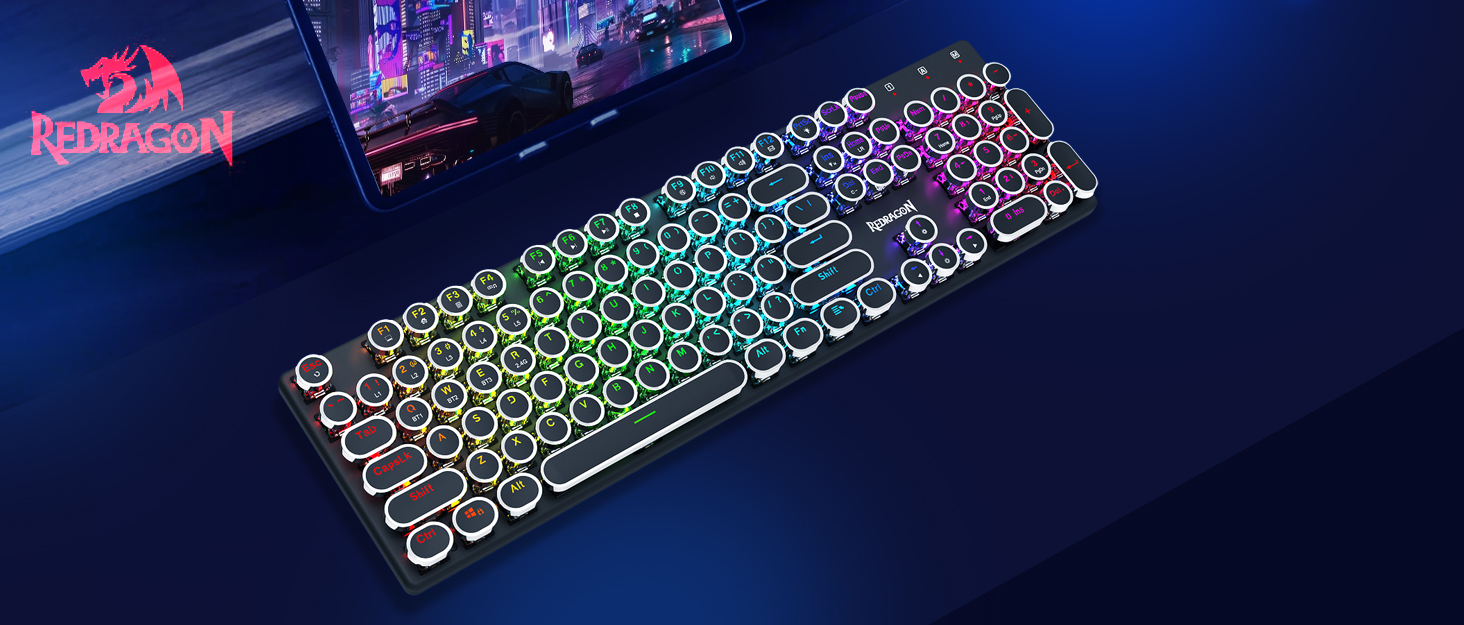
The Redragon K710 is compatible with dedicated software for advanced customization, including macro recording, key remapping, and detailed lighting effects.

To download the driver software, visit the official Redragon webojula: redragonzone.com/software.html. Navigate to "KEYBOARDS", search for model "K710", and download the appropriate software.
4. Itọju
4.1 Ninu
- Ge asopọ keyboard kuro lati gbogbo awọn orisun agbara ṣaaju ṣiṣe mimọ.
- Lo aṣọ rírọrùn tí ó gbẹ láti nu ojú kọ̀ǹpútà náà.
- Fun eruku ati idoti laarin awọn bọtini bọtini, lo afẹfẹ fisinuirindigbindigbin.
- The included keycap puller can be used to carefully remove keycaps for deeper cleaning of the switches.
4.2 Ibi ipamọ
Store the keyboard in a cool, dry place away from direct sunlight and extreme temperatures. Avoid placing heavy objects on the keyboard.
5. Laasigbotitusita
- Keyboard ko fesi: Ensure the keyboard is charged. Check the connection mode (wired, 2.4G, Bluetooth) and ensure it matches your device. Try reconnecting the USB cable or re-pairing the wireless connection.
- Awọn bọtini kii ṣe iforukọsilẹ tabi titẹ-meji: Clean under the keycaps. If using wireless, ensure the dongle is securely plugged in or Bluetooth connection is stable. Try updating the keyboard firmware via the Redragon software.
- Awọn imọlẹ RGB ko ṣiṣẹ: Check if the backlight is turned off (FN + PrtSc). Adjust brightness (FN + ↑/↓). If issues persist, perform a factory reset (FN + ESC for 5 seconds).
- Bluetooth Asopọmọra oran: Ensure your device's Bluetooth is enabled. Remove the keyboard from your device's paired list and re-pair it. Try a different Bluetooth channel (FN + Q/W/E).
- Software download link not working: Ensure you are visiting the official Redragon webAaye (redragonzone.com/software.html) and searching for the correct model (K710).
6. Awọn pato
| Ẹya ara ẹrọ | Ẹ̀kúnrẹ́rẹ́ |
|---|---|
| Brand | Redragon |
| Nọmba awoṣe | K710P-RGB |
| Asopọmọra | 2.4Ghz Wireless, Bluetooth 3.0/5.0, USB-C Wired |
| Keyboard Iru | Ẹ̀rọ |
| Yipada Iru | Blue Switch (Clicky, Tactile) |
| Awọn bọtini itẹwe | Round, Electroplated, Double Shot |
| Imọlẹ afẹyinti | RGB (16.8 Million Colors, 16+ Modes) |
| Anti-Ghosting | 104-Kọtini Anti-Ghosting |
| Agbara Batiri | 4000 mAh |
| Ohun elo | Metal (Panel), Plastic |
| Iwọn Nkan | 950 giramu |
| Awọn ẹrọ ibaramu | Ere console, Kọǹpútà alágbèéká, PC, tabulẹti |


7. Atilẹyin ọja ati Support
Fun alaye atilẹyin ọja, atilẹyin imọ ẹrọ, tabi iranlọwọ siwaju sii, jọwọ ṣabẹwo si Redragon osise website or contact their customer service. The latest drivers and software can be found at redragonzone.com/software.html.