
1. Ifihan
The Mercusys Halo H3600BE (2-Pack) is a Whole Home Mesh Wi-Fi 7 System designed to provide extensive and high-speed wireless coverage throughout your home. This system combines advanced Wi-Fi 7 technology with a mesh network architecture to eliminate dead zones and deliver seamless connectivity for multiple devices. This manual provides instructions for setting up, operating, and maintaining your Halo H3600BE system.
2. Package Awọn akoonu
Daju pe gbogbo awọn nkan wa ninu apo rẹ:
- 2 × Halo H3600BE Units
- 1 × Okùn Ethernet RJ45
- 2 × Power Adapters
- Awọn ọna fifi sori Itọsọna
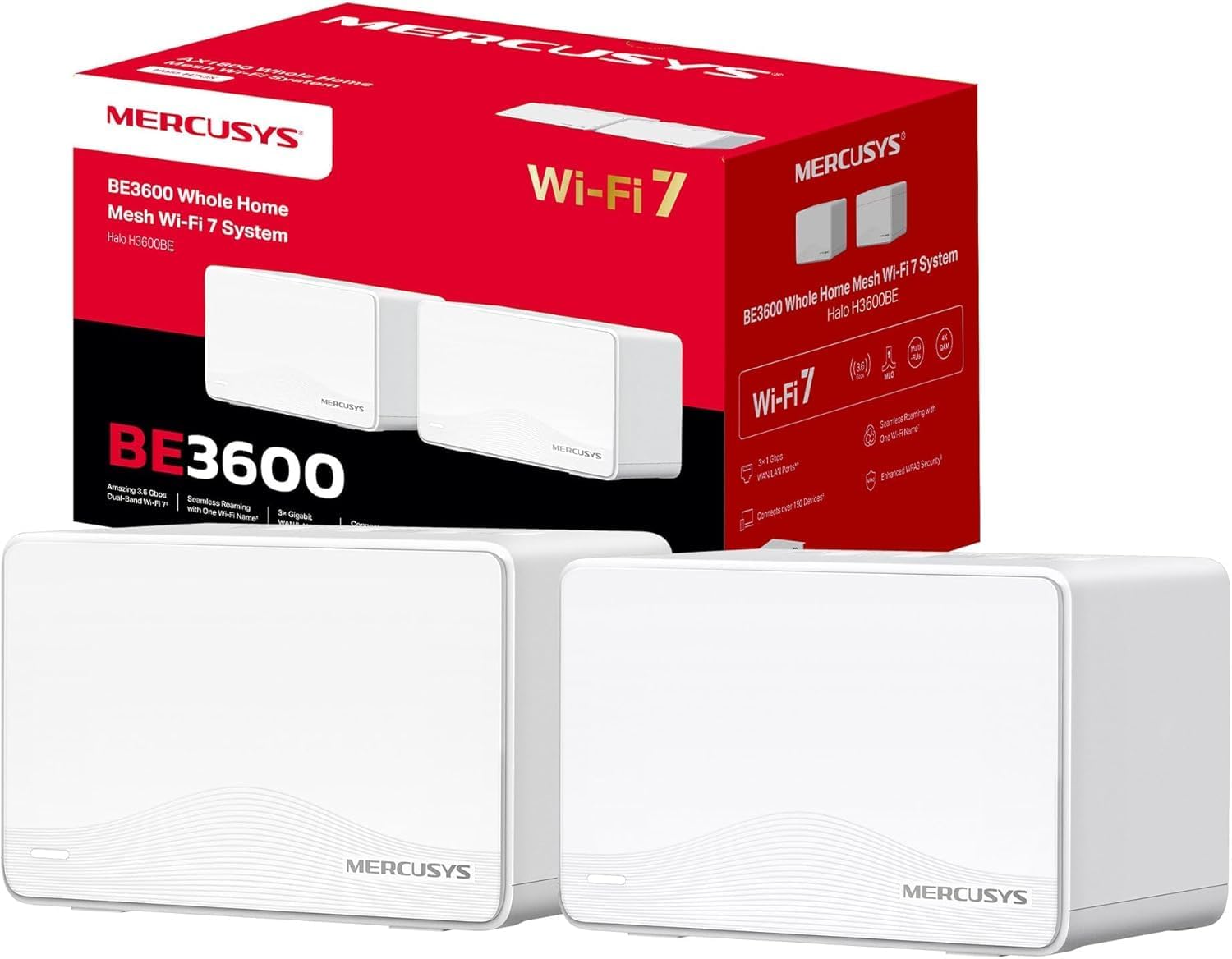
Image: The Mercusys Halo H3600BE (2-Pack) Mesh WiFi 7 System, showing two units and their retail packaging.
3. Eto Itọsọna
Follow these steps to set up your Mercusys Halo H3600BE Mesh WiFi System:
- Step 1: Unpack the Devices. Yọ gbogbo awọn eroja kuro ninu apoti.
- Step 2: Connect the Main Halo Unit.
- Connect one Halo unit to your modem or existing router using the provided Ethernet cable. Plug one end into any of the Gigabit ports on the Halo unit (these ports are auto-sensing WAN/LAN) and the other end into your modem/router's LAN port.
- Connect the power adapter to the main Halo unit and plug it into an electrical outlet. Wait for the LED indicator on the Halo unit to turn solid white, indicating it is ready for setup.
- Step 3: Download and Configure via Mercusys App.
- Download the Mercusys app from the App Store (iOS) or Google Play Store (Android).
- Open the app and follow the on-screen instructions to create a Mercusys ID and set up your main Halo unit. The app will guide you through creating your Wi-Fi network name (SSID) and password.
- Step 4: Add Additional Halo Units.
- Place the second Halo unit in a central location within your home, ideally between the main Halo unit and the area needing improved coverage.
- Connect the power adapter to the additional Halo unit and plug it into an electrical outlet.
- The additional unit will automatically detect and join the existing mesh network. The LED indicator will turn solid white once successfully connected.
- Step 5: Verify Connection. Once all units are set up, check the Mercusys app to ensure all Halo units are online and functioning correctly.

Image: A visual representation of the Mercusys Halo H3600BE setup process, including connecting power, Ethernet, and using the mobile application for configuration.
4. Awọn ilana Iṣiṣẹ
4.1. Network Management via Mercusys App
The Mercusys app provides comprehensive control over your mesh network. Key features include:
- Awọn iṣakoso obi: Manage internet access times and content for specific devices.
- Nẹtiwọọki alejo: Ṣẹ̀dá nẹ́tíwọ́ọ̀kì Wi-Fi ọ̀tọ̀ fún àwọn àlejò, kí nẹ́tíwọ́ọ̀kì pàtàkì rẹ lè wà ní ààbò.
- Ipo Ẹrọ: View connected devices, their signal strength, and manage their access.
- Didara Iṣẹ (QoS): Prioritize bandwidth for specific applications or devices.
- Monthly Reports: Receive summaries of network usage and security events.
4.2. Ìrìnkiri Láìsí Ìdènà
The Halo H3600BE system supports seamless roaming, meaning your devices will automatically switch to the strongest Wi-Fi signal as you move around your home, without experiencing drops or interruptions.
4.3. Ìmọ̀-ẹ̀rọ Wi-Fi 7
This system utilizes Wi-Fi 7 (802.11be) technology, offering:
- Isẹ-Band Meji: Combines 5GHz (up to 2880Mbps) and 2.4GHz (up to 688Mbps) bands for high-speed data transfer.
- Agbara giga: Supports over 150 devices simultaneously.
- Irẹwẹsi Kekere: Optimized for demanding applications like 4K/8K streaming and VR/AR gaming.
- WPA3 aabo: Enhanced security protocols for your wireless network.

Aworan: Pariview of Mercusys Halo H3600BE features, including Wi-Fi 7 dual-band speeds, device capacity, and Gigabit ports.
5. Itọju
- Awọn imudojuiwọn famuwia: Regularly check the Mercusys app for available firmware updates to ensure optimal performance and security.
- Ibi: Ensure Halo units are placed in open areas, away from obstructions and sources of interference (e.g., microwaves, cordless phones).
- Ninu: Gently wipe the units with a soft, dry cloth. Do not use liquid cleaners or aerosols.
- Tun bẹrẹ: If you experience network issues, try restarting your Halo units and modem.
6. Laasigbotitusita
- Ko si Wiwọle Ayelujara:
- Ṣayẹwo boya modẹmu rẹ n ṣiṣẹ daradara.
- Ensure the Ethernet cable between the main Halo unit and the modem is securely connected.
- Restart your modem and all Halo units.
- Ifihan agbara Wi-Fi ti ko lagbara tabi Awọn agbegbe ti o ku:
- Relocate the additional Halo units closer to the main unit or to a more central location.
- Ensure there are no major physical obstructions (thick walls, large metal objects) between the units.
- Ko le Sopọ si Wi-Fi:
- Verify you are using the correct Wi-Fi network name (SSID) and password.
- Try restarting the device you are trying to connect.
- Check the Mercusys app to ensure the network is broadcasting.
- Awọn iyara ti o lọra:
- Rí i dájú pé olùpèsè iṣẹ́ ìkànnì ayélujára rẹ (ISP) ń fún ọ ní iyàrá tí a retí.
- Minimize interference by moving other wireless devices away from the Halo units.
- Ṣayẹwo fun awọn imudojuiwọn famuwia.
7. Awọn pato
| Ẹya ara ẹrọ | Ẹ̀kúnrẹ́rẹ́ |
|---|---|
| Brand | IDANILE |
| Orukọ awoṣe | Halo H3600BE |
| Ailokun Asopọmọra Iru | 802.11.be (Wi-Fi 7) |
| Igbohunsafẹfẹ Band Class | Ẹgbẹ meji |
| Pataki Awọn ẹya ara ẹrọ | Parental Control, Guest Networks, Mesh, WPA3 |
| Awọn ẹrọ ibaramu | Smartphone, Laptop, Smart TV, IoT Devices |
| Iṣeduro Lilo | Ile |
| Nọmba ti Sipo | 2-Pack |
| Coverage (2-Pack) | Up to 460m² / 5,000 ft² |
| Awọn ẹrọ ti o pọ julọ | Ju 150 |
| Ethernet Ports per Unit | 3 Gigabit (Auto-sensing WAN/LAN) |
| Awọn iwọn (fun ẹyọkan) | Isunmọ 21.9 x 16.4 x 15.9 cm |
| Iwuwo (fun ikankan) | O fẹrẹ to 660 g |
| Eto isesise | TP-Link OS |

Aworan: Ẹyin view of a Mercusys Halo H3600BE unit, displaying the power input, reset button, and three Gigabit WAN/LAN ports.
8. Atilẹyin ọja ati Support
For warranty information and technical support, please refer to the official Mercusys website or contact Mercusys customer service. The Quick Installation Guide included in your package may also contain specific warranty details for your region.
O le wa alaye diẹ sii ati awọn orisun atilẹyin lori awọn Mercusys Brand Store.