
1. Ifihan
O ṣeun fun riraasing the ENUOSUMA Mini Projector ENU41. This portable projector is designed to provide a versatile and immersive viewing experience for home entertainment, outdoor movies, and presentations. Featuring 4K 1080P support, WiFi 6, Bluetooth 5.0, and a 270-degree rotatable design, it offers flexibility and high-quality projection.
This manual provides essential information for setting up, operating, and maintaining your projector. Please read it thoroughly before use to ensure proper function and longevity of the device.
2. Alaye Aabo
- Ma wo taara sinu pirojekito lẹnsi nigbati awọn lamp wa lori.
- Rii daju pe fentilesonu to dara ni ayika pirojekito lati ṣe idiwọ igbona.
- Lo oluyipada agbara nikan ti a pese pẹlu ẹrọ naa.
- Jeki pirojekito kuro lati omi tabi awọn olomi miiran.
- Yago fun gbigbe awọn pirojekito lori riru roboto.
- Maṣe gbiyanju lati ṣajọpọ tabi tun ẹrọ pirojekito naa funrararẹ. Kan si oṣiṣẹ iṣẹ ti o peye.
- Jeki kuro ni arọwọto awọn ọmọde.
3. Package Awọn akoonu
Daju pe gbogbo awọn nkan wa ninu apo rẹ:
- ENUOSUMA Mini Projector ENU41
- Isakoṣo latọna jijin
- Adapter agbara
- Itọsọna olumulo
4. Ọja Ipariview
The ENUOSUMA Mini Projector ENU41 is a compact and versatile device. Below are key features and components.

Image: The ENUOSUMA Mini Projector ENU41, demonstrating its compact and portable design, easily held in one hand.
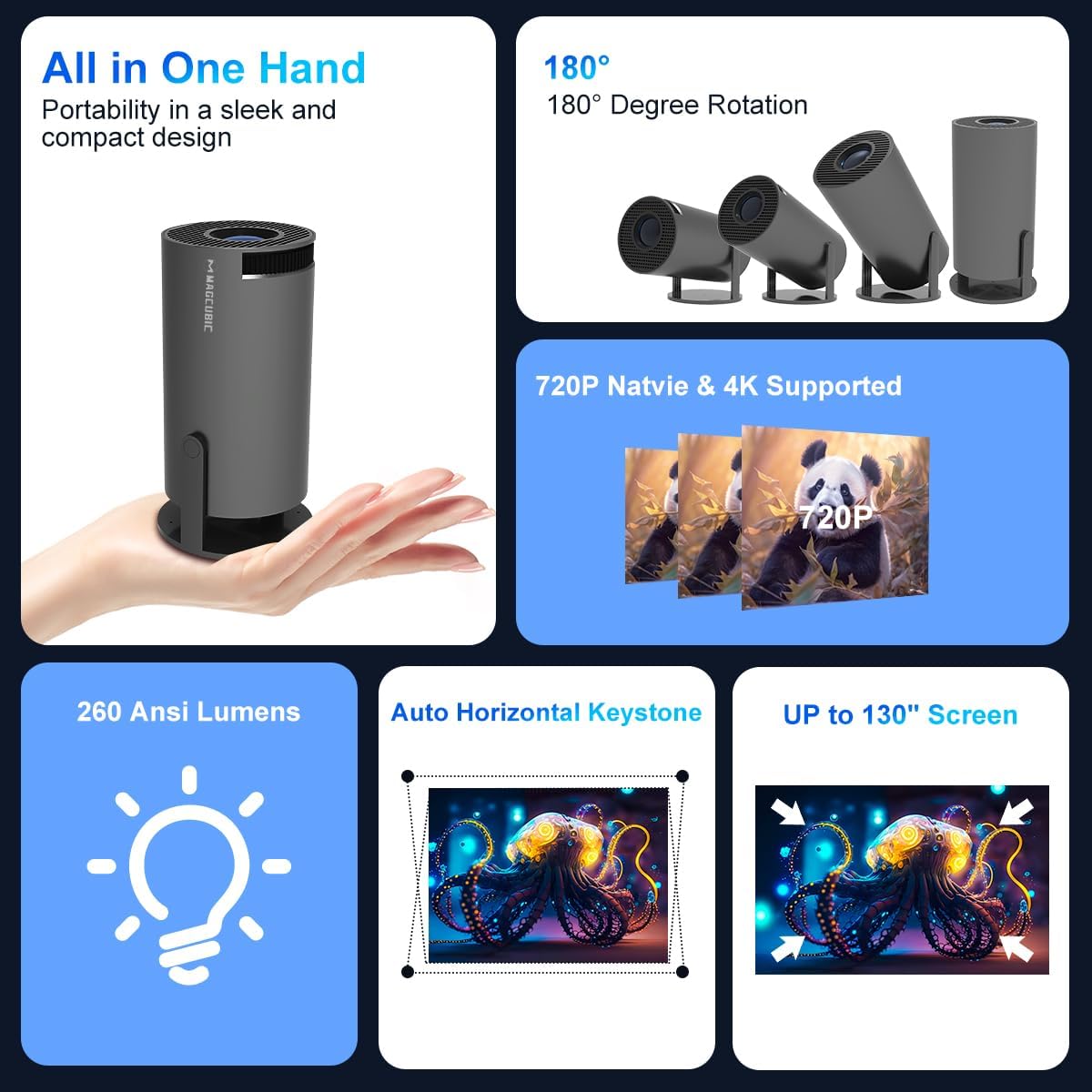
Aworan: An loriview of the projector's features, including its portability, 180-degree rotation capability, 720P native resolution with 4K support, 260 ANSI Lumens brightness, automatic horizontal keystone correction, and ability to project up to a 130-inch screen.
5. Awọn ilana iṣeto
5.1 Asopọ agbara
- So ohun ti nmu badọgba agbara si awọn pirojekito ká agbara input ibudo.
- Pulọọgi ohun ti nmu badọgba agbara sinu iṣan ogiri kan.
- Tẹ bọtini agbara lori pirojekito tabi isakoṣo latọna jijin lati tan ẹrọ naa.
5.2 Placement and Projection
The projector features a 270-degree rotatable design, allowing for flexible placement and projection onto walls, ceilings, or floors.
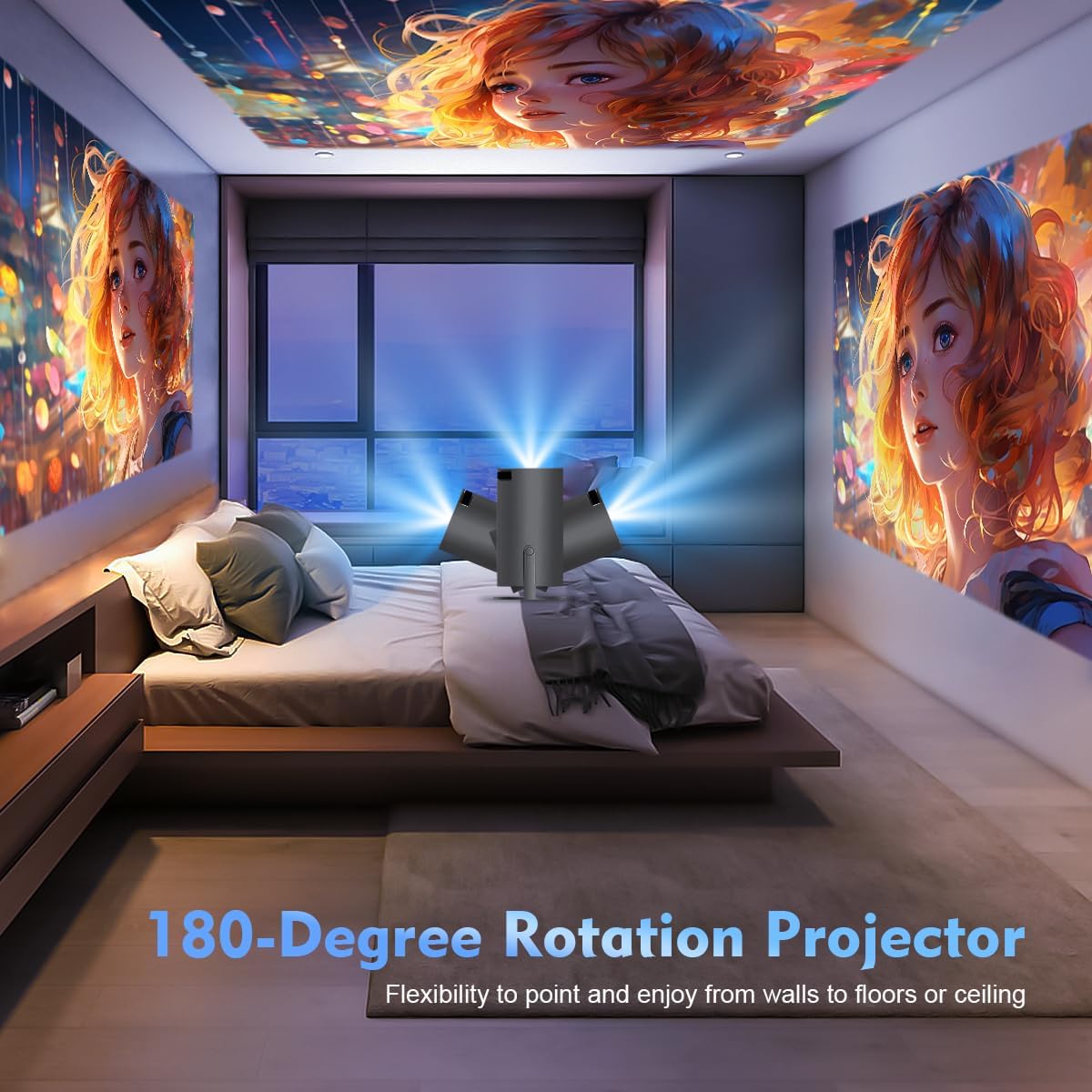
Image: The projector's 180-degree rotation feature, enabling projection onto various surfaces like walls, floors, or ceilings for versatile viewing.
Fun aipe viewing, consider the projection distance and screen size:
- Awọn bojumu viewing distance for an 80-inch screen is approximately 1.6 meters.
- The projector supports screen sizes from 40 to 130 inches.

Image: A visual guide to projection distances and corresponding screen sizes, indicating an optimal projection distance of 1.6m for an 80-inch display.
5.3 Idojukọ ati Atunse Keystone
The projector features automatic horizontal keystone correction and 4-point correction for a perfectly rectangular image.
- Ikoko Iduro Aifọwọyi: The projector will automatically adjust the image shape horizontally.
- Idojukọ Afowoyi: Rotate the focus ring on the projector lens to achieve a clear image.
- 4-Atunse ojuami: Use the remote control to manually adjust each corner of the projected image for precise alignment if needed.

Image: Demonstration of the automatic horizontal keystone and 4-point correction features, ensuring a perfectly aligned and rectangular projection.
6. Awọn ilana Iṣiṣẹ
6.1 Awọn ẹrọ Nsopọ
The ENUOSUMA Mini Projector ENU41 supports various connectivity options:
- WiFi 6: Connect to your home network for online streaming and screen mirroring. Navigate to the network settings in the projector's menu to connect to a WiFi network.
- Bluetooth 5.0: Connect external Bluetooth speakers or headphones for enhanced audio. Access Bluetooth settings in the menu to pair devices. The projector can also function as a Bluetooth speaker for your phone.
- HDMI: Connect devices such as laptops, gaming consoles (PS5), Blu-ray players, or TV sticks using an HDMI cable. Select the HDMI input source from the projector's menu.
- TI: Connect older devices using an AV cable. Select the AV input source from the projector's menu.
6.2 iboju Mirroring
Mirror content from your smartphone or tablet wirelessly using Miracast, Airplay, or DLNA.

Image: The projector's screen mirroring capabilities, supporting DLNA, Airplay, and Miracast for seamless content sharing from mobile devices.
- Rí i dájú pé ẹ̀rọ alágbèéká rẹ àti projector náà so pọ̀ mọ́ nẹ́tíwọ́ọ̀kì WiFi kan náà.
- Select the appropriate screen mirroring option (Miracast for Android, Airplay for iOS) from the projector's menu.
- Follow the instructions on your mobile device to initiate screen mirroring.
6.3 Audio wu
The projector has a built-in HiFi speaker. For a more immersive audio experience, connect external Bluetooth speakers.

Image: The projector's BT 5.0 and built-in HiFi speaker features, allowing convenient connection to external Bluetooth speakers for enhanced sound.
6.4 Sun Išė
The projector supports a 50% zoom function, allowing you to adjust the image size without moving the projector.
- Access the zoom settings in the projector's display menu.
- Adjust the zoom level using the remote control.
7. Itọju
- Fifọ lẹnsi naa: Lo aṣọ rirọ, tí kò ní àwọ̀ tí a ṣe pàtó fún àwọn lẹ́ńsì ojú. Má ṣe lo àwọn ohun ìfọmọ́ra.
- Ninu ile Casing: Fi aṣọ rírọrùn àti gbígbẹ nu ìta ẹ̀rọ ìfihàn náà. Fún àmì líle, lo àmì díẹ́ díẹ̀.amp asọ ati lẹhinna gbẹ daradara.
- Afẹfẹ: Regularly check that the ventilation openings are not blocked by dust or debris. Use a soft brush or compressed air to clean them.
- Ibi ipamọ: Tí o kò bá lò ó fún ìgbà pípẹ́, tọ́jú ẹ̀rọ ìfihàn náà sí ibi tí ó tutù tí ó sì gbẹ, tí a dáàbò bò kúrò lọ́wọ́ eruku àti ooru líle.
8. Laasigbotitusita
- Ko si Agbara: Ensure the power adapter is securely connected to both the projector and the power outlet. Try a different outlet.
- Ko si Aworan: Check the input source selection. Ensure the connected device is powered on and sending a signal. Verify all cables are securely connected.
- Aworan blurry: Adjust the manual focus ring on the lens. Ensure the projector is placed within the recommended projection distance.
- Image is Crooked: The projector has automatic horizontal keystone. If further adjustment is needed, use the 4-point correction feature via the remote control.
- Ko si Ohun: Check the volume settings on both the projector and the connected device. If using external speakers, ensure they are properly connected and powered on. Verify Bluetooth connection if applicable.
- Awọn oran Asopọ WiFi: Ensure the projector is within range of your WiFi router. Re-enter the WiFi password carefully. Restart both the projector and the router.
- Iṣakoso latọna jijin Ko Ṣiṣẹ: Check the batteries in the remote control and replace if necessary. Ensure there are no obstructions between the remote and the projector's IR receiver.
9. Awọn pato
| Ẹya ara ẹrọ | Sipesifikesonu |
|---|---|
| Brand | ENUOSUMA |
| Awoṣe | ENU41 |
| Ọja Mefa | 10 x 5 x 10 cm |
| Iwọn Nkan | 300 g |
| Ifihan Iru | LCD |
| Ipinnu abinibi | 1280 x 720 |
| Ipinnu atilẹyin | 1920 x 1080 (4K Supported) |
| Apakan Ipin | 16:10 |
| Eto Itansan Aworan | Ga |
| Asopọmọra Technology | WiFi 6, Bluetooth 5.0, HDMI, AV |
| Awọn ẹrọ ibaramu | Laptops, Smartphones, Gaming Consoles, Blu-ray Players, Media Players |
| Pataki Awọn ẹya ara ẹrọ | Wi-Fi 6, Bluetooth 5.0, Portable, Rotatable Design |
| Iṣagbesori Iru | Tabletop Oke |
| Oṣuwọn sọtun | 600 Hz |
10. Atilẹyin ọja ati Support
ENUOSUMA products are manufactured to high-quality standards. For warranty information, please refer to the warranty card included in your product packaging or visit the official ENUOSUMA webojula.
For technical support, troubleshooting assistance, or service inquiries, please contact ENUOSUMA customer support through the contact information provided on our official webojula tabi rẹ ra Syeed.
Please have your model number (ENU41) and purchase date ready when contacting support.