
1. Ifihan
The iflytek AINOTE 2 is an advanced 10.65-inch E-Ink tablet designed for note-taking, writing, and reading. Powered by ChatGPT-5, it integrates artificial intelligence to enhance productivity through features like voice-to-text transcription, handwriting conversion, and smart schedule management. This manual provides essential information for setting up, operating, and maintaining your device.
2. Ohun ti o wa ninu Apoti
- AINOTE 2 Note Taking Tablet 10.65-inch
- Stylus Pen
- USB-C Ngba agbara Cable
- Quick Bẹrẹ Itọsọna
3. Ọja Ipariview
The AINOTE 2 features a sleek, ultrathin design with a high-resolution E-Ink display. It is built for portability and a natural writing experience.
3.1. Awọn ẹya ara ẹrọ ti ara
- Awọn iwọn: 7.5 x 5.4 x 0.2 inches
- Ìwúwo: 10.4 iwon (295g)
- Sisanra: 4.2mm
- Ifihan: 10.65-inch Carta 1300 E-Ink, 2560x1920 resolution (300PPI)
- Awọn bọtini: Power button, AI search button
- Awọn ibudo: USB Iru-C gbigba agbara ibudo
- Ohun: 4 microphones for voice pickup
- Stylus: Magnetic attachment, eraser function, customizable button.
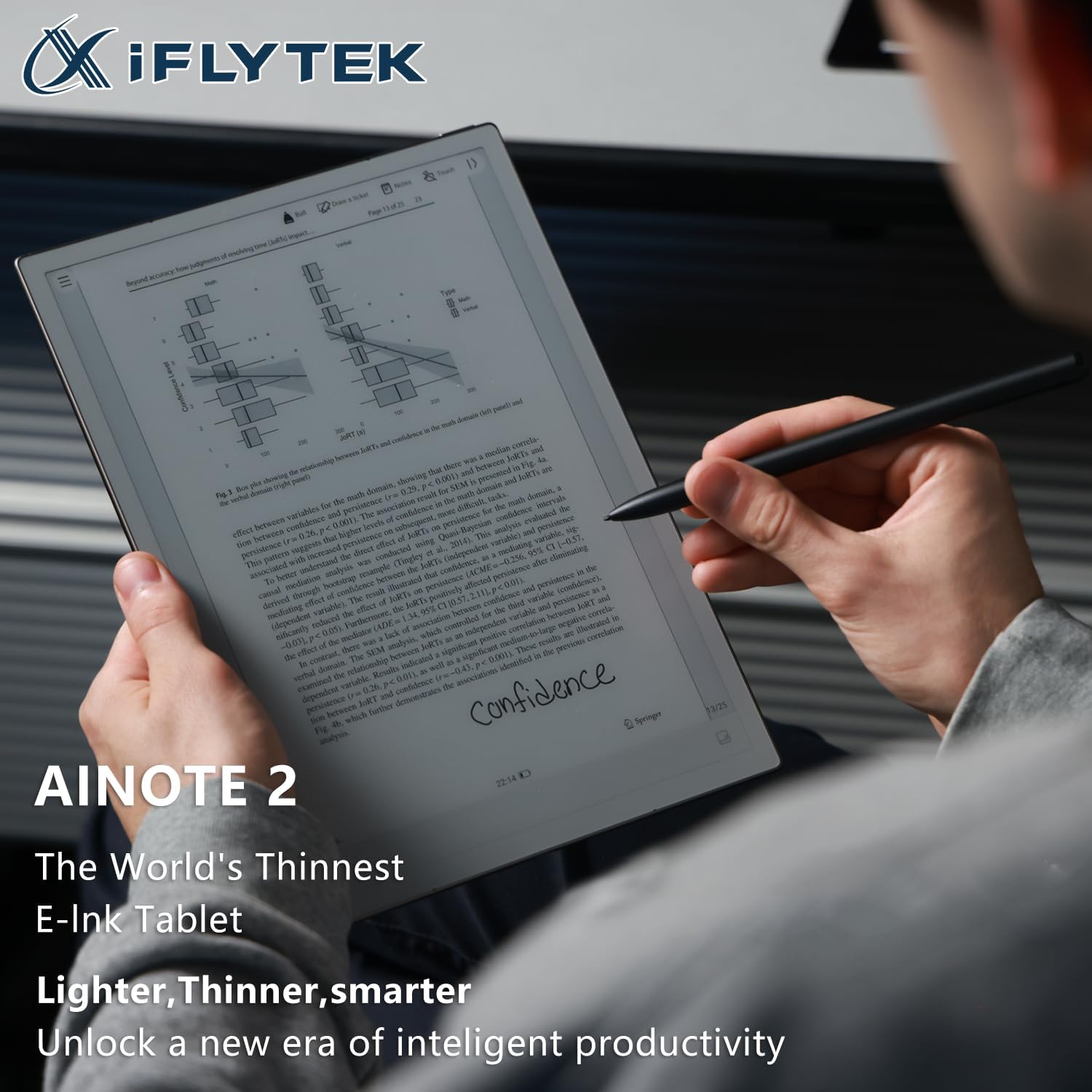
The device is designed to be lightweight and comfortable to hold, mimicking the feel of paper. The stylus provides a natural writing experience with various brush styles and pressure sensitivity.

4. Eto
4.1. Agbara lori / Paa
- To power on, press and hold the power button (located on the top edge) for 3 seconds.
- To power off, press and hold the power button for 3 seconds and select 'Power off' from the on-screen options.
- A short press of the power button will lock or unlock the screen.
4.2. Iṣeto ni ibẹrẹ
Upon first power-on, follow the on-screen prompts to select your language, connect to Wi-Fi, and set up your basic preferences.
Fídíò: Fídíò yìí fi gbogbogbòò hànview of the iflytek AINOTE 2, highlighting its design and key features.
5. Ipilẹ isẹ
5.1. Lilọ kiri
The AINOTE 2 features a user-friendly interface. Navigate through menus and applications using touch gestures on the E-Ink display. The top bar provides quick access to notes, schedule, reading, and other settings.
5.2. Creating Notes
From the main screen, tap the 'Notes' section. You can create new notes by tapping the '+' icon. The stylus allows for a natural writing experience with various brush styles and pressure sensitivity.
Video: This video demonstrates how to write notes on the AINOTE 2, showcasing the stylus responsiveness and various writing tools.
6. Awọn ẹya ara ẹrọ ti ilọsiwaju
6.1. AI Capabilities (Powered by ChatGPT-5)
The AINOTE 2 integrates advanced AI features to streamline your workflow:
- AI Iranlọwọ: Launch your AI assistant with one button to search notes, summarize content, and manage schedules.
- Akọsilẹ: Supports 16 languages for voice-to-text transcription during meetings or lectures.
- Handwriting Conversion: Convert handwritten notes into digital text with 133 handwriting-to-text options.
- Itumọ: Offers 11 instant translation modes for global communication.

Video: This video demonstrates how to record meetings and utilize the transcription feature on the AINOTE 2.
Video: This video illustrates the process of converting handwritten notes into digital text using OCR on the AINOTE 2.
6.2. Mind Mapping
The AINOTE 2 supports native handwritten mind mapping. Build your mind maps by hand, with live nodes that grow as you think. You can write, move, and share without needing additional tools or typing.

6.3. Smart Schedule Management
Convert your handwritten doodles into actionable tasks. Circle, triangle, or star marks can instantly be synced to your schedule. The AINOTE 2 is compatible with Google Calendar, allowing effortless synchronization of your schedules across devices.
7. Reading and Writing Experience
Enjoy a paper-like writing experience with 8 refined brush styles that mimic real handwriting. The low latency ensures pixel-perfect precision. For reading, the 10.65-inch ultra-clear Carta 1300 display offers smooth, eye-friendly reading with fast refresh rates. It is compatible with popular e-reading apps like Kindle, Kobo, and Google Play.


8. Connectivity and Sync
The AINOTE 2 supports seamless file synchronization across its dedicated app, cloud services, and other devices. This ensures your notes and documents are always accessible.
Video: This video demonstrates how to sync files between the AINOTE 2 and Google Drive for easy access and backup.
Video: This video shows how to sync notes between the AINOTE 2 and a phone or PC using the AINOTE App.
9. Itọju
9.1. Aye batiri ati gbigba agbara
The AINOTE 2 is equipped with a 4000mAh battery, providing up to 14 days of battery life on a single charge. Battery life can vary based on usage, including Wi-Fi activity, downloads, and brightness settings. Charge the device using the provided USB Type-C cable.
9.2. Software imudojuiwọn
Regularly check for and install software updates to ensure optimal performance and access to new features. Updates can typically be found in the device's settings menu.
10. Laasigbotitusita
If you encounter any issues with your AINOTE 2, try the following basic troubleshooting steps:
- Tun ẹrọ naa bẹrẹ: Press and hold the power button, then select 'Restart'.
- Ṣayẹwo ipele batiri: Ensure the device has sufficient charge.
- Verify Wi-Fi connection: For online features and updates, confirm a stable Wi-Fi connection.
- Kan si awọn orisun ori ayelujara: Visit the iflytek support webojú òpó wẹ́ẹ̀bù fún àwọn ìbéèrè àti ìrànlọ́wọ́ síwájú sí i.
11. Awọn pato
| Ẹya ara ẹrọ | Sipesifikesonu |
|---|---|
| Iwọn ifihan iboju duro | 10.65 inches |
| Ipinnu iboju | 1920*2560 |
| Ipinnu Iboju ti o pọju | 1920*2560 Pixels Per Inch |
| isise | 2.2 GHz (8-core 64-bit Rockchip) |
| Apejuwe kaadi | Ti ṣepọ |
| Alailowaya Iru | 802.11a, 802.11ac, 802.11ax, 802.11b, 802.11g, 802.11n |
| Igbesi aye Batiri Apapọ (ni awọn wakati) | 14 ọjọ |
| Eto isesise | Android 14 |
| Iwọn Nkan | 10.4 iwon |
| Package Mefa | 7.5 x 5.4 x 0.2 inches |
| Agbara Ibi ipamọ Iranti | 64 GB |
12. Atilẹyin ọja ati Support
For warranty information and technical support, please refer to the documentation included with your product or visit the official iflytek webojula. Jeki ẹri rira rẹ fun eyikeyi awọn ibeere atilẹyin ọja.