
1. Ifihan
The InnAIO T10 is an advanced AI-powered language translator device designed to facilitate seamless communication across various languages. It features real-time translation, voice cloning, cross-app integration, and multiple translation modes for diverse scenarios.
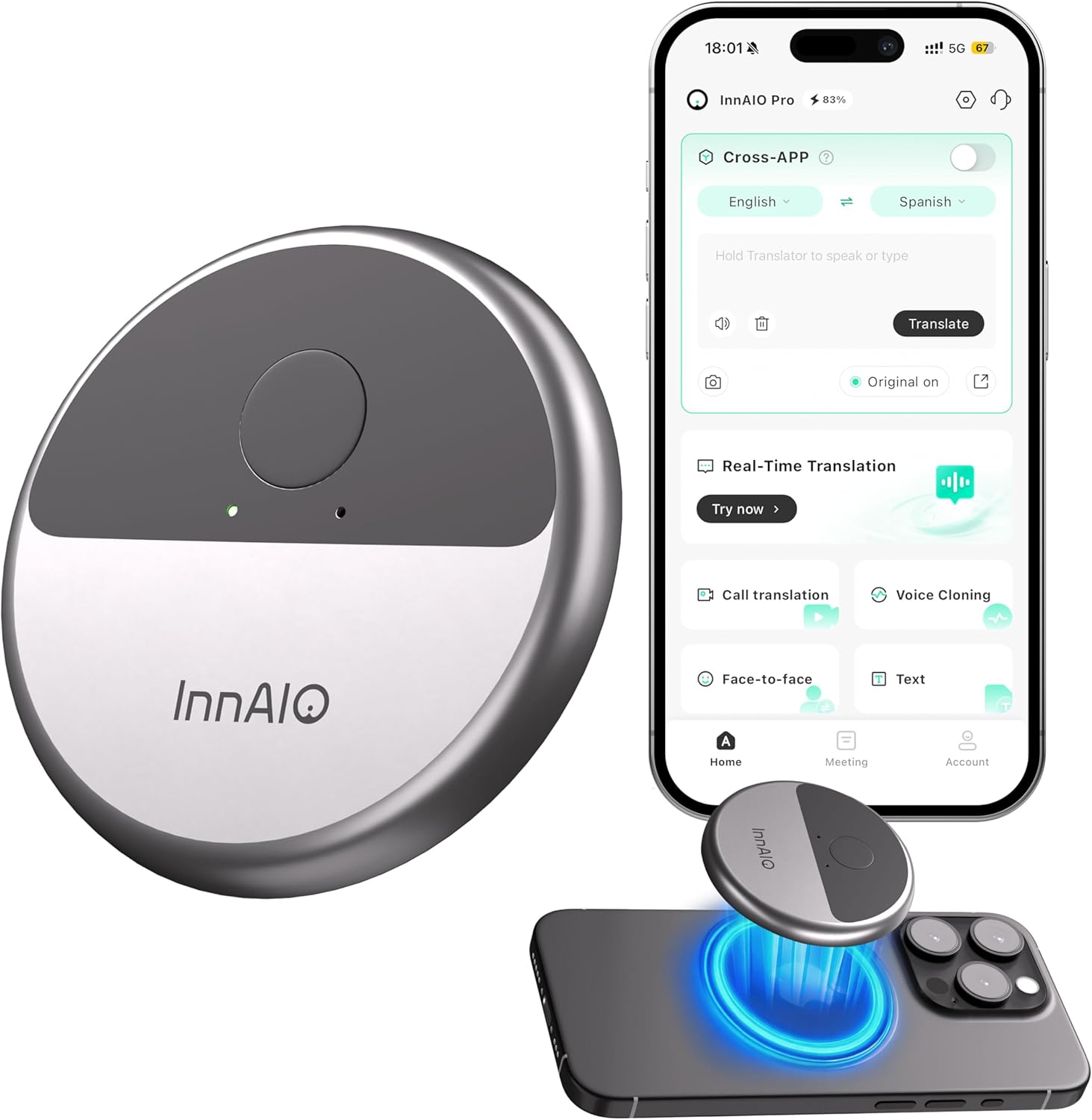
Image 1: InnAIO T10 Translator Device and its companion app interface.
2. Ohun ti o wa ninu Apoti
- 1x InnAIO T10 Translator Device
- 1x Kaadi atilẹyin ọja
- 1x Software Guide
- 1x Itọsọna Ibẹrẹ iyara
- 1x USB-C USB Ngba agbara
3. Ọja Ipariview
Awọn ẹya pataki:
- AI Voice Cloning: Replicates your unique tone and accent for natural-sounding translations.
- Itumọ akoko gidi: Supports over 140 languages with 0.5s latency and 98% accuracy.
- Cross-App Translation: Seamlessly translates across major social media and messaging applications.
- Video Call & Speech Translation: Provides real-time subtitles during video and voice calls.
- Multi-Scene Translation: Includes photo translation, face-to-face mode, and meeting minutes recording.
- Apẹrẹ to gbe: Lightweight (30g) with a magnetic disc for easy attachment to smartphones.
- Igbesi aye batiri gigun: Up to 15 hours of continuous use or 100 days standby.
- Universal App Compatibility: Connects via Bluetooth to companion app on iOS and Android devices.

Aworan 2: Pariview of InnAIO T10's core translation features.
4. Eto & Asopọ
4.1 App Gbigba lati ayelujara
To use the InnAIO T10, download the "InnAIO Pro" app from your smartphone's app store (iOS or Android). You can search for "InnAIO Pro" or scan the QR code provided in the Quick Start Guide or on the product packaging.
4.2 Sisopọ Bluetooth
- Rii daju pe Bluetooth ti foonuiyara rẹ ti ṣiṣẹ.
- Press the button on the InnAIO T10 translator. A green light will flash, indicating it's in Bluetooth pairing mode.
- Open the "InnAIO Pro" app and tap "Add Device" on the home screen.
- Select the device name (e.g., "InnAIO-XXXXXX") from the list to connect. The last six digits of the device's serial number (SN) can be found on the back of the translator or its packaging.
- Jẹrisi ibeere sisopọ lori foonuiyara rẹ.
- Once connected, the app's home screen will no longer display "Device not connected".
Video 1: Demonstrates the Bluetooth connection process for the InnAIO T10.
4.3 Device Authorization
Upon first use, you will be prompted to authorize the device within the app. Follow the on-screen instructions to complete the authorization. Once authorized, the translator is permanently linked to your account and cannot be unbound or paired with another account or device. Ensure you confirm the correct account before authorizing.
4.4 Standby and Sleep Mode
- The translator does not require manual power-off.
- When not connected: If no operation is performed within 2 minutes, the translator will automatically power off.
- Nigbati o ba sopọ: If no operation is performed within 10 minutes, the translator will also power off automatically.
- To change the auto-sleep time, go to the app's home screen, tap the settings icon, select "Auto Sleep," and choose your preferred duration.
- To reactivate the translator, simply press its button. It will instantly power on and reconnect to your phone.
5. Awọn ilana Iṣiṣẹ
5.1 Real-Time Translation
The InnAIO T10 provides instant, accurate real-time translation for conversations. Speak naturally, and the device will display and vocalize the translation with minimal delay.
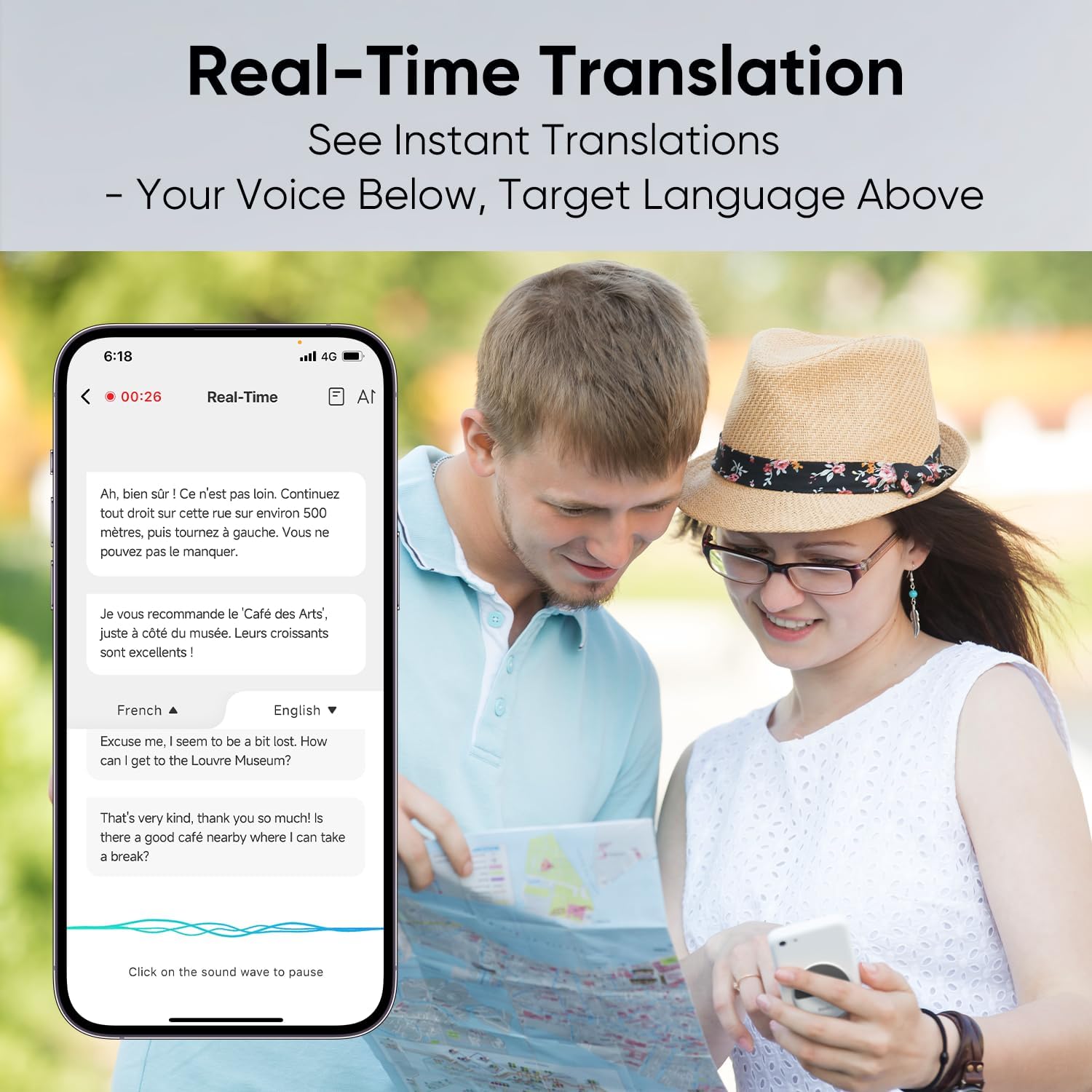
Image 3: Real-time translation in action on the companion app.
5.2 Voice Cloning
Experience personalized translation with AI voice cloning. Record a 30-60 second audio sample of your voice within the app. The device will then use your cloned voice for translations, maintaining your unique tone and accent.
Video 2: Guide to setting up and using the voice cloning feature.
5.3 Cross-App Translation
Translate messages directly within your favorite social and messaging apps (e.g., WhatsApp, Messenger, Instagram, WeChat). The device automatically converts your speech into the recipient's language and delivers it as voice or text.
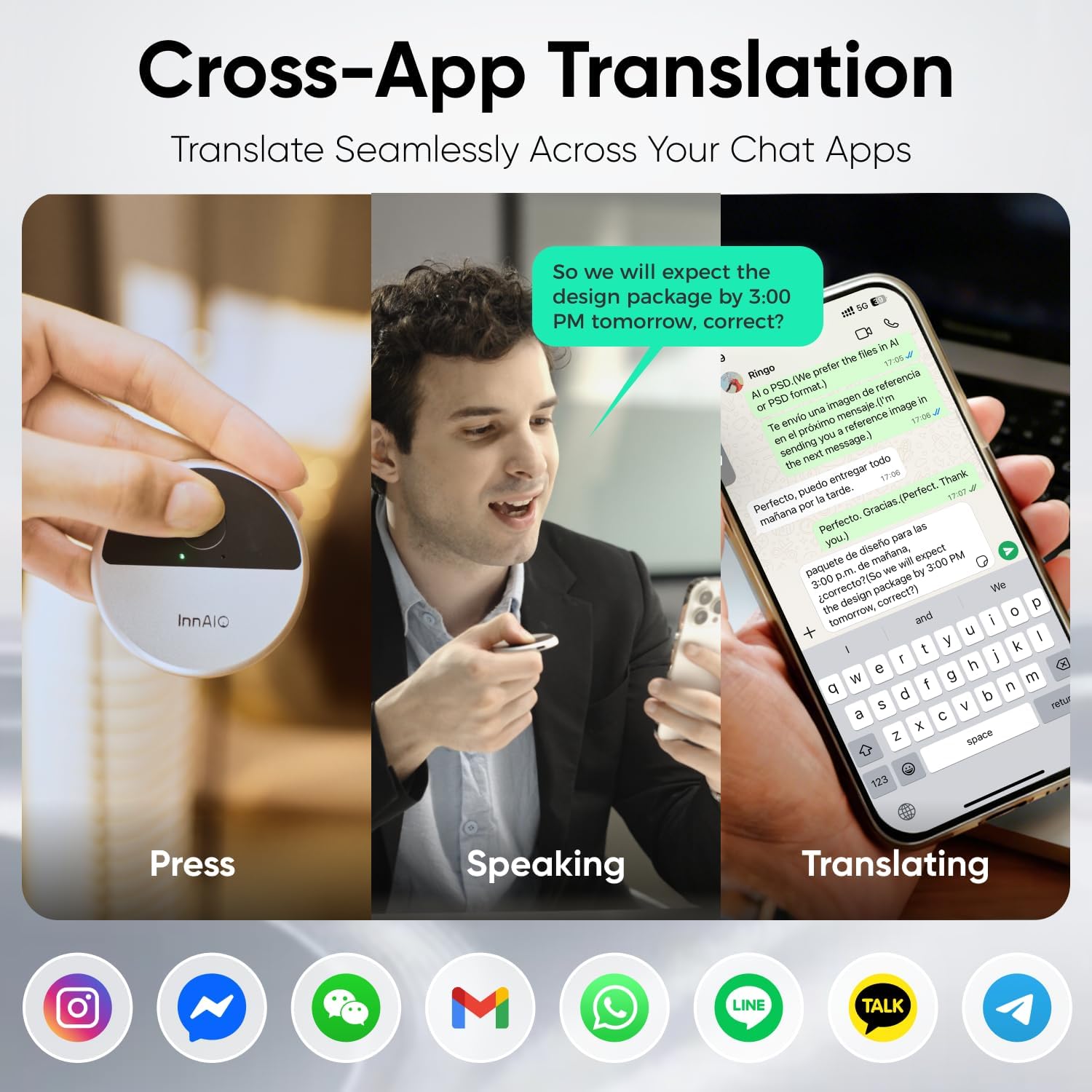
Image 4: Cross-app translation functionality demonstrated.
Video 3: Demonstrates how to use cross-app translation.
5.4 Video Call & Speech Translation
Communicate effortlessly during video or voice calls. Real-time subtitles appear on your smartphone screen, ensuring clear and fluid communication.

Image 5: Video call translation with real-time subtitles.
Video 4: Explains how to use the call translation feature.
5.5 Itumọ Oju-si-oju
For direct conversations, use the face-to-face translation mode. Speak into the device, and it will translate and vocalize your words to the other party.
Video 5: Demonstrates the face-to-face translation mode.
5.6 Text Translation
Input text directly into the app for translation. This is useful for translating written content or composing messages in another language.
Video 6: Shows how to use the text translation feature.
5.7 Ìtumọ̀ Fọ́tò
Translate text from images instantly. Simply take a photo of text (e.g., signs, menus, documents) using the app, and it will provide a real-time translation.
Video 7: Illustrates the photo translation function.
5.8 Meeting Minutes
Record and store conversation notes from meetings. The app can generate transcripts and even mind maps of discussions, aiding in organization and recall.

Image 6: Meeting minutes feature with transcription and mind map support.
6. Awọn pato
| Ẹya ara ẹrọ | Ẹ̀kúnrẹ́rẹ́ |
|---|---|
| Ọja Mefa | 2.24 x 2.24 x 0.22 inches |
| Iwọn Nkan | 1.06 iwon |
| Nọmba Awoṣe Nkan | InnAIO T10 |
| Awọn batiri | 1 Batiri litiumu polima (pẹlu) |
| Ẹya Bluetooth | V5.4 |
| Agbara Batiri | 60mAh |
| Ngba agbara Voltage | 5V=0.5A |
7. Laasigbotitusita
If you encounter any issues with your InnAIO T10 device, please consider the following general troubleshooting steps:
- Awọn oran Asopọmọra: Ensure Bluetooth is enabled on your phone and the device is within range. Try restarting both the translator and your phone.
- Ohun elo iṣẹ ṣiṣe: Make sure the InnAIO Pro app is updated to the latest version. Close and reopen the app if it's unresponsive.
- Translation Accuracy: Speak clearly and at a moderate pace. Ensure the correct source and target languages are selected in the app.
- Igbesi aye batiri: Charge the device fully using the provided USB-C cable. Check the battery indicator in the app.
- Voice Cloning: Ensure your recorded voice sample is clear and free of background noise.
For persistent issues, refer to the detailed Software Guide included in the box or contact InnAIO customer support.
8. Atilẹyin ọja ati Support
The InnAIO T10 comes with a Warranty Card included in the product packaging. Please refer to this card for detailed information regarding warranty coverage, terms, and conditions.
For technical support, product inquiries, or warranty claims, please contact InnAIO customer service through the contact information provided in your Warranty Card or on the official InnAIO webojula.