
1. Ifihan
The Trolinktek Wireless CarPlay Adapter (Model B48) is designed to convert your car's existing wired CarPlay or Android Auto system into a wireless experience. This device eliminates the need for cables, providing seamless connectivity between your smartphone and your car's infotainment system. It features intelligent automatic connection technology, a durable metal housing, and a simple plug-and-play installation process.
2. Ohun ti o wa ninu Apoti

Image: Contents of the Trolinktek Wireless CarPlay Adapter package.
- Trolinktek Wireless CarPlay Adapter (Model B48)
- Itọsọna olumulo
- Type-C Connector Cable (for Type-C car ports)
3. Awọn ilana iṣeto
The Trolinktek Wireless CarPlay Adapter offers a simple plug-and-play setup. Ensure your vehicle has a factory-installed wired CarPlay or Android Auto system before proceeding.
3.1. Connecting to Wireless CarPlay (iPhone)
Video: Demonstrates the setup process for connecting an iPhone to the Wireless CarPlay Adapter.
- Pulọọgi sinu Adapter: Insert the Wireless CarPlay Adapter into your car's USB port. If your car has a Type-C port, use the provided Type-C connector cable. The adapter's indicator light will illuminate.
- Mu Bluetooth ati Wi-Fi ṣiṣẹ: On your iPhone (iOS 10+), go to Settings and ensure both Bluetooth and Wi-Fi are turned on.
- So pọ mọ Adapta: In your iPhone's Bluetooth settings, locate and select the adapter's Bluetooth name (e.g., "WirelessDongle-XXXX"). Confirm the pairing request on your iPhone and car screen.
- Allow CarPlay Access: A prompt will appear asking to allow CarPlay access. Select "Allow" or "Use CarPlay" to establish the connection.
- Asopọmọra Aifọwọyi: After the initial setup, the adapter will automatically connect to your iPhone when you start your car.
3.2. Connecting to Wireless Android Auto (Android)
Video: Demonstrates the setup process for connecting an Android phone to the Wireless CarPlay & Android Auto Adapter.
- Pulọọgi sinu Adapter: Insert the Wireless CarPlay Adapter into your car's USB port. If your car has a Type-C port, use the provided Type-C connector cable. The adapter's indicator light will illuminate.
- Mu Bluetooth ati Wi-Fi ṣiṣẹ: On your Android phone (Android 11+), go to Settings and ensure both Bluetooth and Wi-Fi are turned on.
- So pọ mọ Adapta: In your Android phone's Bluetooth settings, search for new devices and select the adapter's Bluetooth name (e.g., "WirelessDongle-XXXX"). Confirm the pairing request on your phone and car screen.
- Allow Android Auto Access: A notification may appear to connect to Android Auto. Follow the prompts to allow access and launch Android Auto.
- Asopọmọra Aifọwọyi: After the initial setup, the adapter will automatically connect to your Android phone when you start your car.
4. Awọn ilana Iṣiṣẹ
Once connected, the Wireless CarPlay Adapter allows you to control your CarPlay or Android Auto interface using your car's original controls, maintaining a familiar and safe driving experience.
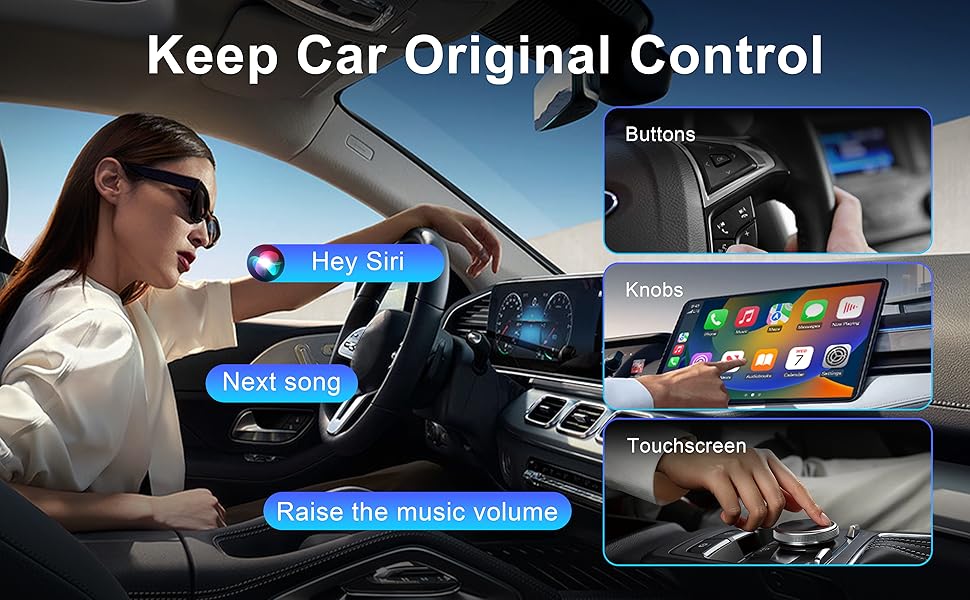
Image: CarPlay interface demonstrating control via car's original buttons, knobs, and touchscreen.
- Iṣakoso iboju Fọwọkan: Interact directly with the car's display for navigation, music, and app selection.
- Iṣakoso Knob OEM: Use your vehicle's factory-installed rotary knobs and buttons to navigate the CarPlay/Android Auto interface.
- Iṣakoso kẹkẹ idari: Utilize your steering wheel buttons for volume adjustment, track skipping, and answering calls.
- Iṣakoso Iranlọwọ ohun: Activate Siri (for CarPlay) or Google Assistant (for Android Auto) using your car's voice command button or by saying the wake phrase (e.g., "Hey Siri"). This allows for hands-free control of navigation, calls, and music.
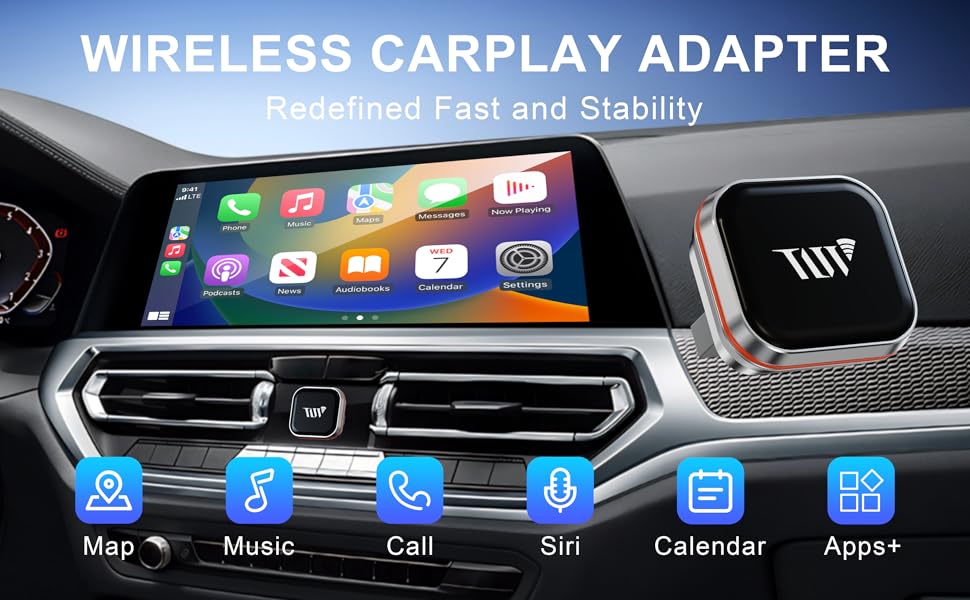
Image: The Wireless CarPlay Adapter interface showing common applications like Maps, Music, and Call functions.
5. Ibamu
This adapter is designed to work with vehicles that come with a factory-installed wired CarPlay system. It does not add CarPlay or Android Auto functionality to vehicles that do not already possess it.
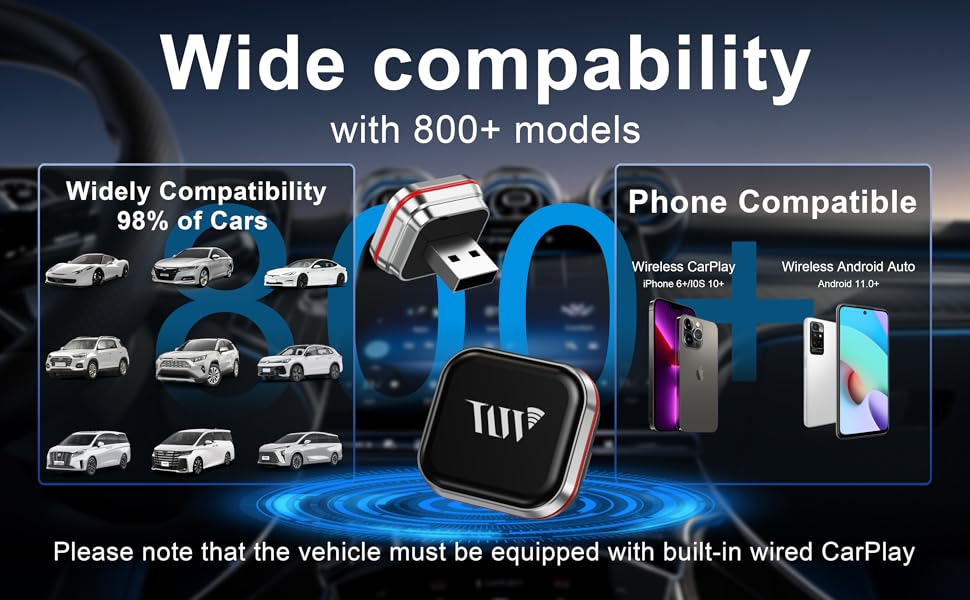
Image: Visual representation of device compatibility.
- Ibamu iPhone: Compatible with iPhone 6 or later running iOS 10 and above for Wireless CarPlay.
- Ibamu Android: Compatible with Android phones running Android 11 and above for Wireless Android Auto. Note: Huawei devices may not be compatible.
- Ibamu Ọkọ: Works with over 800 car models equipped with factory-installed wired CarPlay.
6. Laasigbotitusita
If you encounter issues with your Wireless CarPlay Adapter, please refer to the following common solutions:
| Oro | Ojutu |
|---|---|
| Adapter not connecting automatically. | Ensure Bluetooth and Wi-Fi are enabled on your phone. Try forgetting the device in your phone's Bluetooth settings and re-pairing. Restart your phone and car's infotainment system. |
| Frequent disconnections during use. | Ensure your phone is within close proximity to the adapter and car's infotainment system. Avoid placing other wireless devices or large metal objects near the adapter that could cause interference. |
| No audio output from CarPlay/Android Auto. | Check your car's audio input settings to ensure it's set to the correct source (e.g., USB, Bluetooth). Verify that the volume on both your phone and car is turned up. |
| CarPlay/Android Auto not launching after connection. | Confirm that your car originally supports wired CarPlay/Android Auto. Some vehicles may require a specific USB port for data transfer. Try restarting your phone and the car's infotainment system. |
| Slow response or lag. | Ensure your phone's operating system is up to date. Close unnecessary apps running in the background on your phone. A strong Wi-Fi signal from the adapter is crucial for optimal performance. |
7. Awọn pato
| Ẹya ara ẹrọ | Ẹ̀kúnrẹ́rẹ́ |
|---|---|
| Brand | Trolinktek |
| Nọmba awoṣe | B48 |
| Asopọmọra Technology | Bluetooth, WiFi |
| Adarí Iru | Android, iOS |
| Pataki Ẹya | Apple CarPlay, Hands-Free Calling, Volume Control |
| Awọn ẹrọ ibaramu | iPhone 6 and above (iOS 10+), Android 11 and above |
| Asopọmọra Iru | USB Type A, USB Type-C |
| Ipo Ijade Ohun | Sitẹrio |
| Àwọ̀ | Fadaka |
| Ọja Mefa | 0.98"D x 0.86"W x 0.86"H |
| Iwọn Nkan | 4 iwon |
| Agbara Ijade | 5 Volts |
| Wattage | 5 watt |
| Ọna Iṣakoso | Fọwọkan |
| Audio o wu Iru | Bluetooth |
| Alailowaya Technology | Bluetooth |
8. Atilẹyin ọja ati Support
The Trolinktek Wireless CarPlay Adapter (Model B48) comes with a 3-odun atilẹyin ọja, tí ó ń rí i dájú pé ó ní àlàáfíà ọkàn nípa dídára rẹ̀ àti iṣẹ́ rẹ̀.
For technical support, troubleshooting assistance, or warranty claims, please refer to the contact information provided in your product packaging or visit the official Trolinktek website. Please have your model number (B48) and purchase details ready when contacting support.