
Ọrọ Iṣaaju
This manual provides detailed instructions for the setup, operation, and maintenance of your EMEET C60E 4K Webcam and EMEET HS50 Wired Headset. Please read this manual thoroughly before using the devices to ensure optimal performance and longevity.
Ọja Pariview
EMEET C60E 4K Webkamẹra
The EMEET C60E is a high-performance 4K webcam designed for clear video communication. It features advanced imaging and audio capabilities for professional and personal use.
- 4K Ultra HD Ipinnu: Delivers crisp 3840x2160 video at 30 frames per second.
- PDAF Autofocus: Ensures sharp focus even with movement.
- Atunse Ina Aifọwọyi: Adjusts to various lighting conditions for optimal image quality.
- Dual Noise-Cancelling Microphones: Captures clear audio up to 8 feet, reducing background noise.
- 73 ° aaye ti View (FOV): Provides a balanced perspective for individual or small group use.
- USB Plug & Play: Ko si awakọ ti a beere fun fifi sori ẹrọ.
- Ideri Aṣiri: Integrated cover for enhanced privacy when not in use.

Image: The EMEET C60E 4K Webcam provides superior image quality, as shown by the clear 4K resolution compared to a blurred standard image.
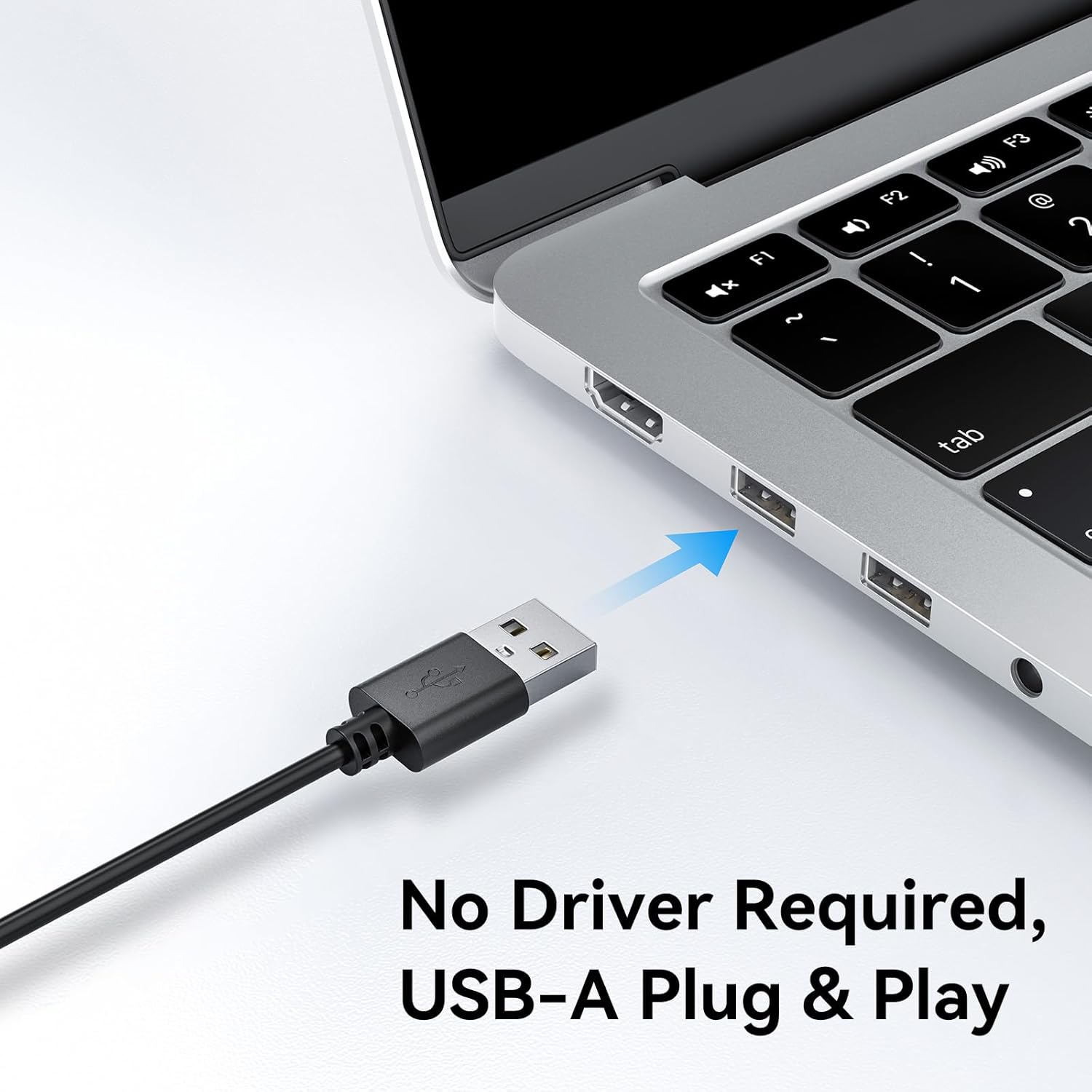
Image: A user on a video call demonstrating the effectiveness of the dual noise-cancelling microphones on the EMEET C60E webcam, showing a waveform before and after noise cancellation.
EMEET HS50 Wired Headset
The EMEET HS50 is a comfortable and versatile wired headset designed for extended use in various communication environments.
- Apẹrẹ iwuwo fẹẹrẹ: Weighs approximately 0.27 lb for all-day comfort.
- Adjustable Headband and Earpads: Customizable fit for various head sizes with 10° earpad adjustment.
- 270° Flexible Microphone: Allows for precise positioning and can be rotated out of the way.
- Awọn iṣakoso Laini: Easy access to volume adjustment, microphone mute, and speaker mute.
- Asopọmọra USB: Simple plug-and-play connection.

Image: The EMEET HS50 Wired Headset, highlighting its lightweight and comfortable design with feather illustrations.

Aworan: Alaye view of the EMEET HS50 headset's adjustable headband and the 10-degree swivel capability of its earpads for a customized fit.

Image: The EMEET HS50 headset's microphone demonstrating its 270-degree flexible rotation for optimal positioning.
Eto Itọsọna
EMEET C60E 4K WebKame.awo-ori
- Sopọ awọn Webkamẹra: Plug the USB-A cable from the EMEET C60E webKamẹra sinu ibudo USB ti o wa lori kọnputa rẹ.
- Fifi sori ẹrọ laifọwọyi: Awọn webcam is plug-and-play. Your operating system (Windows, macOS) will automatically detect and install the necessary drivers. No manual driver installation is typically required.
- Ipo awọn Webkamẹra: Gbe awọn webcam securely on top of your monitor or place it on a flat surface. Adjust the angle as needed.
- Jẹrisi Asopọmọra: Open a video conferencing application (e.g., Zoom, Skype, Google Meet) or your computer's camera application to confirm the webKame.awo-ori jẹ idanimọ ati ifihan fidio.
- Adjust Resolution (Optional): The default video resolution may be 1080P. To switch to 4K, use your built-in camera software or applications like PotPlayer/OBS.

Image: The EMEET C60E webcam's USB-A cable being connected to a laptop, illustrating its plug-and-play functionality.
EMEET HS50 Wired Headset Setup
- So Agbekọri pọ: Plug the USB cable from the EMEET HS50 headset into an available USB port on your computer.
- Fifi sori ẹrọ laifọwọyi: The headset is plug-and-play. Your operating system will automatically detect and configure the audio device.
- Ṣatunṣe fun Itunu:
- Ṣatunṣe wiwọ ori lati ba ori rẹ mu ni itunu.
- Rotate the earpads up to 10° to ensure a snug fit over your ears.
- Gbe gbohungbohun: Rotate the flexible microphone boom to position the microphone near your mouth for optimal voice pickup. It can rotate 270° to be used on either side or moved out of the way when not needed.
- Jẹrisi Awọn Eto Olohun: In your computer's sound settings or communication application, ensure the EMEET HS50 is selected as the input (microphone) and output (speaker) device.
Awọn ilana Iṣiṣẹ
EMEET C60E 4K WebKame.awo-iṣẹ
- Lilo pẹlu awọn ohun elo: Select the EMEET C60E as your video and audio device within your preferred video conferencing software (e.g., Zoom, Microsoft Teams, Google Meet, Skype).
- EMEETLINK Software: Download and install the EMEETLINK software from the official EMEET website for advanced settings. This software allows you to:
- Satunṣe imọlẹ, itansan, ati ekunrere.
- Activate backlight compensation for improved visibility in challenging lighting.
- Ṣe imudojuiwọn famuwia.
- Ideri Aṣiri: Slide the integrated privacy cover over the lens when the webcam is not in use to ensure your privacy.
EMEET HS50 Wired Headset Operation
The HS50 headset features convenient in-line controls for managing your audio during calls or media playback.
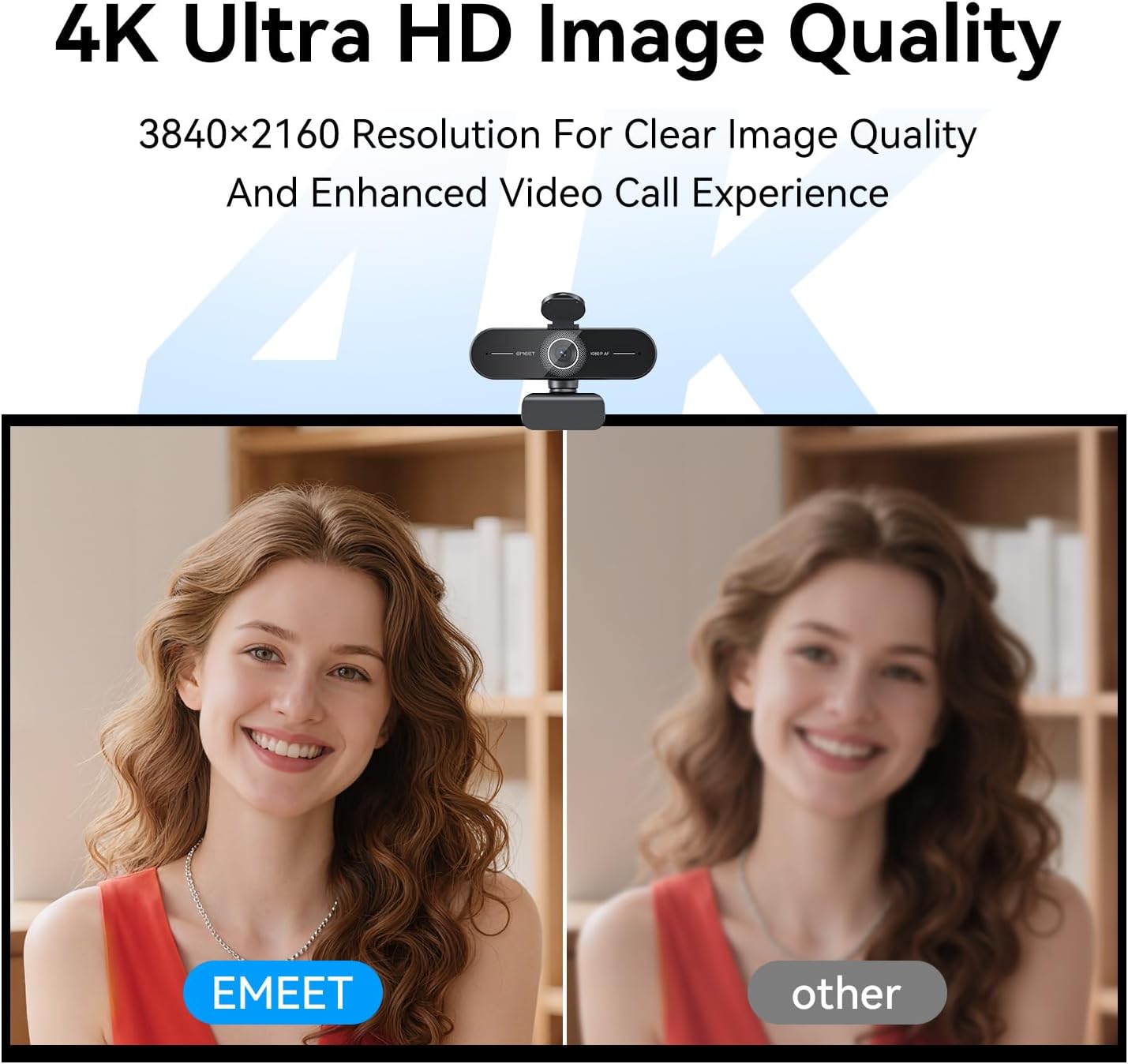
Image: Close-up of the EMEET HS50 headset's in-line control unit, showing buttons for microphone mute, volume up/down, and speaker on/off, along with LED indicators.
- Iṣakoso iwọn didun: Lo awọn + ati - buttons on the in-line control unit to adjust the speaker volume.
- Pa gbohungbohun: Tẹ awọn àmì gbohungbohun button to mute or unmute your microphone. An LED indicator will show the mute status.
- Speaker Mute/On-Off: Tẹ awọn aami agbọrọsọ button to turn the speaker audio on or off. An LED indicator will show the speaker status.
- Ipo gbohungbohun: Adjust the 270° flexible microphone boom to ensure the microphone is optimally positioned for your voice.
Itoju
- Ninu: Use a soft, dry cloth to clean the exterior surfaces of both the webcam and headset. For the webcam lens, use a lens cleaning cloth.
- Yago fun Olomi: Do not use liquid cleaners or aerosols directly on the devices.
- Ibi ipamọ: When not in use, store the devices in a clean, dry place away from extreme temperatures.
- Itọju USB: Yẹra fún yíyípo tó mú ṣinṣin tàbí fífà okùn USB jù láti dènà ìbàjẹ́.
Laasigbotitusita
Webcam Troubleshooting
- WebKame.awo-ori Ko Ṣeri:
- Rii daju pe okun USB ti sopọ ni aabo si awọn mejeeji webkamẹra ati kọmputa rẹ.
- Gbiyanju pulọọgi webkamẹra sinu ibudo USB ti o yatọ.
- Tun kọmputa rẹ bẹrẹ.
- Ṣayẹwo oluṣakoso ẹrọ ẹrọ ẹrọ rẹ lati rii boya webkamẹra ti wa ni akojọ.
- No Video or Poor Video Quality:
- Rii daju pe ideri asiri wa ni sisi.
- Check lighting conditions; ensure adequate front lighting.
- Jẹrisi pe o tọ webcam is selected in your application's settings.
- Use EMEETLINK software to adjust video settings like brightness and contrast.
- Ensure your computer meets the system requirements for 4K video streaming.
- No Audio from Webcam Microphones:
- Ensure the EMEET C60E is selected as the microphone input device in your computer's sound settings and your application.
- Check application-specific mute settings.
Headset Troubleshooting
- Headset Not Detected:
- Ensure the USB cable is securely connected to both the headset and your computer.
- Try plugging the headset into a different USB port.
- Tun kọmputa rẹ bẹrẹ.
- No Audio from Headset Speakers:
- Check the in-line control unit to ensure the speaker is not muted and volume is turned up.
- Verify that the EMEET HS50 is selected as the audio output device in your computer's sound settings and your application.
- Adjust the volume on your computer.
- Microphone Not Working on Headset:
- Check the in-line control unit to ensure the microphone is not muted.
- Verify that the EMEET HS50 is selected as the microphone input device in your computer's sound settings and your application.
- Rí i dájú pé gbohùngbohùn náà wà ní ipò tó tọ́.
Awọn pato
EMEET C60E 4K Webkamẹra
| Ipinnu | 4K Ultra HD (3840x2160) |
| Iwọn fireemu | 30 FPS |
| Sensọ Iru | CMOS |
| Idojukọ Iru | PDAF Autofocus |
| Aaye ti View (FOV) | 73° |
| Awọn gbohungbohun | Dual Noise-Cancelling Mics (up to 8 ft range) |
| Asopọmọra | USB-A Plug & Play |
| Ibamu | Windows, macOS, Android TV, major conferencing platforms |
EMEET HS50 Wired Headset
| Iwọn | Isunmọ. 0.27 lb (122g) |
| Gbohungbohun | 270° Flexible Microphone |
| Awọn iṣakoso | In-line: Volume +, Volume -, Mic Mute, Speaker Mute |
| Asopọmọra | USB-A |
| Earpad Adjustment | 10° igun tolesese |
Atilẹyin ọja ati Support
EMEET products are designed for reliability and performance. For detailed warranty information, please refer to the warranty card included with your product or visit the official EMEET website. If you encounter any issues or require technical assistance, please contact EMEET customer support through their official channels. You can typically find support contact information on the EMEET webaaye tabi laarin apoti ọja rẹ.
Official EMEET Webojula: www.emeet.com


