
1. Ọja Ipariview
The OnePlus 15 is an advanced Android smartphone designed for high performance and extended usage. It features a powerful Snapdragon 8 Elite Gen 5 processor, a large 7,300mAh battery, and a vibrant 6.78-inch 165 Hz AMOLED display. The device is equipped with a triple 50 MP camera system for detailed photography and offers robust durability with IP66/IP68/IP69 and IP19K ratings for dust and water resistance.
Awọn ẹya pataki:
- Massive 7,300 mAh Battery: Provides extended power for all-day use and beyond.
- Tri-Chip System: Integrates the Snapdragon 8 Elite Gen 5, a dedicated Wi-Fi chip, and a CPU scheduler for optimized performance, connectivity, and efficiency.
- Triple 50 MP Camera System: Captures high-quality images with wide, ultra-wide, and telephoto capabilities.
- Apẹrẹ ti o tọ: Built to resist dust and water, with IP66/IP68/IP69 and IP19K ratings for enhanced protection.
- 6.78-inch 165 Hz AMOLED Display: Delivers vivid colors, smooth motion, and exceptional clarity.
2. Ohun ti o wa ninu Apoti
Daju pe gbogbo awọn ohun kan wa ninu apoti ọja rẹ:
- OnePlus 15 Smartphone x1
- Ṣaja x1
- Okun Data USB x1
- SIM Ejector Tool x1
- Awọn ọna Itọsọna x1
- Safety Guide x1

Image: Contents of the OnePlus 15 retail box, showing the smartphone, charger, USB data cable, SIM ejector tool, quick guide, and safety guide.
3. Eto
3.1 Fifi sori kaadi SIM
- Locate the SIM card tray on the side of your OnePlus 15.
- Insert the provided SIM ejector tool into the small hole on the SIM tray. Press firmly until the tray pops out.
- Place your Nano-SIM card(s) into the tray with the gold contacts facing down. Ensure they are correctly oriented according to the tray's outline.
- Carefully push the SIM tray back into the phone until it is flush with the device.
3.2 Agbara akọkọ Lori ati iṣeto ni
- Tẹ bọtini agbara (ti o wa ni apa ọtun ti ẹrọ naa) ki o si di i mu titi ti aami OnePlus yoo fi han.
- Tẹle awọn itọnisọna loju iboju lati yan ede rẹ, sopọ si nẹtiwọki Wi-Fi, ki o si ṣeto akọọlẹ Google rẹ.
- You may be prompted to transfer data from an old device. Follow the instructions or skip this step to set up as a new device.
- Configure security settings such as fingerprint unlock, face unlock, or a PIN/pattern.

Aworan: Iwaju view of the OnePlus 15 smartphone, showcasing ifihan rẹ ati kamẹra iwaju.
4. Ṣiṣẹ ẹrọ rẹ
4.1 Screen and Navigation
The OnePlus 15 features a 6.78-inch 165 Hz AMOLED display. Navigate the interface using touch gestures:
- Fọwọ ba: Yan ohun kan tabi mu iṣẹ kan ṣiṣẹ.
- Ra: Yi lọ nipasẹ awọn iboju tabi awọn akojọ.
- Fun pọ: Sun-un sinu tabi jade lori awọn aworan ati web awọn oju-iwe.
- Long Tẹ: Wọle si awọn akojọ aṣayan ọrọ-ọrọ tabi gbe awọn aami.
4.2 Awọn bọtini ati ki o ibudo
Familiarize yourself with the physical controls and connections:
- Bọtini agbara: Located on the right side. Press to wake/sleep the screen, long press to power off or restart.
- Awọn bọtini iwọn didun: Located on the left side. Adjust media volume, ringtone volume, and alarm volume.
- Ibudo Iru-C USB: Located at the bottom. Used for charging, data transfer, and connecting Type-C headphones.
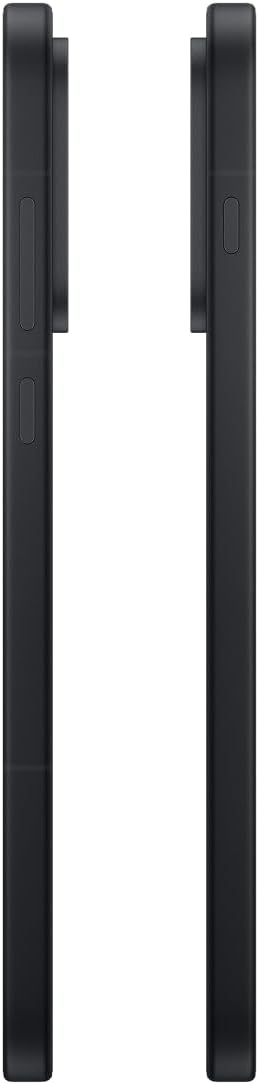
Aworan: Apa view of the OnePlus 15, showing the placement of the power and volume buttons.
4.3 kamẹra Lilo
The OnePlus 15 features a versatile triple 50 MP camera system. To open the camera app, tap the camera icon on your home screen or lock screen.
- Awọn ọna Yipada: Swipe left or right on the screen to switch between Photo, Video, Portrait, and other modes.
- Sun-un: Pinch in or out on the viewfinder, or tap the zoom icons (e.g., 0.6x, 1x, 2x) to adjust magnification.
- Yaworan: Fọwọ ba bọtini titiipa lati ya fọto tabi bẹrẹ/da gbigbasilẹ fidio duro.
- Eto: Access camera settings for features like flash, timer, aspect ratio, and more.

Aworan: Pada view of the OnePlus 15, highlighting the triple 50 MP camera system.
4.4 batiri Management
Your OnePlus 15 is equipped with a 7,300 mAh battery. To optimize battery life:
- Adjust screen brightness and set a shorter screen timeout.
- Mu Wi-Fi, Bluetooth, ati GPS ṣiṣẹ nigbati o ko ba wa ni lilo.
- Close background apps that are consuming power.
- Utilize Battery Saver mode when your battery is low.
- Use the provided charger and USB cable for optimal fast charging.
5. Itọju
5.1 Ninu ẹrọ rẹ
Láti nu OnePlus 15 rẹ:
- Lo aṣọ rirọ, ti ko ni awọ lati nu iboju ati awọn panẹli ẹhin rẹ.
- Fun agidi smudges, die-die dampen awọn asọ pẹlu omi tabi a iboju regede.
- Yago fun lilo awọn kẹmika lile, awọn ohun elo abrasive, tabi afẹfẹ fisinuirindigbindigbin.
5.2 Software imudojuiwọn
Àwọn àtúnṣe sọ́fítíwèsì déédéé máa ń fúnni ní àwọn ẹ̀yà tuntun, àwọn àfikún ààbò, àti àwọn àtúnṣe kòkòrò. Láti ṣàyẹ̀wò fún àwọn àtúnṣe:
- Lọ si Eto > Nipa ẹrọ > Ẹ̀yà OxygenOS.
- Fọwọ ba Ṣayẹwo fun awọn imudojuiwọn.
- If an update is available, follow the on-screen instructions to download and install it. Ensure your device has sufficient battery and is connected to Wi-Fi before updating.
6. Laasigbotitusita
If you encounter issues with your OnePlus 15, try the following common troubleshooting steps:
- Ẹrọ ti ko dahun: Tẹ mọlẹ bọtini Agbara fun bii iṣẹju-aaya 10 lati fi ipa mu tun bẹrẹ.
- Awọn ohun elo ikọlu: Pa cache ati data rẹ kuro fun ohun elo iṣoro ninu Eto > Awọn ohun elo > [Orukọ App] > Ibi ipamọ & kaṣe.
- Batiri mimu yarayara: Review batiri lilo ni Eto > Batiri to identify power-hungry apps. Adjust settings as described in Section 4.4.
- Awọn iṣoro Asopọmọra Nẹtiwọọki: Toggle Airplane Mode on and off, restart your device, or reset network settings in Eto > Eto eto > Afẹyinti ati tunto > Tun foonu to > Tun Wi-Fi to, alagbeka & Bluetooth.
- Screen protector installation: For assistance with screen protector installation, refer to the following video guide:
Video: Installation guide for a screen protector on the OnePlus 15 5G. This video demonstrates the steps to correctly apply a screen protector to your device.
7. Awọn pato
| Orukọ awoṣe | OnePlus 15 |
| Nọmba Awoṣe Nkan | CPH2749 |
| Ọja Mefa | 6.36 x 3.02 x 0.33 inches |
| Iwọn Nkan | 1.29 iwon |
| Eto isesise | Android 16 |
| Sipiyu Awoṣe | Snapdragon 8 Elite Gen 5 |
| Sipiyu Iyara | 4.61 GHz |
| Ramu Memory sori iwọn | 12 GB |
| Agbara Ibi ipamọ Iranti | 256 GB |
| Iwon iboju | 6.78 inches |
| Ipinnu | 2772*1272 |
| Oṣuwọn sọtun | 165 Hz |
| Agbara Batiri | 7300 Milionuamp Awọn wakati |
| Foonu Ọrọ Time | Awọn wakati 68.7 |
| Awọn ọna ẹrọ Asopọmọra | Bluetooth, Infrared, NFC, USB, Wi-Fi |
| Pataki Awọn ẹya ara ẹrọ | Dual SIM, Wireless Charging |
| Olupese | OnePlus |
8. Alaye Aabo pataki
Please read all safety information before using your device to ensure safe and proper use. Improper use may cause damage to the device or personal injury.
- Ma ṣe fi ẹrọ naa han si awọn iwọn otutu to gaju tabi imọlẹ orun taara fun awọn akoko pipẹ.
- Lo awọn ṣaja ti a fọwọsi nikan, awọn batiri, ati awọn ẹya ẹrọ.
- Yago fun sisọ silẹ tabi tẹriba ẹrọ si ipa nla.
- Keep the device away from water and liquids, despite its water resistance ratings, to prevent potential damage.
- Ma ṣe gbiyanju lati tunto tabi yi ẹrọ naa pada.
9. Atilẹyin ọja ati Support
Your OnePlus 15 is covered by a manufacturer's warranty. For detailed warranty information, technical support, or service inquiries, please visit the official OnePlus webojula tabi olubasọrọ onibara iṣẹ.
You can find additional support and product information on the OnePlus Store.