
1. Ifihan
This manual provides essential information for the safe and effective operation of your Jectse 1080P Thumb Action Camera. This compact device is designed for hands-free recording, offering 1080P Full HD resolution, Electronic Image Stabilization (EIS), and WiFi connectivity for seamless sharing. Please read this manual thoroughly before using the camera.
2. Package Awọn akoonu
Daju pe gbogbo awọn nkan ti a ṣe akojọ rẹ si isalẹ wa ninu package rẹ:
- 1 x Sports Camera
- 1 x Type C To Type C Cable
- 1 x USB To Type C Cable
- 1 x Car Mount
- 1 x USB To Type C Right Angle Cable
- 1 x Silicone Case
- 1 x 64G Small Memory Card
- 1 x Small Memory Card Case

Image: The Jectse 1080P Thumb Action Camera shown with its complete set of accessories, including various cables, a car mount, silicone case, and a 64GB memory card.
3. Eto
3.1 Ngba agbara si Kamẹra
Before first use, fully charge the camera's built-in 600mAh lithium-ion battery. Connect the camera to a power source using the provided USB to Type C cable. The charging indicator light will show the charging status.
3.2 Fi kaadi iranti sii
Locate the memory card slot on the camera. Insert the provided 64GB small memory card (or another compatible card up to 128GB) with the contacts facing the correct direction until it clicks into place. Ensure the camera is powered off before inserting or removing the memory card.
3.3 Ibẹrẹ Agbara Lori
Press and hold the power button for a few seconds to turn on the camera. The indicator lights will illuminate, indicating the camera is ready for use.
4. Awọn ilana Iṣiṣẹ
4.1 Ipilẹ Gbigbasilẹ
Once powered on, press the record button to start video recording. Press it again to stop. The camera records in 1080P Full HD resolution, capturing clear and detailed footage.
4.2 Electronic Image Stabilization (EIS)
The camera features enhanced EIS technology to minimize shake and vibration, providing smooth and stable videos. This is particularly useful during dynamic activities like cycling or hiking.

Image: A visual comparison showing the effect of Electronic Image Stabilization, with blurred images on the left and a clear, stable image on the right, illustrating how EIS reduces motion blur.
4.3 WiFi Mobile Connectivity and Sharing
Connect the camera to your smartphone via WiFi for real-time preview, quick editing, and instant sharing of your footage on social media platforms. Refer to the camera's companion app for detailed instructions on WiFi pairing.

Image: A Jectse camera wirelessly connected to a smartphone, displaying various captured images and videos on the phone screen, indicating mobile connectivity and sharing capabilities.
4.4 Multi-Angle Filming
The camera supports both landscape and portrait orientation filming, allowing you to choose the appropriate aspect ratio for different social platforms or devices.
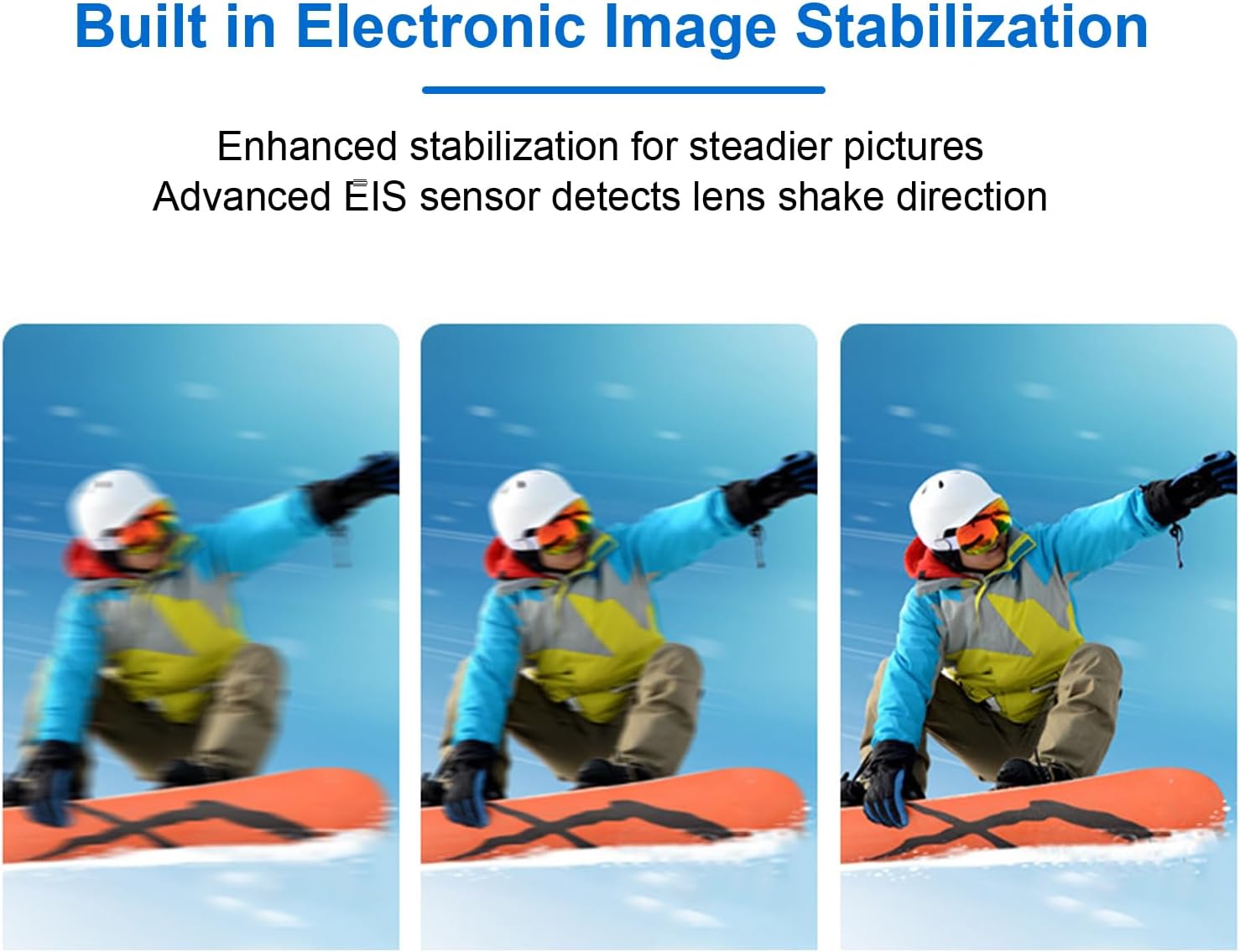
Image: A smartphone displaying a landscape video, with insets showing the Jectse camera in both vertical (portrait) and horizontal (landscape) orientations, illustrating its multi-angle filming capability.
4.5 First-Person Perspective Recording
The compact, thumb-sized design allows for effortless first-person perspective recording. Attach the camera to your clothing or use the car mount for immersive footage during sports or travel.

Image: A woman wearing the Jectse camera on her chest, giving a thumbs-up gesture, demonstrating its use for first-person perspective recording.
4.6 Magnetic Body Feature
The camera's body incorporates magnetism, allowing for flexible attachment of accessories or direct mounting to metallic surfaces at various angles.

Image: The Jectse camera magnetically attached to the side of a refrigerator in a kitchen setting, showcasing its built-in magnetism for versatile placement.
4.7 Photography Modes
The camera supports various photography modes for diverse creative needs:
- Time Lapse Photography: Captures a sequence of images over time, then stitches them into a video.
- Timed Photography: Ó ya àwọn fọ́tò ní àkókò tí a yàn.
- Continuous Photography: Ó ya ọ̀pọ̀lọpọ̀ fọ́tò ní ìtẹ̀léra kíákíá.
- Ifihan gigun: Allows for capturing more light in low-light conditions, resulting in brighter images.
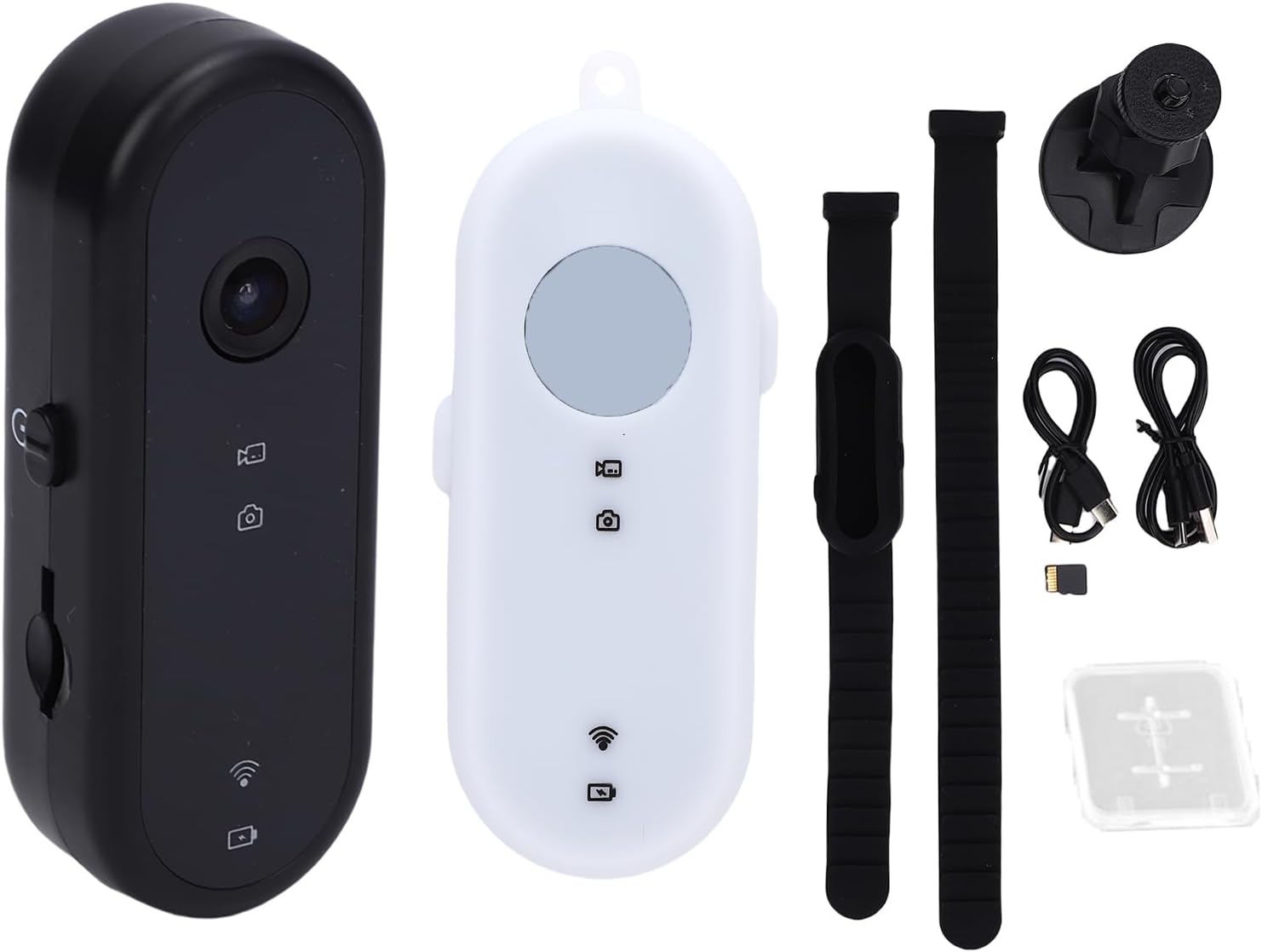
Image: A graphic illustrating four different photography modes: Time lapse (sunset over mountains), Timed photography (selfie), Continuous photography (family walking), and Long exposure (city lights at night).
5. Itọju
5.1 Ninu kamẹra
Use a soft, dry cloth to clean the camera body. For the lens, use a specialized lens cleaning cloth and solution. Avoid using harsh chemicals or abrasive materials.
5.2 batiri Itọju
To prolong battery life, avoid fully discharging the battery frequently. Store the camera with a partial charge if not used for extended periods. Do not expose the camera to extreme temperatures.
5.3 Ibi ipamọ
Store the camera in a cool, dry place away from direct sunlight and moisture. Use the provided silicone case for added protection.
5.4 Iṣakoso kaadi iranti
Ṣe afẹyinti foo rẹ nigbagbogbotage from the memory card to a computer or other storage device. Format the memory card periodically to maintain optimal performance.
6. Laasigbotitusita
6.1 Kámẹ́rà Kò Tan
- Rii daju pe batiri ti gba agbara ni kikun.
- Tẹ mọlẹ bọtini agbara fun iṣẹju diẹ.
6.2 Recording Issues (e.g., blurry footage, freezing)
- Check if the memory card is inserted correctly and has sufficient free space.
- Rii daju pe lẹnsi jẹ mimọ.
- Ṣe ọna kika kaadi iranti.
- If the camera freezes, try resetting it (if a reset button is available, otherwise let the battery drain and recharge).
6.3 WiFi Connectivity Problems
- Ensure the camera's WiFi is enabled.
- Restart both the camera and your smartphone.
- Ensure you are within the effective range of the camera's WiFi signal.
- Check your smartphone's WiFi settings and the camera's companion app for connection instructions.
7. Awọn pato
| Ẹya ara ẹrọ | Sipesifikesonu |
|---|---|
| Nọmba awoṣe | Jectse60uaq917wz |
| Ipinnu | 1080P HD kikun |
| Fọto kika | JPG |
| Fidio kika | AVI |
| Batiri Iru | Batiri litiumu-ion |
| Agbara Batiri | 600mAh |
| Akoko Gbigbasilẹ | 3 to 4 hours (continuous) |
| Kaadi Iranti Support | Up to 128GB (Small Memory Card) |
| Ni wiwo | Iru C |
| Iduroṣinṣin Aworan | EIS (Electronic Image Stabilization) |
| Asopọmọra | WiFi |
| Iwọn Nkan | 6.1 iwon |
| Package Mefa | 5.51 x 3.15 x 2.76 inches |
8. Atilẹyin ọja ati Support
8.1 atilẹyin ọja Alaye
For specific warranty details, please refer to the documentation provided at the time of purchase or contact the seller directly. Standard warranty terms typically cover manufacturing defects for a limited period from the date of purchase.
8.2 Onibara Support
If you encounter any issues or have questions regarding your Jectse 1080P Thumb Action Camera, please contact the seller, Jectse us, through the platform where the purchase was made. Provide your model number (Jectse60uaq917wz) and a detailed description of the issue for efficient support.