
1. Introduction to Pubbo Air
The WhalesBot Pubbo Air is an interactive educational robot designed to engage children aged 6 and up in STEM learning through play. It features multiple control methods, including voice, touch, remote, and a dedicated mobile application, allowing for a dynamic and personalized user experience. Pubbo Air is equipped with advanced sensors and supports modular and Scratch coding, fostering critical thinking and problem-solving skills.
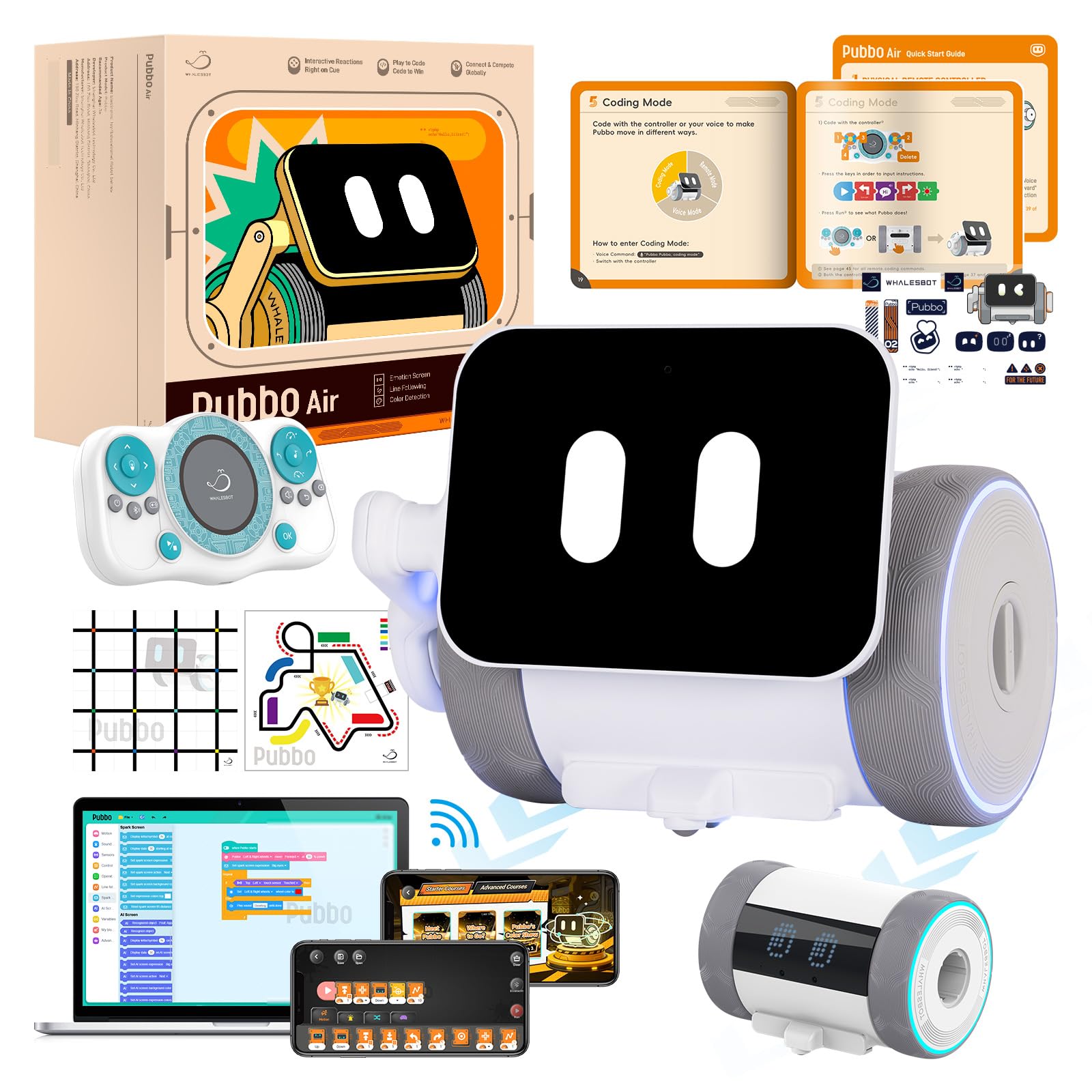
Image: The WhalesBot Pubbo Air robot, showcasing its compact and friendly design.
2. Ohun ti o wa ninu Apoti
Your Pubbo Air package includes the following components:
- Pubbo Air Robot
- Latọna jijin Adarí
- Itọsọna olumulo
- Awọn ọna Bẹrẹ Kaadi
- Maapu
- Iru-C Ngba agbara USB
- Awọn ohun ilẹmọ

Image: All components included in the WhalesBot Pubbo Air retail package.
3. Eto Itọsọna
3.1 Unboxing ati Ni ibẹrẹ idiyele
Carefully remove all items from the packaging. Before first use, ensure the Pubbo Air robot is fully charged using the provided Type-C charging cable. Connect the cable to the robot's charging port and a suitable USB power source. The charging indicator will provide status updates.
3.2 Titan / Pa a
To power on Pubbo Air, locate the power button (usually on the robot's body) and press and hold it until the screen illuminates and you hear a startup sound. To power off, press and hold the power button again until the robot shuts down.
3.3 App Download ati Asopọ
Download the official 'Pubbo App' from your device's app store. Once installed, open the app and follow the on-screen instructions to connect to your Pubbo Air robot via Bluetooth. Ensure Bluetooth is enabled on your device.

Image: The Pubbo Air robot alongside its remote controller and a tablet displaying the companion app.
Video: An unboxing demonstration of the Pubbo Air robot, showing the contents and initial setup.
4. Awọn ọna ṣiṣe
4.1 Iṣakoso ohun
Pubbo Air responds to voice commands. To activate voice control, say "Pubbo Pubbo!" followed by your command. The robot's screen will indicate when it is listening. ExampAwọn aṣẹ pẹlu:
- Motion Control: BE-CUTE, HEAD-UP, SAY-HELLO, TURN-RIGHT, DANCE-TIME, GO-BACKWARD, START-RUNNING, KEEP-MOVING-BACK
- Play Sounds & Music: CAT-SOUND, MUSIC-TIME, PLAY-PIANO, COW-SOUND, SING-A-SONG, PLANE-SOUND, BARK-LIKE-A-DOG, DINOSAUR-SOUND
- Light & Sound Settings: SPEED-UP, LIGHT-ON, TURN-IT-UP, TURN-GREEN, QUIET-PLEASE, YELLOW-LIGHT, LOUDER-PLEASE, VOLUME-TO-THE-MAX
- Play Mode Selection: CAR-RACE, MAIN-MENU, SLEEP-MODE, SNAKE-GAME, REMOTE-MODE, COLOR-READER, BLUETOOTH-CONNECT, LET'S-DO-LINE-FOLLOWING
Video: A demonstration of Pubbo Air responding to various voice commands and performing actions.
4.2 Fọwọkan Iṣakoso
Pubbo Air is designed to be responsive to touch. A simple tap on its head or body can wake it up, trigger cheerful emojis, or initiate fun animations and sounds. This allows for immediate and intuitive interaction.

Image: Pubbo Air demonstrating various interactive responses to touch and movement, including displaying emojis and dancing.
4.3 Iṣakoso latọna jijin
Use the included remote controller for precise movement and to activate specific functions. The remote allows you to steer Pubbo Air, trigger sounds, and control its expressive screen.

Image: A child operating Pubbo Air using the dedicated remote controller.
4.4 App Iṣakoso
The Pubbo App provides comprehensive control over the robot. Through the app, users can design custom dance moves, create unique sound effects, and combine various emoji expressions. The app also serves as the interface for coding activities.

Image: A child interacting with the Pubbo App on a tablet, controlling the robot's functions.
5. Sensors and Interactive Features
Pubbo Air is equipped with 9 smart sensors that allow it to perceive and interact with its environment:
- Sensọ Ijinna: For precise ranging and object detection.
- Infrared Encoder: For modulation and movement tracking.
- Sensọ Fọwọkan: Enables responsive interactions like waking up or initiating actions with a tap.
- IR Obstacle Sensor: Allows the robot to detect and avoid obstacles.
- Sensọ Imọlẹ: For detecting ambient light levels.
- Sensọ ohun: Enables the robot to detect and react to sounds.
- Gyroscope Sensor: Detects orientation and rotational motion, enabling interactive responses to shaking.
- Sensọ Greyscale: Essential for line-following activities.
- Sensọ awọ: Allows the robot to recognize and react to different colors.
These sensors enable Pubbo Air to perform various tasks such as following lines, navigating mazes, and responding to light and sound cues, providing a rich interactive experience.

Image: A detailed diagram illustrating the location and function of Pubbo Air's 9 sensors.
Video: Pubbo Air demonstrating its obstacle avoidance capabilities using its sensors.
Video: Pubbo Air showcasing its ability to follow lines and detect colors, demonstrating sensor-based coding.
6. Gamified Education & Coding
The Pubbo App transforms learning into an engaging adventure. It offers interactive coding quests and cartoon-style tutorials that introduce children to programming concepts without prior experience. Through game-based challenges and fun contests, kids develop real programming and STEM skills, including logical reasoning, computational thinking, and creative problem-solving.

Image: Children engaging with the Pubbo App, featuring cartoon courses and gamified coding quests.
7. Awọn pato
| Ọja Mefa | 6.1 x 5.6 x 4.48 inches |
| Iwọn Nkan | 2 iwon |
| Nọmba Awoṣe Nkan | Pubbo Air |
| Olupese niyanju ori | 6 ọdun ati si oke |
| Awọn batiri | Batiri 1C nilo (pẹlu rẹ) |
| Olupese | Whalesbot |
8. Alaye Aabo
Pubbo Air is designed with child safety as a priority. It is made from child-safe ABS+PC material and has passed strict safety tests to ensure its suitability for children aged 6 and above. Always supervise young children during play.
9. Laasigbotitusita
If you encounter any issues with your Pubbo Air robot, please try the following steps:
- Rọ́bọ́ọ̀tì kò dáhùn: Ensure the robot is powered on and fully charged. Check the remote control batteries if using the remote.
- Awọn iṣoro asopọ ohun elo: Verify Bluetooth is enabled on your device and the robot is within range. Try restarting both the app and the robot.
- Ìwà tí a kò retí: Ensure the robot's sensors are clean and unobstructed. Check for any active coding programs that might be influencing its actions.
- A kò dá àwọn àṣẹ ohun mọ̀: Speak clearly and ensure there is minimal background noise. Confirm the robot's microphone is not obstructed.
10. Atilẹyin ọja ati Support
For warranty information or technical support, please refer to the official WhalesBot website or contact their customer service directly. Details can typically be found in the included User Manual or on the product's official support pages online.