
1. Ifihan
This manual provides detailed instructions for the installation, operation, and maintenance of your Mars Gaming MC-3TCORELCDM Micro-ATX Gaming Case. This case features an integrated 7.2-inch IPS screen, triple tempered glass panels, and a dual-chamber structure designed to optimize airflow and provide a clean aesthetic for your PC build.
2. Eto ati fifi sori
Before beginning installation, ensure all components are compatible with the MC-3TCORELCDM case. This case supports Micro-ATX and Mini-ITX motherboards.
2.1. Internal Component Installation
The MC-3TCORELCDM case offers optimized internal space for various components:
- Ibamu modaboudu: Micro-ATX, Mini-ITX
- VGA (Graphics Card) Support: Up to 415mm length, 150mm width
- Iwọn otutu Sipiyu: Ti o de 160mm
- Awọn Iho Imugboroosi: 5
- Awọn Okun Wakọ: 2x 3.5" HDD / 3x 2.5" SSD (refer to diagram for specific locations)
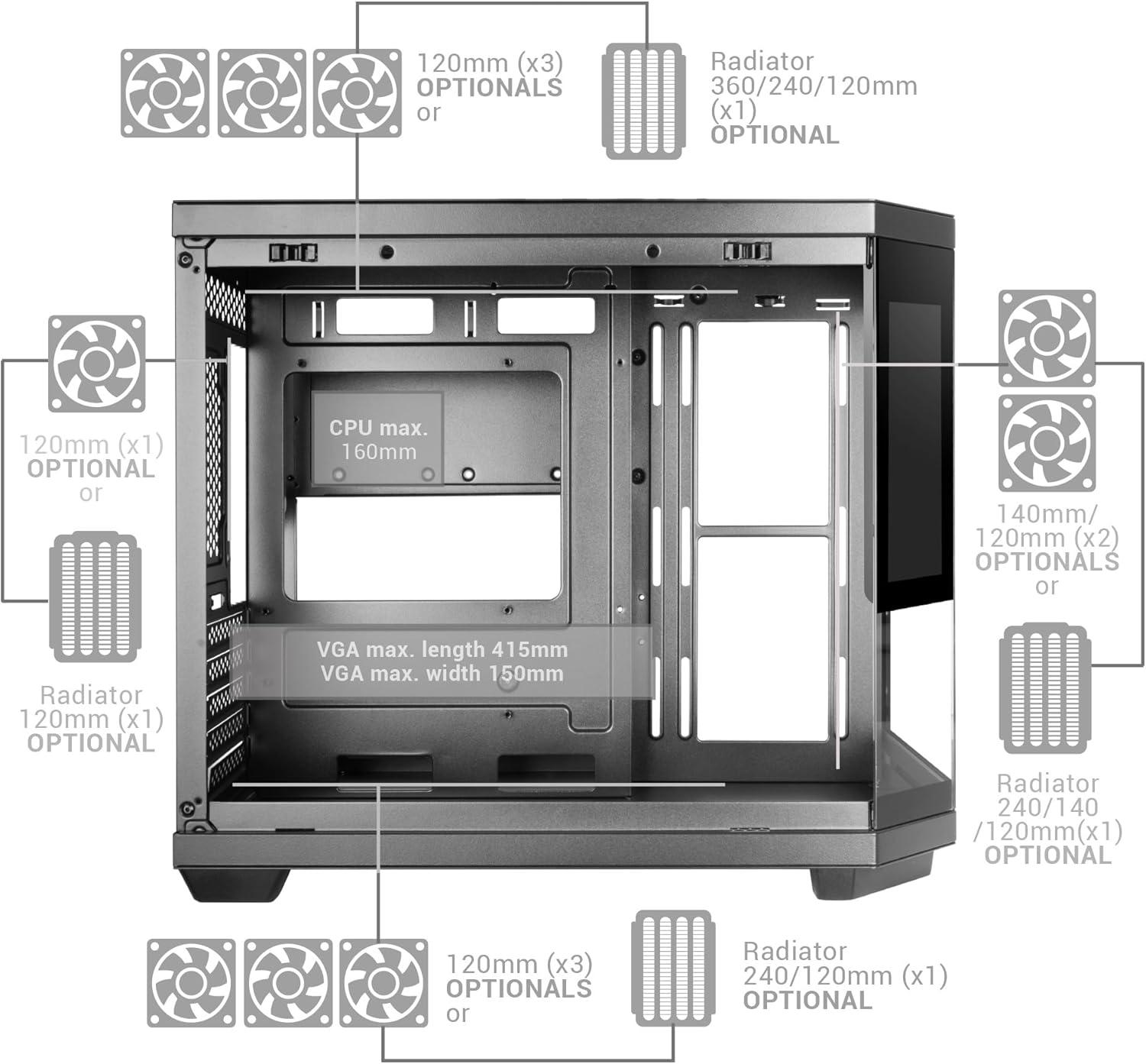
Figure 1: Internal layout diagram with component dimensions and optional cooling placements.
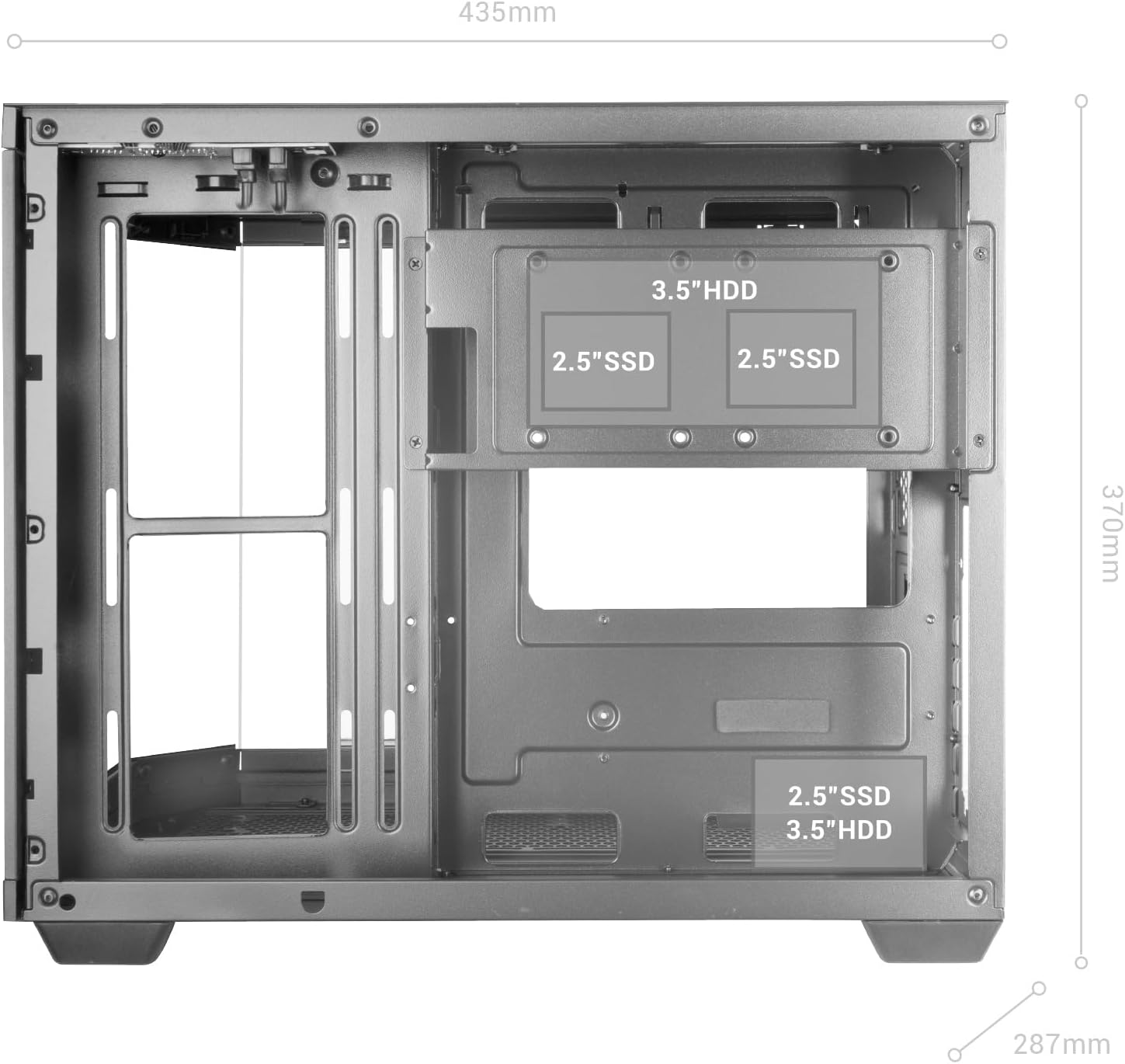
Nọmba 2: Alaye view of internal drive bay locations for 3.5" HDDs and 2.5" SSDs.
2.2. Itutu eto sori
The case supports extensive cooling configurations:
- Fan Capacity: Up to 9x 120mm fans or 2x 140mm + 6x 120mm fans.
- Atilẹyin Itutu Liquid: Up to 360mm radiators.

Olusin 3: Example of liquid cooling installation within the MC-3TCORELCDM case, supporting up to 360mm radiators and multiple fans.
2.3. Dual Chamber Structure
The dual-chamber design separates the power supply unit (PSU) and cables from the main hardware components, improving airflow and cable management.

Nọmba 4: View of the double side chamber, illustrating space for cable routing and rear motherboard connectors.
3. Awọn ilana Iṣiṣẹ
3.1. Integrated 7.2" IPS Screen
The MC-3TCORELCDM features a 7.2-inch IPS screen integrated into the central tempered glass panel. This screen can display system telemetry (temperatures, usage), custom images, animations, or videos using its dedicated control software.

Figure 5: The 7.2-inch IPS display showing real-time system information such as memory, CPU, disk, and GPU temperatures.
3.2. Top Panel Connectivity
The top panel provides convenient access to various ports for immediate connection of peripherals.
- 1x USB-C Port
- 1x USB 3.0 Port
- 1x USB 2.0 Port
- HD Audio + Microphone Jacks

Figure 6: Top panel connectivity options for easy access to peripherals.
4. Itọju
Itọju deede ṣe idaniloju iṣẹ ṣiṣe to dara julọ ati gigun gigun ti ọran PC rẹ.
4.1. eruku Ajọ
The MC-3TCORELCDM case includes magnetic dust filters on the top and bottom panels. Periodically remove and clean these filters to prevent dust buildup and maintain efficient airflow.
4.2. Tempered Glass Panels
The triple tempered glass panels can be cleaned with a soft, lint-free cloth and a mild glass cleaner. Avoid abrasive materials or harsh chemicals that could scratch or damage the glass.

olusin 7: Panoramic view of the case highlighting the triple tempered glass panels.
5. Laasigbotitusita
If you encounter issues with your MC-3TCORELCDM case, consider the following general troubleshooting steps:
- Awọn oran agbara: Ensure all power cables are securely connected to the power supply, motherboard, and components. Verify the power supply switch is in the 'ON' position.
- Iṣe Itutu: Check that all fans are spinning correctly and are free from obstructions. Ensure dust filters are clean. Verify liquid cooling pumps are operational if installed.
- Asopọmọra: If USB or audio ports are not functioning, ensure the internal headers are correctly connected to the motherboard.
- Iboju IPS: If the IPS screen is not displaying correctly, check its power and data connections. Refer to the dedicated control software for display settings and troubleshooting.
- Ìbámu Àwọn Ẹ̀yà: Double-check that all components are installed according to the specified dimensions and clearances.
For specific component-related issues, refer to the respective component manuals (e.g., motherboard, GPU, PSU).
6. Awọn pato
| Ẹya ara ẹrọ | Ẹ̀kúnrẹ́rẹ́ |
|---|---|
| Brand | Mars Awọn ere Awọn |
| Orukọ awoṣe | MC3TCORELCDMW |
| Iru Irú | Ile-iṣọ |
| Modaboudu Ibamu | Micro ATX, Mini ITX |
| Ohun elo | Gilasi ibinu |
| Àwọ̀ | Funfun |
| Awọn iwọn Nkan (D x W x H) | 17.13"D x 11.3"W x 14.57"H |
| Iwọn Nkan | 5.88 kilo |
| VGA Max. Length | 415mm |
| VGA Max. Width | 150mm |
| CPU Cooler Max. Height | 160mm |
| Agbara afẹfẹ | Up to 9x 120mm or 2x 140mm + 6x 120mm |
| Aami Ifowopamọ Omi Liquid | Ti o de 360mm |
| Ti abẹnu Bays | 2x 3.5" HDD / 3x 2.5" SSD |
| Total USB 3.0 Ports | 1 |
| Other Special Features | Dust Filter, Integrated 7.2" IPS Screen |
7. Atilẹyin ọja ati Support
Mars Gaming products are designed for reliability and performance. For warranty information, technical support, or service inquiries, please visit the official Mars Gaming webaaye tabi kan si atilẹyin alabara wọn taara. Jeki ẹri rira rẹ fun awọn iṣeduro atilẹyin ọja.