
Ọrọ Iṣaaju
Thank you for choosing the NexiGo Wireless Controller NS32-A9. This controller is designed to enhance your gaming experience on Nintendo Switch and Switch 2 consoles, offering advanced features such as no deadzone thumbsticks, customizable RGB lighting, adjustable vibration, six-axis gyroscope, and a turbo function. Please read this manual carefully to ensure proper setup and operation.
Ọja Awọn ẹya ara ẹrọ
- No Deadzone Thumbsticks: Experience precise control with minimal input delay, ensuring accurate movements in games.
- Dual Motors and Six-Axis Gyroscope: Enjoy immersive haptic feedback and responsive motion controls for a dynamic gaming experience.
- Atọka LED: The thumbsticks feature LED activity indicator rings that light up and flash during use, providing visual feedback.
- Gbigba agbara yiyara: The controller can be fully charged in 2-3 hours, providing up to 10 hours of gameplay.
- Asopọ Bluetooth: Easily pairs wirelessly with your Nintendo Switch console. Initial pairing requires a wired connection.
- Comfortable Non-Slip Design: Constructed from durable ABS material with ergonomic, non-slip grips to reduce hand fatigue during extended play sessions.
- Iṣẹ Turbo: Allows for partial and full automatic button mashing for repetitive actions in games.
- Gbigbọn Adijositabulu: Customize the intensity of the haptic feedback with four distinct levels.
- Ibamu gbooro: Compatible with Nintendo Switch, Nintendo Switch OLED, Nintendo Switch Lite, and PC.
- Switch Wake-Up Function: Conveniently wake up your Nintendo Switch console directly from the controller.

Image: No Deadzone Precision

Image: Wide Compatibility Overview
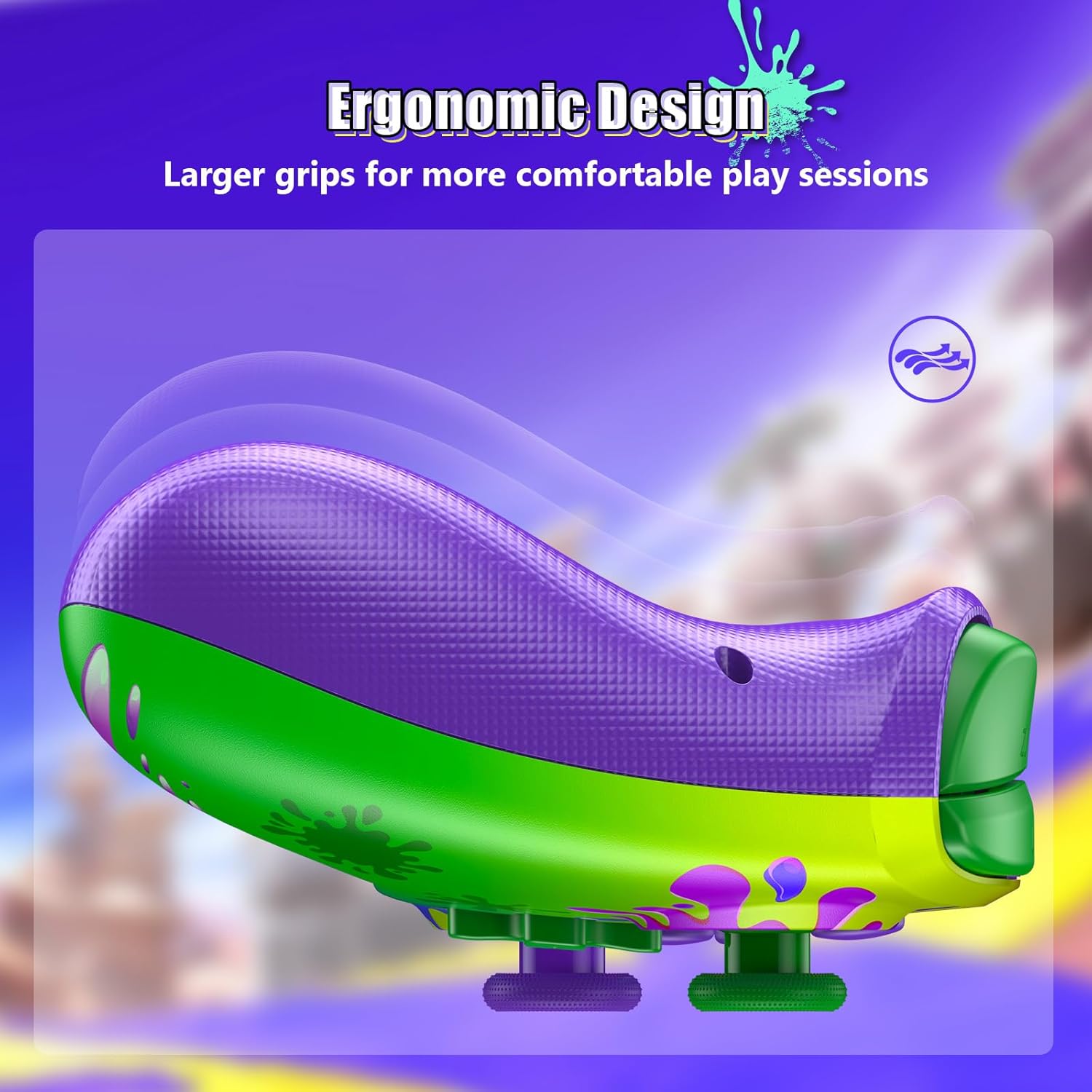
Image: Ergonomic Design for Comfort
Setup: Wireless Connection
Follow these steps to connect your NexiGo Wireless Controller to your Nintendo Switch console:
- Igbesẹ 1: Turn on your Nintendo Switch console and navigate to the "Controllers" menu from the HOME screen.
- Igbesẹ 2: Select "Change Grip/Order" from the list of options.
- Igbesẹ 3: Press and hold the Pairing button on the top of your controller for at least two seconds. The Pairing button is typically a small, circular button located near the charging port.
- Igbesẹ 4: The LEDs on your controller will flash during the pairing process and remain solid when the connection is successful.
Akiyesi: You can only connect your controller wirelessly after pairing it once via a USB cable for the initial setup.
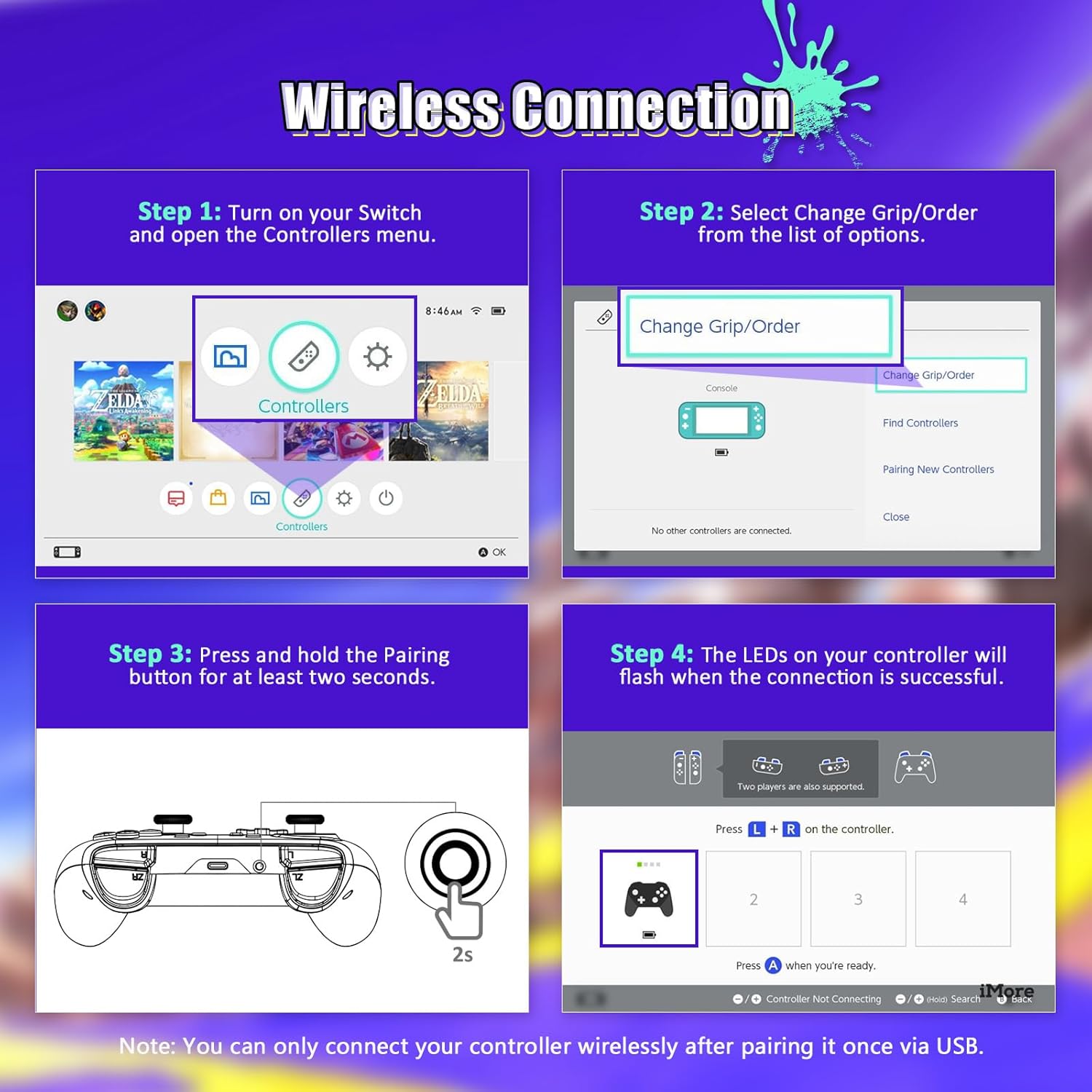
Image: Wireless Connection Setup Guide
Awọn ilana Iṣiṣẹ
Iṣẹ Turbo
The Turbo function allows you to assign rapid-fire capabilities to specific buttons. This is useful for games requiring quick, repeated button presses.
- Turbo Muu ṣiṣẹ: Press and hold the button you wish to assign Turbo to, then press the Turbo button (usually located on the back or bottom of the controller). The button will now rapidly input when held down.
- Mú kí Turbo má ṣiṣẹ́: Repeat the activation steps for the same button to turn off the Turbo function.
- Ṣatunṣe Iyara Turbo: (If applicable, consult specific controller documentation for speed adjustment methods, often involves Turbo button + D-pad up/down).

Image: Turbo Mode in action
Adijositabulu Gbigbọn
The controller features four levels of vibration intensity. You can adjust this to suit your preference or the game you are playing.
- Adjusting Vibration: Typically, this is done by holding a specific button (e.g., Turbo or Function button) and pressing the D-pad Up or Down. Refer to the quick start guide for your specific model's button combination.
- The four levels are usually 0% (off), 30%, 75%, and 100% intensity.

Image: Adjustable Vibration Levels
Gyroscope Àpá Méfà
The built-in six-axis gyroscope provides precise motion control for games that support it. This allows for intuitive tilt and motion-based gameplay.
- Ensure the game you are playing supports motion controls.
- Calibrate the gyroscope if you experience inaccurate motion sensing. This option is usually found in the Nintendo Switch system settings under "Controllers and Sensors."
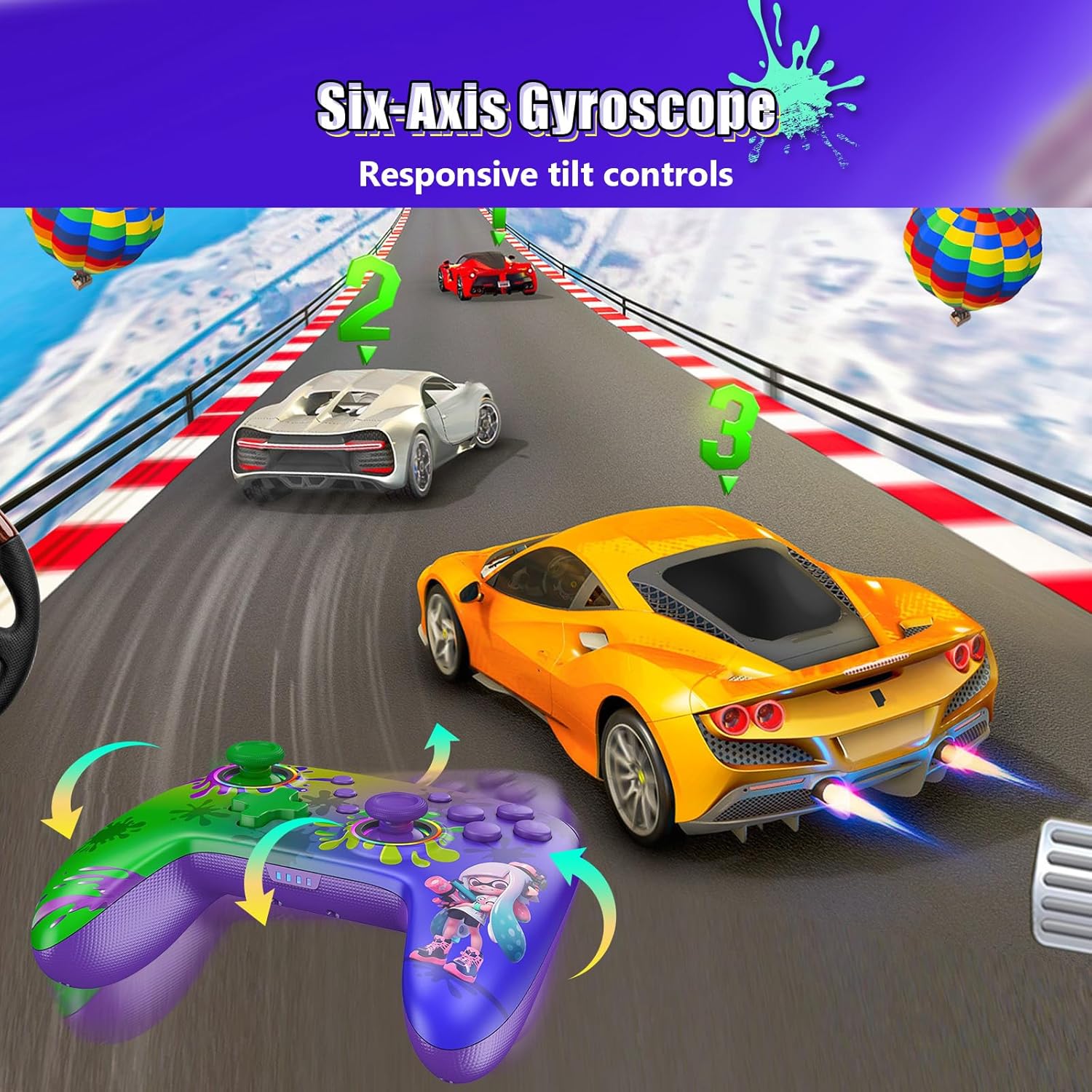
Image: Six-Axis Gyroscope in use
RGB Thumbsticks
The controller features customizable RGB lighting around the thumbsticks. These lights can be adjusted for color, brightness, and mode.
- Changing Colors/Modes: Refer to the controller's quick start guide for specific button combinations to cycle through seven colors, adjust brightness, and select from three lighting modes (e.g., breathing, cycling, static).
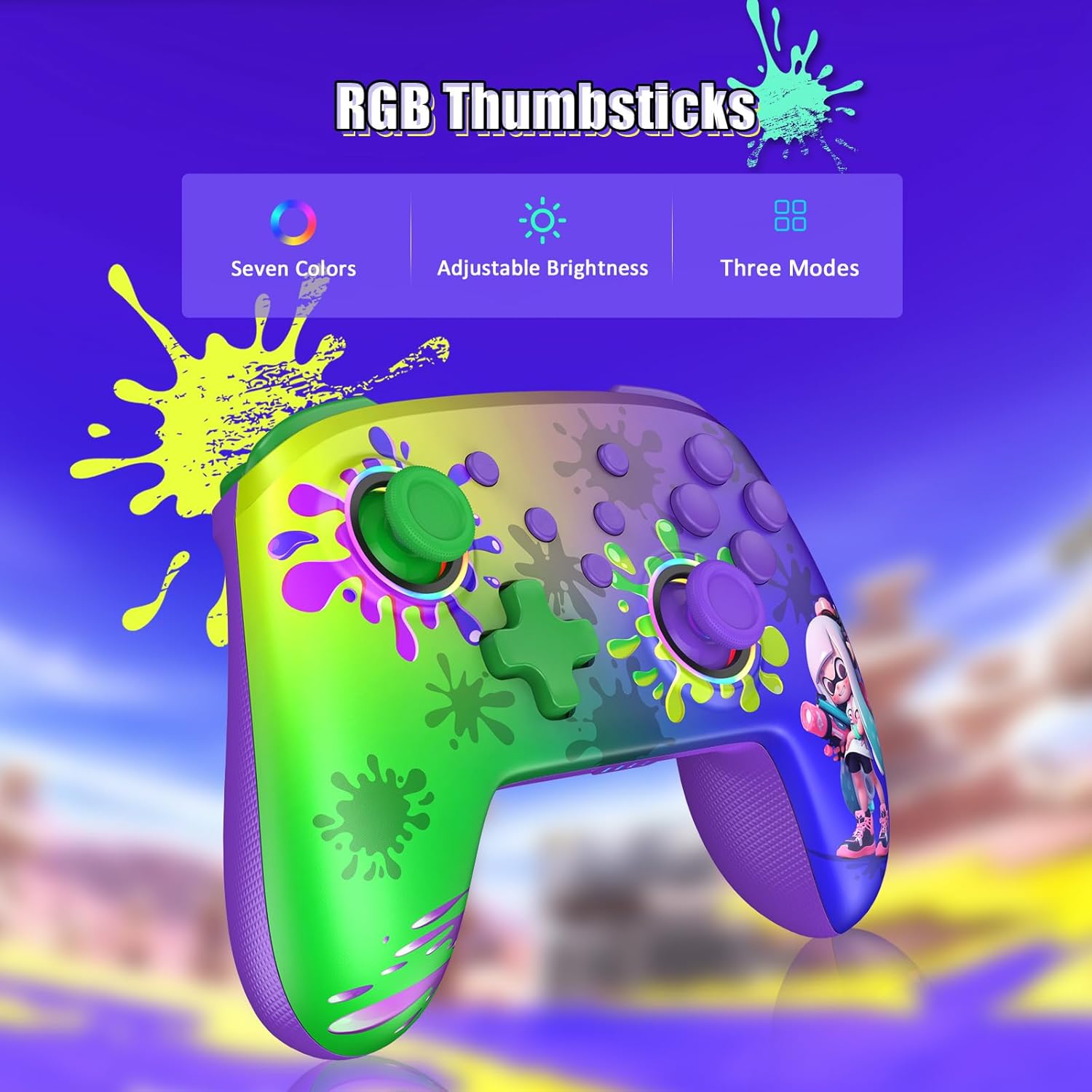
Image: RGB Thumbsticks Features
Itoju
- Ninu: Lo asọ asọ ti o gbẹ lati nu oludari naa. Yago fun lilo awọn kẹmika lile tabi awọn ohun elo abrasive.
- Ibi ipamọ: Tọju olutọju naa ni itura, aye gbigbẹ kuro lati orun taara ati awọn iwọn otutu to gaju.
- Itọju Batiri: Lati pẹ aye batiri, yago fun gbigba agbara ni kikun oludari nigbagbogbo. Gba agbara rẹ nigbagbogbo, paapaa ti kii ṣe ni lilo igbagbogbo.
- Yago fun awọn isọ silẹ: Dáàbò bo olùdarí náà kúrò lọ́wọ́ àwọn ìṣàn àti àwọn ìkọlù, èyí tí ó lè ba àwọn ẹ̀yà ara inú jẹ́.
Laasigbotitusita
- Alakoso Ko Sopọ:
- Rii daju pe oludari ti gba agbara.
- Verify Bluetooth is enabled on your Nintendo Switch.
- Attempt to re-pair the controller by following the "Wireless Connection" steps.
- Try connecting the controller via USB cable to confirm it powers on.
- Input Lag or Unresponsive Buttons:
- Rí i dájú pé kò sí ìdènà láàárín olùdarí àti console náà.
- Ṣayẹwo fun kikọlu lati awọn ẹrọ alailowaya miiran.
- Update the controller's firmware if an update is available (check the NexiGo official webaaye).
- Gbigbọn Ko Ṣiṣẹ:
- Ṣayẹwo awọn eto inu-ere lati rii daju pe gbigbọn ṣiṣẹ.
- Adjust the vibration intensity using the controller's dedicated function.
- Motion Controls Inaccurate:
- Calibrate the gyroscope in the Nintendo Switch system settings.
- Ensure the controller is held steadily during calibration.
Awọn pato
| Nọmba awoṣe | NS32-A9 |
| Ọja Mefa | 6.14 x 4.02 x 2.56 inches |
| Iwọn Nkan | 10.6 iwon |
| Asopọmọra | Bluetooth |
| Igbesi aye batiri | Titi di wakati 10 (isunmọ.) |
| Akoko gbigba agbara | Awọn wakati 2-3 (isunmọ) |
| Olupese | Next INC |
Atilẹyin ọja ati Support
NexiGo products are designed for reliability and performance. For any issues or questions, please refer to the following support information:
- Atilẹyin Onibara: NexiGo offers quick response customer support, typically within 24 hours.
- Ilana Pada: Products can be returned within 30 days for an exchange or refund, subject to terms and conditions.
- Oluranlowo lati tun nkan se: Lifetime technical customer support is provided for your NexiGo product.
- For detailed warranty information and to contact support, please visit the official NexiGo webaaye tabi tọka si kaadi atilẹyin ọja ti o wa pẹlu ọja rẹ.