
1. Ifihan
The Montech AX120 PRO is a high-performance 120mm cooling fan designed for efficient thermal management in computer systems. This 3-pack includes fans with a glowing ARGB rim and illuminated fan blades, providing both cooling capability and visual effects. The fans feature a precision-engineered 9-blade design for optimal airflow and static pressure, along with integrated anti-vibration pads for reduced noise. A durable rifle bearing ensures smooth operation and an extended lifespan. This manual provides instructions for installation, operation, maintenance, and troubleshooting.

Aworan 1.1: Pariview of MONTECH AX120 PRO ARGB Fans and their features.
2. Ohun ti o wa ninu Apoti
Daju pe gbogbo awọn paati wa ṣaaju ki o to tẹsiwaju pẹlu fifi sori ẹrọ:
- 3 x MONTECH AX120 PRO ARGB PWM 120mm Fans
- 1 x ARGB Fan Hub
- Iṣagbesori skru

Image 2.1: Packaging and contents of the AX120 PRO 3-pack.
3. Eto ati fifi sori
Follow these steps to properly install your MONTECH AX120 PRO fans:
- Mura Eto Rẹ: Ensure your computer is powered off and unplugged from the wall outlet. Open your computer case to access the fan mounting locations.
- So awọn Afẹfẹ pọ: Position each AX120 PRO fan in your desired location (e.g., front intake, rear exhaust, top exhaust). Use the included mounting screws to secure the fans to the case. Ensure the fan's airflow direction is correct for your cooling strategy. The AX series fans typically blow air from the RGB end to the non-RGB end.
- Connect to Fan Hub: Connect the 4-pin PWM cable from each fan to an available 4-pin fan header on the included ARGB Fan Hub.
- So awọn okun ARGB pọ: Connect the 3-pin ARGB cable from each fan to an available 3-pin ARGB header on the fan hub. Ensure correct orientation to avoid damage.
- Connect Fan Hub to Motherboard:
- Connect the 4-pin PWM cable from the fan hub to a 4-pin PWM fan header on your motherboard (e.g., CPU_FAN, SYS_FAN). This allows for fan speed control.
- Connect the 3-pin ARGB cable from the fan hub to a 3-pin 5V ARGB header on your motherboard. This enables software control of the fan lighting. Do not connect to a 4-pin 12V RGB header, as this will damage the LEDs.
- Connect Fan Hub Power: Connect the SATA power connector from your power supply unit (PSU) to the ARGB Fan Hub. This provides power to both the fans and the ARGB lighting.
- Iṣakoso USB: Route all cables neatly to ensure proper airflow within the case and a clean aesthetic.
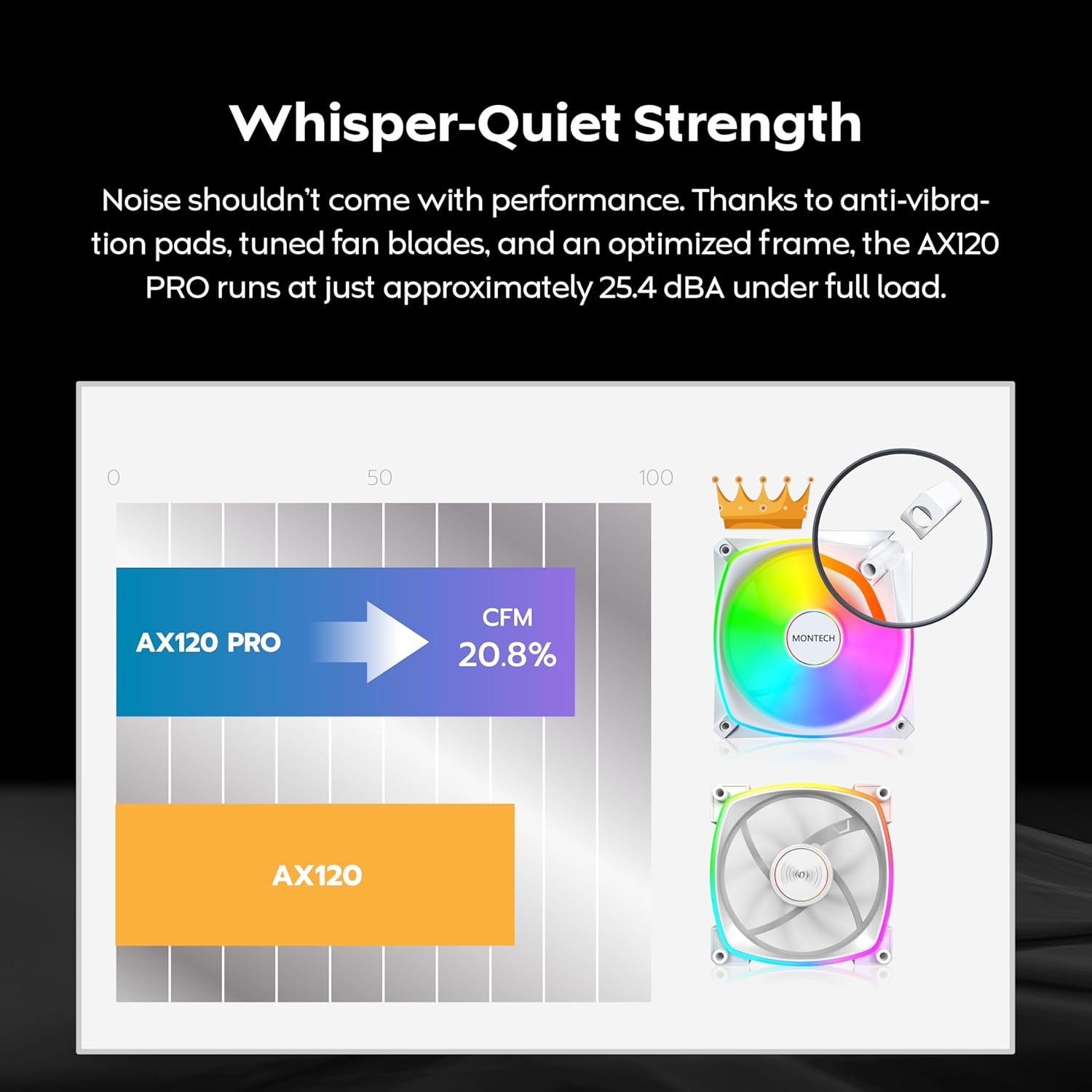
Image 3.1: The included ARGB Fan Hub for connecting multiple fans.

Image 3.2: Illustration of fan placement and airflow for optimal cooling.
4. Awọn ilana Iṣiṣẹ
4.1. PWM Fan Speed Control
The AX120 PRO fans utilize Pulse Width Modulation (PWM) technology, allowing your motherboard to dynamically adjust fan speeds based on system temperature. This provides an optimal balance between cooling performance and noise levels. Fan speeds can range from 600 to 1600 RPM.
- Iṣakoso Aifọwọyi: Once connected to a 4-pin PWM header on your motherboard, the fan speed will be automatically regulated by your motherboard's BIOS/UEFI settings or operating system software.
- Atunṣe Afọwọṣe: O le ṣe atunṣe awọn iyipo afẹfẹ nigbagbogbo ki o ṣeto pro iyara aṣafiles through your motherboard's BIOS/UEFI or dedicated fan control software provided by your motherboard manufacturer.

Image 4.1: PWM control mechanism for intelligent cooling.
4.2. ARGB ina Iṣakoso
The AX120 PRO fans feature Addressable RGB (ARGB) lighting, allowing for customizable lighting effects. The lighting is controlled via your motherboard's ARGB software.
- Software Synchronization: Connect the fan hub's ARGB cable to a compatible 3-pin 5V ARGB header on your motherboard. Use your motherboard's RGB control software (e.g., ASUS Aura Sync, GIGABYTE RGB Fusion 2.0, MSI Mystic Light Sync, ASRock Polychrome Sync) to customize lighting patterns, colors, and effects.
- Iṣakoso Ominira: If your motherboard does not have an ARGB header, or if you prefer, a separate ARGB controller (not included) can be used to manage the lighting.

Image 4.2: ARGB lighting synchronization with major motherboard brands.
5. Itọju
Itọju deede ṣe iranlọwọ rii daju iṣẹ ṣiṣe ti o dara julọ ati gigun ti awọn onijakidijagan rẹ.
- Ninu: Periodically clean the fan blades and frame to remove dust buildup. Use compressed air or a soft brush. Ensure the fan is powered off and unplugged before cleaning. Do not use liquid cleaners directly on the fan.
- Ayewo: Check fan cables for any signs of wear or damage. Ensure all connections to the fan hub and motherboard are secure.
- Itọju Ẹrù: The rifle bearing is designed for long-term, maintenance-free operation. No lubrication is required.

Aworan 5.1: Ti abẹnu view of the rifle bearing, designed for durability.
6. Laasigbotitusita
If you encounter issues with your MONTECH AX120 PRO fans, refer to the following common problems and solutions:
- Awọn onijakidijagan Ko Yiyi:
- Ensure the fan hub is correctly connected to the PSU via the SATA power cable.
- Verify that the 4-pin PWM cables from the fans are securely connected to the fan hub, and the fan hub's PWM cable is connected to a motherboard fan header.
- Ṣàyẹ̀wò àwọn ètò BIOS/UEFI ti motherboard rẹ láti rí i dájú pé àwọn àkọlé afẹ́fẹ́ ti ṣiṣẹ́ àti pé a ti ṣètò wọn dáadáa.
- Ko si ina ARGB:
- Confirm the 3-pin ARGB cables from the fans are connected to the fan hub, and the fan hub's ARGB cable is connected to a 3-pin 5V ARGB header on your motherboard.
- Pataki: Do not connect to a 4-pin 12V RGB header.
- Ensure the fan hub is receiving power from the PSU via SATA.
- Check your motherboard's ARGB software for lighting control and ensure it is running and configured.
- Ariwo Pupọ:
- Verify that the fans are securely mounted and not vibrating against the case. The fans include anti-vibration pads.
- Ṣàyẹ̀wò bóyá okùn tàbí ìdènà kan lè dí àwọn abẹ́ afẹ́fẹ́ lọ́wọ́.
- Adjust fan speed settings in your motherboard's BIOS/UEFI or software to a lower RPM if noise is a concern at idle.
- Nu eyikeyi eruku kọ lori awọn abẹfẹlẹ àìpẹ.
7. Awọn pato
| Ẹya ara ẹrọ | Sipesifikesonu |
|---|---|
| Nọmba awoṣe | AX120PW3in1 |
| Fan Dimensions | 120mm x 120mm x 25mm (4.72"L x 0.98"W x 4.72"H) |
| Iyara Fan | 600 - 1600 RPM (Iṣakoso PWM) |
| Air Sisan Agbara | 72.3 CFM (Ẹsẹ onigun Ni Iṣẹju kan) |
| Ariwo Ipele | 25.4 dBA (O pọju) |
| Aimi Ipa | 1.85 mmH2O |
| Ti nso Iru | Ibọn ti nso |
| Asopọ agbara | 4-PWM pin |
| Asopọmọra ARGB | Pínì mẹ́ta 5V ARGB |
| Awọn ẹrọ ibaramu | Awọn kọmputa tabili |
| Nọmba ti Awọn nkan | 3 Fans + 1 Hub |
8. Atilẹyin ọja ati Support
8.1. atilẹyin ọja Information
The MONTECH AX120 PRO ARGB PWM 120mm Fan 3-Pack comes with a 3-odun atilẹyin ọja Láti ọjọ́ tí a rà á. Àtìlẹ́yìn yìí bo àwọn àbùkù iṣẹ́ ṣíṣe, ó sì ń rí i dájú pé ọjà náà bá àwọn ìlànà iṣẹ́ tí a là sílẹ̀ mu lábẹ́ lílo déédéé. Jọ̀wọ́ pa ẹ̀rí ríra rẹ mọ́ fún àwọn ẹ̀tọ́ àtìlẹ́yìn.
8.2. Imọ Support
For technical assistance, troubleshooting beyond this manual, or warranty inquiries, please contact MONTECH customer support through their official website or the retailer where the product was purchased. Provide your product model number (AX120PW3in1) and a detailed description of the issue to expedite support.