
1. Ifihan
Thank you for choosing the KTC H25T7-3 24.5 Inch 240Hz FHD Gaming Monitor. This manual provides essential information for setting up, operating, and maintaining your monitor. Please read it thoroughly before use to ensure optimal performance and safety.
Alaye Aabo
- Má ṣe fi àtẹ̀gùn náà sí òjò tàbí ọrinrin láti dènà iná tàbí ìkọlù iná mànàmáná.
- Maṣe ṣii atẹle casing. Ko si awọn ẹya ti olumulo-iṣẹ ninu. Tọkasi gbogbo iṣẹ si oṣiṣẹ oṣiṣẹ.
- Gbe atẹle naa sori iduro, dada alapin lati ṣe idiwọ fun isubu.
- Rii daju pe fentilesonu to dara ni ayika atẹle lati ṣe idiwọ igbona.
- Use only the power adapter and cables provided by KTC.
2. Ohun ti o wa ninu Apoti
Verify that all the following items are present in your package:
- KTC H25T7-3 24.5" FHD 240Hz Monitor (x1)
- Monitor Stand (x1)
- Itọsọna Ibẹrẹ kiakia (QSG) (x1)
- DisplayPort (DP) Cable (x1)
- Ohun ti nmu badọgba agbara (x1)
- Okun agbara (x1)
3. Ọja Ipariview
The KTC H25T7-3 is a 24.5-inch Full HD (1920x1080) gaming monitor featuring a Fast IPS panel, 240Hz refresh rate, and 1ms MPRT response time for smooth visuals. It supports HDR400 and Adaptive-Sync technology to enhance your viewing ati ere iriri.
Key Awọn ẹya ara ẹrọ
- 24.5" FHD Fast IPS Panel: Delivers crisp 1080p resolution with wide 178° viewing awọn igun.
- Oṣuwọn isọdọtun 240Hz & 1ms MPRT: Ensures ultra-smooth motion and minimal ghosting.
- Imọ-ẹrọ Amuṣiṣẹpọ Amuṣiṣẹpọ: Synchronizes the monitor's refresh rate with your GPU for tear-free gameplay.
- HDR400 atilẹyin: Ó ń pèsè ìyàtọ̀ àti ìjìnlẹ̀ àwọ̀ tó pọ̀ sí i fún ìrírí ojú tó túbọ̀ wúni lórí.
- Iduro Ergonomic: Offers tilt, pivot, and height adjustments for personalized viewinu itunu.
- Awọn ẹya ara ẹrọ Itọju Oju: Low blue light and flicker-free technology reduce eye strain during extended use.
- Awọn aṣayan Asopọmọra pupọ: Includes 2x HDMI 2.0, 1x DisplayPort 1.4, and 1x USB 2.0.

Olusin 3.1: Pariview of KTC H25T7-3 monitor features including Fast IPS, 240Hz, HDR400, and adjustable stand.
4. Eto
4.1 Nto Iduro
- Fara yọ atẹle naa kuro ki o duro awọn paati lati apoti.
- So ipilẹ iduro si ọrun imurasilẹ nipa lilo awọn skru ti a pese.
- Mu iduro ti o pejọ pọ pẹlu Iho iṣagbesori lori ẹhin atẹle naa ki o ni aabo ni iduroṣinṣin.

olusin 4.1: Iwaju view of the KTC H25T7-3 monitor with its stand assembled.
4.2 VESA Wall Mounting (Optional)
The monitor supports a 100x100mm VESA mount. To wall mount the monitor:
- Yọ iduro naa kuro ninu iboju naa ti o ba ti so mọ tẹlẹ.
- Attach your VESA-compatible wall mount bracket to the four screw holes on the back of the monitor. Ensure the screws are appropriate for the VESA standard and do not overtighten.
- Follow the instructions provided with your VESA mount for secure installation.

olusin 4.2: Ẹyìn view of the KTC H25T7-3 monitor, highlighting the input ports and VESA mounting area.
4.3 Nsopọ Awọn okun
Connect the necessary cables to the corresponding ports on the monitor and your computer/device:
- Agbara: Connect the power adapter to the monitor's DC input and then plug the power cord into a power outlet.
- DisplayPort (DP): For optimal performance (240Hz, Adaptive-Sync), connect the provided DisplayPort cable from your graphics card to the monitor's DP 1.4 port.
- HDMI: Alternatively, connect an HDMI cable from your device to one of the monitor's HDMI 2.0 ports.
- USB: The USB 2.0 port can be used for firmware upgrades or connecting peripherals.
5. Awọn ilana Iṣiṣẹ
5.1 Agbara Tan / Pa
Press the power button (usually located on the back or bottom of the monitor) to turn the monitor on or off. The power indicator light will illuminate when the monitor is on.
5.2 OSD Akojọ Lilọ kiri
The On-Screen Display (OSD) menu is controlled by a joystick button, typically located on the back of the monitor. Use the joystick to navigate through the menu options and adjust settings.
- Titari si: Enter/Confirm selection.
- Soke/Isalẹ: Lilö kiri nipasẹ awọn aṣayan akojọ aṣayan.
- Osi/Ọtun: Ṣatunṣe awọn iye tabi gbe laarin awọn akojọ aṣayan-ipin.
5.3 Siṣàtúnṣe Ifihan Eto
Access the OSD menu to configure various display settings:
- Imọlẹ/Itọtọ: Satunṣe awọn ìwò luminance ati itansan awọn ipele.
- Eto awọ: Iwọn otutu awọ ti o dara, gamma, ati awọn iye RGB kọọkan.
- Ipo aworan: Select from preset modes (e.g., Standard, Game, Movie, sRGB) or customize your own.
- Oṣuwọn isọdọtun: Ensure your graphics card output is set to 240Hz for optimal performance.
- Amuṣiṣẹpọ-Amuṣiṣẹpọ: Enable this feature in the OSD menu and your graphics card control panel to eliminate screen tearing.
- HDR: Activate HDR400 for compatible content to experience enhanced dynamic range.
- Imọlẹ Buluu Kekere: Adjust the blue light filter to reduce eye strain.

Figure 5.1: Visual representation of the 240Hz refresh rate for smooth motion.
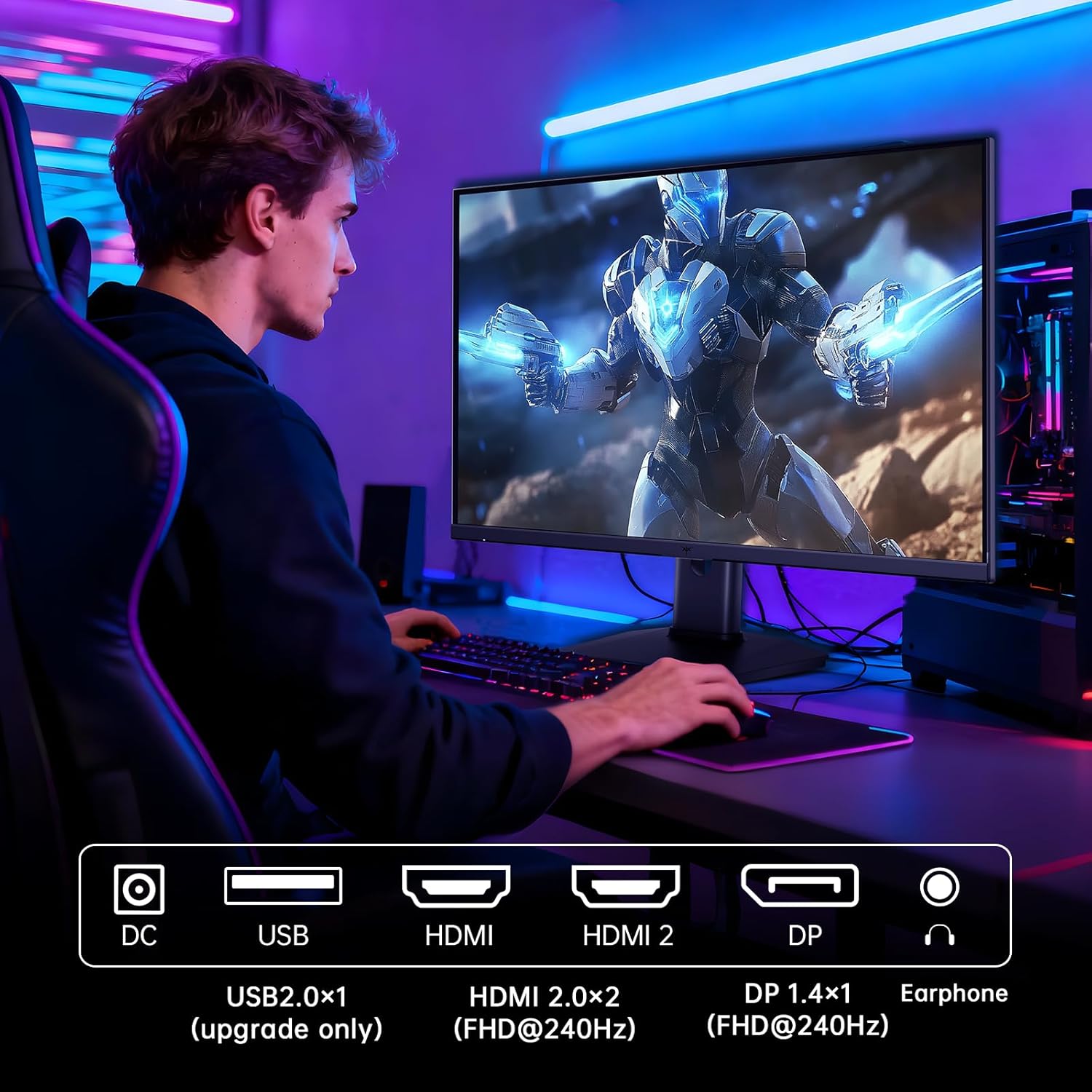
Figure 5.2: Comparison showing the effect of Adaptive-Sync on reducing stuttering and screen tearing.

Figure 5.3: Illustration of HDR400 technology delivering clear details in dark areas compared to HDR10.

Figure 5.4: Diagram illustrating hardware blue light reduction technology to filter harmful blue light bands.
5.4 Ergonomic Awọn atunṣe
Iduro atẹle ngbanilaaye fun ọpọlọpọ awọn atunṣe lati mu ilọsiwaju rẹ pọ si viewing position:
- Tẹ: Adjust the screen angle forward or backward (-5° to 20°).
- Pivot: Rotate the screen 90° for portrait mode.
- Atunse Giga: Raise or lower the screen by up to 110mm.
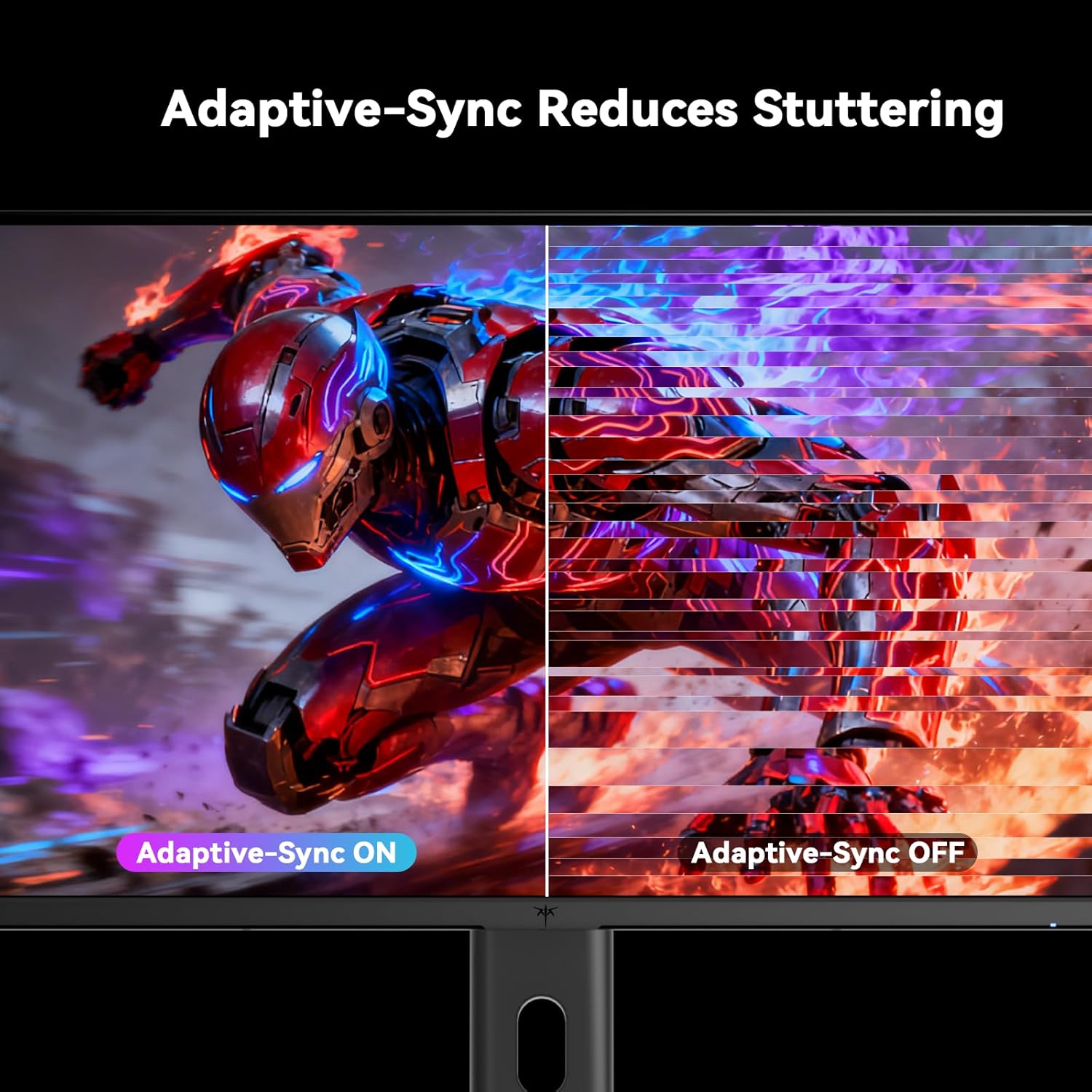
Figure 5.5: Diagram showing the tilt, pivot, and height adjustment capabilities of the monitor stand.
5.5 Osise Video ọja
Video 5.1: An official product video from KTC-Official showcasing the 24.5 Inch FHD 240Hz Gaming Monitor, demonstrating its features and performance.
6. Itọju
6.1 Ninu Atẹle
Lati nu iboju atẹle ati casing:
- Nigbagbogbo yọọ atẹle naa kuro ni iṣan agbara ṣaaju ṣiṣe mimọ.
- Lo asọ rirọ, ti ko ni lint ni sere dampened pẹlu omi tabi a ti kii-abrasive iboju regede.
- Maṣe fun sokiri regede taara sori iboju.
- Yẹra fún lílo àwọn ohun ìfọmọ́ tí a fi ammonia ṣe, tàbí àwọn ohun èlò ìpara.
6.2 Itọju Gbogbogbo
- Pa iboju naa mọ kuro ninu oorun taara, ooru pupọ, tabi otutu.
- Yago fun gbigbe awọn nkan ti o wuwo sori atẹle tabi awọn kebulu rẹ.
- Ma ṣe dina awọn šiši fentilesonu lori atẹle naa.
7. Laasigbotitusita
Ti o ba pade awọn ọran pẹlu atẹle rẹ, tọka si awọn iṣoro ti o wọpọ ati awọn ojutu wọnyi:
| Isoro | Owun to le Fa | Ojutu |
|---|---|---|
| Ko si agbara | Okun agbara ko sopọ; Agbara agbara ko ṣiṣẹ | Ensure power cable is securely connected. Test the power outlet with another device. |
| Ko si ifihan agbara | Video cable not connected; Incorrect input source selected; Computer/device not powered on | Check video cable connections. Select the correct input source via the OSD menu. Ensure your computer/device is on. |
| Iboju ti n tan imọlẹ | Incorrect refresh rate; Cable issue; Adaptive-Sync not enabled | Set refresh rate to 240Hz. Try a different video cable. Enable Adaptive-Sync in OSD and GPU settings. |
| Image distortion/poor quality | Incorrect resolution; Graphics driver issue; Monitor settings | Set resolution to 1920x1080. Update graphics drivers. Adjust OSD settings (brightness, contrast, color). |
7.1 Atunto ile-iṣẹ
If problems persist, you may perform a factory reset through the OSD menu. This will revert all monitor settings to their default values.
8. Awọn pato
Detailed technical specifications for the KTC H25T7-3 monitor:
| Ẹya ara ẹrọ | Sipesifikesonu |
|---|---|
| Nọmba awoṣe | H25T7-3 |
| Iwon iboju | 24.5 inches |
| Panel Iru | Yara IPS |
| Ipinnu | FHD 1080p (1920 x 1080 Pixels) |
| Apakan Ipin | 16:9 |
| Oṣuwọn sọtun | 240Hz |
| Akoko Idahun | 1ms (MPRT) |
| Amuṣiṣẹpọ Adaptive | Bẹẹni |
| HDR atilẹyin | HDR400 |
| Awọ Gamut | 114% sRGB |
| Ipin Itansan | 1000:1 |
| Awọn awọ ifihan | 16.7 Milionu |
| Imọlẹ | 350 cd/m² |
| Viewigun igun | 178° (H/V) |
| Asopọmọra | 2x HDMI 2.0, 1x DisplayPort 1.4, 1x USB 2.0 |
| VESA Oke ibamu | 100x100mm |
| Awọn atunṣe Ergonomic | Tilt, Pivot, Height |
| Awọn iwọn ọja (pẹlu iduro) | 7.6 x 21.97 x 18.23 inches |
| Ìwúwo Ohun kan (pẹ̀lú ìdúró) | 11.58 iwon |
| Voltage | 12 Volts (DC) |
9. Atilẹyin ọja ati Support
9.1 atilẹyin ọja Alaye
KTC monitors are designed and manufactured to the highest quality standards. For specific warranty terms and conditions, please refer to the warranty card included with your product or visit the official KTC webojula. Tọju iwe-ẹri rira rẹ bi ẹri rira fun awọn iṣeduro atilẹyin ọja.
9.2 Onibara Support
If you have any questions, require technical assistance, or experience issues not covered in this manual, please contact KTC customer support. Contact details can typically be found on the official KTC webojula tabi ni Quick Bẹrẹ Itọsọna.