
1. Ifihan
The Portronics MPort View Three is a versatile 10-in-1 USB-C multifunction docking station designed to expand the connectivity of your USB-C enabled laptop, tablet, or smartphone. It provides a comprehensive solution for connecting to external displays, wired networks, and various peripherals, enhancing productivity and convenience.

Aworan 1.1: Pariview of the Portronics MPort View Three docking station with connected devices, illustrating its 10-in-1 functionality.
2. Awọn ẹya Ọja
- 10-ni-1 Asopọmọra: Integrates multiple ports for comprehensive device expansion.
- Ifijiṣẹ Agbara USB-C 100W: Charges your host device while simultaneously supporting connected peripherals.
- 4K HDMI Ijade: Supports high-resolution video output up to 4K at 30Hz for external displays.
- Ijade VGA: Provides compatibility with older monitors and projectors, supporting up to 1080P resolution.
- Ibudo Ethernet RJ45: Ensures a stable and reliable wired internet connection at 100Mbps.
- Awọn ibudo USB lọpọlọpọ: Includes three USB 3.0 ports (5Gbps) for high-speed data transfer and two USB 2.0 ports (480Mbps) for general peripherals.
- SD & MicroSD Card Readers: Facilitates quick transfer of photos, videos, and documents (480Mbps).
- Jack Audio 3.5mm: Fun sisopọ olokun tabi agbohunsoke.
- Transparent Casing: Features a durable, transparent design that reveals internal circuitry.
- Plug-and-Play: No drivers or additional software required for most operating systems.
- Ibamu gbooro: Works with USB-C devices supporting Alt Mode, including Windows, macOS, Android, and iOS.
- Apẹrẹ Iwapọ: Lightweight ati ki o šee fun rorun ọkọ.
3. Awọn ilana iṣeto
- Sopọ si Ẹrọ Gbalejo: Plug the integrated USB-C cable from the MPort View Three into the USB-C port of your laptop, tablet, or smartphone. Ensure your device's USB-C port supports DisplayPort Alternate Mode (Alt Mode) for video output functionality.
- Ifijiṣẹ Agbara (Aṣayan): For charging your host device and ensuring stable power for all connected peripherals, connect a USB-C power adapter (not included) to the USB-C PD port on the docking station. The docking station supports up to 100W Power Delivery.
- Awọn Agbeegbe Sopọ:
- Awọn ifihan ita: Connect your HDMI or VGA monitor/projector to the corresponding ports on the docking station.
- Nẹtiwọọki: Connect an Ethernet cable from your router/modem to the RJ45 Ethernet port.
- Awọn ẹrọ USB: Plug in USB devices such as keyboards, mice, external hard drives, or USB flash drives into the available USB 3.0 or USB 2.0 ports.
- Awọn kaadi iranti: Insert SD or MicroSD cards into their respective slots.
- Awọn Ẹrọ Olohun: So awọn agbekọri tabi awọn agbohunsoke pọ si jaketi ohun afetigbọ 3.5mm.
- Jẹrisi Asopọmọra: Your host device should automatically detect the docking station and connected peripherals. No drivers are typically required for Windows or macOS.
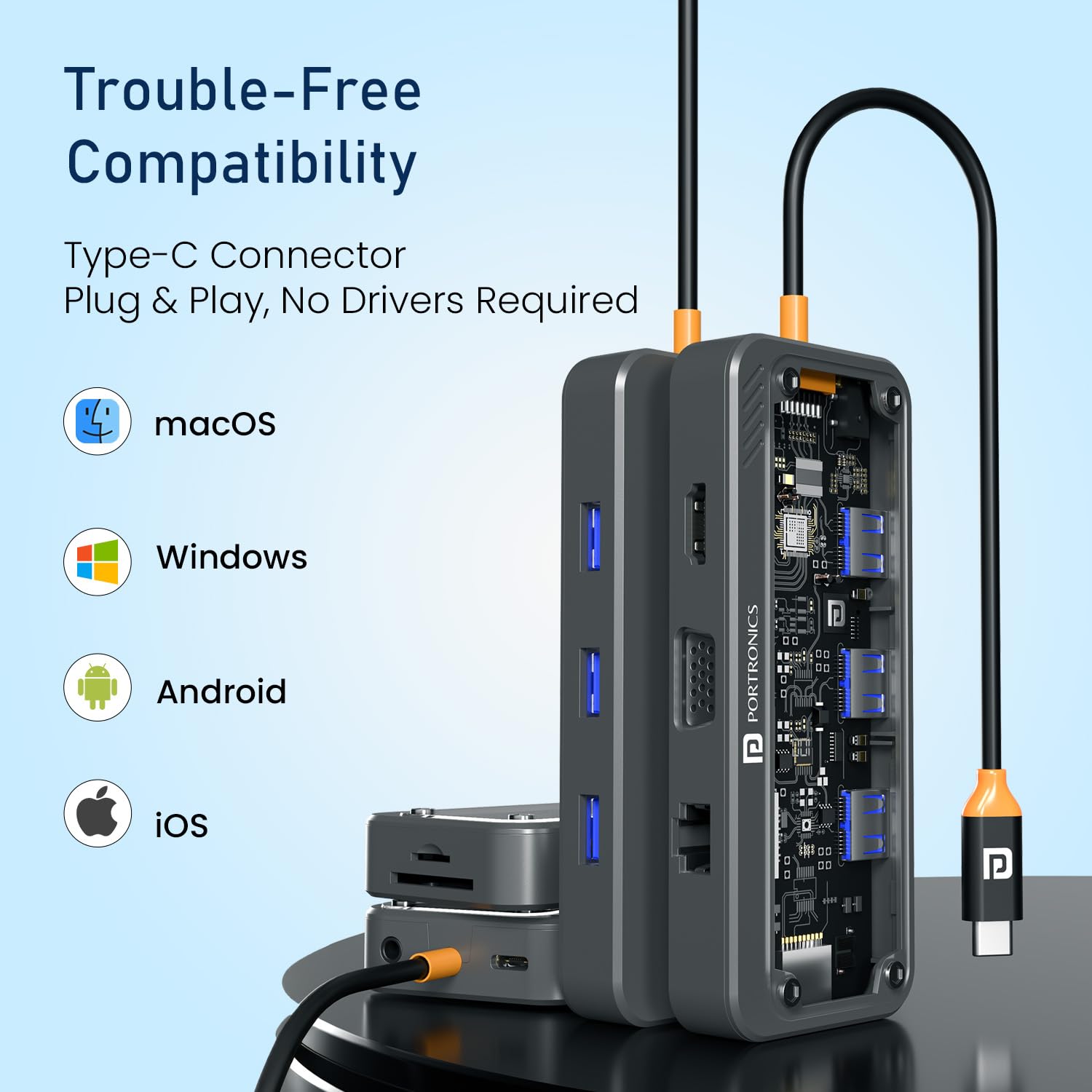
Image 3.1: The MPort View Three is compatible with various operating systems including macOS, Windows, Android, and iOS, offering plug-and-play functionality.
4. Awọn ilana Iṣiṣẹ
Once the MPort View Three is set up, operating its various functions is straightforward:
- Iṣafihan Afihan:
- For HDMI or VGA displays, ensure the monitor is powered on and set to the correct input source. Your operating system's display settings can be used to configure display modes (e.g., extend, duplicate).
- The HDMI port supports resolutions up to 4K at 30Hz. The VGA port supports resolutions up to 1080P.

Image 4.1: A laptop connected to an external monitor via the docking station's HDMI port, showcasing 4K @ 30Hz output for clear visuals.

Image 4.2: A laptop connected to a VGA monitor and external speakers through the docking station, demonstrating 1080P VGA output and 3.5mm audio functionality.
- Awọn ẹrọ USB: Connected USB devices will function immediately. USB 3.0 ports offer faster data transfer speeds (up to 5Gbps) compared to USB 2.0 ports (up to 480Mbps).
- Awọn oluka kaadi: Insert SD or MicroSD cards into the appropriate slots. They will appear as removable drives on your host device, allowing for file access and transfer.
- Asopọmọra Ethernet: Once an Ethernet cable is connected, your host device should automatically establish a wired network connection. This provides a stable internet connection, ideal for streaming or online meetings.
- Ijade ohun: When headphones or speakers are connected to the 3.5mm audio jack, your host device should automatically switch audio output to the connected device. You may need to select the audio output device in your operating system's sound settings.
- Ifijiṣẹ Agbara: If a power adapter is connected to the USB-C PD port, your host device will begin charging. This allows you to use all docking station functions without draining your device's battery.
5. Ibudo Overview
The MPort View Three features a comprehensive array of ports to meet diverse connectivity needs. Refer to the video below for a visual guide to the ports.
Video 5.1: A detailed walkthrough of the Portronics MPort View Three's various ports and their functions.
- Ibudo USB-C PD: Located on the side, this port supports Power Delivery up to 100W for charging your host device.
- Jack Audio 3.5mm: Also on the side, for connecting standard audio devices.
- Iho kaadi SD: Fun awọn kaadi iranti SD boṣewa.
- Iho kaadi MicroSD: For smaller MicroSD memory cards.
- Ibudo HDMI: Supports video output up to 4K@30Hz.
- Ibudo VGA: Supports video output up to 1080P.
- Ibudo Ethernet RJ45: Provides a 100Mbps wired network connection.
- Awọn ibudo USB 3.0 (x3): High-speed data transfer ports (up to 5Gbps).
- Awọn ibudo USB 2.0 (x2): Standard data transfer ports (up to 480Mbps).
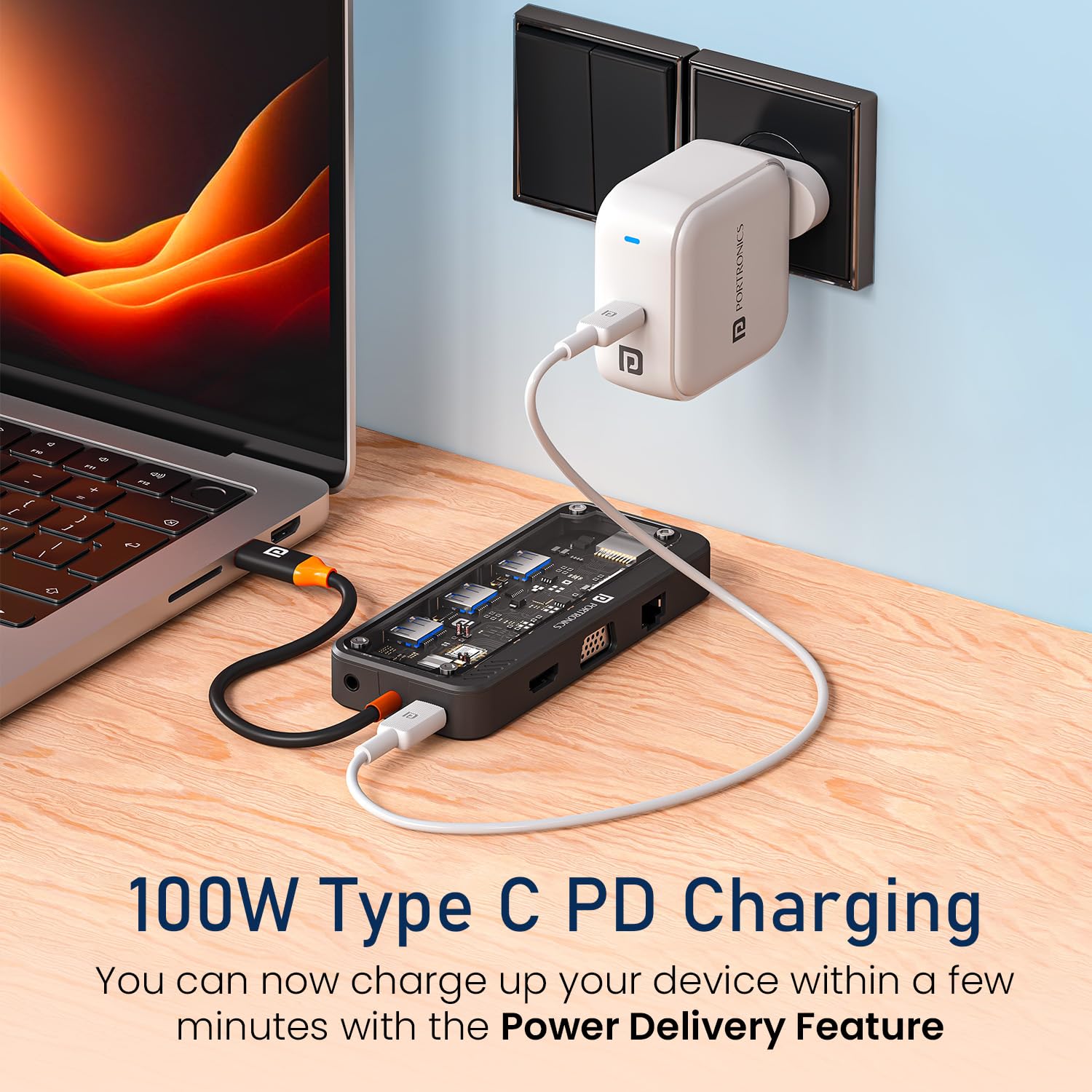
Image 5.2: The docking station connected to a power source, highlighting its 100W Type-C Power Delivery capability.
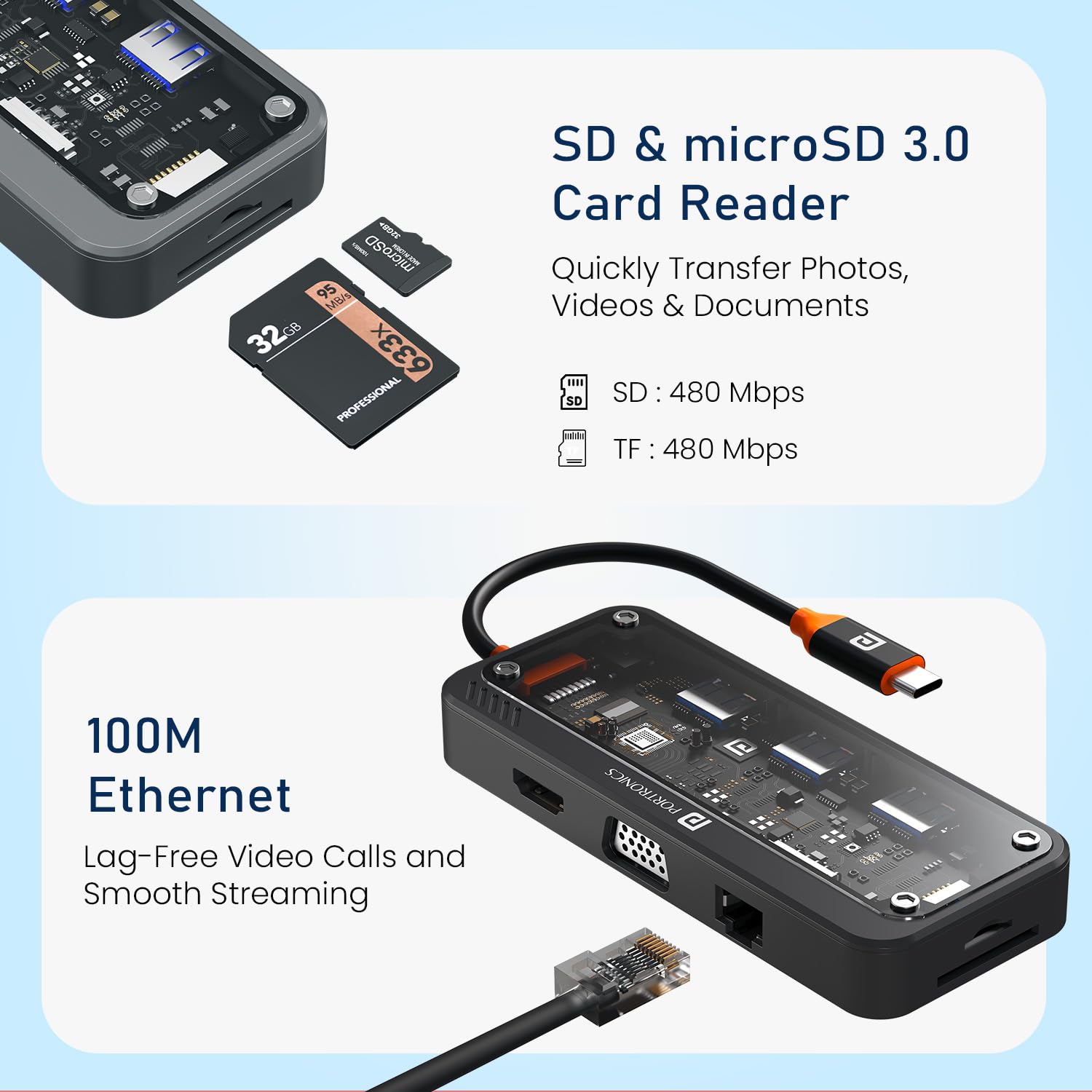
Image 5.3: Close-up of the SD and MicroSD card readers and the 100Mbps RJ45 Ethernet port on the docking station.

Image 5.4: The transparent casing design of the MPort View Three, alongside a visual comparison of USB 2.0 (480Mbps) and USB 3.0 (5Gbps) file awọn iyara gbigbe.
6. Ibamu
The Portronics MPort View Three is designed for broad compatibility with devices featuring a USB-C port that supports DisplayPort Alternate Mode (Alt Mode). It is compatible with:
- Awọn ọna ṣiṣe: Windows (Windows 11 and later recommended), macOS (Mac OS 14 Sonoma and later recommended), Android, and iOS.
- Awọn iru ẹrọ: Laptops, Tablets, and Smartphones with compatible USB-C ports.
Note: Full functionality, especially video output, depends on the host device's USB-C port supporting DisplayPort Alt Mode.
7. Laasigbotitusita
If you encounter issues with your MPort View Three, consider the following troubleshooting steps:
- Ko si Abajade Ifihan:
- Ensure the USB-C connection to your host device is secure.
- Verify your host device's USB-C port supports DisplayPort Alt Mode.
- Check that the HDMI/VGA cable is securely connected to both the docking station and the monitor.
- Confirm the monitor is powered on and set to the correct input source.
- Try connecting the monitor directly to your host device (if possible) to rule out monitor issues.
- A ko ṣe awari Agbeegbe:
- Ensure all USB devices, SD/MicroSD cards, and Ethernet cables are firmly inserted into their respective ports.
- If using high-power USB devices (e.g., external hard drives), ensure a power adapter is connected to the docking station's USB-C PD port.
- Try connecting the peripheral directly to your host device to confirm it is functional.
- Gbigbe Data lọra:
- Ensure you are using the USB 3.0 ports for devices requiring higher speeds.
- Performance can be affected by the host device's capabilities and the quality of connected cables.
- Awọn ọran gbigba agbara:
- Verify that a compatible USB-C PD power adapter is connected to the docking station.
- Ensure the power adapter provides sufficient wattage (up to 100W supported).
- Ko si Ohun:
- Check that your headphones/speakers are properly connected to the 3.5mm audio jack.
- Verify the audio output device is selected correctly in your host device's sound settings.
8. Itọju
- Ninu: Use a soft, dry cloth to clean the exterior of the docking station. Avoid using liquid cleaners or solvents.
- Ibi ipamọ: Tọju ẹrọ naa ni itura, aye gbigbẹ kuro lati orun taara ati awọn iwọn otutu to gaju.
- Mimu: Má ṣe jẹ́ kí ẹ̀rọ náà jábọ́ tàbí kí ó fa ìkọlù líle. Má ṣe gbìyànjú láti tú ẹ̀rọ náà ká.
9. Awọn pato
| Brand | Portronics |
| Orukọ awoṣe | MPport View Mẹta |
| Nọmba awoṣe | POR-3264 |
| Àwọ̀ | Dudu |
| Ni wiwo Hardware | Ethernet, HDMI, MicroSD, USB 2.0, USB 3.0, USB Type C, VGA |
| Pataki Awọn ẹya ara ẹrọ | 10-in-1 Transparent Docking Station, Transparent Case, Type-C PD, HDMI, Ethernet, VGA, USB 3.0, USB 2.0, SD & Micro SD, Audio, Type-C Plug |
| Awọn ẹrọ ibaramu | Laptops, Tablets, Smartphones |
| Lapapọ Awọn ibudo USB | 5 (USB 3.0, 2x USB 2.0) |
| Nọmba ti Ports | 10 |
| Ifijiṣẹ Agbara | Títí dé 100W nípasẹ̀ ibudo USB-C PD |
| HDMI Ijade | 4K @ 30Hz |
| Ifihan VGA | 1080P |
| Iyara Ethernet | 100Mbps (RJ45) |
| Iyara Kaadi Kaadi | 480Mbps (SD/MicroSD) |
| Awọn ọna System Support | Windows (11+), macOS (14+), Android, iOS |
| Ohun elo apade | ABS ṣiṣu |
| Awọn Iwọn Nkan (L x W x H) | 16.9L x 9.1W x 2.1H centimita |
| Iwọn Nkan | 105 giramu |
| Ilu isenbale | China |
10. Atilẹyin ọja ati Support
Akoko atilẹyin ọja: The Portronics MPort View Three comes with a 1-odun atilẹyin ọja lati ọjọ ti o ra.
This warranty covers manufacturing defects and material faults under normal use. It does not cover damage caused by misuse, accidents, unauthorized modifications, or natural disasters.
Atilẹyin Onibara: For any technical assistance, warranty claims, or product-related inquiries, please contact Portronics customer support:
- Imeeli: iranlọwọ@portronics.com
- Foonu: +91 9555-245-245
Please have your product model number (POR-3264) and proof of purchase ready when contacting support.