
1. Ifihan
Thank you for choosing the Lemorele Wireless USB C HDMI Transmitter and Receiver. This device allows for high-definition wireless video and audio transmission from your USB-C enabled devices to an HDMI display. It supports multiple projection modes and offers a plug-and-play experience without the need for drivers or applications.
This manual provides detailed instructions for setting up, operating, and maintaining your device. Please read it carefully before use and retain it for future reference.
2. Ọja Ipariview
2.1 Package Awọn akoonu
Package naa pẹlu awọn paati wọnyi:
- 1 x Wireless HDMI Transmitter (TX)
- 1 x Olùgbà HDMI Aláìlókùn (RX)
- 1 x USB-C Power Cable (for RX)
- 1 x Itọsọna olumulo

Image: Packaging and included accessories, showing the TX and RX units, a USB-C cable, and the manual.
2.2 Key Awọn ẹya ara ẹrọ
- Three Flexible Screen Projection Modes: Supports Miracast, AirPlay, and TX-RX direct transmission.
- Ibamu gbooro: Fully compatible with Windows, Android, iOS, and macOS systems.
- Pulọọgi & Ṣiṣẹ: No application or driver installation required for operation.
- Full HD 1080P@60Hz Transmission: Delivers high-definition wireless video up to 1080P at 60Hz.
- Low Latency & High Stability: Ensures smooth video and audio synchronization.
- Smart Power Options: TX supports USB-C PD fast charging and HDMI input; RX is powered via USB-C 5V/2A.
- Apẹrẹ to gbe: Compact and lightweight for easy transport and versatile use.
3. Awọn ilana iṣeto
Follow these steps to set up your Lemorele Wireless USB C HDMI Transmitter and Receiver:
- So olugba (RX): Plug the RX unit into an available HDMI port on your display device (e.g., TV, monitor, projector). Connect the USB-C power cable to the RX unit and then to a 5V/2A power source (e.g., USB wall adapter, TV USB port). Ensure the RX unit is powered on.
- So Atagba (TX): Plug the TX unit into the USB-C port of your source device (e.g., laptop, tablet, smartphone). The TX unit will draw power from your source device. If your source device does not provide sufficient power or if you experience instability, connect a USB-C power adapter to the TX unit's power input port.
- Sisọpọ Aifọwọyi: Once both the TX and RX units are powered on and connected, they will automatically pair within a few seconds. The display will show the mirrored or extended screen from your source device.

Image: Visual guide showing the three setup steps: 1. Connect RX to screen and power, 2. Plug TX to laptop/PC, 3. Auto pairing in 5 seconds.
Akiyesi: For optimal performance, ensure the TX and RX units are within the recommended transmission range (up to 50 meters / 164 feet) and have a clear line of sight.
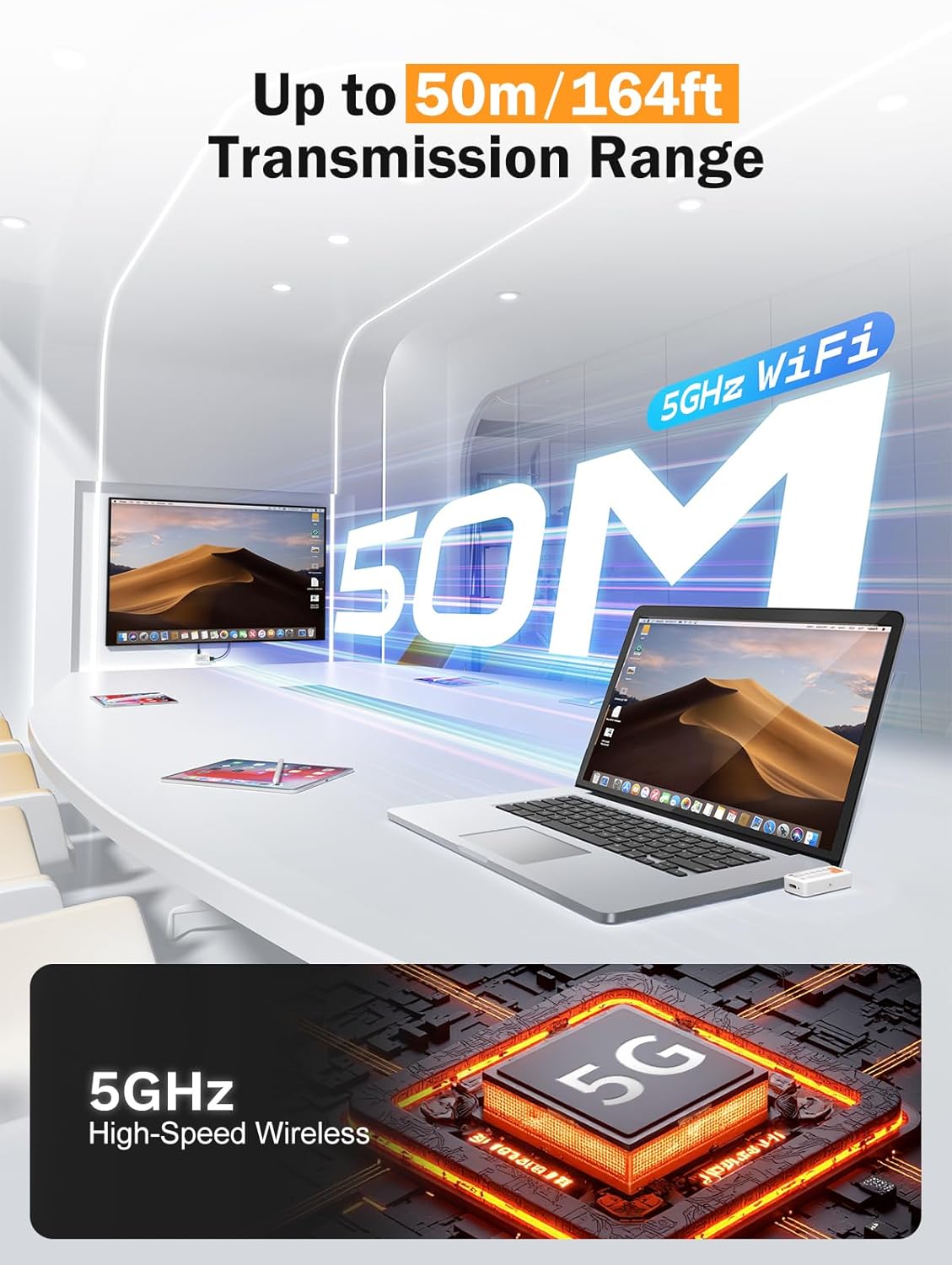
Image: Diagram illustrating the 50-meter wireless transmission range using 5GHz WiFi technology.
4. Awọn ilana Iṣiṣẹ
4.1 Basic Operation (Plug & Play)
After successful setup and pairing, the device operates automatically. Your source device's screen will be mirrored or extended to the connected display.

Image: A laptop connected to the TX unit and a TV connected to the RX unit, demonstrating the plug-and-play functionality for wireless display.
4.2 Supported Modes
The device supports Miracast, AirPlay, and TX-RX direct transmission. The mode selection is typically handled automatically by your source device or the system's display settings.
- Miracast: For Windows and Android devices.
- Afẹfẹ: For iOS and macOS devices.
- TX-RX Direct: For direct wireless connection between the transmitter and receiver units.
4.3 Awọn oju iṣẹlẹ lilo
The compact and versatile design makes it suitable for various applications:
- Ile Itage Ile: Enjoy movies and games on a large screen wirelessly.
- Awọn ifarahan Iṣowo: Share presentations (PPTs) and videos in meetings without cables.
- Classroom Projection: Facilitate interactive learning by projecting content wirelessly.
- Àwọn ìfihàn: Showcase content on large displays with ease.

Image: Collage showing the device being used in a classroom for teaching, an office for presentations, and a home for entertainment.
5. Itọju
Láti rí i dájú pé ẹ̀rọ rẹ pẹ́ tó àti pé ó ń ṣiṣẹ́ dáadáa, tẹ̀lé àwọn ìlànà ìtọ́jú wọ̀nyí:
- Ninu: Lo asọ asọ ti o gbẹ lati nu ẹrọ naa. Maṣe lo awọn olutọpa olomi tabi awọn aerosols.
- Ibi ipamọ: Tọju ẹrọ naa ni itura, aye gbigbẹ kuro lati orun taara ati awọn iwọn otutu to gaju.
- Mimu: Yago fun sisọ silẹ tabi tẹriba ẹrọ si awọn ipa to lagbara.
- Agbara: Always use the recommended 5V/2A power source for the RX unit.
- Ooru: The TX unit may become warm during extended use. This is normal. Ensure adequate ventilation around the device.
6. Laasigbotitusita
If you encounter issues with your Lemorele Wireless USB C HDMI Transmitter and Receiver, refer to the following troubleshooting tips:
| Isoro | Owun to le Fa | Ojutu |
|---|---|---|
| Ko si ifihan loju iboju. |
|
|
| Àmì ìdákẹ́jẹ́ẹ́ tàbí dídára fídíò tí kò dára. |
|
|
| Audio not working. |
|
|
| TX unit gets warm. | Iṣiṣẹ deede. | Ensure adequate ventilation around the TX unit. If it becomes excessively hot or malfunctions, discontinue use and contact support. |
7. Awọn pato
| Ẹya ara ẹrọ | Ẹ̀kúnrẹ́rẹ́ |
|---|---|
| Brand | Lemorele |
| Nọmba awoṣe | P400 |
| Asopọmọra Technology | Miracast, AirPlay, HDMI |
| Pataki Awọn ẹya ara ẹrọ | TX-RX, Full HD 1080p@60Hz, Plug & Play |
| Awọn ẹrọ ibaramu | Smart Television, Tablet, Smartphone, Laptop, Personal Computer |
| Asopọmọra Iru | HDMI (output from RX), USB-C (input to TX) |
| Àwọ̀ | Dudu |
| Agbara agbara | 10 Wattis |
| Audio o wu Iru | HDMI |
| Alailowaya Technology | 5GHz WiFi, Miracast |
| Gbigbe Range | Titi de awọn mita 50 (164 ẹsẹ) |
| Ilu isenbale | China |
8. atilẹyin ọja Information
The Lemorele Wireless USB C HDMI Transmitter and Receiver comes with a standard manufacturer's warranty. Please refer to the product packaging or the official Lemorele webAaye fun pato awọn ofin ati ipo atilẹyin ọja.
In France, consumers are entitled to a legal guarantee of conformity for 2 years from the date of purchase for any defects or non-conformities. A legal guarantee against hidden defects also applies.
9. Onibara Support
For technical assistance, troubleshooting beyond this manual, or warranty claims, please contact Lemorele customer support:
- Atilẹyin Ayelujara: Visit the official Lemorele webaaye fun awọn FAQ, awọn orisun atilẹyin, ati alaye olubasọrọ.
- Imeeli: Refer to your product packaging or the Lemorele webojú-òpó wẹ́ẹ̀bù fún àdírẹ́sì ìmeeli ìrànlọ́wọ́ náà.
Before contacting support, please have your product model number (P400) and purchase information ready.