
Alaye Aabo pataki
Please read all instructions carefully before using this monitor. Keep this manual for future reference.
- Do not place the monitor near water or in humid environments.
- Rii daju pe fentilesonu to dara ni ayika atẹle lati ṣe idiwọ igbona.
- Use only the power adapter provided with the monitor.
- Avoid exposing the monitor to direct sunlight or extreme temperatures.
- Má ṣe gbìyànjú láti tún monitor náà ṣe fúnra rẹ. Tọ́ka gbogbo iṣẹ́ ìtọ́jú náà sí àwọn òṣìṣẹ́ tó mọ̀ nípa rẹ̀.
- Nu iboju naa pẹlu asọ ti ko ni lint. Yẹra fun lilo awọn kẹmika lile.
Package Awọn akoonu
Jọwọ rii daju pe gbogbo awọn nkan wọnyi wa ninu package rẹ:
- 31.5-inch 2K 120Hz Monitor (x1)
- Monitor Stand (x1)
- Itọsọna Ibẹrẹ kiakia (QSG) (x1)
- Okun HDMI (x1)
- Ohun ti nmu badọgba agbara (x1)
- Okun agbara (x1)

An image showing the monitor's dimensions and a list of included accessories: monitor, QSG, HDMI cable, adapter, power cord, and monitor stand.
Ṣeto
Apejọ Atẹle
Tẹle awọn igbesẹ wọnyi lati ṣajọ iduro atẹle naa ki o so pọ mọ nronu ifihan:
- Fara yọ atẹle naa kuro ki o duro awọn paati lati apoti.
- Attach the base to the stand column, securing it with the provided screw.
- Ṣètò ìdúró tí a kó jọ pẹ̀lú àwọn ibi ìfìsí tí ó wà ní ẹ̀yìn páànẹ́lì àtẹ̀lé.
- Fi ọwọ́ rọra tẹ ibi tí ó dúró sí títí tí yóò fi tẹ dáadáa.
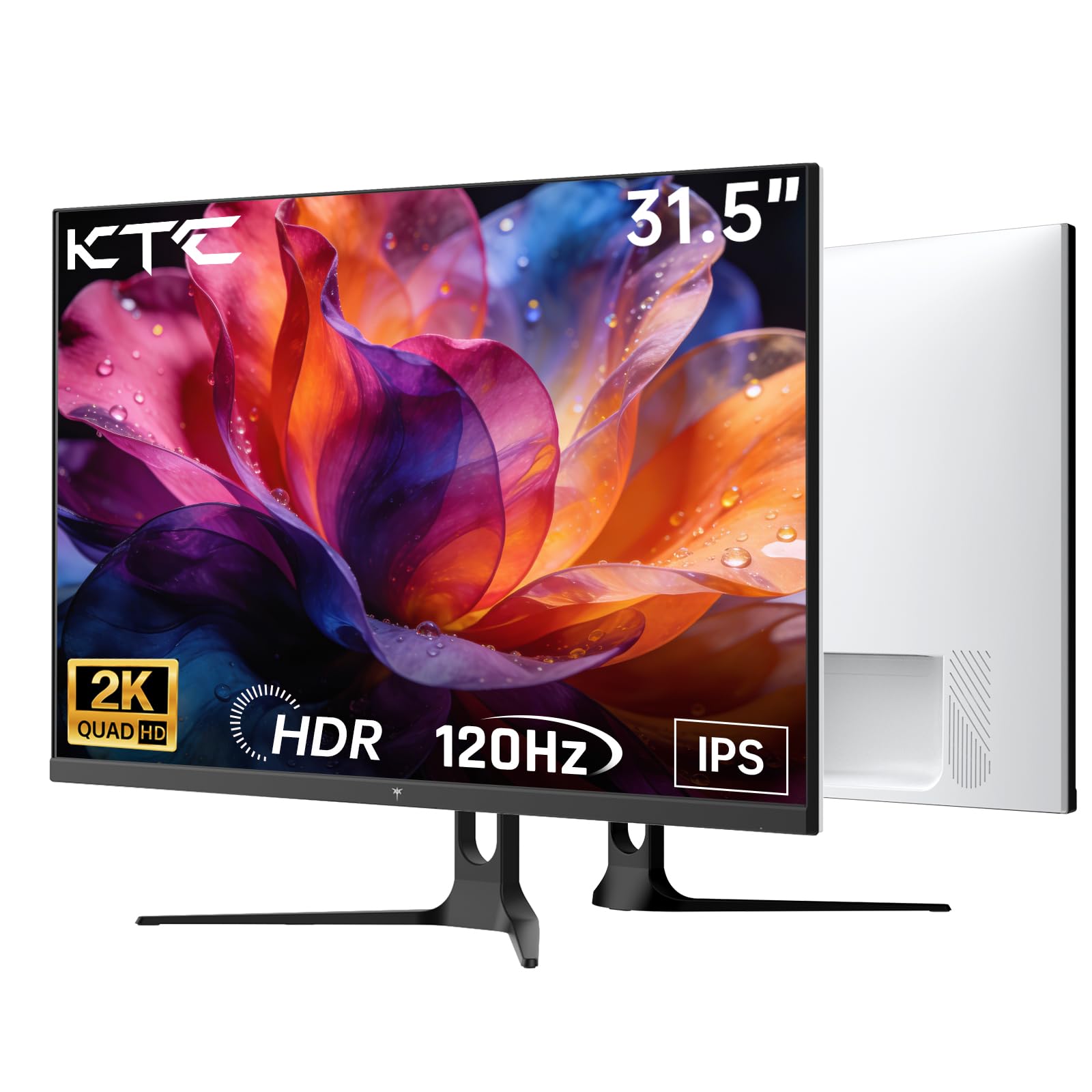
Iwaju view of the KTC H32D6 31.5-inch monitor on its stand.
Asopọmọra
Connect your monitor to a power source and your computer using the appropriate cables:
- Connect the power adapter to the monitor's DC input port, then plug the power cord into an electrical outlet.
- For video input, connect one end of the HDMI or DisplayPort cable to your computer's graphics card and the other end to the corresponding port on the monitor.
- If desired, connect headphones or external speakers to the earphone jack.

Close-up of the monitor's rear panel, highlighting the HDMI 2.0 ports (x2), DisplayPort 1.4 (x1), and earphone jack.
Yi fidio pese ohun loriview of the KTC 32 Inch 2K 120Hz Computer Monitor, showcasing its features and benefits in a dynamic presentation.
Awọn ilana Iṣiṣẹ
Titan / Paa
Press the power button (usually located on the back or bottom right of the monitor) to turn the monitor on or off. The power indicator light will illuminate when the monitor is on.
Ifihan Lori iboju (OSD) Lilọ kiri Akojọ aṣyn
The monitor features an intuitive OSD menu for adjusting various settings. Use the joystick or buttons (depending on your model) on the back of the monitor to navigate the menu:
- Tẹ joystick/bọtini lati ṣii akojọ aṣayan OSD.
- Move the joystick up/down or left/right to select menu options.
- Tẹ bọtini joystick/bọtini lẹẹkansi lati jẹrisi yiyan kan tabi tẹ akojọ aṣayan kekere kan.
- To exit the OSD menu, navigate to the 'Exit' option or hold the joystick/button for a few seconds.
Siṣàtúnṣe Ifihan Eto
Ninu akojọ aṣayan OSD, o le ṣatunṣe awọn eto bii:
- Ipinnu: Set to QHD (2560x1440) for optimal clarity.
- Oṣuwọn isọdọtun: Adjust to 120Hz for ultra-smooth visuals.
- Imọlẹ & Iyatọ: Fine-tune for your preferred viewiriri iriri.
- Eto awọ: Adjust color temperature, gamma, and other color parameters.

An image demonstrating the superior clarity of QHD (2560x1440) resolution compared to FHD (1920x1080) on the monitor screen.

A visual representation of smooth motion on the monitor, illustrating the benefit of a 120Hz refresh rate for seamless visuals.
Amuṣiṣẹpọ Adaptive
This monitor supports Adaptive Sync technology (FreeSync, G-Sync Compatible) to eliminate screen tearing and stuttering during gaming or fast-paced video. Ensure Adaptive Sync is enabled in both your monitor's OSD settings and your graphics card control panel for optimal performance.

A side-by-side comparison showing the visual difference with Adaptive Sync ON (smooth image) and OFF (screen tearing) during fast-paced action.
HDR10 atilẹyin
The monitor supports HDR10, providing a wider range of colors and contrast for a more immersive viewing experience. To utilize HDR10, ensure your content and graphics card support HDR, and enable it in your operating system display settings.

An image highlighting the enhanced color and contrast provided by HDR10 technology.
Oju Itọju Awọn ẹya ara ẹrọ
The KTC H32D6 monitor includes Low Blue Light and Flicker-Free technologies to reduce eye fatigue during prolonged use. These features are designed to provide a more comfortable viewiriri iriri.

An image illustrating the eye care features, including low blue light and flicker-free technology, designed to reduce eye strain.
Titunse pulọọgi
The monitor stand allows for tilt adjustment from -5° to 20°. Gently adjust the monitor panel to your desired viewing igun fun ergonomic irorun.

An image demonstrating the wide 178-degree viewing angle provided by the IPS panel, ensuring consistent image quality from various positions.
Itoju
Itọju to dara ṣe idaniloju gigun ati iṣẹ ṣiṣe to dara julọ ti atẹle rẹ.
- Ninu iboju: Rọra nu iboju naa pẹlu asọ, gbẹ, asọ ti ko ni lint. Fun awọn ami alagidi, fẹẹrẹ dampen the cloth with water or a screen-cleaning solution specifically designed for monitors. Never spray liquid directly onto the screen.
- Ninu ile Casing: Lo asọ ti o rọ, ti o gbẹ lati nu atẹle's casing. Yago fun abrasive ose tabi epo.
- Agbara Paa Nigbati Ko Si Lo: Turn off the monitor when not in use to save energy and extend its lifespan.
- Yago fun Awọn Idilọwọ: Ensure that the ventilation openings on the monitor are not blocked to prevent overheating.
Laasigbotitusita
Ti o ba pade awọn ọran pẹlu atẹle rẹ, tọka si awọn iṣoro ti o wọpọ ati awọn ojutu wọnyi:
| Isoro | Owun to le Solusan |
|---|---|
| Ko si aworan loju iboju | Ensure the power cable is securely connected and the monitor is turned on. Check that the video cable (HDMI/DP) is firmly connected to both the monitor and your computer. Select the correct input source via the OSD menu. |
| Aworan n tan tabi riru | Check the video cable connection. Ensure your graphics card drivers are up to date. Verify that the refresh rate is set correctly in your computer's display settings. Enable Adaptive Sync if supported by your graphics card. |
| Awọn awọ han ti ko tọ | Adjust color settings (brightness, contrast, color temperature) in the OSD menu. Ensure HDR is correctly configured in your operating system if you are using HDR content. |
| Monitor not recognized by computer | Restart your computer. Try a different video port or cable. Update your graphics card drivers. |
Awọn pato
Key technical specifications for the KTC H32D6 monitor:
| Ẹya ara ẹrọ | Sipesifikesonu |
|---|---|
| Brand | CTC |
| Nọmba awoṣe | H32D6 |
| Iwon iboju | 31.5 inches |
| Ipinnu | QHD Wide 1440p (2560 x 1440 awọn piksẹli) |
| Oṣuwọn sọtun | 100 Hz (up to 120Hz overclocked) |
| Ifihan Iru | IPS |
| Akoko Idahun | 7 Milise-aaya |
| Apakan Ipin | 16:9 |
| Imọlẹ | Káńdélà 350 (cd/m²) |
| Ipin Itansan | 1000:1 |
| Viewigun igun | Awọn iwọn 178 |
| Awọ Gamut | 109% sRGB |
| Picture Quality Enhancement | HDR10 |
| Asopọmọra | 2 x HDMI 2.0, 1 x DisplayPort 1.4, Earphone Jack |
| Amuṣiṣẹpọ Adaptive | FreeSync, G-Sync Compatible |
| Afikun Awọn ẹya ara ẹrọ | Eye Care, Flicker-Free, Tilt Adjustment, VESA 100x100mm Compatible |
| Agbara agbara | 48 Wattis |
| Awọn iwọn Nkan (D x W x H) | 7.09"D x 28.23"W x 20.08"H |
Atilẹyin ọja ati Support
Alaye atilẹyin ọja
This KTC H32D6 monitor comes with a 3-Odun olupese atilẹyin ọja. Atilẹyin ọja yi ni wiwa awọn abawọn ninu awọn ohun elo ati iṣẹ ṣiṣe labẹ lilo deede. Jọwọ ṣe idaduro ẹri rira rẹ fun awọn iṣeduro atilẹyin ọja.
Atilẹyin ọja naa ko ni aabo fun ibajẹ ti o ṣẹlẹ nipasẹ ilokulo, awọn ijamba, awọn iyipada laigba aṣẹ, tabi awọn nkan ita gẹgẹbi awọn iwọn agbara.
Onibara Support
For technical assistance, warranty claims, or any other inquiries, please contact KTC customer support through the official website or the contact information provided with your purchase. You may also refer to the Quick Start Guide for additional support resources.