
1. Ifihan
This manual provides detailed instructions for the setup, operation, and maintenance of your HPRT iDPRT MT890 Portable Wireless Thermal Printer. Please read this manual thoroughly before using the printer to ensure proper function and longevity of the device.
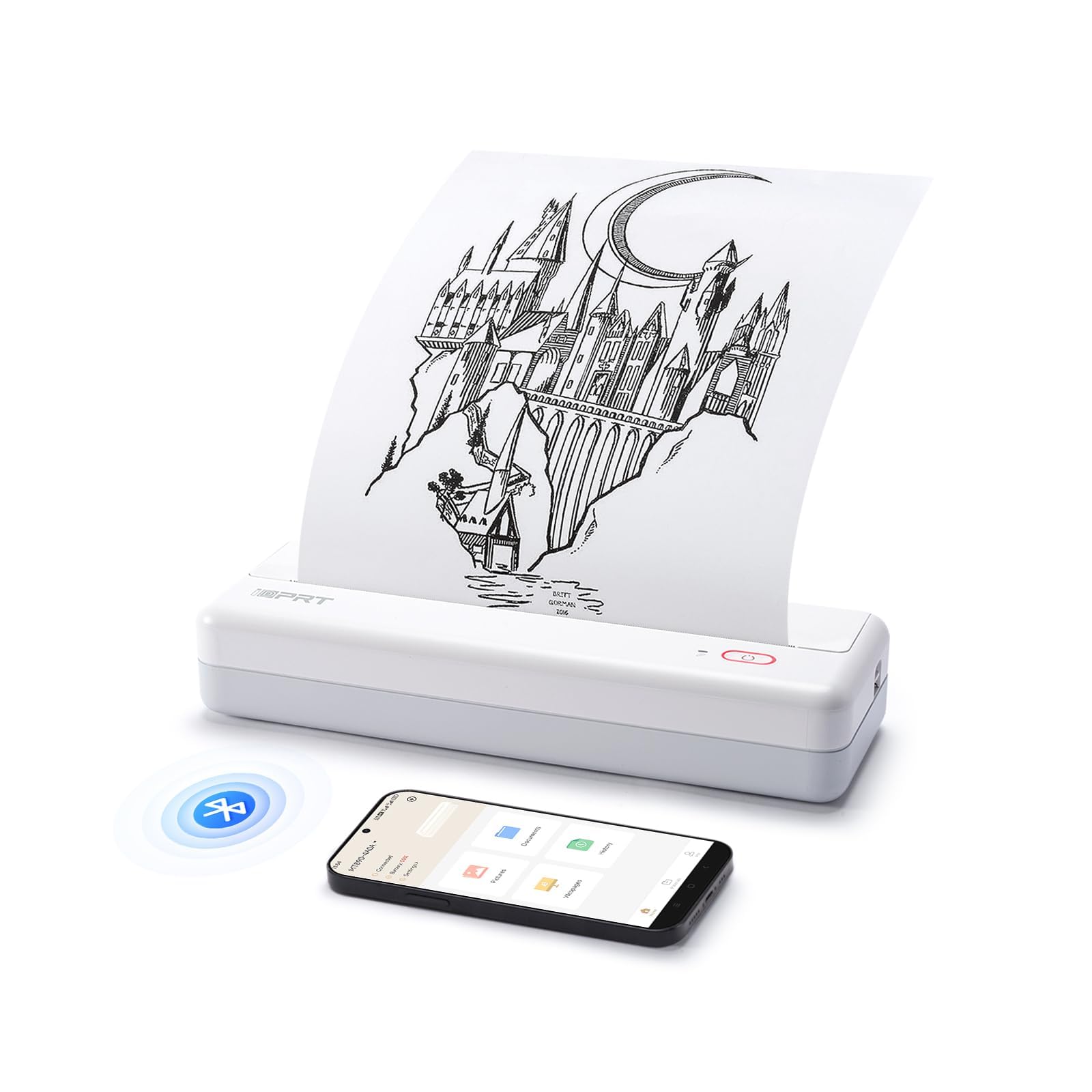
Image: The HPRT iDPRT MT890 Portable Wireless Printer shown in a professional meeting environment, highlighting its compact size and suitability for various scenarios.
2. Ọja Ipariview
2.1 Key Awọn ẹya ara ẹrọ
- Advanced Inkless Technology: Utilizes thermal printing, eliminating the need for ink cartridges. Achieves high-speed printing, completing an A4 page in 5-8 seconds.
- Innovative Built-in Roll Paper Design: Supports thermal roll paper, allowing printing on various lengths as needed. Includes a serrated tearing knife for easy paper detachment.
- Asopọmọra Wapọ: Compatible with Laptop (Mac, Windows, Linux, Chrome OS) via USB and mobile phones (iOS, Android) via Bluetooth.
- "HerePrint" Mobile Application: A free application offering extensive functions for a creative printing experience on mobile devices.
- Iwapọ ati Gbigbe: Measuring 12.4 x 4.8 x 2.7 inches, this lightweight printer is designed for portability, fitting easily into briefcases, backpacks, or suitcases.

Image: An illustration highlighting the key features of the MT890 printer: Bluetooth/USB connectivity, inkless thermal printing, a 2500mAh battery capacity, and its lightweight design.
2.2 Kini ni Apoti
Apo naa pẹlu:
- HPRT iDPRT MT890 Portable Wireless Thermal Printer
- Ilana Afowoyi (iwe yii)
- Okun USB (fun gbigba agbara ati asopọ waya)
- Thermal A4 Paper Roll (for initial use)
3. Eto
3.1 Ngba agbara si itẹwe
Before initial use, fully charge the printer. Connect the provided USB cable to the printer's charging port and a compatible USB power adapter (not included) or computer USB port. The charging indicator light will show the charging status.

Image: The MT890 printer connected to a wall adapter via its USB cable, indicating the charging process.
3.2 Loading Thermal Iwe
- Ṣii ideri iyẹwu iwe.
- Insert the thermal paper roll into the compartment, ensuring the printable side faces the print head.
- Pull a small amount of paper out of the compartment.
- Ti ideri apoti iwe naa lailewu.
Note: Only use thermal paper. Regular A4 paper is not compatible with this printer. The printer supports various thermal paper sizes including US Letter, A4, and A5, as well as continuous roll paper.
Image: The MT890 printer with thermal paper being loaded, illustrating the support for multiple paper sizes like 8.5 inches (216mm), 8 inches (210mm), and 4 inches (110mm).
3.3 Software ati Driver sori
3.3.1 For Desktop Computers (Windows, Mac, Linux, Chrome OS)
To print from a desktop computer, you need to install the appropriate driver:
- So itẹwe pọ mọ kọmputa rẹ nipa lilo okun USB ti a pese.
- Visit the official iDPRT driver download page: https://www.idprt.com/Driver/
- Download and install the driver corresponding to your operating system.
- Tẹle awọn ilana loju iboju lati pari fifi sori ẹrọ.
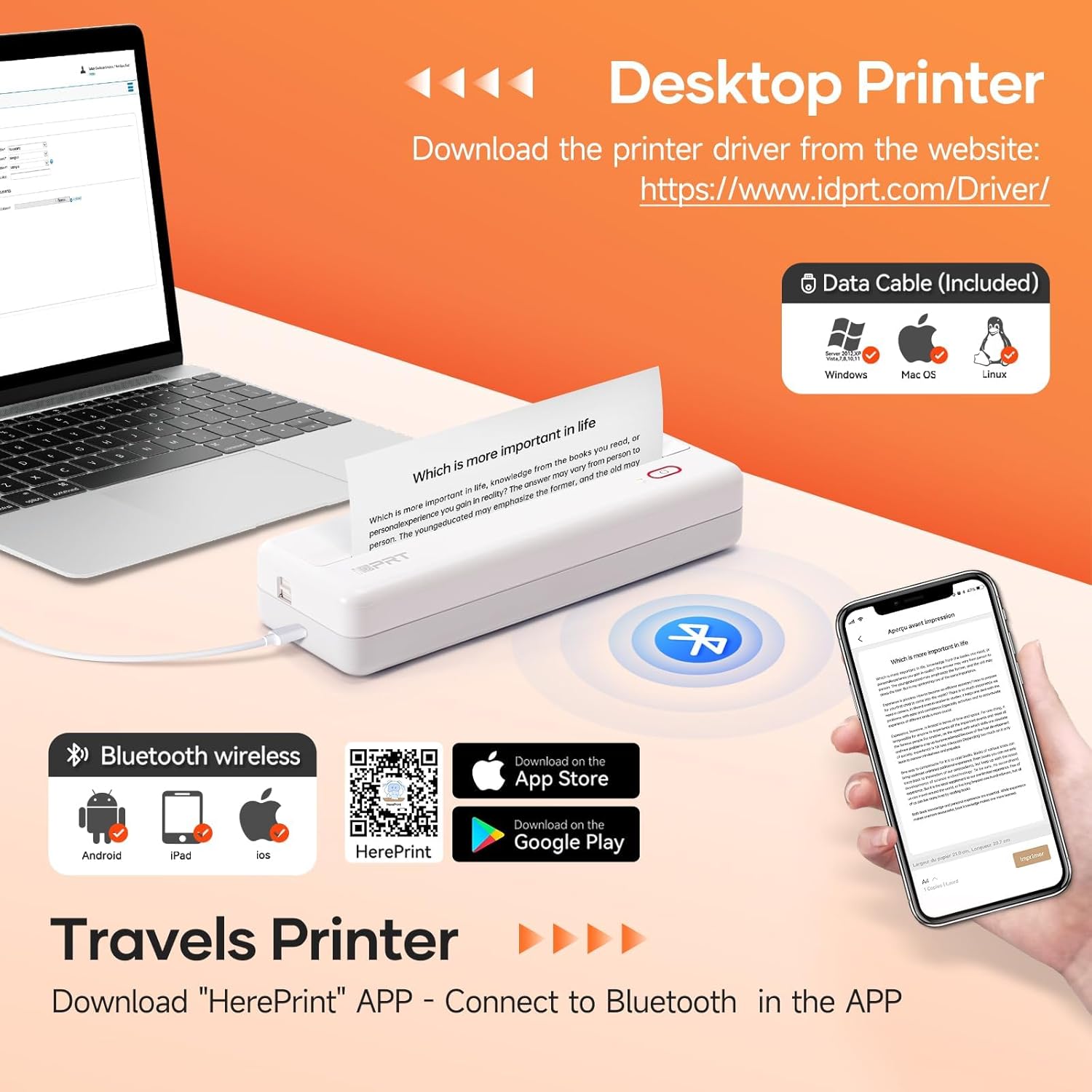
Image: The MT890 printer connected to a laptop, with an overlay indicating the driver download website for Windows, Mac OS, and Linux.
3.3.2 For Mobile Devices (iOS, Android)
To print from your smartphone or tablet, download the "HerePrint" application:
- Scan the QR code provided in the product packaging or search for "HerePrint" in your device's app store (Apple App Store for iOS, Google Play Store for Android).
- Alternatively, visit the app download link: https://hereprint.hprt.com/app/hereprint
- Install the "HerePrint" application on your mobile device.
Image: The MT890 printer with a smartphone displaying the "HerePrint" app interface, alongside QR codes and app store icons for downloading the application on Android and iOS devices.
3.4 Connecting to the Printer
3.4.1 USB Connection (for Desktop)
After installing the driver, connect the printer to your computer using the USB cable. The computer should recognize the printer automatically.
3.4.2 Bluetooth Connection (for Mobile Devices)
- Rii daju pe Bluetooth ti ṣiṣẹ lori ẹrọ alagbeka rẹ.
- Turn on the HPRT MT890 printer.
- Open the "HerePrint" application.
- Within the app, navigate to the device connection settings and select your MT890 printer from the list of available Bluetooth devices.
- Follow any on-screen prompts to pair the devices.

Image: A man working on a laptop, wirelessly printing a document to the compact HPRT MT890 printer placed on a table, demonstrating wireless connectivity and instant printing.
4. Awọn ilana Iṣiṣẹ
4.1 Titẹ sita lati Kọmputa kan
- Ensure the printer is powered on and connected via USB.
- Ṣí ìwé tàbí àwòrán tí o fẹ́ tẹ̀ sí orí kọ̀ǹpútà rẹ.
- Yan "Tẹjade" lati inu akojọ aṣayan ohun elo (fun apẹẹrẹ, File > Titẹjade).
- Choose "HPRT MT890" as your printer.
- Adjust print settings (e.g., paper size, orientation) as needed.
- Tẹ "Tẹ́jáde" lati bẹrẹ ilana titẹjade naa.

Image: A woman at an office desk, focused on her laptop, with the MT890 printer beside her, illustrating its use for business document printing.
4.2 Printing from a Mobile Device
- Ensure the printer is powered on and connected via Bluetooth to your mobile device through the "HerePrint" app.
- Open the "HerePrint" application.
- Select the document, image, or content you wish to print within the app.
- Adjust print settings as available in the app.
- Tap "Print" to initiate printing.
5. Itọju
5.1 Ninu awọn Print Head
To maintain print quality, periodically clean the print head. Use a soft, lint-free cloth lightly dampened with isopropyl alcohol. Gently wipe the print head surface. Ensure the printer is turned off and cooled down before cleaning.
5.2 Itọju Gbogbogbo
- Keep the printer away from dust, direct sunlight, and extreme temperatures.
- Avoid dropping or subjecting the printer to strong impacts.
- Use only recommended thermal paper. Using incorrect paper types can damage the print head.
- When not in use for extended periods, store the printer in a dry, cool place.
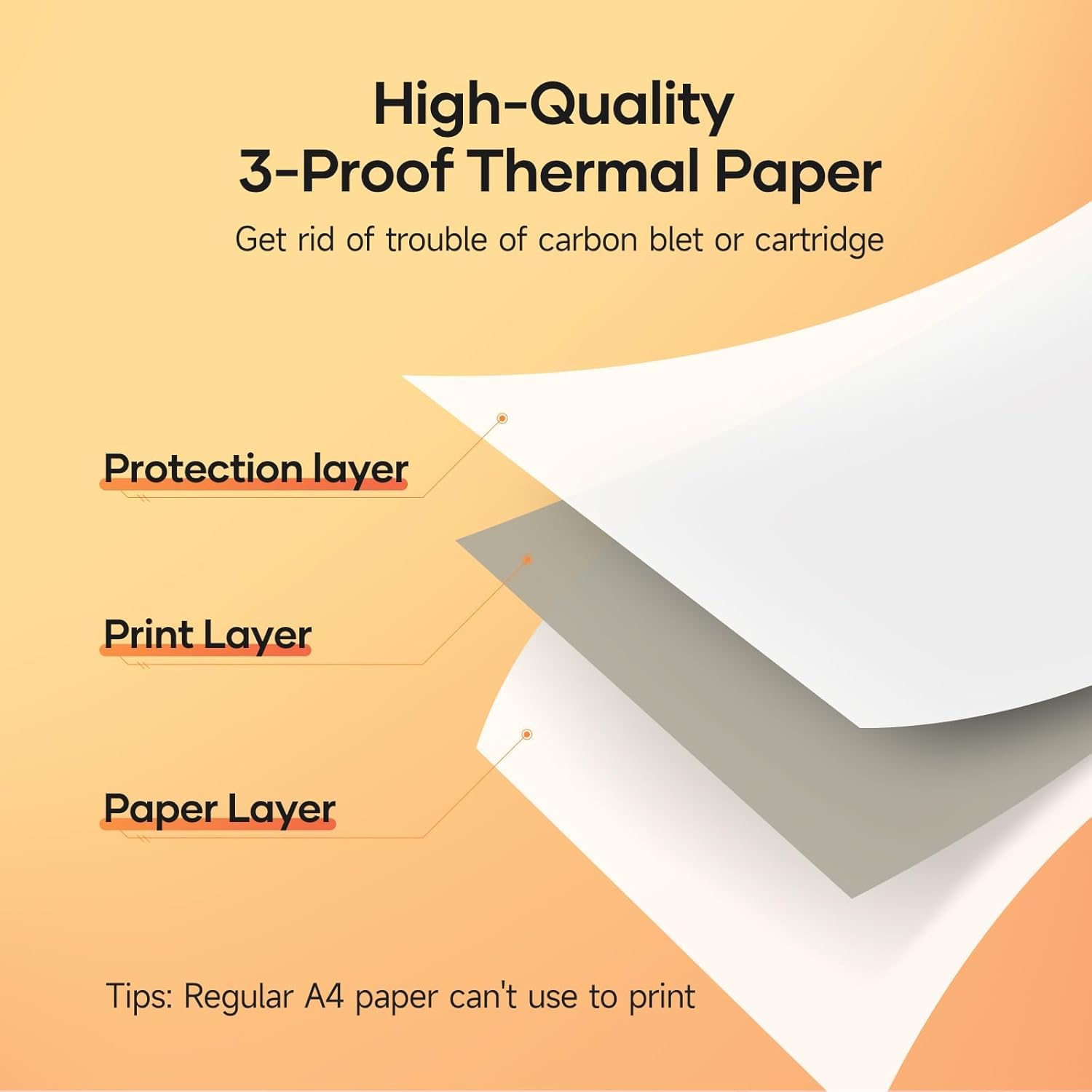
Image: A diagram illustrating the layered structure of high-quality 3-proof thermal paper, consisting of a protection layer, print layer, and paper layer. A note indicates that regular A4 paper cannot be used.
6. Laasigbotitusita
6.1 Printer Not Turning On
- Ensure the printer is fully charged. Connect it to a power source and wait for the charging indicator.
- Tẹ mọlẹ bọtini agbara fun iṣẹju diẹ.
6.2 No Print Output / Blank Pages
- Check if thermal paper is loaded correctly and the printable side is facing the print head.
- Ensure you are using thermal paper, not regular paper.
- Verify the printer is connected and recognized by your device.
6.3 Ko dara Print Didara
- Nu ori titẹjade bi a ti ṣalaye ninu apakan Itọju.
- Ensure the thermal paper is of good quality and not expired or damaged.
- Check print settings in your application for density or darkness adjustments.
6.4 Ko le Sopọ nipasẹ Bluetooth
- Rí i dájú pé ẹ̀rọ ìtẹ̀wé náà ń ṣiṣẹ́ dáadáa, ó sì wà níbi tí ẹ̀rọ alágbèéká rẹ wà.
- Daju pe Bluetooth ti ṣiṣẹ lori ẹrọ alagbeka rẹ.
- Restart both the printer and your mobile device.
- Forget the device in your phone's Bluetooth settings and try pairing again through the "HerePrint" app.
6.5 Driver Installation Issues
- Ensure you downloaded the correct driver for your operating system from the official iDPRT webojula.
- Temporarily disable antivirus or firewall software during installation if issues persist.
- Try connecting the printer to a different USB port or computer.
7. Awọn pato
| Ẹya ara ẹrọ | Ẹ̀kúnrẹ́rẹ́ |
|---|---|
| Brand | HPRT |
| Orukọ awoṣe | MT890 |
| Asopọmọra Technology | Bluetooth, USB |
| Imọ-ẹrọ titẹ sita | Gbona |
| Pataki Ẹya | Portable, Inkless |
| Ijade itẹwe | Monochrome |
| Iyara Titẹjade ti o pọju (Monochrome) | 20.35 mm/s (approx. 5-8 seconds per A4 page) |
| Awọn iwọn dì atilẹyin | US Letter, A4, A5, Roll Paper (up to 8.5 inches wide) |
| Ọja Mefa | 3.74 x 10.6 x 1.97 inches |
| Agbara Batiri | 2500mAh |
| UPC | 728434048190 |

Image: The MT890 printer shown alongside a laptop bag and other accessories, illustrating its compact dimensions (10.6in length, 3.7in width, 1.9in height) and ease of portability.
8. Atilẹyin ọja ati Support
Ọja yi wa pẹlu kan 90-ọjọ lopin atilẹyin ọja from the date of purchase. This warranty covers manufacturing defects and malfunctions under normal use. It does not cover damage caused by misuse, accidents, unauthorized modifications, or use of non-thermal paper.
For technical support, warranty claims, or further assistance, please contact HPRT customer service. Refer to the official HPRT webojula fun alaye olubasọrọ.