
1. Ifihan
The Bisofice Z58-IV is a compact 58mm thermal receipt printer designed for various business environments. It offers high-speed printing, clear output, and flexible connectivity options including Bluetooth and USB. This manual provides detailed instructions for setup, operation, maintenance, and troubleshooting to ensure optimal performance of your printer.

Figure 1.1: Bisofice Z58-IV Thermal Receipt Printer in a retail setting.
2. Alaye Aabo
- Ensure the printer is placed on a stable, flat surface.
- Ma ṣe fi ẹrọ atẹwe han si omi, ọrinrin, tabi awọn iwọn otutu to gaju.
- Lo oluyipada agbara ti a pese nikan.
- Avoid touching the print head immediately after printing, as it may be hot.
- Jeki kuro ni arọwọto awọn ọmọde.
- Ge asopọ agbara ṣaaju ṣiṣe mimọ tabi ṣiṣe itọju.
3. Package Awọn akoonu
Jẹrisi pe gbogbo awọn ohun kan wa ninu package:
- Bisofice Z58-IV Thermal Receipt Printer
- Adapter agbara
- Okun USB
- Gbona Paper Roll
- Afowoyi Olumulo (iwe-ipamọ yii)
4. Ọja Ipariview
Familiarize yourself with the printer's components and ports:
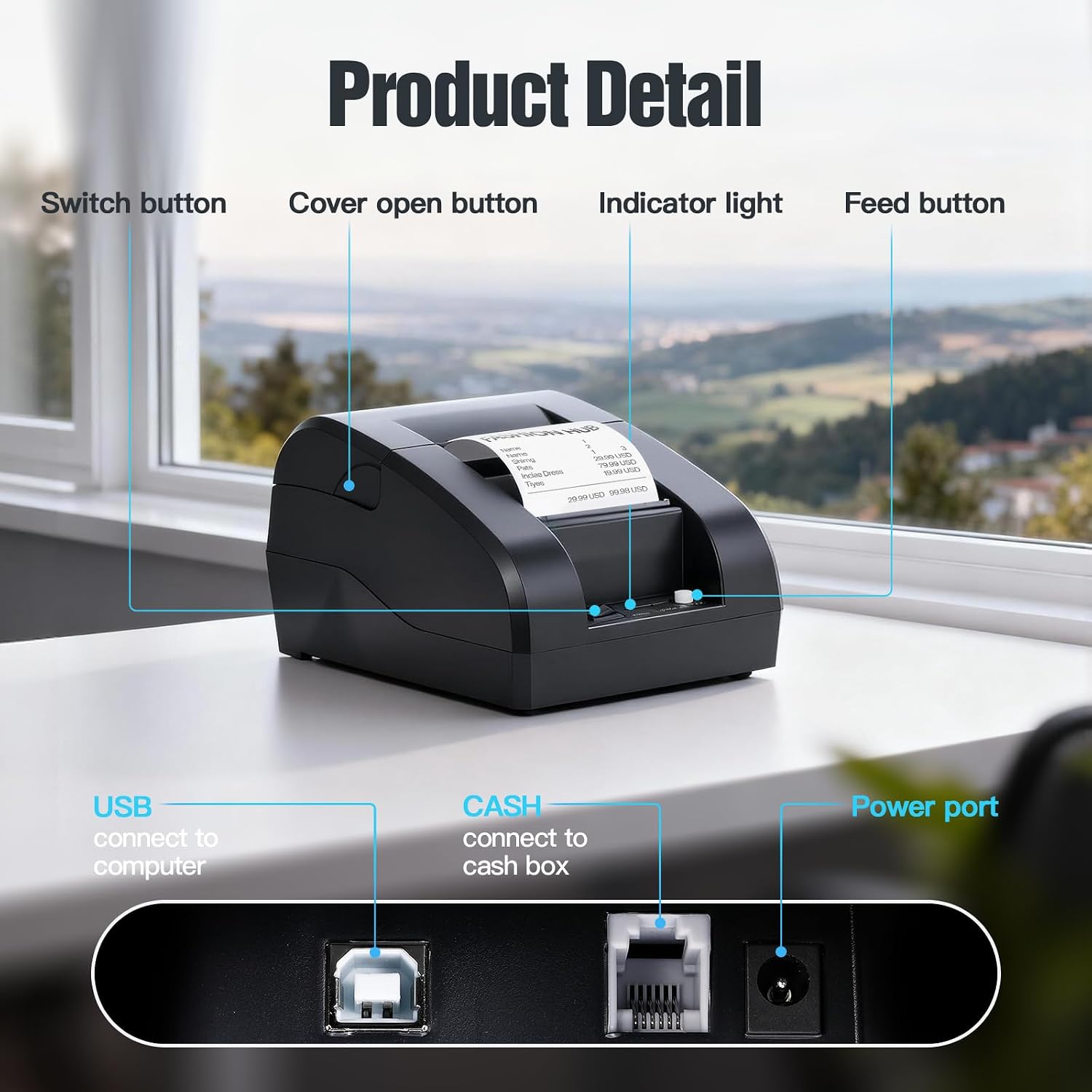
Figure 4.1: Front and Rear Panel Details.
- Bọtini Yipada: Powers the printer On/Off.
- Cover Open Button: Releases the top cover for paper roll installation.
- Imọlẹ Atọka: Displays printer status (e.g., power, error, paper out).
- Bọtini ifunni: Manually feeds paper.
- Ibudo USB: Connects the printer to a computer via USB cable.
- CASH Port: Connects to a cash drawer.
- Ibudo Agbara: Sopọ si ohun ti nmu badọgba agbara.
5. Eto
5.1. Iwe Roll fifi sori
- Press the Cover Open Button to open the top cover.
- Insert a 58mm thermal paper roll into the compartment, ensuring the paper feeds from the bottom and the leading edge extends slightly out of the printer.
- Pa ideri oke naa duro ṣinṣin titi ti o fi tẹ sinu aaye.

Figure 5.1: Installing the thermal paper roll.
5.2. Asopọ agbara
Connect the power adapter to the printer's Power Port and then plug the adapter into a power outlet.
5.3. Sísopọ̀ mọ́ kọ̀ǹpútà (USB)
The printer supports USB connection for Windows and Linux operating systems. Note: This printer is not compatible with iOS or Mac OS via USB.
- So itẹwe pọ mọ kọmputa rẹ nipa lilo okun USB ti a pese.
- Tan atẹwe.
- Download and install the appropriate printer driver for your operating system (Windows/Linux) from the Bisofice official webaaye tabi media fifi sori ẹrọ ti a pese.
- Tẹle awọn ilana loju iboju lati pari fifi sori awakọ.
5.4. Sísopọ̀ mọ́ ẹ̀rọ alágbéká (Bluetooth)
The printer supports Bluetooth connection for Android smartphones. Note: This printer is not compatible with iOS via Bluetooth.
- Rii daju pe itẹwe ti wa ni titan.
- Enable Bluetooth on your Android smartphone.
- Wa fun available Bluetooth devices and select the printer (usually named 'Z58-IV' or similar).
- Enter the pairing PIN if prompted (common PINs are '0000' or '1234').
- Once paired, you can use compatible Android applications (e.g., Loyverse, iREAP, CasierStock, Kyte) to print.

Figure 5.2: Connectivity options: USB to computer and Bluetooth to mobile phone.
6. Awọn ilana Iṣiṣẹ
6.1. Printing a Receipt
After successful setup and connection, you can initiate printing from your application or system. The printer supports ESC/POS commands for various printing functions.
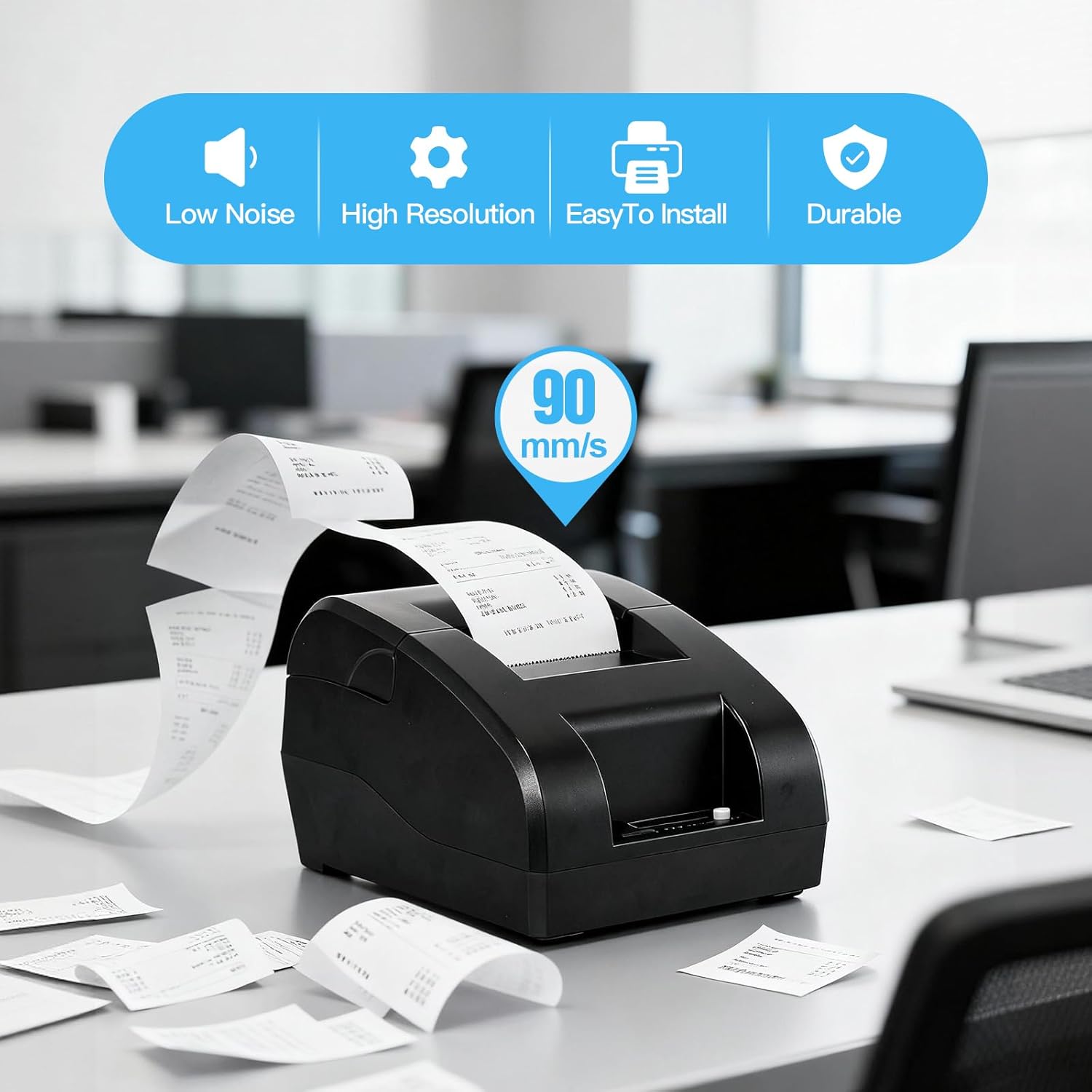
Figure 6.1: High-speed printing at 90mm/s.
6.2. Manual Paper Feed
Press the Feed Button briefly to advance the paper by one line. Press and hold the Feed Button to continuously feed paper.
7. Itọju
7.1. Ninu awọn Print Head
To maintain print quality, clean the thermal print head regularly (e.g., once a month or after every 10 rolls of paper). Use a cotton swab lightly moistened with isopropyl alcohol. Gently wipe the print head surface. Allow it to dry completely before use.
7.2. Ita Cleaning
Mu ese ita ti itẹwe pẹlu asọ, damp asọ. Maṣe lo awọn kẹmika ti o lewu tabi awọn afọmọ abrasive.
7.3. Paper Roll Rirọpo
Refer to Section 5.1 for instructions on replacing the thermal paper roll when it runs out.
8. Laasigbotitusita
- Itẹwe ko ṣiṣẹ lori: Ṣàyẹ̀wò ìsopọ̀ adapter agbára kí o sì rí i dájú pé ibi tí agbára náà ti jáde ṣiṣẹ́.
- Ẹ̀rọ ìtẹ̀wé kò tẹ̀wé:
- Ensure the paper roll is correctly installed and not empty.
- Check the connection (USB or Bluetooth) to your device.
- Rí i dájú pé a ti fi ẹ̀rọ ìtẹ̀wé tó tọ́ sí kọ̀ǹpútà rẹ, a sì ti yàn án.
- For Bluetooth, ensure the printer is paired and connected to your Android device.
- Didara titẹ ti ko dara: Clean the print head as described in Section 7.1. Ensure you are using high-quality thermal paper.
- Awọn oran ibamu:
- Itẹwe ni ko ni ibamu with iOS and Mac OS.
- Itẹwe ni ko ni ibamu with POS systems such as Square, Hellocash, and Zettle.
- For Android, ensure your application supports this printer model.
9. Awọn pato
| Ẹya ara ẹrọ | Sipesifikesonu |
|---|---|
| Brand | Bisofice |
| Orukọ awoṣe | Z58-IV |
| Asopọmọra Technology | Bluetooth, USB |
| Imọ-ẹrọ titẹ sita | Gbona |
| Àwọ̀ | Dudu |
| Ijade itẹwe | monochromatic |
| Iyara Titẹjade ti o pọju (Dudu & Funfun) | 90 mm / s |
| Max Paper Size Supported | 58mm |
| Ọja Mefa | 18P x 10.5L x 13H cm |
| Awọn irinše to wa | Gbona Iwe |
| Afikun Awọn iṣẹ itẹwe | Tẹjade Nikan |
10. Atilẹyin ọja ati Support
For warranty information and technical support, please refer to the documentation provided with your purchase or visit the official Bisofice webojula. Tọju iwe-ẹri rira rẹ bi ẹri rira fun awọn iṣeduro atilẹyin ọja.