
1. Ifihan
The SONOFF AirGuard CO2 Smart Indoor Air Quality Monitor (Model: SAWF-08P) is designed to provide real-time monitoring of carbon dioxide (CO2) levels, temperature, and humidity in your indoor environment. This device supports Matter compatibility, allowing seamless integration with various smart home platforms. It features a high-accuracy NDIR sensor for reliable readings and a triple-alert system to notify you of significant changes in air quality. This manual provides detailed instructions for setup, operation, and maintenance of your AirGuard CO2 monitor.
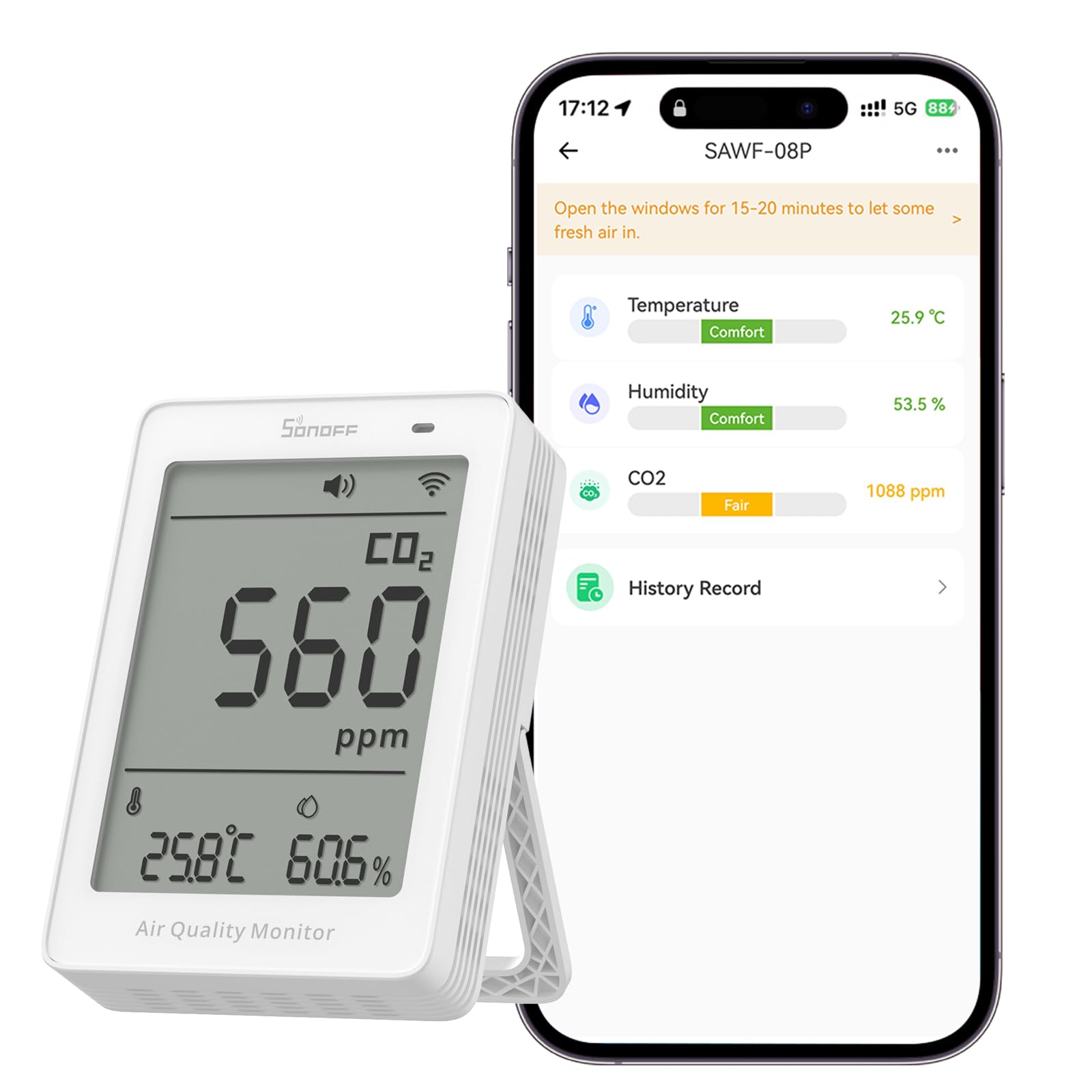
Image: The SONOFF AirGuard CO2 monitor showing its display with CO2, temperature, and humidity readings.
2. Ohun ti o wa ninu Apoti
Nigbati o ba ṣii package, rii daju pe gbogbo awọn nkan wọnyi wa:
- SONOFF AirGuard CO2 Monitor (SAWF-08P)
- Okun USB-C
- Itọsọna olumulo (Itọsọna Ibẹrẹ Ibẹrẹ)
Note: A USB-A power adapter is required but not included in the package.

Image: The SONOFF AirGuard CO2 monitor, USB-C cable, and user manual laid out from the box.
Fidio Unboxing
Video: A detailed unboxing of the SONOFF AirGuard CO2 monitor, showing all included components and initial handling.
3. Ọja Ipariview
Key Awọn ẹya ara ẹrọ
- Ibamu ọrọ: Seamlessly integrates with smart home platforms like Apple Home, Amazon Alexa, Google Home, SmartThings, and Home Assistant.
- High Accuracy & Fast Response: Equipped with a built-in NDIR sensor, providing ±(50ppm + 5%) accuracy for CO2 (400–5000ppm) with data updates every 5 seconds.
- All-in-One Air Quality Display: Monitors and displays CO2, temperature, and humidity simultaneously on a 3.73-inch screen.
- Triple-Alert System: Notifies users via sound alarm, multi-color LED indicator, and app alerts when CO2, temperature, or humidity thresholds are exceeded.
- Year-Long Data Tracking & Export: Access up to 12 months of historical data with graphical charts in the app, allowing for deeper analysis and informed decisions.
- Iṣakoso ohun: Check CO2 levels using simple voice commands through Siri or Google Assistant.

Aworan: Pariview of the monitor's features including Matter compatibility, 3-in-1 monitoring, data logging, and alert systems.

Aworan: Ti abẹnu view of the monitor emphasizing the NDIR sensor for high accuracy and fast response.

Image: The monitor's 3.73-inch display showing real-time CO2, temperature, and humidity readings.

Image: Visual representation of the three customizable alert methods: sound, LED indicator, and app notifications.

Image: A table summarizing the feature compatibility across different smart home platforms.
4. Eto
4.1 Agbara Lori
- Connect the provided USB-C cable to the port on the back of the AirGuard CO2 monitor.
- Plug the other end of the USB-C cable into a compatible USB-A power adapter (not included).
- The device will power on automatically and begin displaying readings.
4.2 App Pairing and Matter Integration
To integrate your AirGuard CO2 monitor with your smart home system, follow these steps:
- Rii daju pe foonuiyara rẹ ti sopọ si nẹtiwọki Wi-Fi 2.4GHz kan.
- Download and open the eWeLink app (or your preferred Matter-compatible smart home app like Apple Home, Google Home, Alexa, or SmartThings).
- On the AirGuard CO2 monitor, long-press the Wi-Fi button (labeled with a Wi-Fi icon) until the icon starts flashing, indicating pairing mode.
- In your smart home app, select the option to add a new device. You may need to scan the QR code located on the back of the AirGuard CO2 monitor.
- Follow the on-screen prompts in the app to complete the pairing process and connect the device to your Wi-Fi network.
How-to Video for Setup
Video: A step-by-step guide on how to set up and pair the SONOFF AirGuard CO2 monitor with your smart home system.
5. Awọn ilana Iṣiṣẹ
5.1 Reading Values
The large display on the front of the AirGuard CO2 monitor shows the current CO2 concentration in parts per million (ppm), temperature in Celsius or Fahrenheit, and relative humidity percentage. The multi-color LED indicator on the top provides a quick visual cue of the air quality status (e.g., green for good, yellow for moderate, red for poor).
5.2 Menu Mode Operation (Local Control)
If you prefer not to use the app, or for quick adjustments, you can operate the device directly using the buttons on the top:
- Entering Menu Mode: Short-press the Setting button (middle button) until the "temperature unit" starts flashing. This indicates you have entered Menu Mode.
- Switching Editable Parameters: While in Menu Mode, short-press the Setting button to cycle through the available parameters for adjustment. The currently selected parameter will flash.
- Yiyipada Iwọn otutu: When the temperature unit is flashing, short-press the "+" or "-" buttons to switch between Celsius (°C) and Fahrenheit (°F).
- Iṣatunṣe iwọn otutu: When the temperature value is flashing, short-press the "+" or "-" buttons to manually calibrate the temperature.
- Iṣatunṣe ọriniinitutu: When the humidity value is flashing, short-press the "+" or "-" buttons to manually calibrate the humidity.
- Exiting Menu Mode: If there is no button operation for 3 seconds, the device will automatically save the current settings and exit Menu Mode. Alternatively, you can short-press the Setting button again after cycling through all available parameters to exit.
5.3 Eto itaniji
The AirGuard CO2 monitor features an audible buzzer and an indicator light for alerts:
- Yipada Buzzer: When the buzzer is off, short-press the buzzer button (rightmost button) to turn it on or off. If the buzzer goes off, short-press once to silence it for 30 minutes. Short-press again to turn it off completely.
- Indicator Light Switch: Long-press the buzzer button for 3 seconds to turn the indicator light on or off.
6. Awọn pato
| Ẹya ara ẹrọ | Ẹ̀kúnrẹ́rẹ́ |
|---|---|
| Awoṣe | SASF-08P |
| Ọja Mefa | 2.76 x 4.06 x 1.02 inches |
| Iwọn Nkan | 6.7 iwon |
| CO2 Detection Range | 400-5000ppm |
| CO2 Yiye | ±(50ppm + 5%) |
| Iwọn Wiwa Iwọn otutu | 0–50°C / 32–122°F |
| Yiye iwọn otutu | ±0.5°C; ±1°F |
| Ọriniinitutu Wiwa Ibiti | 5–95% RH, ti kii-condensing |
| Yiye Ọriniinitutu | ± 3% |
| Alailowaya Asopọ | IEEE 802.11 b/g/n 2.4GHz |
| Iṣawọle | 5V === 1A (Type-C) |
| Smart Home ibamu | Matter, Apple Home, Amazon Alexa, Google Home, SmartThings, Home Assistant |
| Awọn batiri ti a beere | No (Powered via USB-C) |

Image: Detailed technical specifications and physical dimensions of the AirGuard CO2 monitor.
7. Itọju
- Ninu: Lo asọ asọ ti o gbẹ lati nu ẹrọ naa. Maṣe lo awọn olutọpa olomi tabi awọn aerosols.
- Ibi: Place the monitor in an area with good air circulation, away from direct sunlight, heat sources, or areas with high humidity to ensure accurate readings. Avoid placing it near vents or windows where drafts might affect readings.
- Awọn imudojuiwọn famuwia: Ṣayẹwo ohun elo eWeLink nigbagbogbo fun awọn imudojuiwọn famuwia lati rii daju iṣẹ ṣiṣe to dara julọ ati iraye si awọn ẹya tuntun.
8. Laasigbotitusita
- Awọn kika ti ko pe:
- Ensure the device is placed in an appropriate location, away from direct air currents, heat sources, or areas with concentrated CO2 (e.g., directly above a person's breathing zone).
- Perform a manual calibration for temperature and humidity via the Menu Mode if you suspect inaccuracies. For CO2, expose the device to fresh outdoor air (around 400ppm) for a period to allow for self-calibration.
- Ẹrọ ti ko ni agbara:
- Verify the USB-C cable is securely connected to both the monitor and the power adapter.
- Ensure the USB-A power adapter is functional and providing 5V/1A output.
- Awọn ọran Isopọ Wi-Fi:
- Confirm your Wi-Fi network is 2.4GHz. The device does not support 5GHz networks.
- Rí i dájú pé ẹ̀rọ náà wà láàrín ibi tí ẹ̀rọ náà wà fún ẹ̀rọ amúṣẹ́ Wi-Fi rẹ.
- Re-enter pairing mode on the device and attempt to pair again through the app.
- App Not Displaying Data:
- Check if the device is connected to Wi-Fi (Wi-Fi icon on display should be solid).
- Rii daju pe foonuiyara rẹ ni asopọ intanẹẹti ti nṣiṣe lọwọ.
- Restart the app or the device.
9. Atilẹyin ọja ati Support
The SONOFF AirGuard CO2 Smart Indoor Air Quality Monitor comes with a Atilẹyin ọja ọdun meji. For any technical assistance, product inquiries, or warranty claims, please contact SONOFF customer support:
- Imeeli Atilẹyin Onibara: support@itead.cc
- Ilana Pada: 30-day refund/replacement policy through Amazon.
10. Alaye Aabo
- Ma ṣe fi ẹrọ naa han si awọn iwọn otutu to gaju, imọlẹ orun taara, tabi ọriniinitutu giga.
- Jeki ẹrọ naa kuro ninu omi ati awọn olomi miiran.
- Ma ṣe gbiyanju lati tunto tabi tun ẹrọ naa funrararẹ. Tọkasi si oṣiṣẹ oṣiṣẹ fun iṣẹ.
- Use only the specified power input (5V/1A) to avoid damage.
- Ẹrọ yii jẹ ipinnu fun lilo inu ile nikan.