
Ọrọ Iṣaaju
This manual provides comprehensive instructions for the setup, operation, and maintenance of your ASUS ROG Strix 27” 5K HDR Gaming Monitor (Model: XG27JCG). Please read this manual thoroughly before using the monitor to ensure proper functionality and to maximize your user experience.
The ROG Strix XG27JCG is a 27-inch 5K (5120 x 2880) Fast IPS display designed for high-performance gaming and detailed visual tasks. It features a 180Hz (overclocked) refresh rate, 0.3ms GTG response time, and a Dual Mode function allowing switching between 5K 180Hz and QHD 330Hz. Advanced features include G-SYNC Compatible technology, VESA DisplayHDR 600, and ROG Gaming A.I. Technology.
Fidio: Pariview of the ASUS ROG Strix XG27JCG 27-inch 5K monitor, highlighting its key features and design.
Ohun ti o wa ninu Apoti
Rí i dájú pé gbogbo àwọn èròjà wà nínú àpótí náà kí o tó tẹ̀síwájú pẹ̀lú ìṣètò náà.
- ASUS ROG Strix XG27JCG Monitor
- USB DisplayPort
- Itọsọna ibere ni kiakia
- ROG apo
- Sitika ROG
- ROG tripod stand
- Kaadi atilẹyin ọja
- Okun agbara
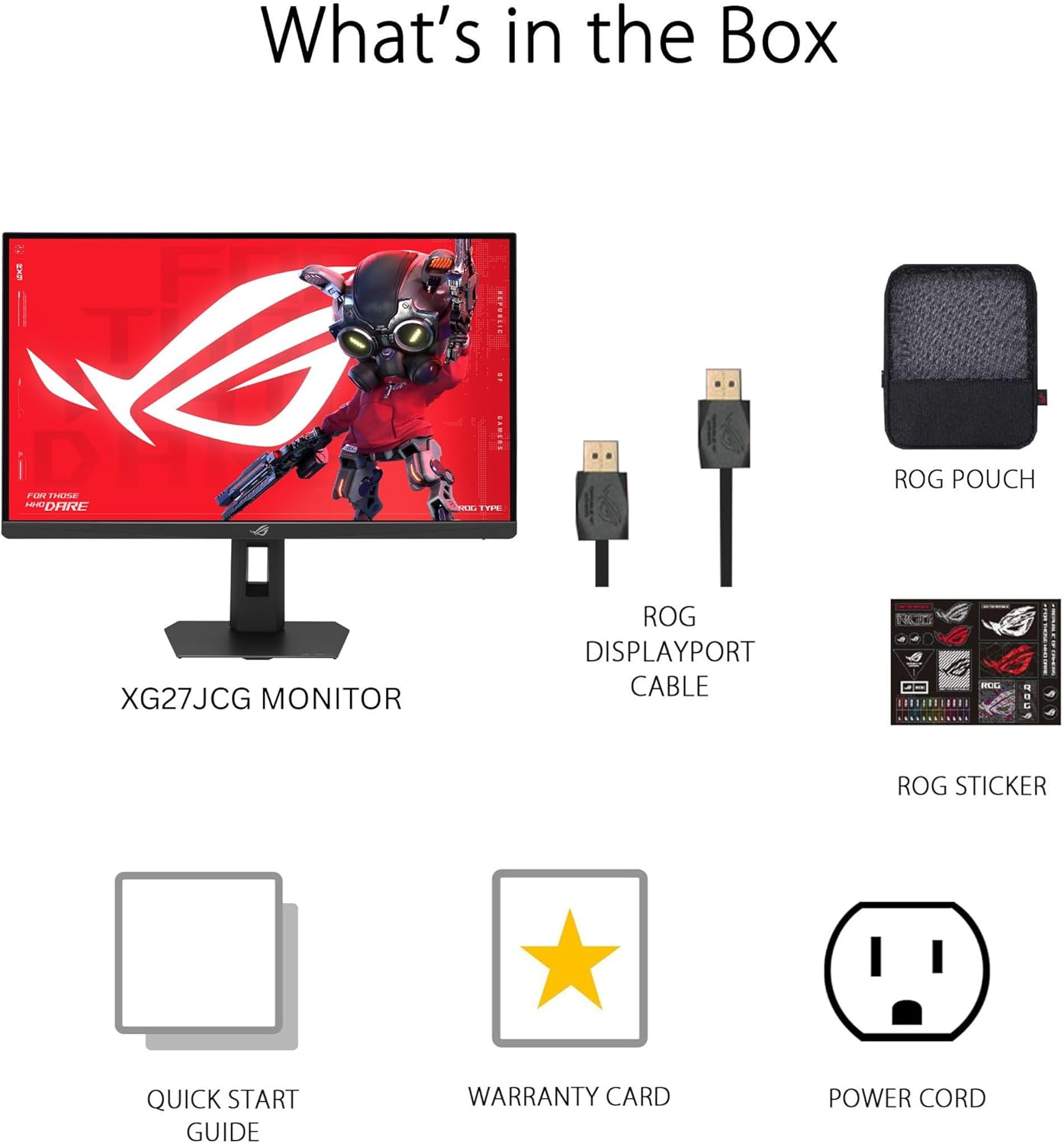
Aworan: Contents of the monitor packaging, showing the monitor, DisplayPort cable, ROG pouch, ROG sticker, Quick Start Guide, Warranty Card, and Power Cord.
Awọn ilana iṣeto
1. Nto Iduro
Carefully remove the monitor from its packaging. Attach the stand base to the stand neck, securing it with the provided screw. Then, attach the assembled stand to the back of the monitor until it clicks into place. Ensure all connections are firm.
2. Nsopọ si Kọmputa kan
The monitor supports DisplayPort 1.4 (DSC), HDMI 2.1, and USB-C connectivity. Choose the appropriate cable for your system.
- Ibudo Ifihan: So opin kan ti okun DisplayPort pọ mọ titẹ DisplayPort ti atẹle naa ati opin keji si ifihan DisplayPort ti kọnputa rẹ.
- HDMI: Connect one end of an HDMI 2.1 cable to the monitor's HDMI input and the other end to your computer's HDMI output.
- USB-C: Connect a USB-C cable to the monitor's USB-C port and to a compatible USB-C port on your computer. This connection also supports 15W power delivery.

Aworan: Ẹyìn view of the monitor's connectivity ports, including HDMI 2.1, DisplayPort 1.4, USB Type-C, and a Headphone Jack.
3. Asopọ agbara
Connect the power cord to the monitor's power input, then plug the other end into a power outlet.
4. Agbara akọkọ Lori
Press the power button located on the monitor to turn it on. The monitor will automatically detect the input source. If no image appears, ensure all cables are securely connected and the computer is powered on.
Awọn ilana Iṣiṣẹ
Lori-iboju Ifihan (OSD) Akojọ aṣyn
Use the joystick and buttons on the back of the monitor to navigate the OSD menu. The OSD allows you to adjust various settings such as brightness, contrast, color, input source, and gaming features.
Display Modes and Refresh Rate
The monitor features a Dual Mode function, allowing you to switch between two primary display configurations:
- 5K (5120 x 2880) at 180Hz (OC): Provides ultra-sharp, immersive visuals suitable for cinematic content and detailed work.
- QHD (2560 x 1440) at 330Hz: Offers extremely high frame rates and responsive gaming action, ideal for competitive esports.
Switching between modes can be done via the OSD menu or a dedicated hotkey, if configured.

Aworan: Visual representation of the monitor's Dual Mode, allowing users to switch between 5K 180Hz and QHD 330Hz for different gaming experiences.
ROG Gaming A.I. Technology
This monitor includes AI-powered features designed to enhance your gaming experience:
- Ìdàgbàsókè Òjìji Onígbà-díẹ̀: Automatically brightens dark areas of the game world without overexposing bright areas, improving visibility of hidden enemies or details.
- Crosshair Dynamic: Provides an on-screen crosshair that can adapt to the game environment, ensuring it remains visible against various backgrounds.
- AI Visual: Optimizes visual settings based on the game content for improved clarity and detail.

Aworan: Examples of Dynamic Crosshair and Dynamic Shadow Boost in action, showing how these features enhance visibility in games.
Ile-iṣẹ ailorukọ Ifihan
The DisplayWidget Center software provides seamless control over monitor settings directly from your Windows or macOS operating system. This utility allows for easy adjustment of GameVisual modes, MultiScreen configurations, and system settings without using the OSD buttons.

Aworan: Screenshot of the DisplayWidget Center software, demonstrating its user interface for adjusting monitor settings.
Ergonomics ati Awọn atunṣe
The monitor stand offers multiple adjustment options to optimize your viewitunu:
- Tẹ: +20° si -5°
- Swivel: +40° si -40°
- Pivot: +90° to -90° (for portrait mode)
- Atunse Giga: 0 to 110mm
Adjust the monitor to an ergonomic position that reduces strain on your neck and eyes. Ensure the top of the screen is at or slightly below eye level.

Aworan: Diagram illustrating the monitor's ergonomic adjustments, including tilt, swivel, pivot, and height.
Itoju
Ninu Monitor
- Nigbagbogbo pa atẹwo naa kuro ki o yọọ okun agbara ṣaaju ṣiṣe mimọ.
- Lo asọ asọ, ti ko ni lint die-die dampened pẹlu omi tabi ìwọnba, ti kii-abrasive iboju regede.
- Maṣe fun sokiri regede taara sori iboju. Lo akọkọ si asọ.
- Avoid using alcohol-based cleaners, ammonia, or abrasive materials, as these can damage the screen surface.
Gbogbogbo Itọju
- Jẹ́ kí àwòkọ́ náà jìnnà sí oòrùn tààrà, ooru tó pọ̀ jù, àti ọ̀rinrin.
- Rii daju pe fentilesonu to peye ni ayika atẹle lati ṣe idiwọ igbona.
- Yago fun gbigbe awọn nkan ti o wuwo sori atẹle tabi awọn kebulu rẹ.
Laasigbotitusita
| Isoro | Owun to le Solusan |
|---|---|
| Ko si aworan loju iboju |
|
| Aworan jẹ blur tabi daru |
|
| Screen flickers or shows artifacts |
|
| No sound from headphones (if connected to monitor) |
|
Awọn pato
| Ẹya ara ẹrọ | Ẹ̀kúnrẹ́rẹ́ |
|---|---|
| Brand | ASUS |
| Nọmba awoṣe | XG27JCG |
| Iwon iboju | 27 inches |
| Ipinnu | 5120 x 2880 (5K UHD) |
| Panel Iru | Yara IPS |
| Oṣuwọn sọtun | 180 Hz (OC) / QHD 330Hz (Dual Mode) |
| Akoko Idahun | 0.3 ms (GTG) |
| Apakan Ipin | 16:9 |
| Ipin Itansan | 600:1 |
| Viewigun igun | 178 Degrees (H/V) |
| HDR atilẹyin | VESA IfihanHDR 600 |
| Awọ Gamut | 97% DCI-P3 |
| Amuṣiṣẹpọ Adaptive | AMD FreeSync Premium Pro, G-SYNC Compatible |
| Asopọmọra | 1x DisplayPort 1.4 (DSC), 2x HDMI 2.1, 1x USB-C (with 15W PD), Headphone Jack |
| Agbara agbara | 40 Wattis |
| Awọn iwọn Nkan (D x W x H) | 8.59"D x 24.2"W x 20.1"H |
| Iwọn Nkan | 6.9 iwon |
| Awọn atunṣe Ergonomic | Tilt (+20° ~ -5°), Swivel (+40° ~ -40°), Pivot (+90° ~ -90°), Height (0~110mm) |
Atilẹyin ọja ati Support
This ASUS ROG Strix XG27JCG monitor comes with a 3-odun atilẹyin ọja. For warranty claims, technical support, or service inquiries, please contact ASUS customer support. Refer to the included Warranty Card for detailed terms and conditions.
You can find additional support resources, drivers, and FAQs on the official ASUS support webojula: www.asus.com/support/


