
1. Ifihan
This manual provides detailed instructions for the installation, operation, and maintenance of your FILWY Power Train Prism 8RS 12CM ARGB 4-Pin PWM Fan. This fan is designed to provide efficient cooling and customizable lighting for computer systems. Please read this manual thoroughly before installation and use to ensure proper function and safety.
2. Alaye Aabo
- Máa yọ agbára kúrò lórí kọ̀ǹpútà rẹ kí o tó fi àwọn èròjà tàbí àwọn ohun èlò mìíràn sí i.
- Fi afẹ́fẹ́ náà mú un ní fírẹ́mù rẹ̀ kí ó má ba àwọn abẹ́ tàbí wáyà jẹ́.
- Ensure all cables are properly connected and secured to prevent short circuits or damage.
- Jẹ́ kí afẹ́fẹ́ náà jìnnà sí omi àti eruku tó pọ̀ jù.
- Do not attempt to modify the fan or its components. Unauthorized modifications may void the warranty and pose safety risks.
3. Package Awọn akoonu
Daju pe gbogbo awọn nkan wa ninu apo rẹ:
- Power Train Prism 8RS 12CM ARGB 4-Pin PWM Fan
- Iṣagbesori skru
- Afowoyi Olumulo (iwe-ipamọ yii)
Note: The specific quantity of fans and accessories may vary based on the product bundle purchased.
4. Eto ati fifi sori
Follow these steps to install the Power Train Prism 8RS fan into your computer system.
4.1. Igbaradi
- Turn off your computer and disconnect it from the power outlet.
- Open your computer case to access the desired fan mounting location.
4.2. Fan Mounting
Position the fan in the desired location (e.g., CPU cooler, radiator, PC case intake/exhaust). Ensure the airflow direction is correct for your cooling configuration.
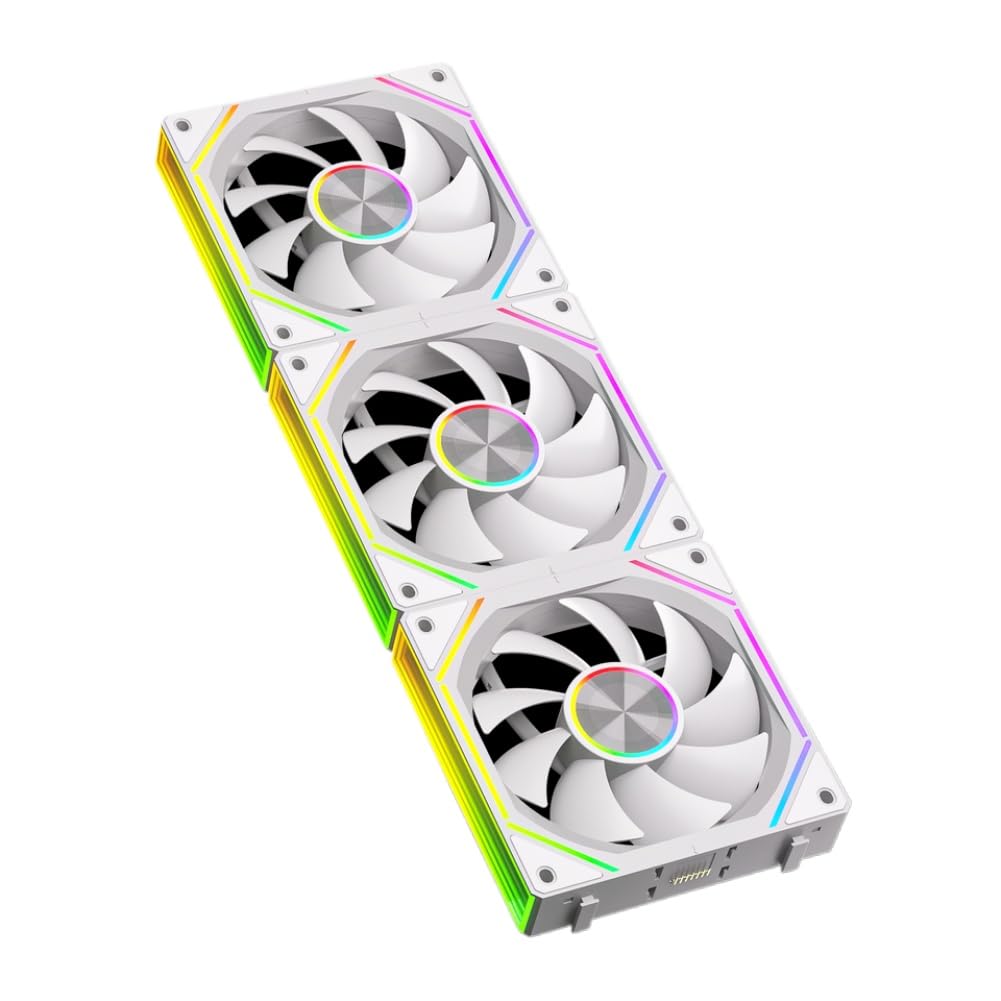
Image: The FILWY Power Train Prism 8RS fan, showing its 12cm frame, fan blades, and attached PWM and ARGB cables. The fan is white with a central hub and mounting holes at the corners.
- Align the fan's mounting holes with the corresponding holes on your case, radiator, or CPU cooler.
- Ṣe aabo fun afẹfẹ nipa lilo awọn skru iṣagbesori ti a pese. Maṣe ṣe apọju.
4.3. USB Awọn isopọ
The Power Train Prism 8RS fan has two main cables:
- 4-Pin PWM Cable: Connect this cable to an available 4-pin fan header on your motherboard (e.g., CPU_FAN, SYS_FAN). This allows for speed control based on system temperature.
- ARGB Cable: Connect this 3-pin 5V ARGB cable to a compatible 5V ARGB header on your motherboard or an ARGB controller. Ensure the arrow on the connector aligns with the +5V pin on the header to prevent damage. Má ṣe so mọ́ àkọlé RGB 12V kan.
Once all connections are made, close your computer case and reconnect the power.
5. Awọn ilana Iṣiṣẹ
5.1. Iṣakoso Iyara Fan (PWM)
The 4-pin PWM connection allows your motherboard to dynamically adjust the fan speed (800-1800 RPM) based on your system's thermal load. This optimizes cooling performance while minimizing noise.
- Access your motherboard's BIOS/UEFI settings or use compatible software provided by your motherboard manufacturer to configure fan curves and control profiles.
- You can set custom fan speeds for different temperature thresholds or choose pre-defined modes like 'Silent', 'Standard', or 'Performance'.
5.2. ARGB ina Iṣakoso
The Addressable RGB (ARGB) lighting allows for customizable illumination effects. Control is typically managed through your motherboard's ARGB software or a dedicated ARGB controller.
- Install the ARGB control software provided by your motherboard manufacturer (e.g., ASUS Aura Sync, MSI Mystic Light, Gigabyte RGB Fusion, ASRock Polychrome Sync).
- Use the software to select various lighting modes, colors, and effects. You can synchronize the fan's lighting with other compatible ARGB components in your system.
6. Itọju
Regular maintenance helps ensure optimal performance and longevity of your fan.
6.1. Ninu
- Periodically (e.g., every 3-6 months), turn off your computer and disconnect power.
- Use compressed air to gently blow dust off the fan blades and frame. Hold the fan blades to prevent them from spinning rapidly during cleaning, which can damage the bearings.
- For stubborn dust, use a soft, dry cloth or a cotton swab. Do not use liquid cleaners.
6.2. Ayewo
- Check for any loose cables or connections.
- Ensure the fan is securely mounted and not vibrating excessively.
- Listen for unusual noises during operation, which could indicate a bearing issue.
7. Laasigbotitusita
If you encounter issues with your Power Train Prism 8RS fan, refer to the following common problems and solutions:
- Problem: Fan is not spinning.
- Ojutu:
- Ensure the 4-pin PWM cable is securely connected to a functional fan header on the motherboard.
- Ṣàyẹ̀wò àwọn ètò BIOS/UEFI ti motherboard rẹ láti rí i dájú pé a ti ṣiṣẹ́ orí afẹ́fẹ́ náà àti pé a ti ṣètò rẹ̀ dáadáa.
- Rii daju pe ipese agbara n ṣiṣẹ daradara.
- Problem: ARGB lighting is not working or displaying incorrect colors.
- Ojutu:
- Ensure the 3-pin 5V ARGB cable is correctly connected to a 5V ARGB header (not 12V RGB). The arrow on the connector should align with the +5V pin.
- Verify that your motherboard's ARGB software is installed and updated.
- Check for conflicts with other RGB software or controllers.
- Rí i dájú pé a ti mú akọsori ARGB ṣiṣẹ́ nínú BIOS/UEFI ti modaboudu rẹ.
- Problem: Fan is making unusual noise.
- Ojutu:
- Ṣàyẹ̀wò bóyá okùn tàbí ìdènà kan bá ń kọlu àwọn abẹ́ afẹ́fẹ́.
- Rí i dájú pé a gbé afẹ́fẹ́ náà sí ibi tí ó dára, kí ó má sì mì tìtì sí àpótí náà.
- Nu eyikeyi eruku kọ lori awọn abẹfẹlẹ àìpẹ.
8. Awọn pato
| Awoṣe | Power Train Prism 8RS |
| Fan Iwon | 120mm x 120mm x 25mm (12CM) |
| Fan Iru | PWM Controlled Fan |
| Asopọmọra | 4-Pin PWM, 3-Pin 5V ARGB |
| Awọn ọna Voltage | 12V DC |
| Iyara Fan | 800 - 1800 RPM (± 10%) |
| Fife ategun | 56.62 CFM (Ẹsẹ onigun Ni Iṣẹju kan) |
| Ariwo Ipele | Not specified (optimized for low operational noise) |
| Ti nso Iru | Lai so ni pato |
| Itanna | RGB tí a lè fi àdírẹ́sì rẹ̀ hàn (ARGB) |
9. Atilẹyin ọja ati Support
FILWY products are manufactured to high-quality standards. For warranty information and technical support, please refer to the documentation provided with your purchase or visit the official FILWY webojula. Jeki ẹri rira rẹ fun awọn iṣeduro atilẹyin ọja.
If you require further assistance, please contact FILWY customer support through the channels listed on our webojula.