
1. Ifihan
This manual provides essential information for setting up, operating, and maintaining your HP OmniDesk Slim Desktop PC, Model S03-0006. This desktop PC is designed for daily tasks, offering an Intel Core i3-14100 processor, ample memory, and various connectivity options for productivity and entertainment.
2. Package Awọn akoonu
Jẹrisi pe gbogbo awọn ohun kan wa ninu package:
- HP S03-000 OmniDesk Slim Desktop PC
- Ibi ti ina elekitiriki ti nwa
- USB Black Wired Keyboard (if included with specific bundle)
- USB Wired Mouse (if included with specific bundle)
Akiyesi: Awọn ẹya afikun le ṣee ta lọtọ.
3. Ọja Ipariview
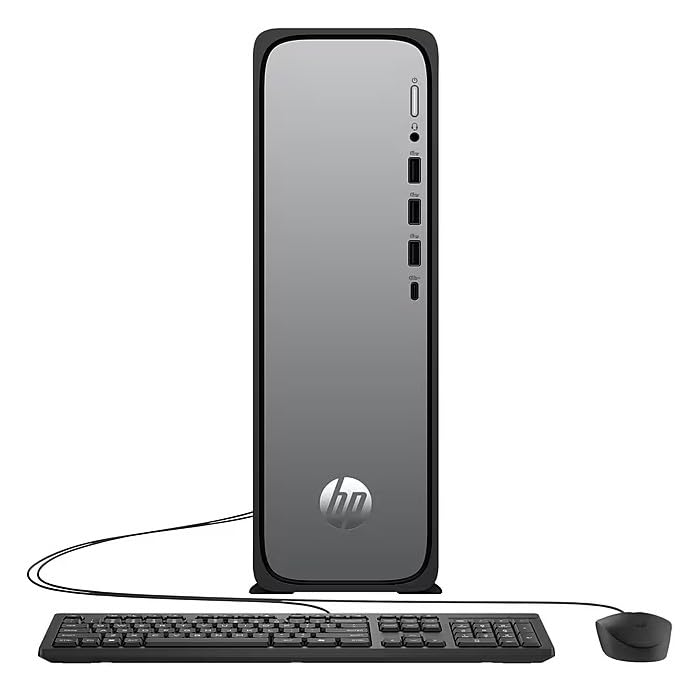
The HP OmniDesk Slim Desktop PC features a compact design with essential components for efficient computing.

Nọmba 3.1: HP OmniDesk Slim Desktop PC showcasing awọn oniwe-tẹẹrẹ profile, Intel Core i3-14100 processor, 8GB DDR5 RAM, 256GB SSD, Intel UHD Graphics 710, Wi-Fi 6, Bluetooth 5.4, Windows 11, and dual display support.
3.1. Awọn ibudo ati awọn asopọ
Familiarize yourself with the various ports on your desktop PC for connecting peripherals and displays.
Nọmba 3.2: Front and rear port layout of the HP OmniDesk Slim Desktop PC. Front ports include a headphone/microphone combo jack, USB Type-A 5Gbps ports, and a USB Type-C 10Gbps port. Additional ports (typically rear) include 4 USB 2.0 Type-A, 1 RJ-45 (Ethernet), 1 HDMI Out, and 1 DisplayPort 1.4.
- Awọn ibudo iwaju:
- Agbekọri/gbohungbohun konbo
- USB Type-A 5Gbps signaling rate (3 ports)
- USB Type-C 10Gbps signaling rate (1 port)
- Awọn ibudo ẹhin:
- USB 2.0 Type-A (4 ports)
- RJ-45 (ayelujara)
- HDMI 1.4b (1 port)
- DisplayPort 1.4a (1 port)
4. Eto Itọsọna
Follow these steps to set up your HP OmniDesk Slim Desktop PC:
- Atẹle Sopọ: Connect your monitor to the PC using an HDMI or DisplayPort cable. Ensure the cable is securely plugged into both the PC and the monitor.
- Awọn Agbeegbe Sopọ: Plug in your USB keyboard and mouse into the available USB ports on the PC.
- So agbara: Connect the power supply cable to the PC's power input, then plug the other end into a wall outlet or surge protector.
- Agbara Tan: Press the power button on the front of the PC. The system will boot up, and you will see the Windows 11 setup screen.
- Eto Windows akọkọ: Follow the on-screen instructions to complete the Windows 11 setup, including language, region, network connection, and user account creation.
5. Awọn ilana Iṣiṣẹ
5.1. Ipilẹ isẹ
- Titan/Apapa: Press the power button to turn on the PC. To shut down, click the Start button, then Power > Shut down.
- Tun bẹrẹ: Tẹ bọtini Bẹrẹ, lẹhinna Agbara> Tun bẹrẹ.
- Ipo orun: Tẹ bọtini Ibẹrẹ, lẹhinna Power > Sleep.
5.2. Nsopọ si nẹtiwọki kan
Your PC supports both wired (Ethernet) and wireless (Wi-Fi) network connections.
- Asopọ onirin: Connect an Ethernet cable from your router or modem to the RJ-45 port on the back of the PC.
- Wireless Connection (Wi-Fi 6):
- Tẹ aami Wi-Fi ni ibi iṣẹ-ṣiṣe.
- Yan nẹtiwọki Wi-Fi ti o fẹ lati inu atokọ naa.
- Tẹ bọtini aabo nẹtiwọki (ọrọ igbaniwọle) ti o ba ṣetan, lẹhinna tẹ Sopọ.
5.3. Dual Display Support
To extend your desktop to a second monitor:
- Connect the second monitor to an available video output port (HDMI or DisplayPort) on your PC.
- Right-click on the desktop and select Awọn eto ifihan.
- Under "Multiple displays," select how you want the displays to behave (e.g., Extend these displays, Duplicate these displays).
6. Itọju
- Awọn imudojuiwọn sọfitiwia: Regularly check for and install Windows updates to ensure system stability and security. Go to Eto> Imudojuiwọn Windows.
- Awọn imudojuiwọn Awakọ: Keep your device drivers updated. HP Support Assistant (MyHP) can help manage these updates.
- Ninu: Use a soft, dry cloth to clean the exterior of the PC. Avoid liquid cleaners directly on components. Ensure ventilation openings are clear of dust.
- Data Afẹyinti: Ṣe afẹyinti nigbagbogbo pataki files sí awakọ ita tabi ibi ipamọ awọsanma lati dena pipadanu data.
7. Laasigbotitusita
| Isoro | Owun to le Solusan |
|---|---|
| PC ko ni agbara lori. |
|
| Ko si ifihan lori atẹle. |
|
| Ko si isopọ Ayelujara. |
|
| Àwọn ẹ̀rọ ìtẹ̀síwájú (keyboard/mouse) kò ṣiṣẹ́. |
|
8. Awọn pato
| Orukọ awoṣe | HP OmniDesk Desktop HP S03-000 PC |
| Nọmba awoṣe | OmniDesk Slim S03-0006 |
| isise | Intel Core i3-14100 (3.5 GHz, 6 MB Cache) |
| Awọn aworan | Intel UHD Graphics 710 (Idapọ) |
| Àgbo | 8 GB DDR5 (4800 MT/s), Max 64 GB |
| Ibi ipamọ | 256 GB SSD (Wakọ Ipinle Ri to) |
| Eto isesise | Windows 11 Ile |
| Asopọmọra | Realtek Wi-Fi 6 (2x2), Bluetooth 5.4, Gigabit Ethernet (RJ-45) |
| Awọn ibudo |
|
| Awọn iwọn (H x W x D) | 11.61 x 3.94 x 11.97 inches |
| Iwọn | 8.38 iwon |
| Awọn iwe-ẹri | ENERGY STAR certified, EPEAT Gold with Climate+ |
9. Atilẹyin ọja ati Support
9.1. atilẹyin ọja Information
This HP OmniDesk Slim Desktop PC comes with a 90-ọjọ lopin atilẹyin ọjaJọ̀wọ́ tọ́ka sí ìwé àtìlẹ́yìn tí ó wà pẹ̀lú ọjà rẹ fún àwọn òfin àti àdéhùn pàtó kan.
9.2. Imọ Support
Fun iranlọwọ imọ-ẹrọ, igbasilẹ awakọ, tabi alaye siwaju sii, jọwọ ṣabẹwo si atilẹyin HP osise website. You can also utilize the pre-installed MyHP application for device customization, optimization, and access to helpful messages and settings.
Always provide your product model number (S03-0006) and serial number when contacting support.