
1. Ifihan
This manual provides detailed instructions for the cudinham X6 Print Pod Mini Thermal Printer. This compact, inkless printer is designed for various uses, including creating stickers, notes, and labels directly from your smartphone or tablet. Please read this manual thoroughly before use to ensure proper operation and longevity of your device.
2. Ohun ti o wa ninu Apoti
Jẹrisi pe gbogbo awọn ohun kan wa ninu package:
- cudinham X6 Mini Thermal Printer
- 10 Rolls Printing Paper (Thermal Paper & Sticker Paper)
- Iru-C Power Okun
- Itọsọna olumulo

Nọmba 2.1: Awọn akoonu Package
3. Ọja Ipariview
The cudinham X6 Mini Thermal Printer features a simple and intuitive design. Key components include:
- Ọja iwe: Where printed paper exits.
- Bọtini agbara: Used to turn the printer on/off and initiate feeding.
- Atọka Agbara: Shows the device's power status.
- Ibudo USB: Fun gbigba agbara ẹrọ.
- Cover Opening Button: Releases the top cover for paper loading.
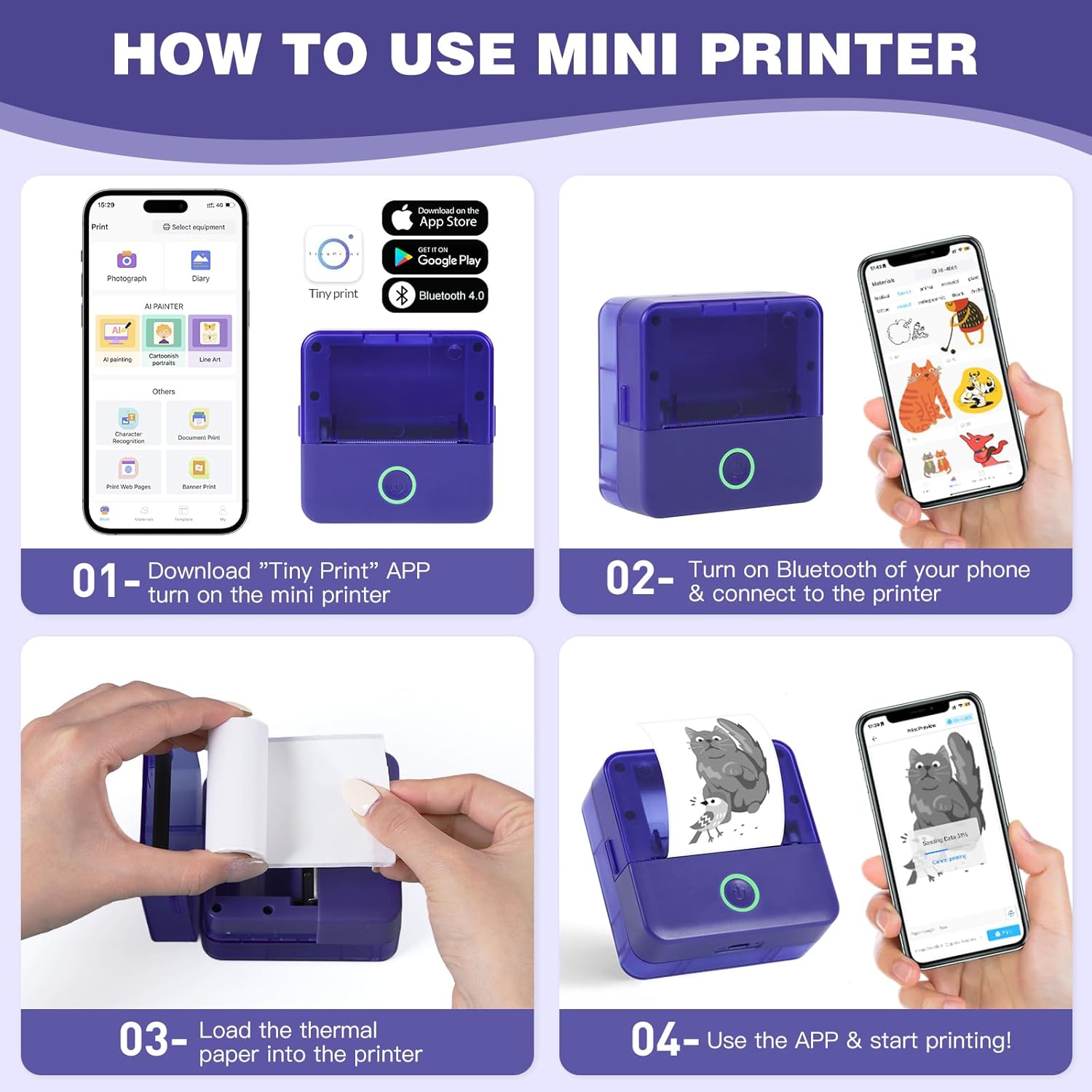
Figure 3.1: Printer Components and How to Use
4. Eto
4.1 Ngba agbara si itẹwe
Before first use, ensure the printer is fully charged. Connect the provided Type-C power cord to the printer's USB port and a suitable power adapter (not included). The power indicator light will show charging status.
4.2 Installing Thermal Paper
- Press the cover opening button to open the top cover of the printer.
- Remove any existing paper roll or the adjuster from the right side if present.
- Load a new thermal paper roll into the paper compartment. Ensure the printing side (smooth side) is facing up and aligned with the print head.
Tip: To distinguish the printing side, gently scratch the paper surface with your nail; the side that leaves a mark is the printing side. - If removed, install the adjuster on the right side to secure the paper roll.
- Pull out a small portion of the paper (approximately 1cm) beyond the paper outlet.
- Pa ideri oke naa duro ṣinṣin titi ti o fi tẹ sinu aaye.

Figure 4.1: Opening the Paper Compartment

Figure 4.2: Loading the Paper Roll

Figure 4.3: Closing the Cover after Paper Loading
4.3 App Download ati Bluetooth Asopọ
- Download the "Tiny Print" app from the App Store (iOS) or Google Play Store (Android).
- Turn on the mini printer by pressing and holding the power button until the indicator light illuminates.
- Mu Bluetooth ṣiṣẹ lori foonuiyara tabi tabulẹti rẹ.
- Open the "Tiny Print" app and follow the in-app instructions to connect to your printer via Bluetooth. Look for a device named "X6H-XXXX" or similar.
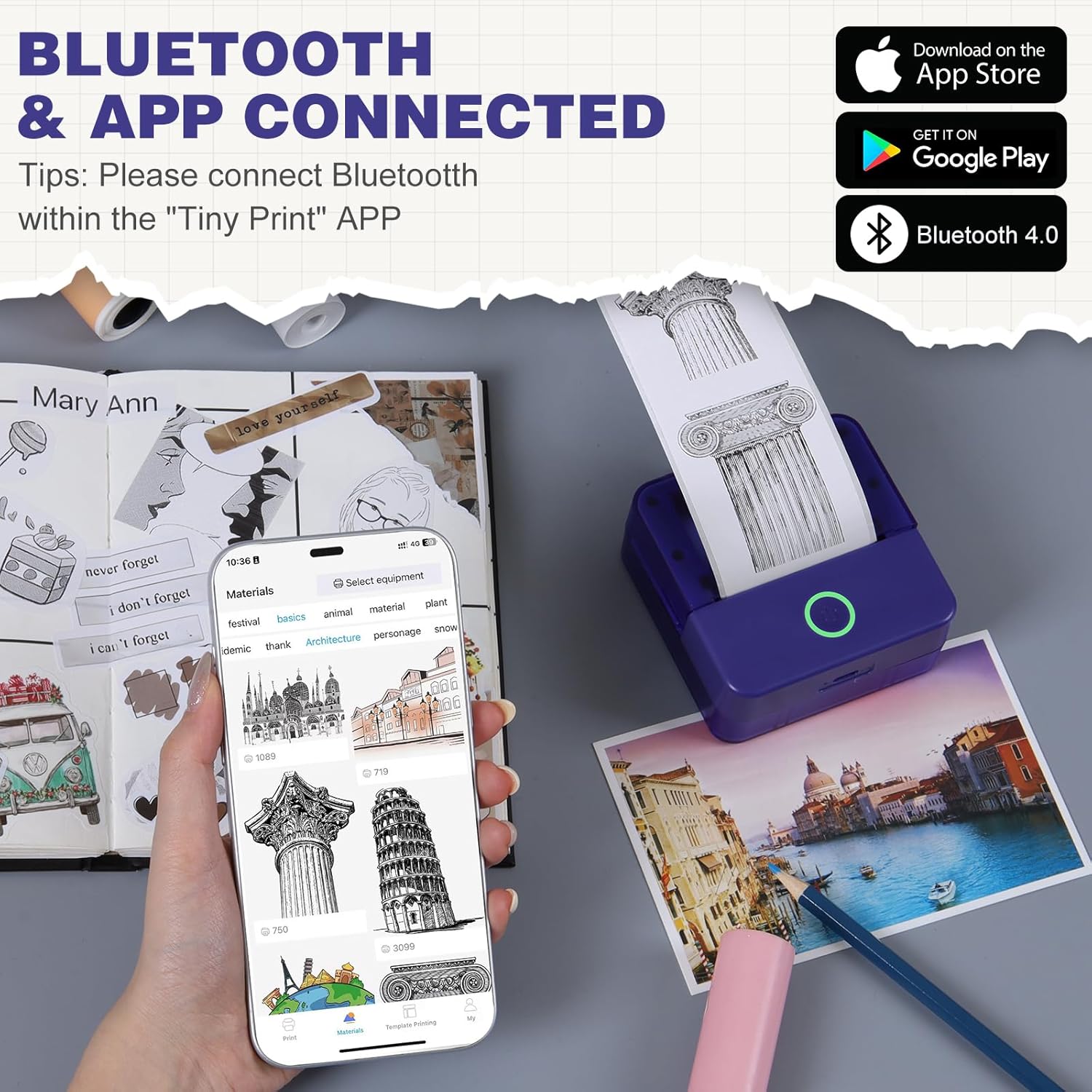
Figure 4.4: App Interface and Bluetooth Connection
Video 4.1: Demonstrating the setup and connection process for the cudinham X6 Mini Thermal Printer.
5. Awọn ilana Iṣiṣẹ
The "Tiny Print" app offers various functions for printing. Ensure your printer is connected via Bluetooth before proceeding.
5.1 Ipilẹ titẹ sita
- Fọto titẹ sita: Select "Photo Printing" in the app, choose an image from your gallery, adjust as needed, and tap "Print."
- Text Printing: Select "Text Printing" or a template, input your text, customize fonts and sizes, and tap "Print."
- Awọn awoṣe: The app provides multiple free templates for notes, to-do lists, labels, and more. Select a template, customize it, and print.

Figure 5.1: Multi-functionality of the Tiny Print App

Figure 5.2: Image Printing Settings

Figure 5.3: Text Printing Settings
5.2 Adjusting Print Settings
Within the app, you can adjust the print depth for both images and text. For optimal results, especially with images, it is recommended to use the high-definition printing mode and set the print depth between 4 and 7. Experiment with settings to achieve your desired print quality.
Fidio 5.1: Pariview of the cudinham X6 Print Pod Mini Printer's features and printing capabilities.
6. Itọju
6.1 Ninu awọn Print Head
To maintain print quality, regularly clean the print head. Use a soft, lint-free cloth lightly dampened with alcohol. Gently wipe the print head to remove any dust or paper residue. Ensure the printer is turned off and disconnected from power before cleaning.
6.2 Paper Storage
Store thermal paper in a cool, dry place away from direct sunlight and heat to prevent premature fading or damage. Avoid touching the printing surface of the paper with bare hands as oils can affect print quality.

Figure 6.1: Different Types of Thermal Paper
7. Laasigbotitusita
| Isoro | Owun to le Fa | Ojutu |
|---|---|---|
| Itẹwe ko titan | Batiri kekere; Bọtini agbara ko tẹ ni deede. | Charge the printer; Press and hold the power button for 3 seconds. |
| Dídára ìtẹ̀wé tí kò dára (ó rẹlẹ̀/ó dúdú) | Print head dirty; Incorrect print depth setting; Low battery. | Clean the print head; Adjust print depth in the app (recommended 4-7); Charge the printer. |
| Itẹwe ko sopọ nipasẹ Bluetooth | Bluetooth off on phone/printer; App not recognizing printer. | Ensure Bluetooth is enabled on both devices; Restart the app and printer; Re-pair the device in the app. |
| Jam iwe | Paper loaded incorrectly; Foreign object in paper path. | Open the cover, remove jammed paper, re-load correctly; Check for obstructions. |
8. Awọn pato
| Ẹya ara ẹrọ | Ẹ̀kúnrẹ́rẹ́ |
|---|---|
| Orukọ awoṣe | X6 |
| Brand | kudinham |
| Imọ-ẹrọ titẹ sita | Gbona |
| Asopọmọra Technology | Bluetooth |
| Ijade itẹwe | Thermal (Monochrome) |
| Iyara Titẹjade ti o pọju (Monochrome) | 20ppm |
| Media Print | Gbona Iwe |
| Iwon dì | 57x22 Millimeters |
| O pọju Media Iwon | 52x350mm |
| Ọja Mefa | 3.35 x 1.77 x 3.35 inches |
| Iwọn Nkan | 13.2 iwon |
| Awọn batiri | 1 Batiri ti kii ṣe deede (pẹlu) |
| Ni wiwo Hardware | USB |
9. Atilẹyin ọja ati Support
For warranty information and customer support, please refer to the warranty card included in your package or contact cudinham customer service directly. Keep your purchase receipt for warranty claims.
Ibi iwifunni:
- Olupese: Cudinham
- Olutaja: Cudinham Home
- Please refer to the product packaging or official webAaye fun awọn alaye olubasọrọ atilẹyin lọwọlọwọ julọ.