
1. Alaye Aabo pataki
Jọwọ ka gbogbo awọn ilana fara ṣaaju fifi sori ẹrọ ati lo. Jeki iwe afọwọkọ yii fun itọkasi ọjọ iwaju.
- Fifi sori ẹni-meji: Always use at least two people to lift and install the TV to prevent injury or damage.
- Iṣagbede ogiri: Follow all wall mounting instructions precisely. Ensure the wall structure can support the TV's weight. If unsure, consult a professional.
- Yago fun Awọn Idilọwọ: Do not drill into walls where electrical wiring or piping may be present.
- Ibi Iduroṣinṣin: If not wall-mounted, ensure the TV is placed on a stable, level surface to prevent tipping.
- Afẹfẹ: Ma ṣe dina awọn ṣiṣi atẹgun. Rii daju aaye to peye ni ayika TV fun ṣiṣan afẹfẹ to dara.
- Ọrinrin: Keep the TV away from water, moisture, and high humidity environments.
- Okun Agbara: Protect the power cord from being walked on or pinched. Do not use a damaged power cord.
- Ninu: Yọ TV kuro ṣaaju ki o to di mimọ. Lo asọ asọ ti o gbẹ. Maṣe lo awọn olutọpa olomi tabi awọn ẹrọ aerosol.
2. Kini To wa
Rii daju pe gbogbo awọn paati wa ninu apoti:
- Amazon Ember Artline TV (55-inch)
- Alexa Voice Remote Imudara
- Kit Mount odi
- Okun agbara
- 2 Awọn batiri AAA
- Quick Bẹrẹ Itọsọna
- Amazon Ember Artline 55” Frame (four pieces) - Note: Frames ship separately and may arrive at a different time.

Image: Amazon Ember Artline 55-inch Fire TV with Ash frame.
3. Eto ati fifi sori
3.1. Preparing the TV for Wall Mount
Before mounting, ensure the TV is prepared correctly. You will need a number two Phillips screwdriver. Do not use an electric drill to prevent stripping the bolt holes.
- Lay the TV screen side down on a soft, clean surface to access the recessed cover on the back.
- Remove the recessed cover.
- Install the two mount bolts into the designated holes using a number two Phillips screwdriver.
Video: Instructions for wall mounting the Amazon Ember Artline TV. This video demonstrates the steps for preparing the TV and installing the wall mount hardware.
3.2. Wall Mount fifi sori
You will need at least two people to complete this process. Ensure you have the included wall mounting template, bolts, screws, and anchors. Additionally, you will need an electric drill with a 3/16 inch drill bit, a #2 Phillips driver bit, a hammer, a pencil, and a level or level app. If mounting on wood studs, you'll need a 1/8 inch drill bit. If mounting on brick, you'll need a 5/16 inch drill bit and a stud finder for drywall.
- Eto Ibi:
- Consider the height of everyone using the TV. Place it at eye level for comfortable viewing.
- Find a mount location away from water or moisture.
- Avoid drilling holes over electrical wiring or piping.
- If installing on a brick wall, locate an area free of cracks.
- If your wall doesn't have proper stud spacing, contact a professional for installation.
- Gbigbe akọmọ:
- Plan the location of the wall mount using the wall mounting template.
- Locate two studs using a stud finder (for drywall). Mark the center of each stud with a pencil.
- Place the mount against the wall and mark at least four screw holes. Use a level or level app to ensure the mount is straight.
- Drill pilot holes on each mark using an electric drill with the appropriate bit (1/8" for drywall, 5/16" for brick).
- If on drywall, anchors are not needed. If on brick, use a hammer to install the mount anchors in the holes.
- Attach the mount to the wall using the mount screws, an electric drill, and a #2 Phillips bit.
- Installing Magnet Plates:
- Attach the template to the wall using double-sided tape.
- Mark the locations for the four magnet plates on the wall, then remove the template.
- Drill pilot holes on each mark using an electric drill with a 3/16 inch bit.
- Install the magnet plate anchors using a hammer.
- Install the magnet plates into the anchors using the magnet plate screws and an electric drill with a #2 Phillips bit.
- Attaching the TV to the Mount:
- While attaching the TV, avoid pressing against the screen.
- Fully extend the TV bracket away from the wall and gently release the bolt latches.
- Place the four alignment stickers above the mount bolts on the back of the TV and the bolt latches on the mount. Fold the stickers up to see them more clearly.
- Hang the mount bolts on the mount hooks. Use the alignment stickers to guide you.
- Close the bolt latches, then push the TV flush with the wall to connect the magnets and magnet plates.
4. Operating Your Amazon Ember Artline Fire TV
4.1. Fire TV Interface
The Amazon Ember Artline features the new Fire TV experience (2026 release) with a modern design for fast access to entertainment. You can pin frequently used apps and browse dedicated content categories. Access hundreds of thousands of movies and TV episodes, including free, ad-supported content. Subscription fees may apply for certain services.

Image: The Fire TV interface displaying various streaming applications and content.
4.2. Alexa Voice Remote Enhanced
The included Alexa Voice Remote Enhanced allows for easy navigation and voice control. Talk naturally to find content, manage your smart home, or explore topics.
- Iṣakoso ohun: Press and hold the voice button to use your voice commands.
- Lilọ kiri: Use the directional pad to navigate menus and content.
- Awọn bọtini Wiwọle Yara: Dedicated buttons for popular streaming services (e.g., Prime Video, Netflix) provide instant access.
4.3. Ambient Experience and Art Mode
The Ember Artline functions as both an entertainment hub and a curated art gallery. It can display art, stream content, and manage your smart home. The matte screen reduces glare for an optimal viewiriri iriri.
- Ile aworan aworan: Access a gallery of over 2,000 free works of art.
- Personal Photos: Upload and display your own photos from the Amazon Photos App. Use Alexa to create slideshows or collages (e.g., "Play a slideshow of us biking in the mountains.").
- Match the Room: Upload photos of your space, and the TV will recommend art pieces that complement your decor.
- Awọn fireemu Aṣa: Choose from ten available frame colors. Frames are easy to install and change.

Image: The Amazon Ember Artline TV seamlessly integrated into a living room, displaying a vibrant piece of art.
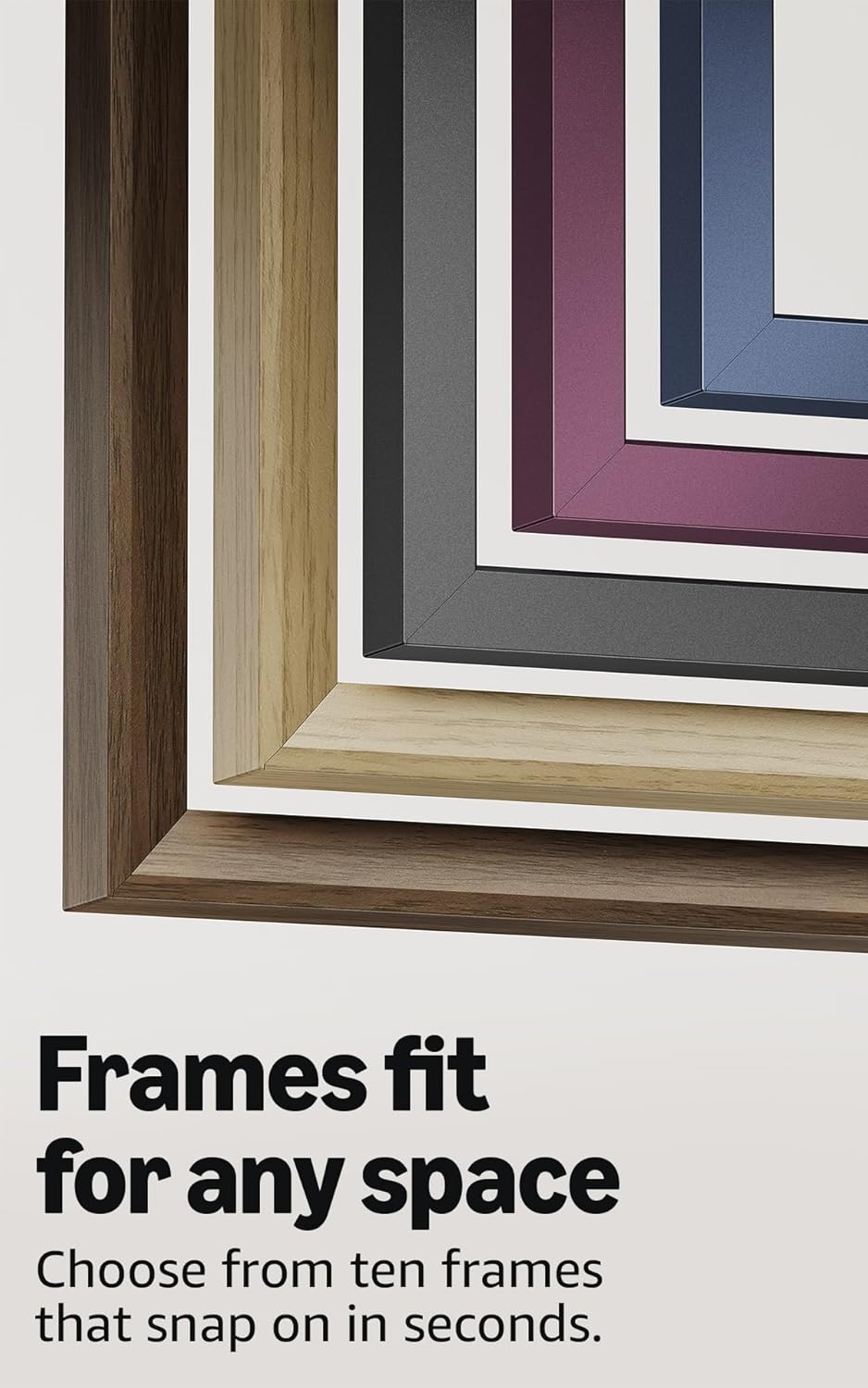
Image: A selection of different colored frames available for the Amazon Ember Artline TV, highlighting customization options.
4.4. Omnisense Technology (Motion Detection)
The custom Omnisense technology uses built-in sensors to detect your presence. The display will wake to show your favorite artwork or allow you to start watching content quickly. When you leave the area, the TV automatically turns off to save energy.

Aworan: A alaye view of the Omnisense sensor, which enables motion detection for automatic display activation and power saving.
Fidio: Pariview of the Amazon Fire TV 4K TV with Alexa Voice Remote, demonstrating initial setup, interface navigation, and motion detection features.
5. Awọn pato
| Ẹya ara ẹrọ | Ẹ̀kúnrẹ́rẹ́ |
|---|---|
| Ipinnu | 3840 x 2160 (4K UHD) |
| Ìrísí Gíga Dynamic Range (HDR) | HDR10, HLG, HDR10+ Adaptive, Dolby Vision |
| Iru Afẹhinti | LED |
| Oṣuwọn isọdọtun | 60Hz |
| Screen finish | Matte, anti-glare |
| Iwọn iboju | 55“ (Viewable display size: 54.6“) |
| HDMI ebute oko | 3 HDMI 2.0 + 1 HDMI 2.1 pẹlu eARC |
| Wifi & Ethernet connectivity | Ibudo Ethernet Wi-Fi 6 + 1 |
| USB | 1 USB3.0 |
| Digital Optical Audio o wu | 1 Ibudo Ohun Ohùn Oní-nọ́ńbà 1 |
| Atilẹyin ohun | Yes, hands-free with Alexa, press and ask Alexa with the Fire TV Alexa Voice Remote Enhanced or the free Fire TV app. |
| Atilẹyin ohun | Dolby Digital Plus pẹlu irekọja ti ohun afetigbọ Dolby |
| Agbara ohun | 10W + 10W |
| OS | Iná OS |
| Product size (without frame) | 48.3" x 28.3" x 1.54" |
| Weight (without frame) | 39.9 lbs |
| Nọmba SKU | QL55M800A |
| VESA odi òke Standard | 300mm x 400mm (Note: Included wall mount is non-VESA; TV is VESA compatible for separately purchased mounts.) |
| TV size with frame | 49.1" x 28.7" x 1.8" |
| TV weight with frame | 42.5 lbs |
6. Wiwọle Awọn ẹya ara ẹrọ
The Amazon Ember Artline Fire TV includes several accessibility features:
- OhùnView oluka iboju: Nṣiṣẹ iraye si pupọ julọ awọn ẹya TV Fire fun awọn olumulo ti o jẹ afọju tabi ailagbara oju.
- Iboju iboju: Gba awọn olumulo laaye lati sun-un sinu ati ita, ati pan ni ayika iboju.
- Asia Ọrọ: Consolidates onscreen text into a compact, customizable banner.
- Akọsilẹ pipade: Wa fun awọn fidio ati awọn ifihan TV nibiti atilẹyin.
- Apejuwe Olohun: Pese awọn apejuwe ọrọ ti awọn iṣe loju iboju, awọn ikosile oju, ati awọn iyipada iṣẹlẹ (kii ṣe fun gbogbo akoonu).
- Atilẹyin Iranlọwọ igbọran Bluetooth: Ṣe atilẹyin sisanwọle ohun fun yiyan awọn iranlọwọ igbọran Bluetooth ibaramu ati awọn ẹrọ fun gbigbọ ikọkọ. Awọn agbekọri Bluetooth ibaramu tun ni atilẹyin.
7. Software Updates and Security
Ẹrọ yii gba awọn imudojuiwọn aabo sọfitiwia ti o ni iṣeduro titi o kere ju ọdun mẹrin lẹhin ti ẹrọ naa wa kẹhin fun rira bi ẹyọkan tuntun lori wa webojula. Fun alaye ni pato si ẹrọ rẹ, ṣabẹwo Ṣakoso Akoonu rẹ ati Awọn ẹrọ.
8. Atilẹyin ọja ati Iṣẹ
A 1-Year limited warranty and service are included with the Amazon Ember Artline TV. Optional 3-Year and 4-Year Extended Warranties are available for U.S. customers and are sold separately. Extended warranty excludes frame accessories. Use of Fire TV is subject to the terms found on the Amazon webojula.
The Amazon Ember Artline 55” Frame includes a 90-day limited warranty and service.
9. Laasigbotitusita
If you encounter issues with your Amazon Ember Artline Fire TV, consider the following common troubleshooting steps:
- Ko si Agbara: Rí i dájú pé okùn agbára náà so mọ́ TV àti ibi tí ó ń ṣiṣẹ́ dáadáa.
- Ko si Aworan/Ohun:
- Check all cable connections (HDMI, optical audio).
- Daju awọn ti o tọ orisun input ti yan lori TV.
- Tun TV bẹrẹ nipa yiyo kuro lati inu iṣan agbara fun awọn aaya 60, lẹhinna pilogi pada sinu.
- Latọna jijin Ko Dahun:
- Rọpo awọn batiri AAA ni Latọna ohun Alexa.
- Tún ṣe àtúnṣe sí i nípa dídi bọ́tìnì Home mú fún ìṣẹ́jú-àáyá mẹ́wàá.
- Awọn ọran Asopọmọra Nẹtiwọọki:
- Ṣayẹwo Wi-Fi olulana rẹ ati modẹmu lati rii daju pe wọn n ṣiṣẹ ni deede.
- Tun olulana ati modẹmu bẹrẹ.
- Go to the TV's Network settings to re-connect to your Wi-Fi network or try a wired Ethernet connection.
- Ambient Experience Not Activating:
- Ensure Omnisense technology is enabled in the TV settings.
- Check for any physical obstructions blocking the motion sensors.
- Iṣẹ́ Ṣọ́ọ̀bù: If the TV is slow or unresponsive, try restarting it. Ensure the TV's software is up to date.
For further assistance, refer to the online support resources or contact Amazon customer service.