
GeekShare GC1201A
GeekShare Hall Effect Switch Controller (GC1201A) User Manual
Model: GC1201A
1. Ifihan
The GeekShare Hall Effect Switch Controller is a versatile gaming controller designed for multi-platform compatibility, including Nintendo Switch (OLED/NS2/1/Lite), PC (Steam, Windows), and mobile devices (Android, iOS). It features dual-mode connectivity (Bluetooth and 2.4G wireless), a 1000mAh battery, 6-axis gyroscope, dual vibration motors, and customizable RGB lighting for an immersive gaming experience.
Package Awọn akoonu
- 1 x GeekShare Hall Effect Wireless Controller
- 1 x Okun Ngba agbara USB-C
- 1 x 2.4G Wireless Receiver
- 1 x Itọsọna olumulo
2. Key Awọn ẹya ara ẹrọ
- Awọn Joysticks Ipa Hall: Provides precise control and prevents stick drift.
- Dual Connectivity Modes: Seamlessly switch between Bluetooth 5.0 for mobile and consoles, and 2.4G wireless with the included dongle for PC.
- Ibamu Olona Platform: Supports Nintendo Switch (OLED/NS2/1/Lite), PC (Steam, Windows), Android, and iOS devices.
- Idahun Ibaramu: Features a 6-axis gyroscope for motion control and dual vibration motors with 5-level adjustment for realistic haptic feedback.
- Batiri Igba pipẹ: Integrated 1000mAh rechargeable battery offers up to 15 hours of continuous gameplay.
- Imọlẹ RGB ti a ṣe asefara: Enhance your gaming setup with personalized RGB light effects.
- Awọn bọtini eto: Two back buttons (M1, M2) can be mapped to complex commands for quick execution.
- Iṣẹ Turbo: Auto and manual turbo settings for rapid-fire actions.
Awọn aṣayan Asopọmọra
The controller supports three connection methods: Bluetooth, 2.4G wireless (with dongle), and wired USB-C.

Awọn bọtini eto
The M1 and M2 buttons on the back can be programmed to perform specific actions, allowing for quick execution of complex in-game commands.

Idahun gbigbọn
Equipped with dual motors, the controller provides adjustable vibration feedback to enhance immersion. There are 5 levels of vibration intensity.

Igbesi aye batiri
The built-in 1000mAh battery provides extended gameplay. A full charge takes approximately 2.5 hours and offers up to 20 hours of continuous use.

Iṣẹ Turbo
The controller supports both automatic and manual turbo functions, allowing for rapid, repeated input of a button press. This is typically activated by pressing the 'M' button along with a desired action key.

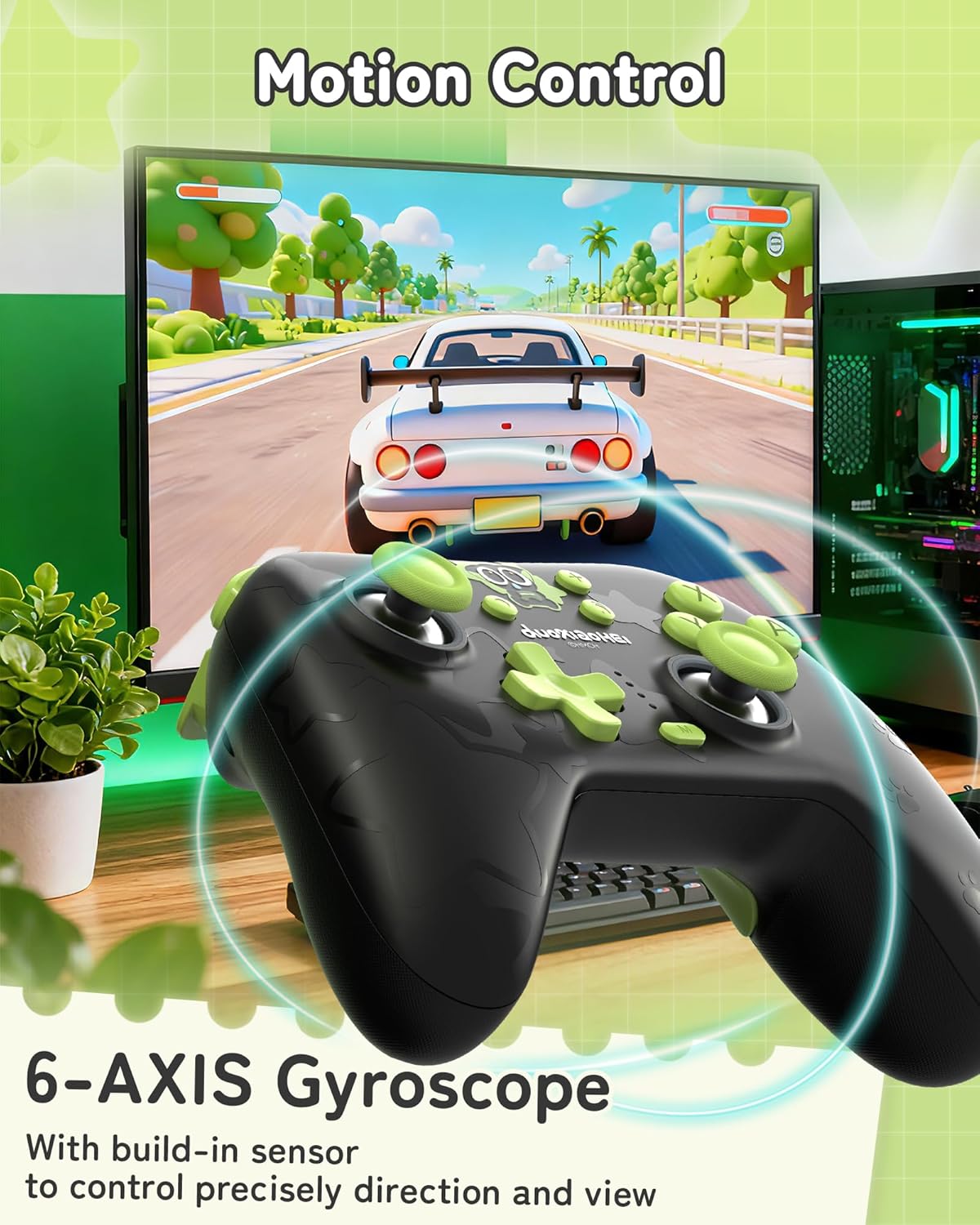
Iṣakoso išipopada
A built-in 6-axis gyroscope enables precise motion control, allowing for intuitive direction and view adjustments in compatible games.
3. Eto ati Asopọ
3.1 Gbigba agbara Adarí
Before first use, fully charge the controller. Connect the included USB-C cable to the controller's charging port and the other end to a USB power source (e.g., console, PC, or USB wall adapter). The indicator lights will show charging status and turn off when fully charged.
3.2 Connecting to Nintendo Switch (Bluetooth)
- Lori Nintendo Switch rẹ, lọ si Akojọ Ile.
- Yan "Awọn oludari" > "Yi Igbamu/Aṣẹ pada".
- Press and hold the Pairing button on the top of the GeekShare controller until the indicator lights begin to flash rapidly.
- The Switch will detect the controller. Once paired, the indicator light(s) on the controller will remain solid.
- Note: This controller may not support waking up the Switch console from sleep mode. You may need to manually wake the console before connecting.
3.3 Connecting to PC (2.4G Wireless)
- Insert the 2.4G wireless receiver into an available USB port on your PC.
- Turn on the GeekShare controller.
- The controller should automatically connect to the receiver. The indicator light(s) on the controller will remain solid once connected.
- If connection fails, press the pairing button on the controller and the button on the 2.4G receiver simultaneously to initiate pairing.
3.4 Nsopọ si Awọn ẹrọ Alagbeka (Bluetooth)
- Rí i dájú pé Bluetooth ti ṣiṣẹ́ lórí ẹ̀rọ Android tàbí iOS rẹ.
- On your device, go to Bluetooth settings and scan for new devices.
- Press and hold the Pairing button on the top of the GeekShare controller until the indicator lights begin to flash rapidly.
- Select "GeekShare Controller" (or similar name) from the list of available devices.
- Once paired, the indicator light(s) on the controller will remain solid.
3.5 Asopọ Onirin
Connect the controller directly to your device (Switch dock, PC) using the USB-C cable. The controller will function as a wired controller and will also charge simultaneously.
4. Awọn ilana Iṣiṣẹ
4.1 Ipilẹ idari
The controller features standard button layouts including A/B/X/Y buttons, D-pad, Left/Right joysticks, L/R/ZL/ZR shoulder buttons, and Home/Capture/Plus/Minus buttons. Refer to in-game prompts for specific button functions.
4.2 Programming M1/M2 Buttons
The M1 and M2 buttons on the back can be assigned to replicate other button presses or sequences. Consult the full user manual (included in the box) for detailed programming instructions, as the process may vary based on desired complexity.
4.3 Turbo Function Activation
To activate the Turbo function for a specific button:
- Tẹ bọtini 'M' ki o si dimu mọ.
- While holding 'M', press the desired action button (e.g., A, B, X, Y, L, R, ZL, ZR).
- Release both buttons. The selected button will now have the Turbo function enabled.
To adjust between manual and auto turbo, or to clear the turbo setting, refer to the detailed instructions in the included user manual.
4.4 Adjusting Vibration Intensity
The controller offers 5 levels of vibration intensity. Specific button combinations (e.g., 'M' button + D-pad Up/Down) are typically used to cycle through these levels. Refer to the included user manual for the exact key combinations.
4.5 RGB ina Iṣakoso
The RGB lighting can be customized. This usually involves pressing a dedicated button or a combination of buttons to change colors, patterns, or turn the lighting on/off. Consult the included user manual for specific instructions.
5. Itọju ati Itọju
- Jẹ́ kí olùdarí náà gbẹ kí ó sì jìnnà sí àwọn igbóná tó le koko.
- Fi aṣọ rírọrùn tó gbẹ nu ohun èlò ìdarí náà. Má ṣe lo àwọn kẹ́míkà líle tàbí àwọn ohun èlò tó ń pa ara.
- Yẹra fún fífi olùdarí náà sílẹ̀ tàbí kí o fi sí àwọn ìkọlù líle.
- Store the controller in a clean, dust-free environment when not in use.
- Charge the controller regularly, even if not used frequently, to maintain battery health.
6. Laasigbotitusita
6.1 Olùdarí Kò Sopọ̀
- Rii daju pe oludari ti gba agbara to.
- Verify that the correct connection mode (Bluetooth, 2.4G, Wired) is selected or attempted for your device.
- For Bluetooth, ensure your device's Bluetooth is on and the controller is in pairing mode (flashing lights).
- For 2.4G, ensure the receiver is properly inserted into the PC and try re-pairing if necessary.
- Try restarting both the controller and the device you are trying to connect to.
- If connecting to Switch, ensure you are in the "Change Grip/Order" menu.
6.2 Àìsí ìṣípò tàbí ìjápọ̀
- Rí i dájú pé kò sí ìdènà oníná mànàmáná tó lágbára nítòsí.
- Move closer to the connected device (for wireless connections).
- For PC, ensure the 2.4G receiver is in a clear line of sight and not obstructed.
- Try a wired connection to rule out wireless interference.
6.3 Àwọn bọ́tìnì tàbí àwọn Joysticks kò dáhùn
- Check if the controller is properly connected and powered on.
- Restart the controller and the gaming device.
- Rí i dájú pé kò sí ìdọ̀tí kankan ní àyíká àwọn bọ́tìnì tàbí àwọn joysticks.
- If the issue persists, a factory reset (if available, consult the included manual) might be necessary.
6.4 Aṣakoso Ko Gba agbara
- Rí i dájú pé okùn USB-C so mọ́ olùdarí àti orísun agbára dáadáa.
- Gbiyanju okun USB-C ti o yatọ tabi orisun agbara.
- Verify the power source is active and providing sufficient power.
7. Awọn pato
| Nọmba awoṣe | GC1201A |
| Asopọmọra | Bluetooth 5.0, 2.4G Wireless (with receiver), USB-C Wired |
| Ibamu | Nintendo Switch (OLED/NS2/1/Lite), PC (Windows), Android, iOS |
| Agbara Batiri | 1000mAh |
| Akoko ere | Up to 15-20 hours (approx.) |
| Akoko gbigba agbara | Isunmọ. wakati meji 2.5 |
| Sensọ išipopada | 6-apa Gyroscope |
| Gbigbọn | Dual Motors with 5-level adjustment |
| Pataki Awọn ẹya ara ẹrọ | Hall Effect Joysticks, Programmable M1/M2 buttons, Turbo function, RGB Lighting |
8. Atilẹyin ọja ati Support
For warranty information and technical support, please refer to the official GeekShare website or contact their customer service directly. Details can typically be found on the product packaging or the included user manual.
GeekShare Official Webojula: Visit GeekShare Store on Amazon
Ask a question about this manual
Ask about setup, troubleshooting, compatibility, parts, safety, or missing instructions. Manuals+ will review the question and use this page’s manual context to help answer it.