
1. Ifihan
Thank you for choosing the UGREEN 11-inch Keyboard Case. This product is designed to enhance your iPad experience by providing a comfortable typing solution and versatile viewing angles, transforming your tablet into a portable workstation. This manual provides essential information for setup, operation, maintenance, and troubleshooting to ensure optimal performance.
2. Ibamu
This keyboard case is compatible with the following iPad models:
- iPad Air 11-inch (M4/M3/M2, 2026/2025/2024)
- iPad Pro 11-inch (4th/3rd/2nd/1st Gen)
- iPad Air 5th Generation (2022)
- iPad Air 4th Generation (2020)
Àwọn Nọ́mbà Àwòṣe Tó Báramu: A3459, A2902, A3266, A1980, A2228, A2759, A2377, A2316, A2588.
Akiyesi: Idi eyi ni kii ṣe compatible with iPad Pro 11-inch (M4) 2024.

Figure 2.1: Detailed compatibility chart for UGREEN 11-inch Keyboard Case.
3. Package Awọn akoonu
Jọwọ rii daju pe gbogbo awọn nkan wa ninu package rẹ:
- UGREEN 11-inch Keyboard Case
- Okun Ngba agbara USB-C (3ft)
- Itọsọna olumulo
4. Ọja Ipariview
The UGREEN Keyboard Case features a robust design with several key functionalities:
- Precision Magnetic Back Plate: Ensures a secure and stable attachment for your iPad.
- 125° Adijositabulu Viewigun Angle: Allows for flexible positioning for typing, browsing, or viewing.
- Scissor-Switch Keys: Provides a smooth, quiet, and consistent typing experience.
- 3-Level Adjustable Backlight: Offers illumination for comfortable use in various lighting conditions.
- Paadi ifọwọkan idahun: Enables precise cursor control and supports multi-gesture navigation.
- Dual Orientation Viewing: Supports both portrait and landscape modes.
- Batiri 650mAh: Provides extended usage and standby times.

Figure 4.1: Powerful magnetic hold for stable iPad attachment.

Figure 4.2: Quick-set magnetic stand with 125° adjustable viewigun igun.

Figure 4.3: Scissor-switch keyboard design and 3-level adjustable backlighting.

Figure 4.4: Responsive touchpad with multi-gesture support.
5. Awọn ilana iṣeto
5.1 So rẹ iPad
- Align your compatible iPad with the magnetic back plate of the case.
- The iPad will securely snap into place due to the strong magnetic connection.
5.2 Agbara Lori Keyboard
- Locate the power switch on the right side of the keyboard.
- Slide the switch to the 'ON' position. The indicator light will briefly illuminate.
5.3 Sisopọ Bluetooth
- Rii daju pe keyboard ti wa ni titan.
- Lori iPad rẹ, lọ si Eto > Bluetooth.
- Tan Bluetooth. iPad rẹ yoo wa awọn ẹrọ ti o wa nitosi.
- Select "UGREEN Keyboard" (or similar name) from the list of available devices.
- Tẹle eyikeyi awọn ilana loju iboju lati pari ilana sisopọ.
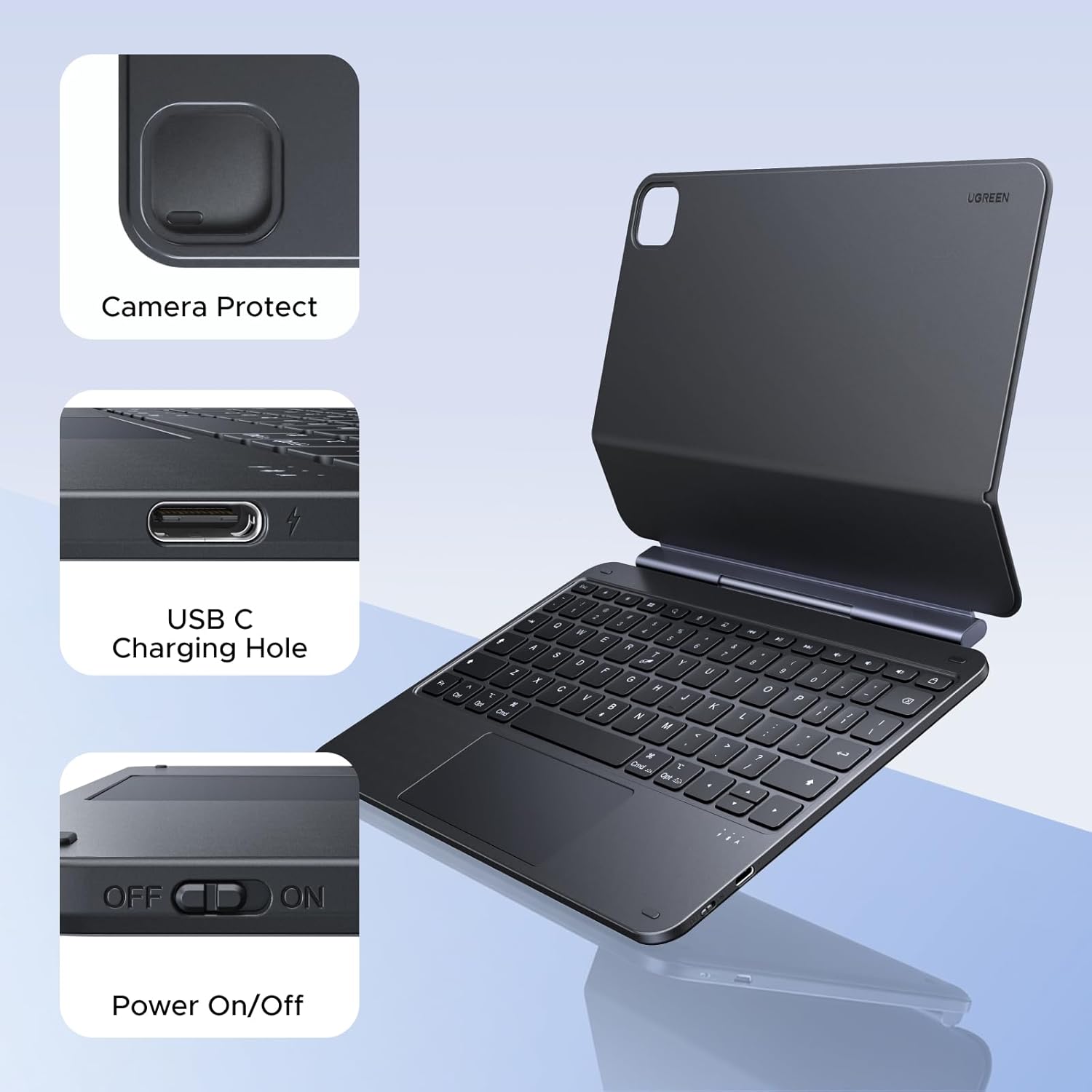
Figure 5.1: Location of the power switch and USB-C charging port.
6. Awọn ilana Iṣiṣẹ
6.1 Iṣatunṣe Viewigun igun
The magnetic stand allows for a 125° adjustable viewing angle. Gently tilt your iPad to achieve your desired position for typing, drawing, or media consumption.
6.2 Lilo Pádì Ìfọwọ́kàn
The integrated touchpad supports various multi-touch gestures for intuitive navigation:
- Fọwọba ika-ọkan: Tẹ/Yan
- Yi lọ ika meji: Scroll up/down or left/right
- Fun pọ lati sun -un: Sun-un sinu/sita
- Three-finger swipe up: Ṣii App Switcher
- Three-finger swipe down: Pada si Iboju ile
- Fi ika mẹta si osi/ọtun: Yipada laarin awọn ìmọ apps
6.3 Ṣíṣe àtúnṣe ìmọ́lẹ̀ ẹ̀yìn
Tẹ awọn light icon key (usually next to the function keys) to cycle through the 3 levels of backlight brightness or to turn it off.
6.4 Dual Orientation Viewing
The case supports both portrait and landscape orientations. Simply rotate your iPad while it is magnetically attached to switch modes. This allows for flexible viewing during video calls, streaming, or browsing without compromising stability.

Figure 6.1: Versatile usage modes including typing, viewing, sketching, and reading.
7. Ngba agbara si Keyboard
The keyboard is equipped with a 650mAh battery for extended use.
- Igbesi aye batiri: Up to 6 months standby time, or 5 months of regular use with the backlight off.
- Akoko gbigba agbara: O fẹrẹ to awọn wakati 2 fun idiyele ni kikun.
- Ọna gbigba agbara: Use the included USB-C cable to connect the keyboard's USB-C port to a power source.

Figure 7.1: Battery performance overview.
8. Itọju
To ensure the longevity and optimal performance of your UGREEN Keyboard Case, follow these maintenance guidelines:
- Ninu: Lo asọ, damp cloth to wipe the exterior of the case. Avoid harsh chemicals or abrasive materials. For the keyboard keys, use a soft brush or compressed air to remove dust and debris.
- Ibi ipamọ: When not in use, store the keyboard case in a clean, dry environment away from extreme temperatures and direct sunlight.
- Mimu: Avoid dropping the case or subjecting it to strong impacts, which could damage internal components or the magnetic mechanism.
9. Laasigbotitusita
If you encounter issues with your UGREEN Keyboard Case, refer to the following common problems and solutions:
9.1 Keyboard Not Pairing or Connecting
- Ṣayẹwo Agbara: Ensure the keyboard's power switch is in the 'ON' position.
- Ipele Batiri: Verify that the keyboard has sufficient battery charge. Charge it if necessary.
- Bluetooth on iPad: Confirm that Bluetooth is enabled on your iPad (Eto > Bluetooth).
- Tun ẹrọ so pọ: If the keyboard was previously paired, try forgetting the device on your iPad's Bluetooth settings and then re-pairing it.
- Tun awọn ẹrọ bẹrẹ: Tun bẹrẹ mejeeji iPad ati keyboard.
9.2 Inconsistent Touchpad Response
- Paadi ọwọ mimọ: Rii daju pe oju iboju ifọwọkan jẹ mimọ ati laisi idoti tabi ọrinrin.
- Imudojuiwọn famuwia: Check the UGREEN website for any available firmware updates for the keyboard.
- Awọn Eto iPad: Review your iPad's touchpad settings under Eto > Gbogboogbo > Trackpad & Asin.
9.3 iPad Feels Top-Heavy or Unstable
- Iduroṣinṣin Ilẹ: Ensure the keyboard case is placed on a flat, stable surface.
- Atunse igun: Ṣatunṣe awọn viewing angle to a more balanced position. Extreme angles may reduce stability.
- Asopọ oofa: Confirm the iPad is fully and securely attached to the magnetic back plate.
10. Awọn pato
| Ẹya ara ẹrọ | Ẹ̀kúnrẹ́rẹ́ |
|---|---|
| Brand | UGREEN |
| Nọmba awoṣe | i711 |
| Awọn ẹrọ ibaramu | Tablet (Specific iPad models listed in Compatibility section) |
| Asopọmọra Technology | Bluetooth |
| Apejuwe Keyboard | Flexible, Scissor-switch |
| Ifilelẹ bọtini itẹwe | QWERTY |
| Ohun elo | Plastic, Steel (Keyboard Plate) |
| Orisun agbara | Agbara Batiri (Batiri litiumu 650mAh) |
| Pataki Awọn ẹya ara ẹrọ | Magnetic Case, Adjustable Backlight, Touchpad |
11. Atilẹyin ọja ati Support
11.1 atilẹyin ọja Alaye
This UGREEN product is covered by a 2-Odun olupese atilẹyin ọja lati ọjọ ti o ra. Atilẹyin ọja yi ni wiwa awọn abawọn ninu awọn ohun elo ati iṣẹ ṣiṣe labẹ lilo deede.
Atilẹyin ọja naa ko ni aabo:
- Bibajẹ ti o ṣẹlẹ nipasẹ ijamba, ilokulo, ilokulo, iṣan omi, ina, ìṣẹlẹ, tabi awọn idi ita miiran.
- Damage caused by operating the product outside the permitted or intended uses described by UGREEN.
- Damage caused by service performed by anyone who is not a representative of UGREEN.
11.2 Onibara Support
For technical support, warranty claims, or general inquiries, please contact UGREEN customer service through the following channels:
- Webojula: Ṣabẹwo si UGREEN osise webaaye fun awọn orisun atilẹyin ati alaye olubasọrọ.
- Imeeli: Tọkasi apoti ọja rẹ tabi UGREEN webojú-òpó wẹ́ẹ̀bù fún àdírẹ́sì ìmeeli ìrànlọ́wọ́ tó yẹ.
- Onisowo Ayelujara: If purchased from an online retailer, you may also contact their customer service for assistance.
Please have your product model number (i711) and proof of purchase ready when contacting support.