
1. Ifihan
Thank you for choosing the XGIMI HORIZON 20 4K RGB Triple Laser Home Projector. This manual provides essential information for setting up, operating, and maintaining your device. Please read it thoroughly before use to ensure optimal performance and safety.
2. Alaye Aabo
Always follow basic safety precautions when using this product to reduce the risk of fire, electric shock, or injury. Do not attempt to disassemble or modify the projector. Avoid direct eye exposure to the projector lens. Keep the device away from water, heat sources, and direct sunlight. Ensure proper ventilation to prevent overheating.
3. Package Awọn akoonu
- XGIMI HORIZON 20 Projector
- Adapter agbara
- Isakoṣo latọna jijin
- Itọsọna olumulo
- Floor Stand (if included in package)
4. Ọja Ipariview
The XGIMI HORIZON 20 is a high-performance 4K RGB Triple Laser Home Projector designed for cinematic viewing. It features 3200 ISO Lumens, Google TV with licensed Netflix, optical zoom, lens shift, IMAX Enhanced, and Dolby Vision for an immersive experience.

olusin 1: Iwaju view of the XGIMI HORIZON 20 Projector, showcasing the lens and speaker grille.

Figure 2: The XGIMI HORIZON 20 Projector mounted on its dedicated floor stand in an Elephant Grey finish, compatible with Horizon 20 series projectors. Projector sold separately.
5. Eto
5.1 Ibi
Place the projector on a stable, flat surface or mount it using a compatible ceiling mount or the provided floor stand. Ensure the lens is unobstructed and pointed towards your desired projection surface. For optimal image quality, position the projector perpendicular to the screen.
5.2 Asopọ agbara
Connect the power adapter to the projector's power input and then plug it into a power outlet. The projector will automatically power on or enter standby mode.
5.3 Iṣeto ni ibẹrẹ
Upon first power-on, follow the on-screen instructions to complete the initial setup, including language selection, Wi-Fi connection, and Google account login. The projector features automatic keystone correction and autofocus for quick image adjustment.

Figure 3: Diagram illustrating the flexible lens shift capabilities of the XGIMI HORIZON 20, allowing for vertical (±120%) and horizontal (±45%) image adjustment without sacrificing clarity.
6. Awọn ilana Iṣiṣẹ
6.1 Iṣakoso latọna jijin
Use the provided remote control to navigate the Google TV interface. The remote allows for power on/off, volume control, navigation, and quick access to streaming apps like Netflix, YouTube, Prime Video, and Disney+.
6.2 Aworan Atunṣe
The projector features automatic keystone correction and autofocus. For manual adjustments, navigate to the projector settings. Optical zoom and lens shift provide flexibility in placement without image distortion.
6.3 App Lilo
Access a wide range of applications through Google TV. Licensed Netflix is pre-installed for direct streaming. Other apps can be downloaded from the Google Play Store. Ensure a stable internet connection for optimal streaming performance.
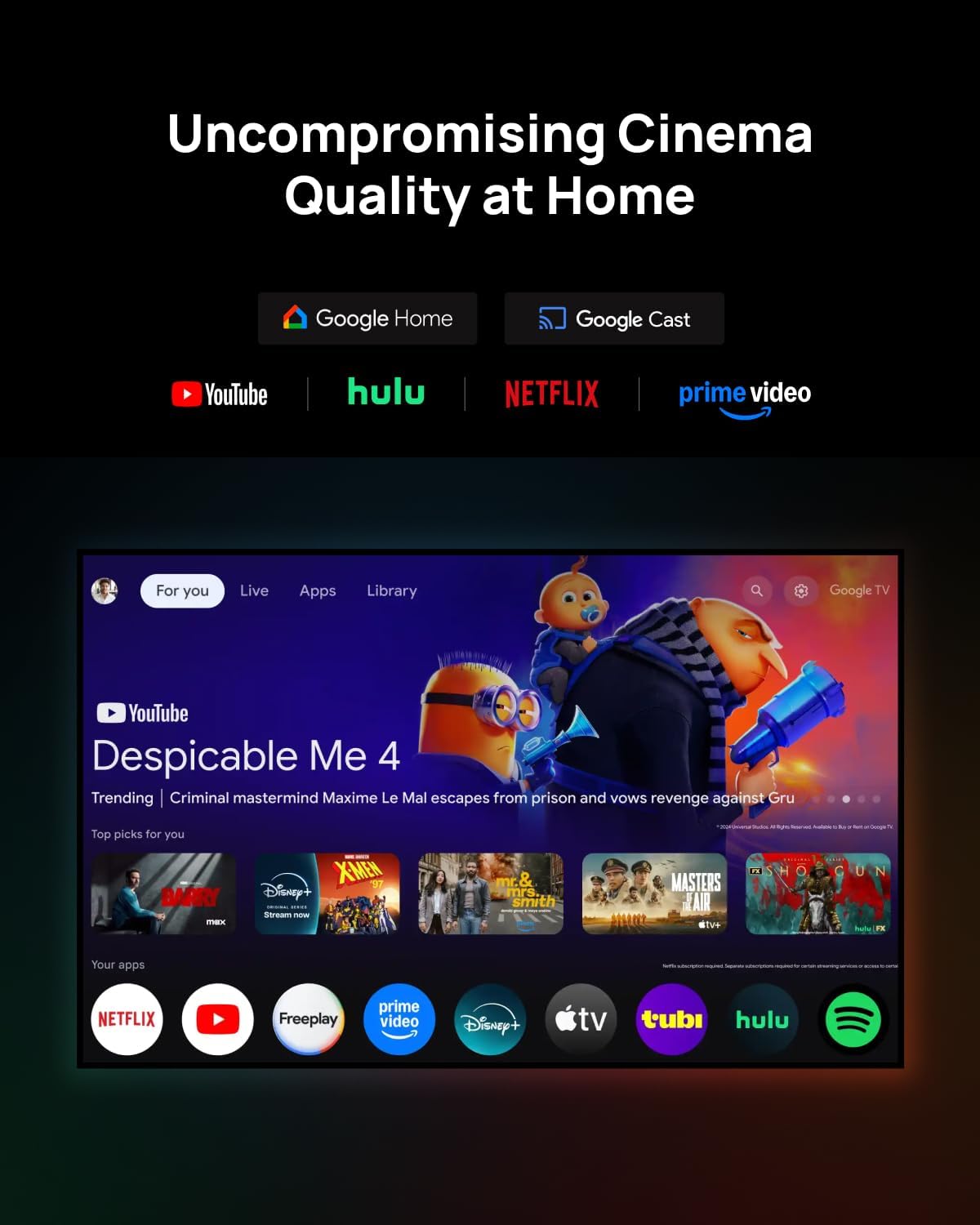
Figure 4: The Google TV interface displayed on the XGIMI HORIZON 20, showing various streaming applications and content recommendations.
7. Asopọmọra
The XGIMI HORIZON 20 offers multiple connectivity options:
- HDMI: So àwọn ẹ̀rọ ìta pọ̀ bíi àwọn kọ́ǹpúlì eré, àwọn ẹ̀rọ orin Blu-ray, tàbí àwọn kọ́ǹpútà alágbèéká.
- USB: Mu awọn media ṣiṣẹ files taara lati USB ipamọ awọn ẹrọ.
- Wi-Fi: Connect to your home network for streaming and online features.
- Bluetooth: Connect external audio devices like soundbars or headphones.
8. Itọju
To ensure the longevity and optimal performance of your projector:
- Fifọ lẹnsi naa: Lo asọ, asọ ti ko ni lint ti a ṣe apẹrẹ pataki fun awọn lẹnsi opiti. Yago fun awọn ohun elo abrasive tabi awọn kemikali lile.
- Ninu Ode: Wipe the projector's exterior with a soft, dry cloth.
- Afẹfẹ: Ensure the projector's vents are not blocked to prevent overheating.
9. Laasigbotitusita
- Ko si Aworan: Check power connection, input source, and ensure the lens cap is removed.
- Aworan blurry: Adjust focus manually or allow automatic autofocus to recalibrate.
- Ko si Ohun: Check volume settings, ensure external audio devices are correctly connected, and verify the audio output settings.
- Latọna jijin Ko Dahun: Replace batteries and ensure no obstructions between the remote and the projector.
10. Awọn pato
| Awoṣe | HORIZON 20 |
| Ifihan ọna ẹrọ | RGB Mẹ́ta Lésà |
| Ipinnu | 4K (3840 x 2160) |
| Imọlẹ | 3200 ISO Lumens |
| Ipin Itansan | 100,000:1 |
| Eto isesise | Google TV |
| Ohun | Harman Kardon Agbọrọsọ |
| Pataki Awọn ẹya ara ẹrọ | Optical Zoom, Lens Shift, IMAX Enhanced, Dolby Vision, HDR10+, Filmmaker Mode |
11. Awọn fidio ọja osise
XGIMI HORIZON S Max Unboxing
This video provides an unboxing experience of the XGIMI HORIZON S Max, showcasing its packaging and initial presentation. It highlights the sleek design and premium feel of the projector as it is removed from its box.
12. Atilẹyin ọja ati Support
Your XGIMI HORIZON 20 projector comes with a standard manufacturer's warranty. For detailed warranty terms, technical support, or service inquiries, please refer to the warranty card included in your package or visit the official XGIMI webojula.