
Ọrọ Iṣaaju
This manual provides detailed instructions for the installation, operation, and maintenance of your darkFlash DE360 All-in-one Liquid CPU Cooler. The DE360 features a 2.88-inch IPS LCD display, ARGB synchronization, and three PWM fans with a 360mm radiator, designed for efficient CPU cooling. Please read this manual thoroughly before installation and use to ensure proper functionality and longevity of the product.

Aworan: Pariview of the darkFlash DE360 All-in-one Liquid CPU Cooler highlighting its unique shape, integrated LCD screen, AMD/Intel compatibility, ARGB Sync, high-performance water pump, and PWM smart fan control.
Ohun ti o wa ninu Apoti
Daju pe gbogbo awọn paati wa ṣaaju ki o to tẹsiwaju pẹlu fifi sori ẹrọ.
- AIO Cooler 360mm (with pre-installed fans and pump)
- Fifi sori Itọsọna
- Intel akọmọ
- AMD akọmọ
- Awo-afẹyinti
- Iṣagbesori skru
- Intel 17XX Standoffs
- Intel 115X/1200 Standoffs
- AMD Standoffs
- Griase Thermal
Video: Unboxing and initial component overview of the darkFlash DE360 AIO Liquid CPU Cooler, showing the contents of the package and the main cooler unit.
Awọn pato
| Brand | darkFlash |
| Nọmba awoṣe | DE360 |
| Ọna Itutu | Liquid (Water) |
| Radiator Iwon | 360mm |
| Fan Iru | PWM ARGB Fans |
| O pọju Fan Speed | 2000 RPM ± 10% |
| Fan Noise Ipele | ≤36dBA |
| Air Sisan Agbara | 64.05 CFM |
| Iyara fifa soke | 2500 RPM ± 10% |
| Ifihan LCD | 2.88" IPS, 480x480 Resolution |
| Ibamu | Intel 1851/1700, AMD AM4/AM5 |
| Ohun elo | Aluminium (Radiator), Copper (Cold Plate), Glass |
| Iru Asopọ Agbara | 5-Pin |
| Iwọn Nkan | 4.98 iwon |

Image: Diagram illustrating compatibility with various Intel (LGA2011/2011-V3/2066/1366/115X/1700/1851) and AMD (FM1/FM2/FM2+/AM2/AM2+/AM3/AM3+/AM4/AM5) sockets.
Eto ati fifi sori
Follow these steps for proper installation of your darkFlash DE360 liquid CPU cooler. Ensure your system is powered off and unplugged before beginning.
1. Prepare the CPU Block
- Carefully remove the protective film from the copper cold plate of the CPU block.
- Attach the appropriate mounting bracket (Intel or AMD) to the CPU block. Align the bracket with the arrows and rotate until it is parallel and securely locked.
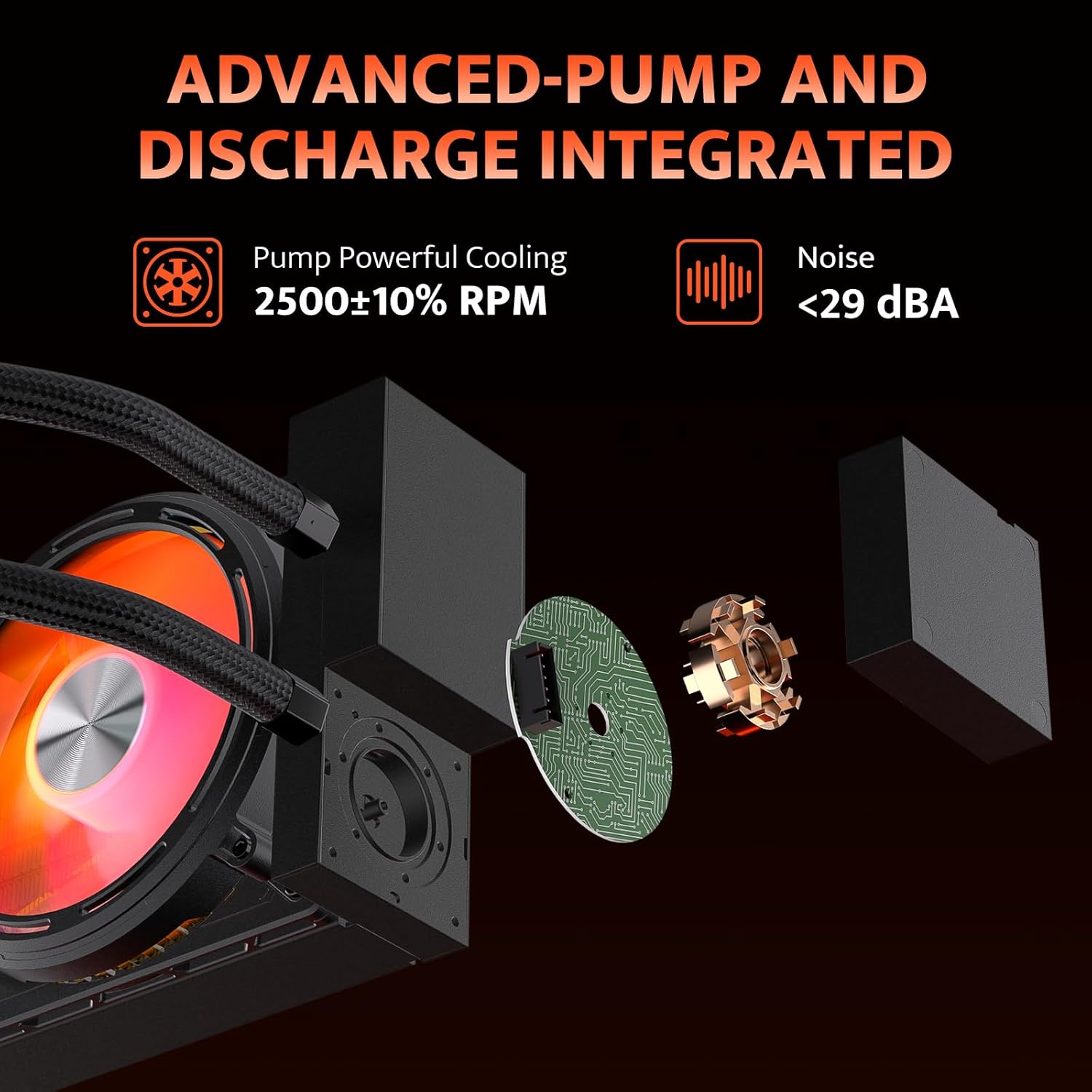
Image: Diagram showing the advanced pump design, which isolates the water pump from the cold head for improved heat dissipation and installation flexibility. The pump operates at 2500 RPM with noise levels below 29 dBA.
2. Fi Radiator ati awọn afẹ́fẹ́ sori ẹrọ
- Mount the 360mm radiator with its pre-installed fans to an available fan mounting location in your PC case (typically the top or front). Use the provided screws to secure it.
- Rí i dájú pé ìtọ́sọ́nà afẹ́fẹ́ tó yẹ fún ìtútù tó dára jùlọ.

Image: Illustration of the high wind pressure thickened fans, detailing fan speed (≤2000 RPM), air capacity (≤55.22 CFM), fan pressure (≤2.16 MMH2O), and noise (≤36 dBA).
3. Mount the CPU Block
- Apply a small amount of thermal grease to the center of your CPU's integrated heat spreader (IHS).
- Place the backplate on the rear of your motherboard, aligning it with the CPU socket holes.
- Insert the appropriate standoffs (Intel 17XX/115X/1200 or AMD) into the four mounting holes around the CPU socket.
- Carefully place the CPU block onto the CPU, ensuring the mounting holes align with the standoffs.
- Secure the CPU block with the provided mounting screws, tightening them in a diagonal pattern until snug. Do not overtighten.
Video: Detailed installation guide for the darkFlash DE360 AIO Liquid CPU Cooler, demonstrating the steps for mounting the CPU block, radiator, and connecting cables.
4. USB Awọn isopọ
- Connect the 3-pin pump connector to the CPU_FAN or AIO_PUMP header on your motherboard.
- Connect the fan PWM cables to the CPU_FAN or other available fan headers on your motherboard.
- Connect the ARGB cables to a compatible 5V 3-pin ARGB header on your motherboard for lighting synchronization.
- Plug the USB 2.0 connector from the LCD screen into an available USB 2.0 header on your motherboard. This is essential for LCD display functionality and software control.

Image: Display of vibrant RGB lighting effects, highlighting compatibility with ASUS Aura Sync, MSI Mystic Light Sync, Gigabyte RGB Fusion, and ASRock Polychrome RGB for synchronized lighting.
Awọn ilana Iṣiṣẹ
Once installed and connected, the darkFlash DE360 will begin cooling your CPU automatically. The fans will adjust speed based on CPU temperature via PWM control.
LCD Screen Functionality
The 2.88-inch IPS LCD screen on the CPU block displays real-time system information such as CPU temperature, frequency, and other customizable data. It can also display custom images or videos.

Image: The darkFlash DE360 AIO Liquid CPU Cooler installed in a PC, showcasing the 2.88-inch LCD screen displaying CPU temperature and other system metrics.
Software Control and Customization
To fully utilize the LCD screen's customization features and monitor system performance, download the dedicated darkFlash control software from the official darkFlash webojula. Sọfitiwia gba ọ laaye lati:
- Monitor CPU and GPU temperatures, fan speeds, and other system parameters.
- Select from various pre-designed themes for the LCD display.
- Upload custom images or videos to be displayed on the LCD screen.
- Adjust display rotation (e.g., 90 degrees) for optimal viewing awọn igun.

Image: Screenshot of the darkFlash intelligent control software, showing options for system monitoring, theme selection, and customization of the LCD display with dynamic styling and cloud themes.
Itoju
Regular maintenance helps ensure optimal performance and extends the lifespan of your liquid CPU cooler.
- Pipa eruku: Periodically clean dust from the radiator fins and fans using compressed air. Ensure the fans are not spinning during cleaning to prevent damage.
- Àyẹ̀wò Ọpọn Irin: Check the coolant tubes for any signs of kinks, leaks, or damage. Ensure they are not pressing against other components that could cause wear.
- Ariwo fifa soke: Listen for unusual noises from the pump. A consistent humming sound is normal, but grinding or gurgling may indicate an issue.
- Lẹẹ igbona: While not frequently required for AIOs, if you ever remount the CPU block, clean off old thermal paste and apply new thermal paste for optimal heat transfer.

Image: Diagram illustrating the efficient heat dissipation features, including a 53mm high-density radiator and IIR+EPDM dual-material hoses designed for low resistance and resistance to aging and corrosion.
Laasigbotitusita
If you encounter issues with your darkFlash DE360, refer to the following common problems and solutions:
- Awọn iwọn otutu Sipiyu ti o ga:
- Ensure the CPU block is securely mounted and making full contact with the CPU.
- Verify that thermal paste was applied correctly.
- Check if the pump is running (listen for a faint hum or check software monitoring).
- Ensure radiator fans are spinning and oriented correctly for airflow.
- Nu eyikeyi agbeko eruku lori awọn imu imooru.
- Awọn onijakidijagan Ko Yiyi/RGB Ko Ṣiṣẹ:
- Ṣayẹwo gbogbo awọn asopọ afẹfẹ ati okun ARGB si modaboudu naa.
- Ensure the ARGB header on your motherboard is enabled in the BIOS/UEFI or motherboard software.
- Confirm that the power supply is providing adequate power.
- Iboju LCD Ko han:
- Verify the USB 2.0 cable from the LCD screen is securely connected to both the CPU block and the motherboard header.
- Install the darkFlash control software and ensure it recognizes the device.
- Check for any driver updates for the cooler on the darkFlash webojula.
- Ariwo Pump Alailẹgbẹ:
- Ensure the pump is positioned lower than the highest point of the radiator to prevent air bubbles from accumulating in the pump.
- If the noise persists, contact darkFlash support.
Atilẹyin ọja ati Support
The darkFlash DE360 All-in-one Liquid CPU Cooler comes with a Idaniloju ọdun mẹta. For technical support, warranty claims, or further assistance, please visit the official darkFlash webojula tabi kan si wọn onibara iṣẹ. Jeki ẹri rira rẹ fun ijẹrisi atilẹyin ọja.
DarkFlash osise Webojula: www.darkflash.com