
1. Eto
This section guides you through the initial setup of your CHUWI CoreBook X laptop.
1.1 Unboxing ati Ibẹrẹ Agbara Lori
- Fi iṣọra yọ kọǹpútà alágbèéká ati gbogbo awọn ẹya ẹrọ kuro ninu apoti.
- Connect the provided USB-C power adapter to the laptop's USB-C port (PD Charging/USB 2.0) and then to a power outlet.
- Open the laptop lid. The laptop may power on automatically or you may need to press the power button located on the keyboard.
- Tẹ̀lé àwọn ìlànà tó wà lójú ìbòjú láti parí ìṣètò ìbẹ̀rẹ̀ Windows 11 Pro, títí bí yíyan èdè, ìsopọ̀ mọ́tò, àti ṣíṣẹ̀dá àkọọ́lẹ̀ olùlò.
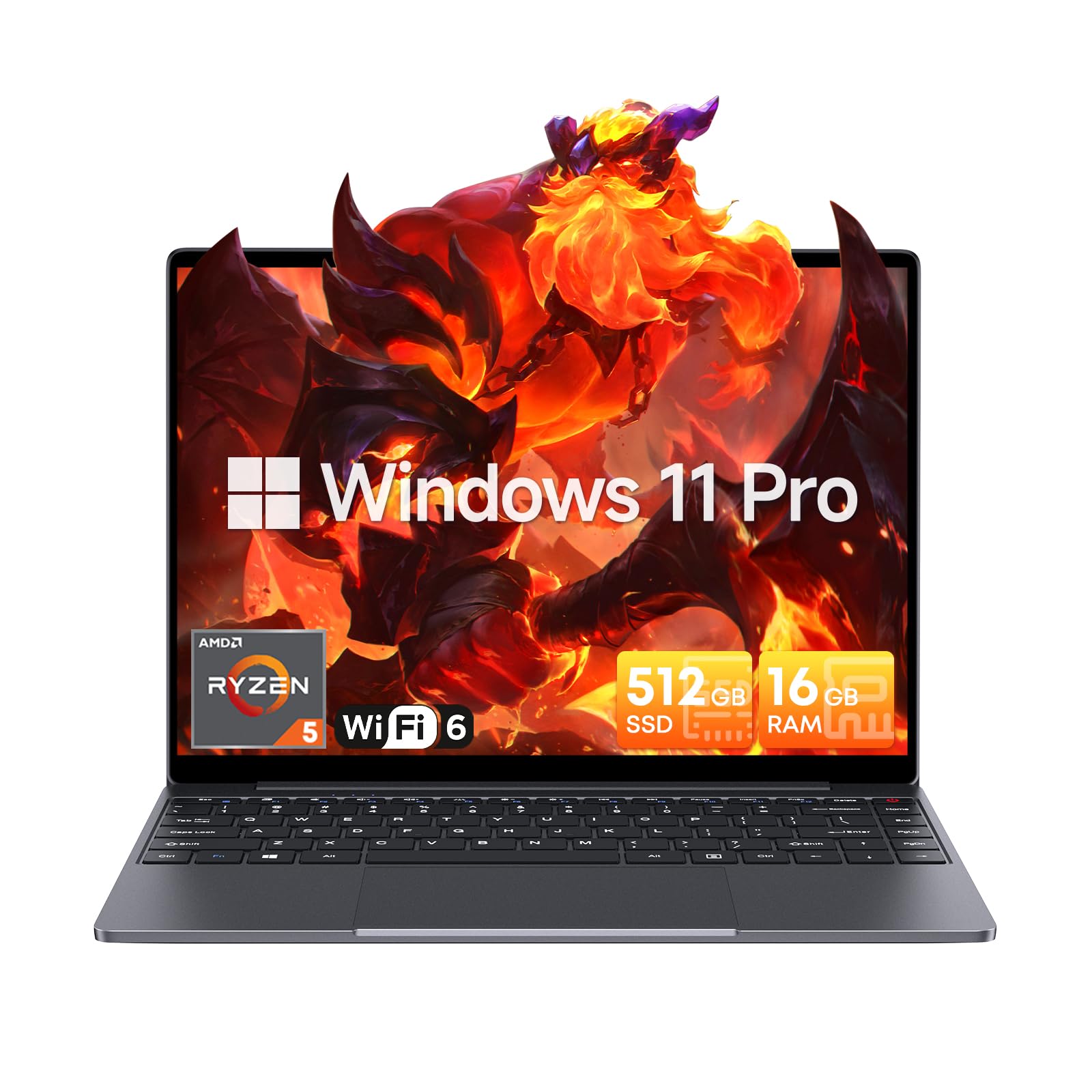
Image: The CHUWI CoreBook X laptop open on a desk, ready for use.
1.2 Nsopọ Peripherals
- Awọn ẹrọ USB: Connect USB mice, keyboards, or external storage devices to the available USB 3.0 ports.
- Ifihan ita: Use the HDMI 1.4 port or the full-featured USB Type-C port to connect an external monitor.
- Awọn Ẹrọ Olohun: So agbekọri tabi awọn agbọrọsọ ita mọ jaketi ohun 3.5mm.
- Kaadi TF: Insert a TF card into the TF card slot for additional storage.

Aworan: Alaye view of the laptop's ports, including TF Card Slot, 3.5mm Headphone Jack, USB 3.0 Port, Lock Slot, USB Type-C (PD Charging/USB 2.0), HDMI 1.4, and Full-featured USB Type-C Port.
1.3 Network and Bluetooth Connection
- Wi-Fi 6: Lati sopọ si nẹtiwọki alailowaya, tẹ aami Wi-Fi ninu aaye iṣẹ-ṣiṣe, yan nẹtiwọki rẹ, ki o si tẹ ọrọ igbaniwọle sii.
- Bluetooth 5.2: To pair Bluetooth devices, go to Windows Settings > Bluetooth & devices, turn on Bluetooth, and select your device to pair.
2. Ṣiṣẹ
This section covers the basic operation of your CHUWI CoreBook X laptop.
2.1 Iṣakoso agbara
- Agbara Tan: Tẹ bọtini agbara.
- Ipo orun: Pa ideri naa tabi yan "Orun" lati inu akojọ Ibẹrẹ.
- Paade: Yan "Pa a" lati inu akojọ aṣayan Ibẹrẹ.
- Tun bẹrẹ: Yan "Tun bẹrẹ" lati akojọ aṣayan Ibẹrẹ.
2.2 Keyboard ati Touchpad
- The laptop features a full-sized backlit keyboard with white illumination. Use the function keys (Fn) in combination with other keys for shortcuts like adjusting brightness, volume, or toggling the backlight.
- The large touchpad supports multi-touch gestures for navigation. Refer to Windows settings for customizing touchpad gestures.

Aworan: A sunmọ-soke view of the laptop's backlit keyboard and large touchpad, highlighting its navigation features.
2.3 Ifihan ati Audio
- The 14-inch IPS display offers a 2160*1440 resolution. Adjust display settings (brightness, resolution, scaling) through Windows Display Settings.
- The laptop is equipped with stereo speakers. Volume can be controlled via the keyboard function keys or the Windows sound settings.
- An HD webcam is integrated for video conferencing.

Image: The laptop's 14-inch 2K IPS display showcasing vibrant colors and a comparison of 3:2 and 16:9 aspect ratios.
2.4 Fidio Loriview
Video: An official product video demonstrating various features and usage scenarios of the CHUWI CoreBook X laptop, including its performance, display, and connectivity options.
3. Itọju
Itọju to dara ṣe idaniloju gigun ati iṣẹ ṣiṣe to dara julọ ti kọnputa agbeka rẹ.
3.1 Ninu
- Lo aṣọ rirọ, ti ko ni awọ lati nu iboju naa. Fun awọn aami lile, dampen awọn asọ die-die pẹlu omi tabi a iboju-ailewu regede.
- Wipe the chassis and keyboard with a soft, dry cloth. Avoid using harsh chemicals or abrasive materials.
- Periodically use compressed air to clear dust from the vents to maintain efficient cooling.
3.2 batiri Itọju
- Avoid fully discharging the battery frequently. Charge the laptop when the battery level is low.
- Store the laptop in a cool, dry place if not used for extended periods, with the battery charged to around 50-70%.
- Use only the original or certified compatible USB-C PD charger.
3.3 Àwọn Ìmúdàgbàsókè Ìpamọ́ àti Ìrántí
The laptop supports RAM and SSD upgrades.
- The 16GB DDR4 RAM can be expanded up to 64GB via 2 SODIMM slots.
- The 512GB PCIe SSD can be expanded up to 2TB using the M.2 2280 PCIe slot.
- A convenient detachable bottom cover allows for easier access to upgrade components without removing the entire back panel.

Image: The underside of the laptop with the detachable cover removed, revealing the dual-channel SO-DIMM slot for RAM upgrades.
4. Laasigbotitusita
Abala yii n pese awọn ojutu fun awọn ọran ti o wọpọ ti o le ba pade.
4.1 Wọpọ Oran ati Solusan
- Kọǹpútà alágbèéká ko ṣiṣẹ lori:
- Rii daju pe ohun ti nmu badọgba agbara ti sopọ ni aabo si kọǹpútà alágbèéká mejeeji ati iṣan agbara iṣẹ kan.
- Rii daju pe iṣan agbara jẹ iṣẹ-ṣiṣe.
- Gbiyanju dani bọtini agbara fun awọn aaya 10-15 lati ṣe atunto lile.
- Awọn iṣoro ifihan (ko si aworan, fifẹ):
- Ṣatunṣe imọlẹ iboju nipa lilo awọn bọtini iṣẹ.
- Ti atẹle ita ba ti sopọ, gbiyanju ge asopọ rẹ.
- Tun kọǹpútà alágbèéká bẹrẹ.
- Wi-Fi or Bluetooth connectivity problems:
- Rí i dájú pé Wi-Fi/Bluetooth ti ṣiṣẹ́ nínú àwọn ètò Windows.
- Tun olulana/modẹmu rẹ bẹrẹ fun awọn ọran Wi-Fi.
- Remove and re-pair Bluetooth devices.
- Update network and Bluetooth drivers through Device Manager.
- Iṣẹ ṣiṣe ti o lọra:
- Pa awọn ohun elo ti ko wulo ti nṣiṣẹ ni abẹlẹ.
- Check for Windows updates and driver updates.
- Rii daju pe aaye ọfẹ to to lori SSD.
- Ṣiṣe ayẹwo malware kan.
If you encounter issues not covered here or require further assistance, please refer to the Support section.
5. Awọn pato
Detailed technical specifications for the CHUWI CoreBook X laptop.

Image: An illustration of the AMD Ryzen 5 processor, highlighting its core count, threads, and clock speed.
| Ẹya ara ẹrọ | Sipesifikesonu |
|---|---|
| Orukọ awoṣe | Corebook X |
| isise | AMD Ryzen 5 (6 Cores, 12 Threads, up to 4.3 GHz) |
| Awọn aworan | AMD Radeon Graphics (1800MHz, Max 2GB Memory) |
| Àgbo | 16GB DDR4 (Expandable up to 64GB via 2 SODIMM slots) |
| Ibi ipamọ | 512GB PCIe SSD (Expandable up to 2TB via M.2 2280 PCIe slot) |
| Ifihan | 14-inch IPS, 2160*1440 Resolution, 100% sRGB Color Gamut |
| Eto isesise | Windows 11 Pro |
| Asopọmọra | Wi-Fi 6 (802.11ax), Bluetooth 5.2 |
| Awọn ibudo | USB Type-C (PD Charging/USB 2.0), USB 3.0, HDMI 1.4, Full-featured USB Type-C, 3.5mm Audio Jack, TF Card Slot, Lock Slot |
| Batiri | 46.2Wh Lithium-Ion Battery, 65W USB-C PD Fast Charging |
| Keyboard | Full-sized Backlit Keyboard with White Illumination |
| Bọtini ifọwọkan | Large Touchpad, Multi-touch |
| Webkamẹra | HD Webkamẹra |
| Awọn iwọn | 12.2"L x 9"W x 0.67"Th (17mm thin) |
| Iwọn | 2.2 iwon (1.4kg) |
6. Atilẹyin ọja
The CHUWI CoreBook X laptop comes with a 1-odun olupese ká atilẹyin ọja.
This warranty covers defects in materials and workmanship under normal use. It does not cover damage caused by accidents, misuse, unauthorized repairs, or modifications. Please retain your proof of purchase for warranty claims.
7. Atilẹyin
For technical assistance, warranty claims, or further inquiries, please contact CHUWI customer support.
- Atilẹyin Olupese: Visit the official CHUWI webaaye fun awọn orisun atilẹyin, Awọn ibeere FAQ, ati alaye olubasọrọ.
- Atilẹyin Olutaja: If purchased through a retailer, you may also contact the seller for assistance.