
Omezizy D450BT
Omezizy D450BT Bluetooth Thermal Label Printer Instruction Manual
Comprehensive instruction manual for the Omezizy D450BT Bluetooth Thermal Label Printer, covering setup, operation, maintenance, troubleshooting, and specifications.
1. Ifihan
This manual provides detailed instructions for the setup, operation, and maintenance of your Omezizy D450BT Bluetooth Thermal Label Printer. Please read this manual carefully before using the printer to ensure optimal performance and longevity.
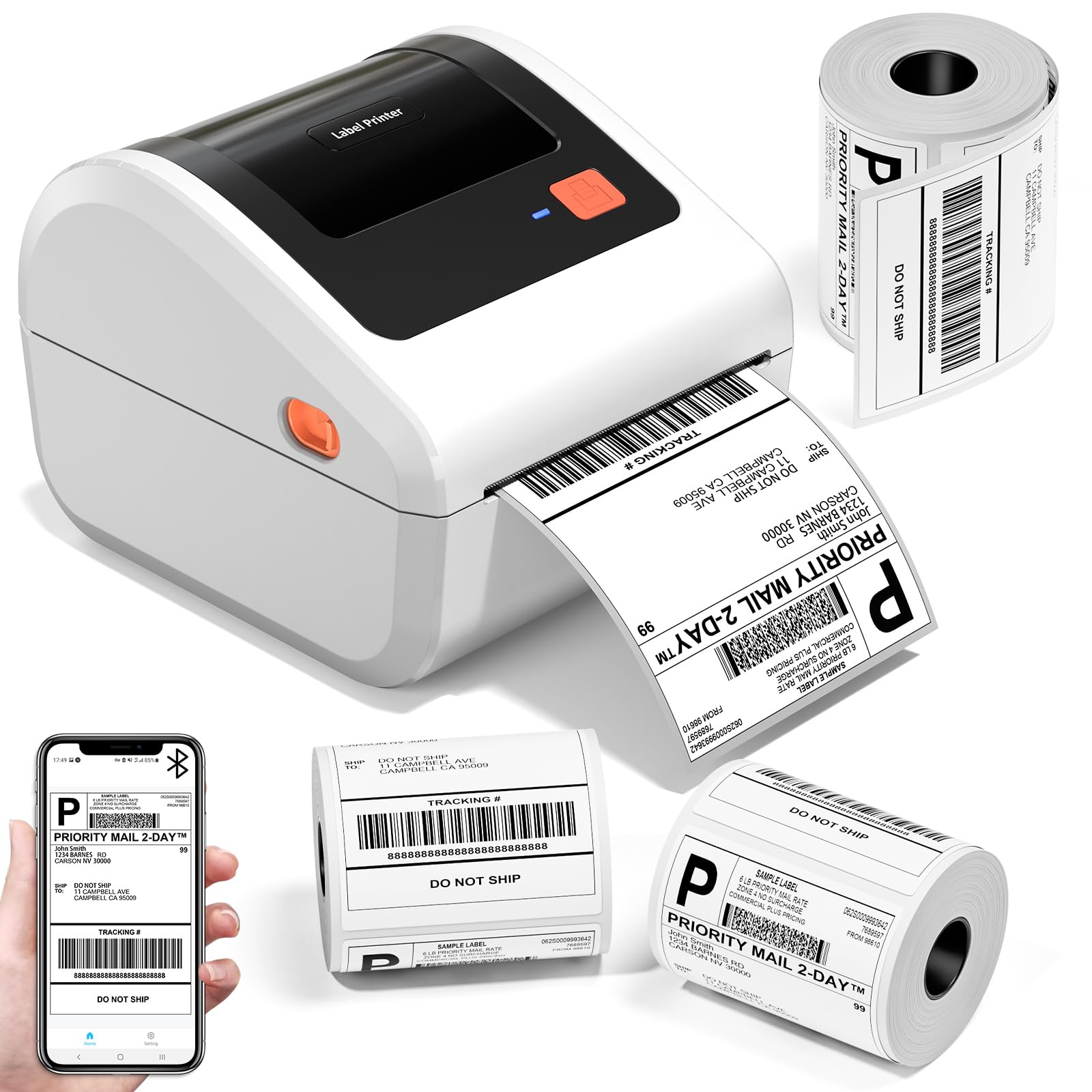
The Omezizy D450BT Bluetooth Thermal Label Printer, a compact and efficient device for various labeling needs.
The Omezizy D450BT is a compact and efficient thermal label printer designed for small businesses and home use. It supports both Bluetooth and USB connections, offering flexibility for printing from various devices including smartphones, tablets, and computers. Utilizing advanced thermal printing technology, it eliminates the need for ink or toner, providing a cost-effective and convenient labeling solution.
Video: An introduction to the Omezizy D450BT Bluetooth Thermal Label Printer, highlighting its key features and benefits.
2. Ohun ti o wa ninu Apoti
Jọwọ ṣayẹwo akoonu inu apoti naa nigbati o ba de lati rii daju pe gbogbo awọn ohun elo wa nibẹ:
- D450BT Label Printer (White)
- USB Cord & Type C Convertor
- Power Adapter & USB
- 30Pcs 4"x6" Test Labels
- Dimu aami ti a ṣe sinu
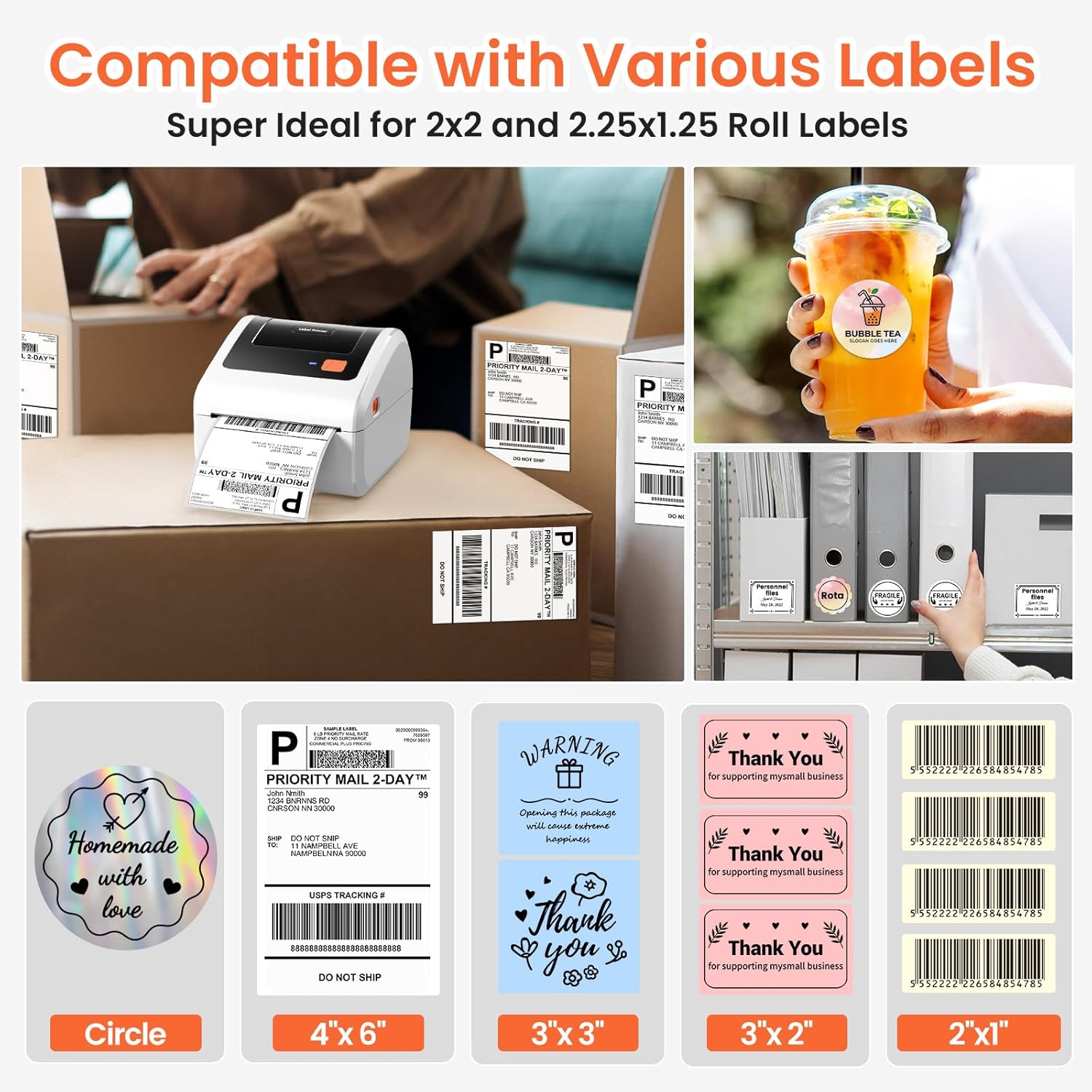
Image: All items included in the Omezizy D450BT printer package.
3. Ọja Ipariview
Familiarize yourself with the main components of the D450BT printer:
Video: A detailed introduction to the various components of the D450BT printer.
3.1 Iwaju ati Top View
- Imọlẹ Atọka: Shows printer status (e.g., blue for ready, red for error).
- Bọtini ifunni: Used for feeding labels, automatic label recognition, and pausing/resuming printing.
- Àwọn ìdènà ìtúsílẹ̀: Used to open the printer cover for loading labels.
3.2 Ninu View
- Paper Guide: Keeps labels aligned during printing.
- Roller Platen: Feeds the labels through the printer.
- Thermal Printhead: Generates heat to print on thermal labels.
3.3 Ẹyìn View
- Ibudo USB (Iru-C): For connecting the printer to a computer via USB.
- AC Adapter Connector: Fun sisopọ ohun ti nmu badọgba agbara.
- Agbara Yi pada: To turn the printer On/Off.
4. Eto
4.1 Asopọ agbara
Connect the printer to a power source:
- So okun agbara pọ mọ ohun ti nmu badọgba.
- Connect the adapter cable to the AC Adapter Connector on the back of the printer.
- Pulọọgi okun agbara sinu iṣan ogiri kan.
- Turn on the printer using the Power Switch (I: On; O: Off). The indicator light will turn blue.
Video: Instructions on how to connect the D450BT printer to power.
4.2 Iwe ikojọpọ
The D450BT supports both roll labels (internal bin) and fan-fold labels (rear loading). Ensure the print side of the labels faces upward.
4.2.1 Roll Labels Loading
- Press the Release Latches to open the printer cover.
- Install the paper roll onto the label holder, ensuring the print side is upward.
- Insert the label roll into the internal paper bin, ensuring it is straight and smooth.
- Adjust the paper guide to fit the label width.
- Pa ideri itẹwe naa.
4.2.2 Fan-Fold Labels Loading
- Press the Release Latches to open the printer cover.
- Insert the fan-fold labels from the rear slot, ensuring the print side is upward and the labels are straight and smooth.
- Adjust the paper guide to fit the label width.
- Pa ideri itẹwe naa.

Image: The D450BT printer's built-in paper label compartment, illustrating how to load labels.
Video: A demonstration of how to load labels into the D450BT printer.
4.3 Bluetooth Connection (Mobile Device)
Connect your D450BT printer to your Android or iOS device via Bluetooth:
- Download the "Labelife" app from Google Play Store or Apple App Store.
- Open the app and navigate to the Bluetooth connection settings.
- Select your printer's MAC address from the available devices and click "Connect".
- Once connected, the app will confirm the successful connection.
Video: Step-by-step guide to connecting the D450BT printer to a mobile phone via Bluetooth.
4.4 Bluetooth Connection (Computer)
Connect your D450BT printer to your Windows, macOS, or Linux computer via Bluetooth:
- Rii daju pe Bluetooth ti ṣiṣẹ lori kọnputa rẹ.
- Go to your computer's Bluetooth settings and search for available devices.
- Select the D450BT printer from the list and pair it.
- Install the printer driver if prompted (usually available on the manufacturer's webaaye).
Video: Instructions for connecting the D450BT printer to a computer via Bluetooth.
4.5 USB Asopọ
For a wired connection, use the provided USB cable:
- Connect one end of the USB cable to the Type-C USB Port on the printer.
- So opin okun USB pọ si ibudo USB ti o wa lori kọnputa rẹ.
- Install the printer driver if prompted.
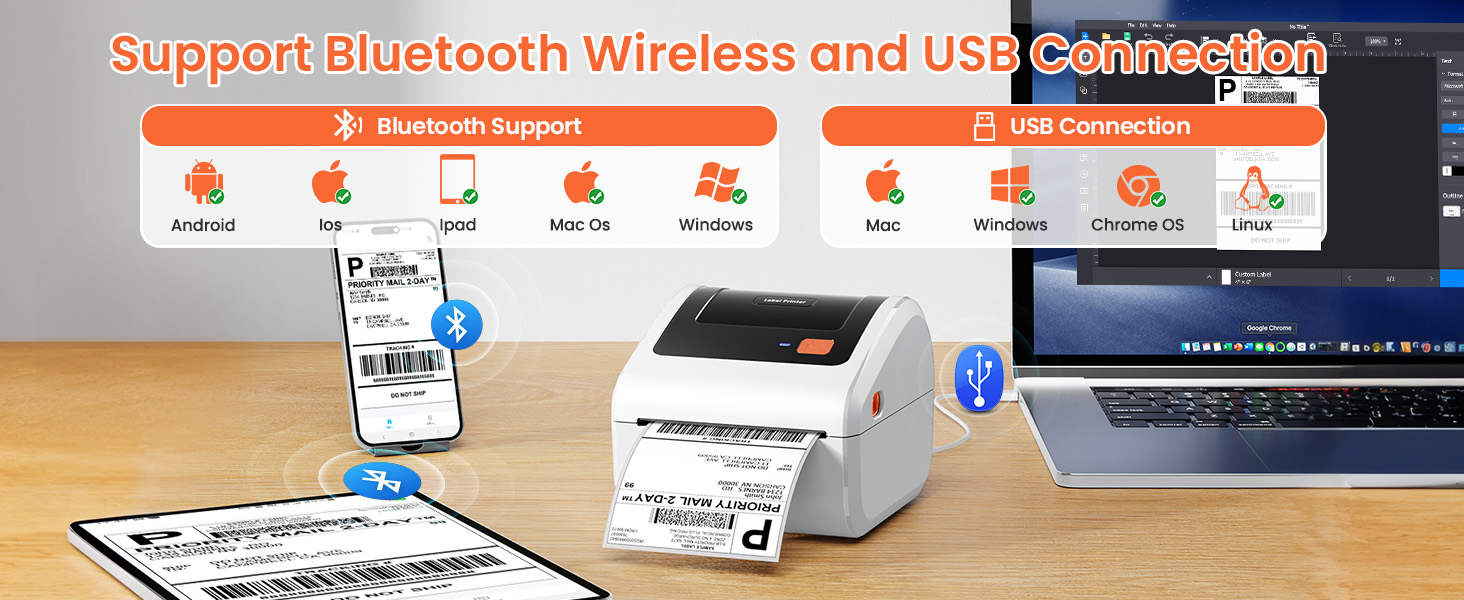
Image: The D450BT printer demonstrating both Bluetooth wireless and USB wired connection capabilities.
5. Awọn ilana Iṣiṣẹ
5.1 Printing from Mobile Device
After connecting your printer via Bluetooth using the "Labelife" app:
- Open the "Labelife" app.
- Select "Open PDF" to import your label file. You can import from local files or share from other applications.
- Use the "Crop PDF" function to select the desired area of the label.
- Input the correct width and height for your label.
- Adjust label orientation and preview the print.
- Click "Print" to send the label to the printer.
Video: Demonstrates the process of printing labels from a mobile device using the Labelife app.
5.2 Printing from Computer
Once your printer is connected via Bluetooth or USB and drivers are installed:
- Open the document or label file you wish to print on your computer.
- Lọ si "File" -> "Print" or use the print shortcut (Ctrl+P for Windows, Cmd+P for Mac).
- Select the Omezizy D450BT printer from the list of available printers.
- Adjust print settings such as paper size (e.g., 4x6 inches), orientation, and print quality as needed.
- Tẹ "Tẹjade".
Video: Shows how to connect the D450BT printer to a computer via Bluetooth and initiate printing.
5.3 Ìdámọ̀ Àmì Àìfọwọ́ṣe
The printer can automatically detect the size of your labels:
- Ensure a label is inserted straight and smooth into the printer.
- When the printer's indicator light is blue (standby mode), press and hold the Feed Button for approximately 3 seconds.
- Release the Feed Button. The printer will feed a few labels to recognize the size.
Akiyesi: Every time the continuous paper is changed to another type of paper roll, the automatic label recognition function needs to be manually operated to learn the labels.
5.4 Sita igbeyewo Page
To print a test page and verify printer functionality:
- Ensure a label is inserted straight and smooth into the printer.
- When the printer's indicator light is blue (standby mode), double-click the Feed Button.
- A test page will print, confirming the printer is working correctly.
5.5 Pause and Resume Printing
You can pause and resume printing jobs:
- When the printer is actively printing, press the Feed Button once to pause the printing process.
- To resume printing, press the Feed Button once again.
6. Itọju
Regular maintenance ensures the longevity and optimal performance of your D450BT printer:
- Cleaning the Printhead: Use an alcohol swab or a specialized printhead cleaning pen to gently wipe the thermal printhead. Ensure the printer is off and cooled down before cleaning.
- Fífọ ohun èlò ìyípo àwo: Lo asọ, damp cloth to wipe any dust or adhesive residue from the platen roller.
- Yiyọ eruku kuro: Regularly clean the exterior of the printer with a soft, dry cloth to prevent dust accumulation.
- Ibi ipamọ: Tọju itẹwe ni itura, aye gbigbẹ kuro lati orun taara ati awọn iwọn otutu to gaju.
7. Laasigbotitusita
If you encounter issues with your D450BT printer, refer to the following common solutions:
- Ẹ̀rọ ìtẹ̀wé kò tan:
- Rii daju pe okun agbara ti sopọ ni aabo si itẹwe mejeeji ati iṣan agbara.
- Rí i dájú pé switch agbara wà ní ipò "Tan".
- No labels feeding or misfeeds:
- Check if labels are loaded correctly with the print side facing up.
- Ensure the paper guide is adjusted to the correct label width.
- Perform automatic label recognition (Section 5.3).
- Didara titẹ ti ko dara:
- Clean the thermal printhead (Section 6).
- Rii daju pe o nlo awọn aami gbigbona to gaju.
- Adjust print density settings in your printing software/app.
- Awọn iṣoro asopọ Bluetooth:
- Ensure Bluetooth is enabled on both the printer and your device.
- Tun bẹrẹ mejeeji itẹwe ati ẹrọ rẹ.
- Gbagbe ẹrọ inu awọn eto Bluetooth rẹ ki o tun so pọ.
- Ensure you are within the effective range of Bluetooth.
- Itẹwe ko dahun:
- Tun itẹwe bẹrẹ.
- Check USB or Bluetooth connection.
- Reinstall printer drivers if necessary.
7.1 Mu pada Factory Eto
If troubleshooting steps do not resolve the issue, you may need to restore the printer to factory settings:
- Turn off the printer using the Power Switch.
- Press and hold the Feed Button.
- While holding the Feed Button, turn on the printer.
- Continue holding the Feed Button until the red indicator light flashes 5 times.
- Release the Feed Button. The printer will reset to factory defaults.
8. Awọn pato
| Ẹya ara ẹrọ | Ẹ̀kúnrẹ́rẹ́ |
|---|---|
| Brand | Omezizy |
| Orukọ awoṣe | D450-BT |
| Asopọmọra Technology | Bluetooth, USB |
| Imọ-ẹrọ titẹ sita | Gbona |
| Pataki Awọn ẹya ara ẹrọ | Bluetooth and USB Connection, Compatible with Mobile Phone & PC, Thermal Printing, No ink No toner, Auto Detection, Built-in Paper Bin |
| Àwọ̀ | Funfun |
| Ijade itẹwe | Monochrome |
| Max Print Speed Monochrome | 72ppm |
| Iwọn Nkan | 0.97 kilo |
| Ọja Mefa | 7.3"D x 6.3"W x 5.35"H |
| O pọju Media Iwon | Paper Width: 1"-4.6" (25.4-117mm) |
| Awọn ẹrọ ibaramu | IOS & Android Phone, Pad, Mac OS, Windows system, Chrome OS, Linux system |
9. Atilẹyin ọja ati Support
Your Omezizy D450BT printer comes with a 2-odun atilẹyin ọja.
For technical support, troubleshooting assistance, or warranty claims, please contact Omezizy customer service through the retailer where you purchased the product or visit the official Omezizy webojula.
O tun le ṣàbẹwò awọn Omezizy Store on Amazon fun alaye siwaju sii ati ki o jẹmọ awọn ọja.
10. Awọn ohun elo
The Omezizy D450BT printer is versatile and suitable for a wide range of applications:
- Shipping Labels: Ideal for e-commerce businesses using platforms like USPS, UPS, FedEx, Amazon, eBay, Shopify, Etsy, PayPal, Poshmark.
- Awọn aami ọja: Create custom labels for products, including nutrition labels, barcode labels, and branding.
- Eto: Perfect for organizing items in warehouses, offices, or at home.
- Gift Labels: Personalize gifts with custom "Thank You" or decorative labels.

Image: The D450BT printer is compatible with major shipping and sales platforms.

Image: The D450BT printer is suitable for multiple occasions such as office, warehouse, home, and retail.

Aworan: Examples of nutrition labels, address labels, barcode labels, thank you labels, logo labels, and DIY labels.
Ask a question about this manual
Ask about setup, troubleshooting, compatibility, parts, safety, or missing instructions. Manuals+ will review the question and use this page’s manual context to help answer it.