
Ọrọ Iṣaaju
The LOFREE Pudding Dual Mode Wireless Mouse (Model OE929) is designed for versatile use across various operating systems and devices. It offers both Bluetooth and 2.4G wireless connectivity, adjustable DPI settings, and a comfortable, ergonomic design. This manual provides instructions for setup, operation, maintenance, and troubleshooting to ensure optimal performance of your device.
Package Awọn akoonu
- LOFREE Pudding Dual Mode Wireless Mouse
- Olugba USB (2.4G)
- Charging Cable (USB-C to USB-A, typically)
- Itọsọna olumulo
Ọja Pariview
The LOFREE Pudding mouse features a unique transparent texture and an ergonomic design for comfortable use. It includes an adjustable ambient light feature and a scroll wheel with integrated button functionality.

Aworan: The LOFREE Pudding mouse showcasing its high transparency texture and sleek design.

Aworan: A hand holding the LOFREE Pudding mouse, illustrating its comfortable, skin-like touch and ergonomic grip.
Ṣeto
1. Gbigba agbara si Asin
Before first use, ensure the mouse is fully charged. Connect the provided charging cable to the mouse's charging port and to a USB power source. The ambient light may indicate charging status (e.g., breathing light while charging, solid when full).

Aworan: The LOFREE Pudding mouse, highlighting its approximately 100 hours of battery life on a single charge.
2. Dual-Mode Connection
The mouse supports two wireless connection methods: 2.4G via USB receiver and Bluetooth.
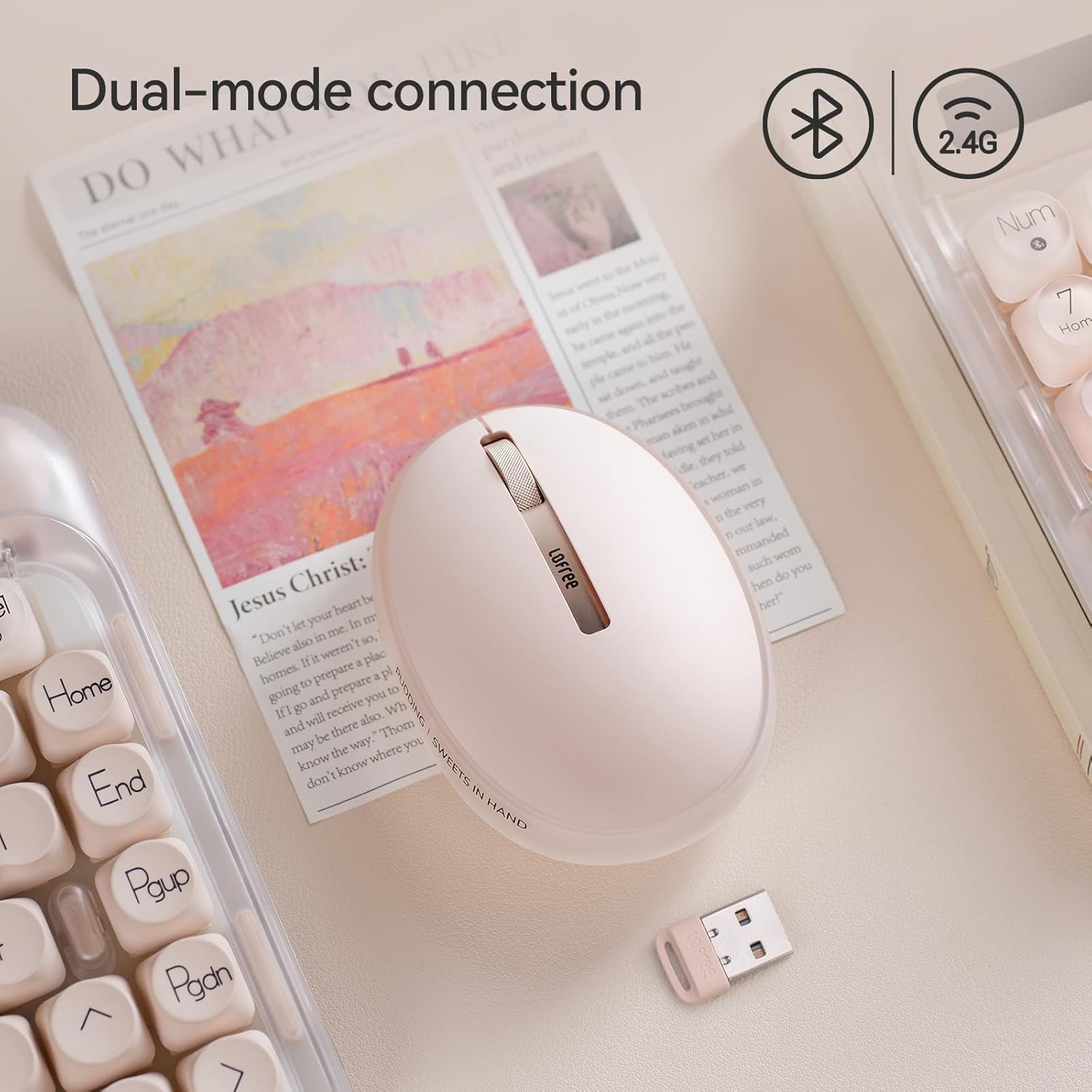
Aworan: The LOFREE Pudding mouse demonstrating its dual-mode connection capability, supporting both Bluetooth and 2.4G wireless technologies.
2.1. 2.4G Alailowaya Asopọ
- Locate the USB receiver, typically stored in a compartment on the mouse or in the packaging.
- Pulọọgi olugba USB sinu ibudo USB ti o wa lori kọnputa rẹ.
- Turn on the mouse. The computer should automatically detect and install the necessary drivers.
- Akiyesi: For systems below Windows 7, the 2.4G connection is recommended as Bluetooth mode may not be supported.
2.2. Asopọ Bluetooth
- Rii daju pe Bluetooth ẹrọ rẹ ti ṣiṣẹ.
- Switch the mouse to Bluetooth mode (refer to the mouse's bottom switch or button for mode selection).
- On your device, search for Bluetooth devices. The mouse should appear as "LOFREE Pudding Mouse" or similar.
- Yan àsíìmù tí o fẹ́ so pọ̀. Tẹ̀lé gbogbo ìmọ̀ràn tó wà lórí ìbòjú láti parí iṣẹ́ ìsopọ̀ náà.
3. Ibamu
The LOFREE Pudding mouse is compatible with a wide range of operating systems and devices, including:
- Windows (Windows 7 and above for Bluetooth)
- macOS
- iOS
- Android
- PC, Mac, Laptop, and other compatible devices.
Awọn ilana Iṣiṣẹ
1. Adjusting DPI Levels
The mouse features 5 adjustable DPI levels to suit different tasks and preferences. You can cycle through these settings by pressing the DPI button, usually located near the scroll wheel or on the bottom of the mouse.
- Available DPI settings: 600, 800, 1200, 1600, 3600.
- Press the DPI button to switch between levels. The mouse cursor speed will change accordingly.

Aworan: A hand demonstrating the adjustment of DPI levels on the LOFREE Pudding mouse, with available settings of 600, 800, 1200, 1600, and 3600.
2. Ambient Light Modes
The mouse is equipped with an adjustable ambient light feature, offering two modes:
- Constant Always On: The light remains steadily illuminated.
- Ipo mimi: The light gently pulses on and off.
To switch between these modes, refer to the dedicated light control button or combination of buttons on the mouse. In dormant state, the ambient light will turn off and can be reactivated by clicking any button on the mouse.

Aworan: The LOFREE Pudding mouse displaying its adjustable ambient light feature, with options for "Always On" or "Breathing" modes.
3. Isakoso Agbara
The mouse is designed to conserve battery life. It will enter a dormant state after a period of inactivity, turning off the ambient light. To wake the mouse, simply click any button.
Itoju
1. Ninu
- Use a soft, dry, lint-free cloth to clean the mouse surface.
- Fun idoti alagidi, die-die dampen asọ pẹlu omi tabi a ìwọnba, ti kii-abrasive regede.
- Avoid using harsh chemicals, solvents, or abrasive materials, as these can damage the mouse's finish.
- Rii daju pe ko si omi ti o wọ inu awọn paati inu inu Asin naa.
2. Itọju batiri
- Gba agbara si asin nigbagbogbo lati ṣetọju ilera batiri.
- Yago fun gbigba agbara si batiri ni kikun nigbagbogbo.
- If storing the mouse for an extended period, charge it to approximately 50% to prevent deep discharge.
Laasigbotitusita
Asin Ko fesi / Ge asopọ
- Ṣayẹwo Batiri: Ensure the mouse is charged. Connect it to a power source.
- 2.4G Asopọ:
- Rii daju pe olugba USB ti wa ni edidi ni aabo sinu ibudo USB ti n ṣiṣẹ.
- Gbiyanju ibudo USB ti o yatọ.
- Ensure the mouse is switched to 2.4G mode.
- Asopọ Bluetooth:
- Rii daju pe Bluetooth ti ṣiṣẹ lori ẹrọ rẹ.
- Ensure the mouse is switched to Bluetooth mode.
- Unpair and re-pair the mouse from your device's Bluetooth settings.
- Ensure your device's operating system supports Bluetooth for mice (e.g., Windows versions below 7 may have limited support).
- Ìjánu: Move the mouse closer to the receiver/device. Avoid using it near other wireless devices that might cause interference.
DPI Ko Yipada
- Rii daju pe o n tẹ bọtini atunṣe DPI to tọ.
- If the mouse is unresponsive, try restarting it (turn off and on).
Ambient Light Not Working
- Check if the mouse is in a dormant state; click a button to wake it.
- Rii daju pe batiri ti gba agbara to.
- Verify you are using the correct button or combination to cycle through light modes.
Awọn pato
| Ẹya ara ẹrọ | Ẹ̀kúnrẹ́rẹ́ |
|---|---|
| Nọmba awoṣe | OE929 |
| Asopọmọra Technology | Bluetooth, 2.4G Radio Frequency |
| Imọ-ẹrọ Iwari išipopada | Opitika |
| Awọn ipele DPI | 600, 800, 1200, 1600, 3600 (Adjustable) |
| Agbara Batiri | 500mAh |
| Igbesi aye batiri | O fẹrẹ to awọn wakati 100 |
| Pataki Awọn ẹya ara ẹrọ | LED Lights (Ambient), Lightweight, Rechargeable, Wireless |
| Ibamu | Windows, macOS, iOS, Android (PC, Mac, Laptop) |
| Iwọn Nkan | 8.9 iwon |
| Package Mefa | 5.2 x 4.13 x 2.4 inches |
Atilẹyin ọja ati Support
LOFREE products are manufactured to high-quality standards. For warranty information, technical support, or service inquiries, please refer to the official LOFREE webaaye tabi kan si atilẹyin alabara wọn taara. Tọju iwe-ẹri rira rẹ fun awọn ẹtọ atilẹyin ọja.
Fun alaye diẹ sii, ṣabẹwo si Ile itaja LOFREE lori Amazon.