
1. Eto
Follow these steps to set up your ATTACK SHARK R68HE wired gaming keyboard:
- Yọ Keyboard kuro: Fara yọọ bọtini itẹwe ati gbogbo awọn ẹya ẹrọ kuro ninu apoti.
- So okun USB-C pọ: Locate the USB-C port on the back of the keyboard. Connect one end of the provided USB-C cable to the keyboard and the other end to an available USB port on your computer, laptop, or compatible gaming console.
- Fifi sori ẹrọ awakọ (Aṣayan): For advanced customization and features, download the official driver software from the ATTACK SHARK website. The driver link is typically provided in the product packaging or can be found at www.QMK.TOP. Follow the on-screen instructions for installation.

Image: The ATTACK SHARK R68HE keyboard connected to a device using its coiled USB-C cable, illustrating the wired connection.
The keyboard is compatible with various devices including PCs, notebooks, tablets, and gaming consoles.
2. Awọn ilana Iṣiṣẹ
The ATTACK SHARK R68HE keyboard features a 68-key QWERTY layout with Magnetic Hall Effect Switches and Rapid Trigger technology for precise and responsive input.

Image: The ATTACK SHARK R68HE keyboard, emphasizing its 8000Hz polling rate and 256K scan rate for instant response and ultimate precision.
Awọn ẹya pataki:
- Magnetic Hall Effect Switches: These switches offer adjustable actuation points and rapid trigger functionality, allowing for quick key resets and repeated inputs.
- Iṣe to gaju: Features an 8000Hz polling rate, 256K scanning sampling rate, and 16K global sampling rate for minimal latency.
- Ìmọ́lẹ̀ ẹ̀yìn RGB oníyípadà: Customize your keyboard's appearance with over 20 preset lighting effects.
- Ikole ti o tọ: Built with CNC aluminum alloy and carbon fiber composite material for enhanced durability.
- Didara ohun: Incorporates a six-layer padding system for improved acoustic performance.
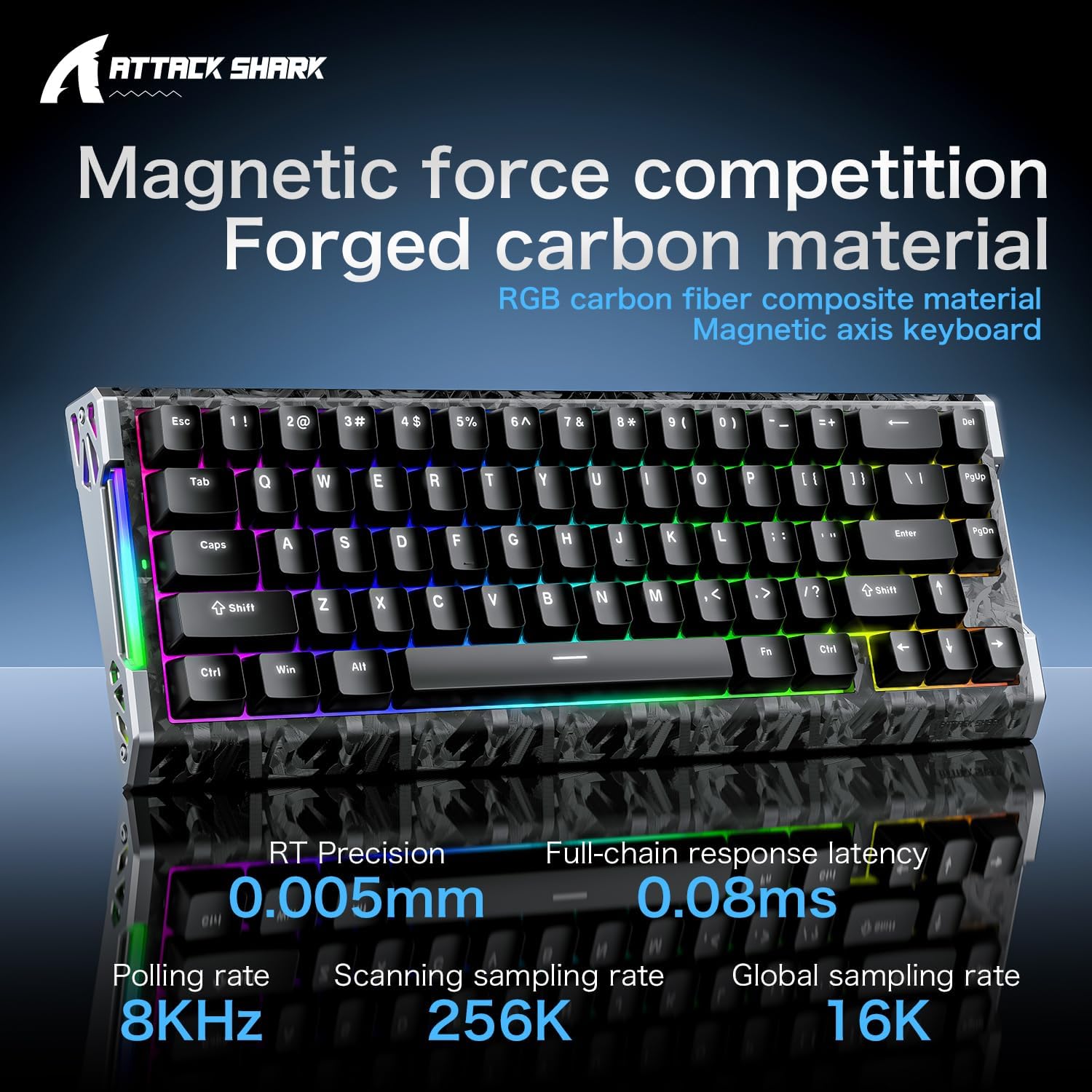
Image: The ATTACK SHARK R68HE keyboard showcasing its magnetic force competition features, including 0.005mm RT precision and 0.08ms full-chain response latency.
Iṣakoso Imọlẹ RGB:
Use the Function (Fn) key in combination with other keys to control the keyboard's lighting:
- Fn + Z: Switch light effects for the side RGB lighting strips.
- Fn + X: Switch light color for the side RGB lighting strips.
- Fn + C: Turn the side RGB lighting strips on/off.
- Fn + Wọle: Switch backlight color for the keycaps.
- Fn + \|: Switch backlight effects for the keycaps.
- Fn + Taabu: Activate white light backlight for the keycaps.

Aworan: A alaye view of the ATTACK SHARK R68HE keyboard's CNC aluminum alloy frame and RGB lighting strips, with key combinations for controlling the side lights.

Image: The ATTACK SHARK R68HE keyboard displaying its dynamic RGB backlighting with over 20 preset light effects, along with key combinations for controlling the keycap backlights.
Magnetic Hall Effect Switches and Rapid Trigger:
The keyboard features linear magnetic switches with an actuation range of 0.005-3.4mm and a lifespan of 100 million clicks. The Rapid Trigger function allows for instant key reset upon release, providing a competitive edge in fast-paced applications.

Image: An illustration explaining the Magnetic Hall Effect Switches and the Rapid Trigger mechanism, comparing it to a regular switch's activation and reset points.
Software isọdi:
Utilize the dedicated software (available via the driver link mentioned in Setup) to tailor your gaming setup. This software allows for:
- Awọn Eto Imọlẹ RGB
- Awọn iṣẹ bọtini siseto
- FN Layer Settings
- Awọn eto Makiro
- Advanced Key Mapping

Image: A screenshot of the ATTACK SHARK keyboard's web driver interface, showing options for RGB lighting, key settings, macro creation, and advanced key mapping.
3. Itọju
Itọju to dara ṣe idaniloju igbesi aye gigun ati iṣẹ to dara julọ ti keyboard rẹ.
- Ninu: Regularly clean the keyboard with a soft, dry cloth. For dust and debris between keycaps, use compressed air. Avoid using harsh chemicals or abrasive materials.
- Ifihan Olomi: Keep liquids away from the keyboard. In case of accidental spills, immediately disconnect the keyboard and allow it to dry completely before reconnecting.
- Yíyọ bọtini àti yíyọ yípadà: The keyboard is hot-swappable, meaning switches can be replaced. A 'DIY tool' is typically provided for safe removal of keycaps and switches. Exercise caution to avoid damaging the components.
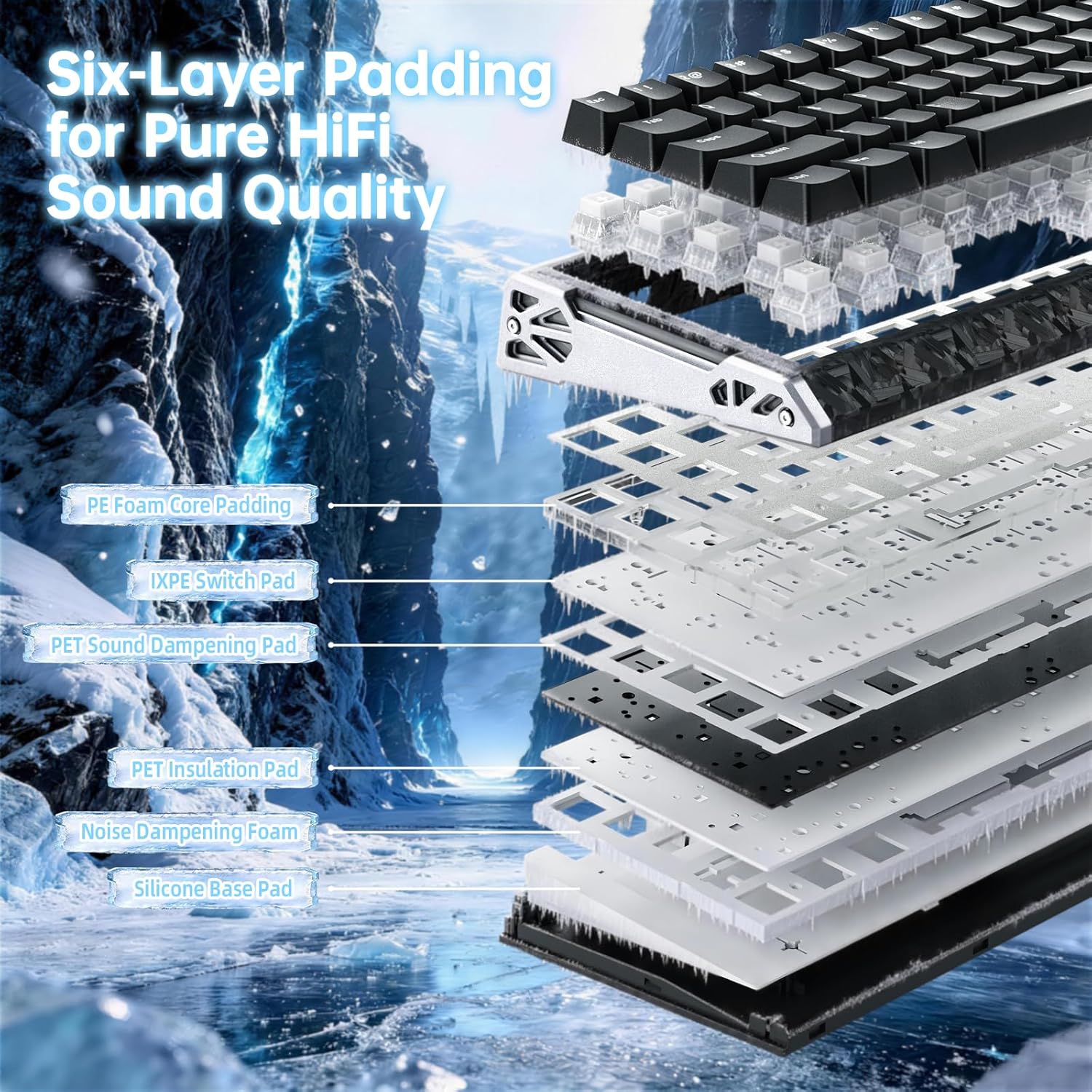
Aworan: Ohun exploded view of the ATTACK SHARK R68HE keyboard, illustrating its internal six-layer padding structure designed for pure HiFi sound quality, including PE foam, IXPE switch pad, and sound dampawọn ipele ipari.
4. Laasigbotitusita
If you encounter issues with your ATTACK SHARK R68HE keyboard, refer to the following common solutions:
- Keyboard Ko Dahun:
- Rii daju pe okun USB-C ti sopọ ni aabo si mejeeji keyboard ati ẹrọ rẹ.
- Gbìyànjú láti so keyboard pọ̀ mọ́ ibudo USB mìíràn lórí ẹ̀rọ rẹ.
- Ṣe idanwo bọtini itẹwe lori kọnputa miiran lati ṣe akoso ọran kan-ẹrọ kan.
- Imọlẹ RGB Ko Ṣiṣẹ:
- Check if the lighting is turned off using the Fn + C key combination.
- Rii daju pe imọlẹ ko ṣeto si o kere julọ.
- If using the customization software, verify that lighting effects are enabled and configured correctly.
- Awọn bọtini Ko Iforukọsilẹ tabi Titẹ-meji:
- This can sometimes be resolved by updating the keyboard firmware via the official software.
- If a specific switch is faulty, it can be replaced due to the hot-swappable design.
- Awọn ọrọ sọfitiwia:
- Ensure you have the latest version of the ATTACK SHARK driver software installed.
- Try reinstalling the software if problems persist.
For further assistance, consult the official ATTACK SHARK support resources.
5. Awọn pato
| Brand | KOLU EYAN |
| Awoṣe | R68HE |
| Asopọmọra Technology | USB-C (Ti firanṣẹ) |
| Awọn ẹrọ ibaramu | PC, Notebook, Tablet, Gaming Console |
| Ifilelẹ bọtini itẹwe | QWERTY |
| Nọmba ti Awọn bọtini | 68 |
| Yipada Iru | Magnetic Hall Effect Switches (Linear) |
| Ibiti Iṣiṣẹ-ṣiṣe | 0.005 - 3.4 milimita |
| Idibo Oṣuwọn | 8000Hz |
| Ṣíṣàyẹ̀wò SampOṣuwọn ling | 256K |
| Global SampOṣuwọn ling | 16K |
| Imọlẹ ẹhin | RGB (20+ preset effects) |
| Pataki Awọn ẹya ara ẹrọ | Ergonomic, Rapid Trigger, Hot-swappable switches |
| Ohun elo | Carbon Fiber, Aluminum |
6. Atilẹyin ọja ati Support
Alaye Atilẹyin ọja:
Specific warranty details for the ATTACK SHARK R68HE keyboard are not provided in this manual. Please refer to the product packaging, the official ATTACK SHARK webaaye, tabi aaye rira rẹ fun awọn ofin atilẹyin ọja okeerẹ ati ipo.
Atilẹyin Onibara:
For technical support, troubleshooting assistance, or inquiries regarding your ATTACK SHARK R68HE keyboard, please visit the official ATTACK SHARK website. The driver software portal at www.QMK.TOP may also provide support resources and FAQs.