
1. Ifihan
This manual provides detailed instructions for the setup, operation, and maintenance of your Bisofice P40 Wireless Mobile Thermal Printer. Please read this manual thoroughly before using the device to ensure proper function and longevity.
2. Ọja Ipariview
2.1 Key Awọn ẹya ara ẹrọ
- Iwapọ ati Apẹrẹ to gbe: The P40 printer measures 10.4x3.1x1.8 inches (265x80x45mm) and weighs approximately 1.46 lbs (0.66 kg), making it suitable for travel and mobile use.
- Seamless Device Compatibility: Supports Bluetooth connectivity for iOS and Android mobile devices, and USB connectivity for Windows and MacOS computers.
- Multiple Paper Sizes Supported: Equipped with adjustable clips to accommodate thermal paper widths of 216mm (8.5"), 210mm (A4), 107mm (4"), 77mm (3"), and 56mm (2"). Compatible with both roll paper and folding paper.
- Igbesi aye batiri ti o gbooro sii: Features a built-in 2600mAh rechargeable battery, providing up to 3 hours of continuous printing or 90 days of standby time on a full charge.
- Versatile Printing Capabilities: Capable of printing various document types including PDF files, test papers, webpages, contracts, and images. The PeriPage application offers additional templates and typography options.
2.2 Awọn ohun elo itẹwe
The Bisofice P40 printer includes the main unit, a power adapter, and a USB cable. Key components on the printer typically include a power button, paper compartment, adjustable paper guides, and a charging port.
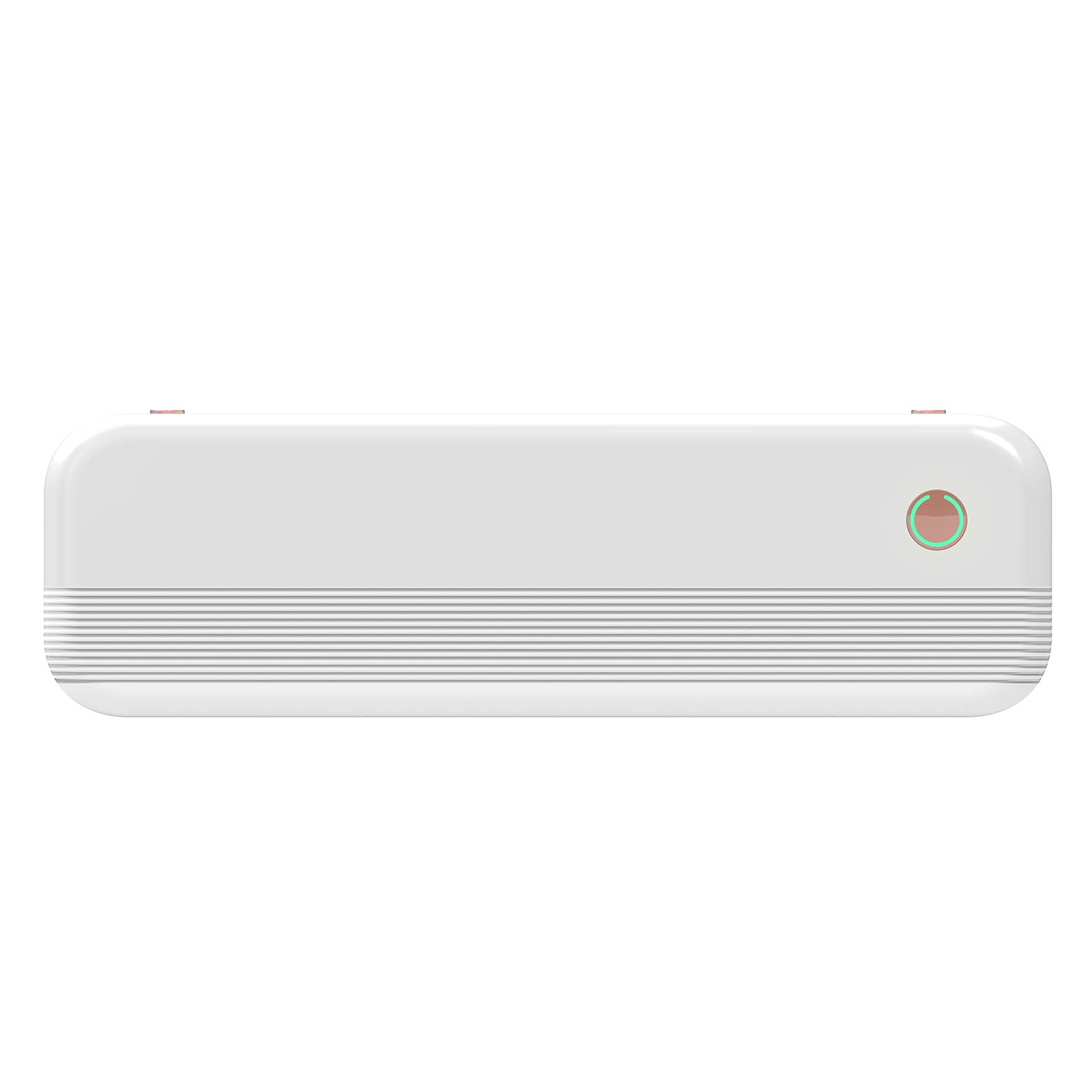
Image 1: Bisofice P40 Wireless Mobile Thermal Printer. This image displays the compact design of the printer, showing its top view with the paper output slot and control buttons.
3. Eto
3.1 Ngba agbara si itẹwe
Before initial use, fully charge the printer using the provided power adapter and USB cable. The charging indicator light will typically change color or turn off when charging is complete.
3.2 ikojọpọ Iwe
- Ṣii ideri iyẹwu iwe.
- Adjust the two internal clips to match the width of your thermal paper (e.g., 216mm, 210mm, 107mm, 77mm, or 56mm).
- Insert the thermal paper roll or folded paper into the compartment, ensuring the printing side faces the print head.
- Ti ideri apoti iwe naa lailewu.
3.3 Titan / Pa a
To power on the printer, press and hold the power button for approximately 2 seconds. To power off, press and hold the power button again until the device shuts down.
4. Awọn ilana Iṣiṣẹ
4.1 Nsopọ si Awọn ẹrọ Alagbeka (Bluetooth)
- Rii daju pe itẹwe ti wa ni titan.
- Download and install the "PeriPage" application from your device's app store (iOS or Android).
- Open the PeriPage application.
- Within the app, navigate to the device connection settings and select your P40 printer from the list of available Bluetooth devices.
- Once connected, you can select documents or images within the app to print.
4.2 Connecting to Computers (USB)
- Rii daju pe itẹwe ti wa ni titan.
- Visit the official Bisofice website to download the appropriate printer driver for your operating system (Windows or MacOS).
- Fi awakọ ti a gba lati ayelujara sori kọnputa rẹ.
- So itẹwe pọ mọ kọmputa rẹ nipa lilo okun USB ti a pese.
- The printer should now be recognized by your computer and available as a printing option in your applications.
4.3 Awọn iwe aṣẹ titẹ sita
Once connected, open the document or image you wish to print from your mobile application or computer program. Select the print option and choose the Bisofice P40 printer. Adjust any necessary print settings (e.g., paper size, orientation) and initiate the print job.
5. Itọju
5.1 Ninu awọn Print Head
To maintain print quality, periodically clean the thermal print head. Power off the printer and allow it to cool. Gently wipe the print head with a soft, lint-free cloth lightly dampened with isopropyl alcohol. Ensure the print head is completely dry before powering on the printer.
5.2 batiri Itọju
To prolong battery life, avoid fully discharging the battery frequently. Charge the printer regularly, especially if it will be stored for an extended period. Store the printer in a cool, dry place.
5.3 Paper Storage
Store thermal paper in a cool, dry place away from direct sunlight and heat to prevent premature discoloration and ensure optimal print quality.
6. Laasigbotitusita
If you encounter issues with your Bisofice P40 printer, refer to the following common problems and solutions:
- Itẹwe Ko Ṣiṣẹ Tan-an: Ensure the battery is charged. Connect the printer to a power source and try again.
- Ko le Sopọ nipasẹ Bluetooth:
- Rí i dájú pé ẹ̀rọ ìtẹ̀wé náà ń ṣiṣẹ́ dáadáa, ó sì wà níbi tí ẹ̀rọ alágbèéká rẹ wà.
- Daju pe Bluetooth ti ṣiṣẹ lori ẹrọ alagbeka rẹ.
- Restart the PeriPage app and attempt to reconnect.
- Gbagbe ẹrọ inu awọn eto Bluetooth ti foonu rẹ ki o tun-meji.
- Poor Print Quality or Blank Pages:
- Check if the thermal paper is loaded correctly with the printing side facing up.
- Ensure the paper is thermal paper.
- Nu ori titẹjade bi a ti ṣalaye ninu apakan Itọju.
- Replace the paper roll if it is old or damaged.
- Kọ̀ǹpútà kò dá ẹ̀rọ ìtẹ̀wé mọ̀:
- Ensure the correct driver for your operating system (Windows/MacOS) is installed.
- Verify the USB cable is securely connected to both the printer and the computer.
- Gbiyanju ibudo USB miiran tabi okun USB.
- Tun kọmputa rẹ ati itẹwe bẹrẹ.
7. Awọn pato
| Ẹya ara ẹrọ | Ẹ̀kúnrẹ́rẹ́ |
|---|---|
| Awoṣe | P40 |
| Awọn iwọn (L x W x H) | 10.4 x 3.1 x 1.8 inches (265 x 80 x 45 mm) |
| Iwọn | 1.46 lbs (0.66 kg) |
| Agbara Batiri | 2600mAh batiri gbigba agbara |
| Àkókò Títẹ̀ Títẹ̀ Lẹ́sẹ̀kẹsẹ̀ | Titi di wakati 3 |
| Akoko Iduro | Titi di ọjọ mẹwa 90 |
| Supported Paper Widths | 216mm (8.5"), 210mm (A4), 107mm (4"), 77mm (3"), 56mm (2") |
| Awọn oriṣi Iwe atilẹyin | Thermal roll paper (max 216mm width x 30mm diameter), folded thermal paper (e.g., 297x210mm, 216x279mm) |
| Asopọmọra | Bluetooth (iOS, Android, Pad), USB (Windows, MacOS) |
| Ṣiṣẹ Ayika otutu | 5℃ si 40℃ (41°F si 104°F) |
| Ọriniinitutu Ayika Ṣiṣẹ | 45% si 90% RH |
8. Atilẹyin ọja ati Support
For warranty information, technical support, or service inquiries, please refer to the documentation included with your purchase or visit the official Bisofice webojula. Tọju iwe-ẹri rira rẹ bi ẹri rira fun awọn iṣeduro atilẹyin ọja.