
1. Ifihan
This manual provides detailed instructions for the setup, operation, maintenance, and troubleshooting of your Aigo AG98 Wireless Mechanical Keyboard. Please read this manual thoroughly before using the product to ensure optimal performance and longevity.
2. Alaye Aabo
- Ma ṣe fi bọtini itẹwe han si awọn olomi tabi ọrinrin pupọ.
- Yago fun awọn iwọn otutu to gaju.
- Má ṣe gbìyànjú láti tú tàbí tún keyboard náà ṣe fúnra rẹ. Èyí lè sọ àtìlẹ́yìn náà di òfo kí ó sì fa ìbàjẹ́.
- Lo okùn USB Type-C ti a pese nikan fun gbigba agbara.
- Jeki kuro ni arọwọto awọn ọmọde.
3. Package Awọn akoonu
Daju pe gbogbo awọn nkan wa ninu apo rẹ:
- Aigo AG98 Wireless Mechanical Keyboard
- USB Iru-C USB
- Itọsọna olumulo
4. Ọja Ipariview
The Aigo AG98 is a versatile 98-key mechanical keyboard featuring triple-mode connectivity (Bluetooth, 2.4G Wireless, USB Type-C Wired), RGB backlighting, and hot-swappable switches. Its compact design and durable ABS construction make it suitable for both gaming and daily use across various devices.

Figure 1: Aigo AG98 keyboard demonstrating its triple-mode connectivity with various devices.
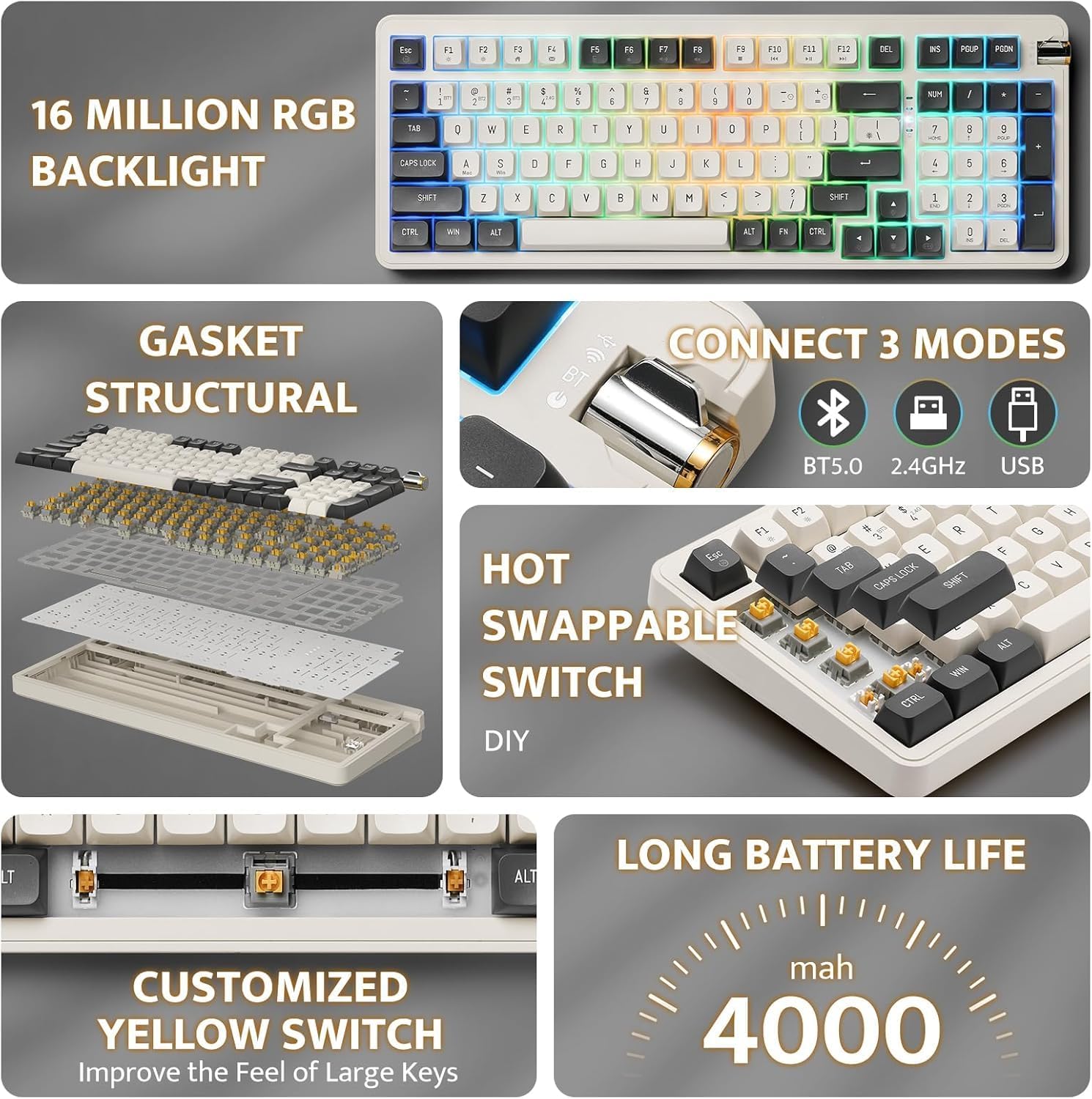
Figure 2: Key features of the Aigo AG98, including structural design, connectivity options, and battery capacity.
5. Eto
5.1. Ngba agbara si Keyboard
Before initial use, fully charge the keyboard using the provided USB Type-C cable. Connect the cable to the keyboard's USB-C port and the other end to a powered USB port (e.g., computer, wall adapter).

Figure 3: USB-C port and mode switch location.
5.2. Awọn ọna asopọ
The Aigo AG98 supports three connection modes: Bluetooth, 2.4G Wireless, and USB Type-C Wired. Use the switch on the side of the keyboard to select your desired mode.
5.2.1. Asopọ onirin USB Iru-C
- Rii daju pe iyipada ipo lori keyboard ti ṣeto si ipo ti a firanṣẹ (USB).
- So okun USB Iru-C pọ si keyboard ati kọnputa rẹ.
- Awọn bọtini itẹwe yoo jẹ idanimọ laifọwọyi nipasẹ ẹrọ iṣẹ rẹ.
5.2.2. 2.4G Alailowaya Asopọ
- Ensure the mode switch on the keyboard is set to the 2.4G wireless position.
- Plug the 2.4G USB receiver into an available USB port on your device.
- The keyboard should connect automatically. If not, press and hold the Fn + 4 key combination to initiate pairing.
5.2.3. Asopọ Bluetooth
- Ensure the mode switch on the keyboard is set to the Bluetooth (BT) position.
- Lórí ẹ̀rọ rẹ (PC, tablet, fóònù alágbèéká), mu Bluetooth ṣiṣẹ́ kí o sì wá àwọn ẹ̀rọ tuntun.
- On the keyboard, press and hold Fn + 1, Fn + 2, or Fn + 3 to enter pairing mode for BT1, BT2, or BT3 respectively. The indicator light will flash.
- Select "Aigo AG98" from the list of available devices on your screen.
- Nígbà tí a bá so wọ́n pọ̀, ìmọ́lẹ̀ àmì náà yóò dáwọ́ dúró.
6. Awọn ilana Iṣiṣẹ
6.1. RGB Backlight Iṣakoso
The Aigo AG98 features customizable RGB backlighting. Use the following key combinations to control the lighting effects:
- Fn + \|: Change backlight mode.
- Fn + ↑: Mu imọlẹ ina ẹhin pọ si.
- Fn + ↓: Dín ìmọ́lẹ̀ ẹ̀yìn kù.
- Fn + ←: Slow down backlight effect speed.
- Fn + →: Speed up backlight effect speed.

Figure 4: Aigo AG98 with RGB backlighting activated.
6.2. Gbona-Swappable Yipada
The Aigo AG98 keyboard features hot-swappable switches, allowing you to change mechanical switches without soldering. This enables customization of typing feel and sound.

Figure 5: Hot-swappable yellow switches with details on pre-lubrication and stable shaft design.
Lati paarọ iyipada kan:
- Pa keyboard rẹ tàbí kí o yọ ọ́ kúrò nínú ẹ̀rọ rẹ.
- Use a switch puller tool (not included) to carefully grip the switch and pull it straight up.
- Align the pins of the new switch with the holes on the PCB and press it gently until it clicks into place. Ensure the pins are not bent.
7. Itọju
7.1. Ninu
- Disconnect the keyboard before cleaning.
- Lo aṣọ rírọrùn tí ó gbẹ láti nu ojú kọ̀ǹpútà náà.
- For deeper cleaning, use a keycap puller (not included) to remove keycaps and clean dust or debris with compressed air or a small brush.
- Maṣe lo awọn kẹmika lile tabi awọn ohun elo abrasive.
7.2. Itọju batiri
- Yago fun gbigba agbara si batiri ni kikun nigbagbogbo.
- Charge the keyboard regularly, even if not in use, to maintain battery health.
- Tọ́jú kíábọ́ọ̀dì náà sí ibi tí ó tutù tí ó sì gbẹ tí a kò bá lò ó fún ìgbà pípẹ́.
8. Laasigbotitusita
| Isoro | Owun to le Fa | Ojutu |
|---|---|---|
| Keyboard ko dahun (Ailowaya) | Low battery, incorrect mode, pairing issue, receiver not connected. | Charge the keyboard. Ensure correct mode is selected. Re-pair the keyboard (Fn + 1/2/3 for BT, Fn + 4 for 2.4G). Check USB receiver connection. |
| Keyboard ko dahun (Ti firanṣẹ) | Cable issue, incorrect mode. | Ensure cable is securely connected. Try a different USB port or cable. Ensure wired mode is selected. |
| Ina backlight RGB ko ṣiṣẹ | Backlight turned off, brightness set to minimum. | Press Fn + \| to cycle modes. Increase brightness with Fn + ↑. |
| Specific key not working | Yipada aṣiṣe, idoti labẹ bọtini bọtini. | Remove keycap and clean. If issue persists, replace the hot-swappable switch. |
| End key not working (Windows) | Mouse Keys enabled in OS accessibility settings. | Disable "Mouse Keys" in your operating system's accessibility settings. |
9. Awọn pato
- Awoṣe: AG98
- Brand: Aigo
- Asopọmọra: Bluetooth 5.0, Alailowaya 2.4G, USB Type-C ti o wa pẹlu okun waya
- Nọmba Awọn bọtini: 98
- Ilana: QWERTY (English)
- Yipada Iru: Mechanical (Linear Yellow Switches)
- Awọn ẹya pataki: Hot-swappable switches, RGB Backlighting, Ergonomic Design
- Ohun elo: Acrylonitrile Butadiene Styrene (ABS)
- Batiri: Batiri litiumu gbigba agbara 1200 mAh
- OS ibaramu: Windows 10+, Android, iOS, Mac, Linux
- Awọn ẹrọ ibaramu: Kọ̀mpútà alágbèéká, kọ̀mpútà alágbèéká, tàbùlẹ́ẹ̀tì, fóònù alágbèéká
- Ìwọ̀n Nkan: 425 giramu
10. atilẹyin ọja Information
The Aigo AG98 keyboard comes with a 14-day warranty from the date of purchase. This warranty covers manufacturing defects. It does not cover damage caused by misuse, accidents, unauthorized modifications, or normal wear and tear. Please retain your proof of purchase for warranty claims.
11. Atilẹyin
For further assistance or technical support, please refer to the contact information provided with your purchase or visit the official Aigo webojula.