
Ọrọ Iṣaaju
The QFX R-58 is a portable retro-style radio designed for versatile audio entertainment. It features AM, FM, and Shortwave (SW) radio bands, Bluetooth connectivity for wireless audio streaming, and a built-in MP3 player supporting USB and TF card media. Power options include a rechargeable internal battery, USB charging, and supplemental solar charging for extended use. This manual provides essential information for operating and maintaining your device.
Awọn ẹya pataki:
- Redio Olona-Band: Access AM, FM, and Shortwave frequencies.
- Asopọmọra Bluetooth: Gba ohùn láilọ́wọ́ láti ọ̀dọ̀ àwọn ẹ̀rọ tó bá ara wọn mu.
- MP3 Sisisẹsẹhin: Play music directly from USB drives or TF (MicroSD) cards.
- Batiri gbigba agbara: Integrated battery for portable use.
- Gbigba agbara Oorun: Supplemental solar panel for charging in well-lit conditions.
- Eriali Alefa Ti A Le Fa Pada: Improves radio reception.
- Jack agbekari: Fun ikọkọ gbigbọ.
Ṣeto
1. Fifi sori batiri
The QFX R-58 uses a replaceable 18650 lithium-ion battery. Ensure the battery is correctly inserted before first use.
- Wa yara batiri ni ẹhin redio naa.
- Slide the 'OPEN' latch to open the battery cover.
- Insert the 18650 battery, ensuring correct polarity (+/-).
- Pa ideri batiri naa ni aabo.
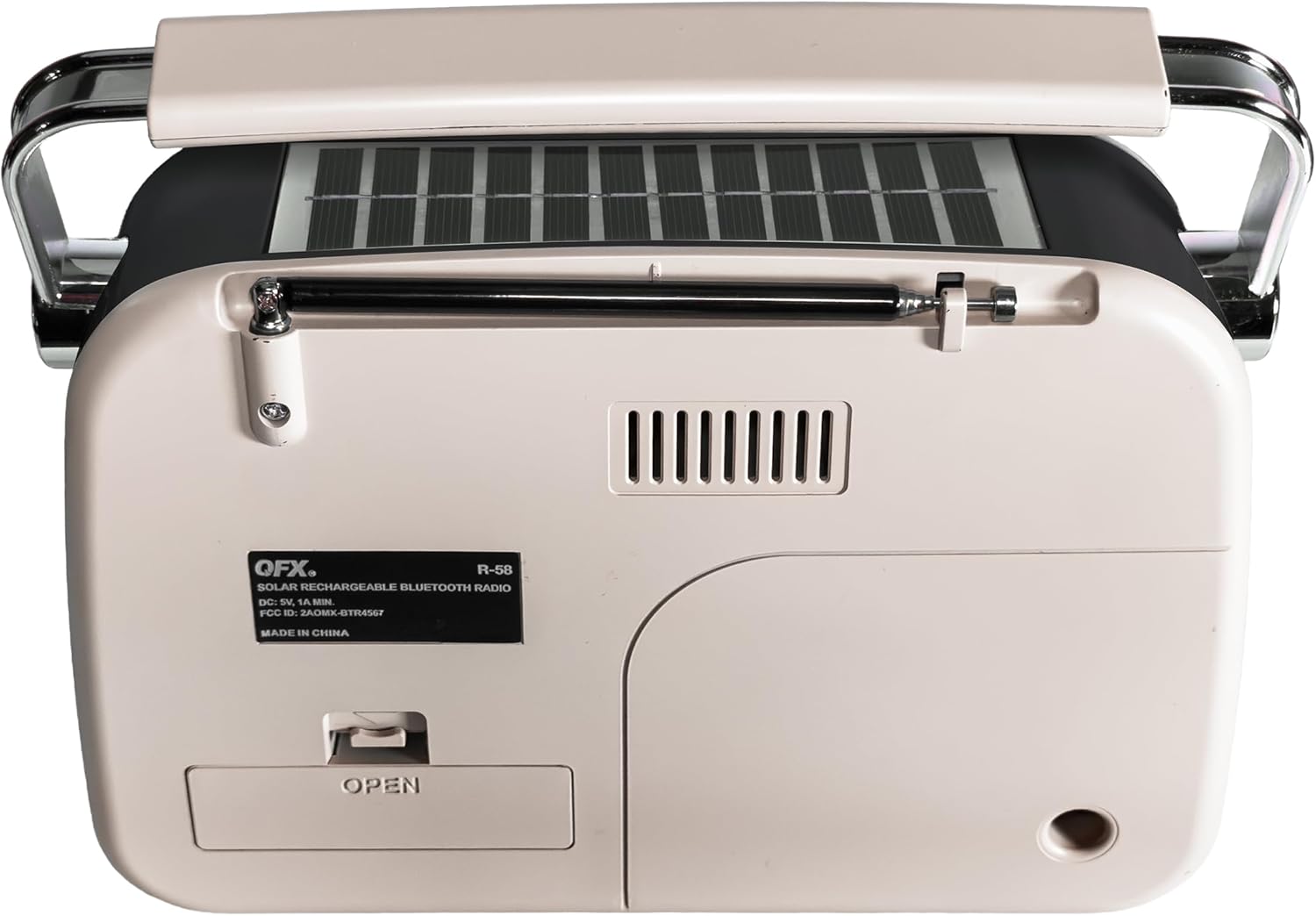
olusin 1: Pada view of the QFX R-58 radio, highlighting the battery compartment.
2. Ngba agbara si Batiri naa
The radio can be charged via USB-C or its integrated solar panel.
- Ngba agbara USB-C: Connect a USB-C cable to the DC-5V input port on the side of the radio and to a compatible USB power source (e.g., wall adapter, computer). The 'CHARGE' indicator light will illuminate.
- Gbigba agbara Oorun: Place the radio with the solar panel facing direct sunlight. This provides supplemental charging and is most effective in bright conditions. The 'CHARGE' indicator light may glow dimly or brightly depending on light intensity.

Figure 2: Side panel with USB-C charging port and charge indicator.
3. Ìfàsẹ́yìn Antenna
For optimal radio reception, extend the retractable antenna.
- Gently pull the antenna upwards from its housing until fully extended.
- Adjust the angle and direction of the antenna for the best signal reception.
Awọn ilana Iṣiṣẹ
1. Agbara Tan / Pa ati Iṣakoso iwọn didun
- Lati tan redio ON, rotate the ON/OFF Volume Wheel upwards.
- Lati tan redio PAA, rotate the ON/OFF Volume Wheel downwards until it clicks.
- Adjust the volume by rotating the ON/OFF Volume Wheel.
2. Selecting Modes (Radio/Music/Bluetooth)
Use the toggle switch on the side panel to select your desired mode:
- ORIN: For USB/TF card MP3 playback.
- FM: Fun gbigba redio FM.
- AM: Fun gbigba redio AM.
- SW: For Shortwave radio reception.
To activate Bluetooth mode, press the 'M' (Mode) button until you hear the Bluetooth pairing prompt.
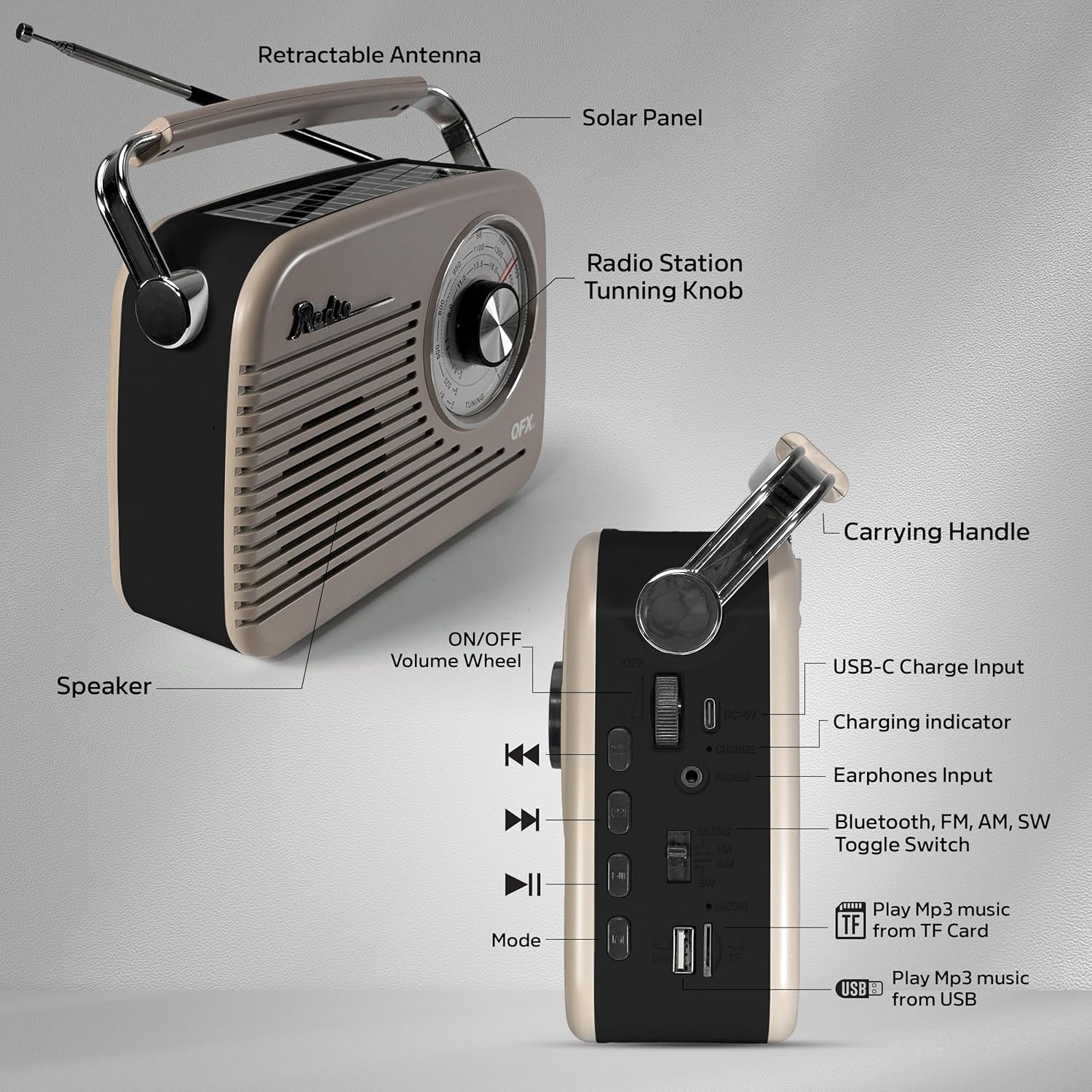
Figure 3: Labeled diagram of the QFX R-58 controls.
3. Iṣẹ́ rédíò (AM/FM/SW)
- Select the desired band (FM, AM, or SW) using the toggle switch.
- Yiyi awọn Tunṣe Knob on the front panel to scan for radio stations.
- Extend and adjust the retractable antenna for optimal signal clarity.

Figure 4: Adjusting the radio tuning knob.
4. Sisopọ Bluetooth
- Press the 'M' (Mode) button until the radio announces "Bluetooth". The Bluetooth indicator light will flash.
- Lori ẹrọ alagbeka rẹ, mu Bluetooth ṣiṣẹ ki o wa awọn ẹrọ to wa.
- Select "QFX R-58" from the list of devices to pair.
- Once paired, the radio will confirm with an audible prompt, and the Bluetooth indicator light will remain solid.
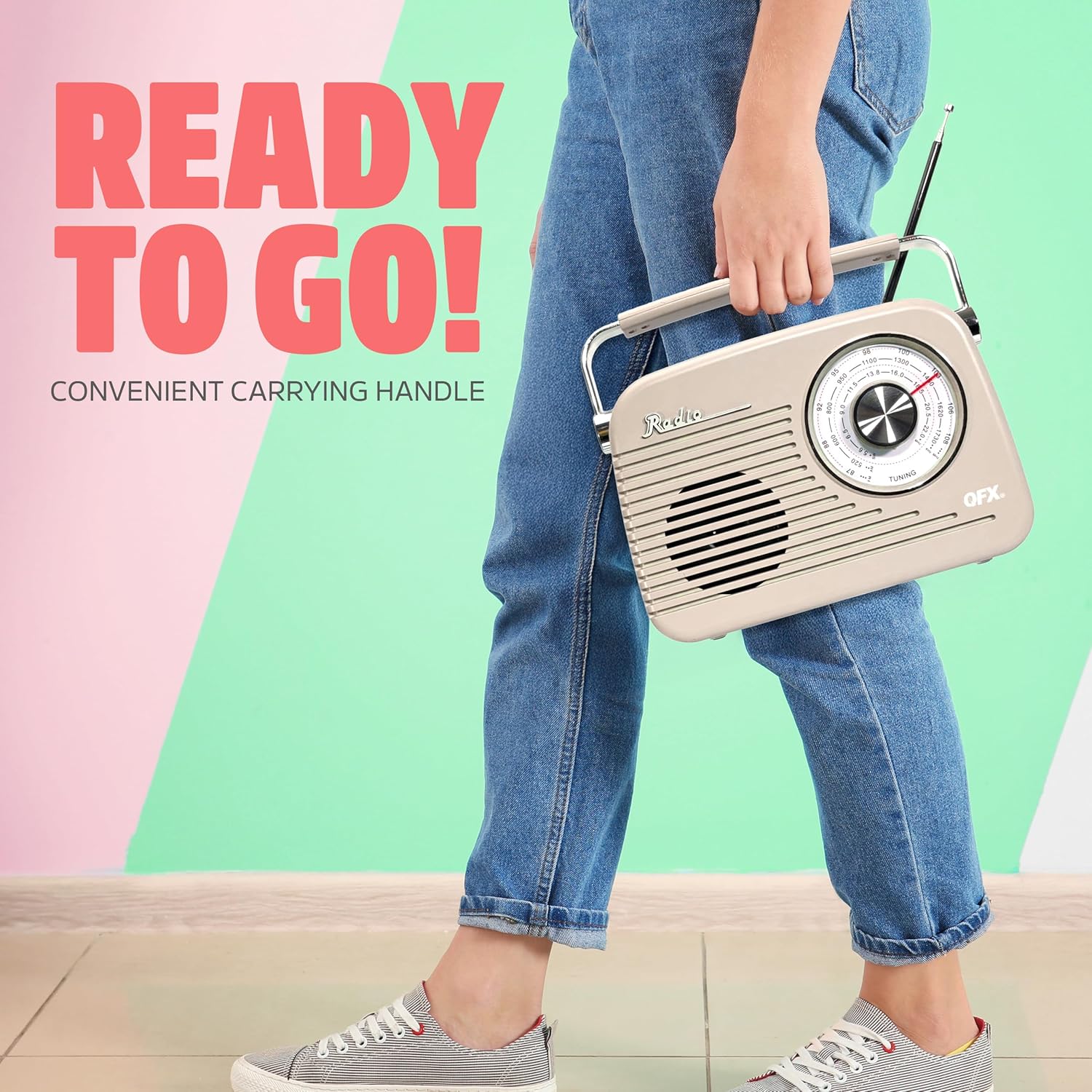
Figure 5: Bluetooth pairing with a mobile device.
5. USB/TF Card MP3 Playback
- Fi awakọ filasi USB sinu ibudo USB tabi kaadi TF (MicroSD) sinu iho kaadi TF.
- Switch the mode toggle to 'MUSIC'. The radio will automatically detect and begin playing MP3 files.
- Use the playback control buttons (Previous, Play/Pause, Next) to manage your music.
6. Agbekọri Lo
- Plug 3.5mm headphones into the 'PHONES' jack on the side panel for private listening.
- Agbọrọsọ inu inu yoo dakẹ laifọwọyi nigbati agbekọri ba so pọ.
Itoju
- Ninu: Use a soft, dry cloth to clean the radio's exterior. Avoid abrasive cleaners or solvents.
- Itọju Batiri: If the radio will not be used for an extended period, remove the 18650 battery to prevent leakage. Store the battery in a cool, dry place.
- Igbimọ oorun: Keep the solar panel clean and free of dust or debris to ensure efficient supplemental charging.
- Ibi ipamọ: Store the radio in a dry environment, away from extreme temperatures and direct sunlight when not in use.
Laasigbotitusita
| Isoro | Owun to le Fa | Ojutu |
|---|---|---|
| No power/Radio does not turn on | Battery is depleted or incorrectly installed. | Charge the battery via USB-C. Ensure the 18650 battery is correctly inserted with proper polarity. |
| Gbigba redio ti ko dara | Eriali ko gbooro sii tabi agbegbe ifihan ti ko dara. | Fully extend the antenna and adjust its position. Try moving the radio to a different location. |
| Bluetooth ko so pọ | Rédíò kò sí ní ipò Bluetooth tàbí ẹ̀rọ náà jìnnà jù. | Ensure the radio is in Bluetooth mode (indicated by flashing light). Keep your device within 10 meters (33 feet) of the radio. |
| USB/TF kaadi ko dun | Incorrect mode selected or unsupported file ọna kika. | Switch to 'MUSIC' mode. Ensure files are in MP3 format. Check if the USB drive or TF card is properly inserted. |
| Solar charging indicator is dim | Imọlẹ oorun ti ko to. | Move the radio to an area with direct, strong sunlight. Note that solar charging is supplemental. |
Awọn pato
| Ẹya ara ẹrọ | Ẹ̀kúnrẹ́rẹ́ |
|---|---|
| Brand | QFX |
| Orukọ awoṣe | R-58-IVY |
| Asopọmọra Technology | Bluetooth |
| Agbọrọsọ Iru | Agbọrọsọ Nikan |
| Afikun Awọn ẹya ara ẹrọ | USB Port, TF Card Slot, Solar Panel |
| Awọn iwọn Nkan (D x W x H) | 9.06"D x 2.95"W x 7.87"H |
| Iwọn Nkan | 2.31 iwon |
| UPC | 606540005392 |
Atilẹyin ọja ati Support
For warranty information and customer support, please refer to the documentation included with your purchase or visit the official QFX webojula. Jeki ẹri rira rẹ fun eyikeyi awọn ibeere atilẹyin ọja.