
Ọrọ Iṣaaju
This manual provides instructions for the RadioShack Mechanical Gaming Keyboard, Model 2607135. This keyboard features a 98-key layout, mechanical switches designed for durability, adjustable rainbow backlighting, 25-key anti-ghosting, and an integrated rotary knob for volume control. It is designed for plug-and-play operation via USB and is compatible with Windows operating systems.
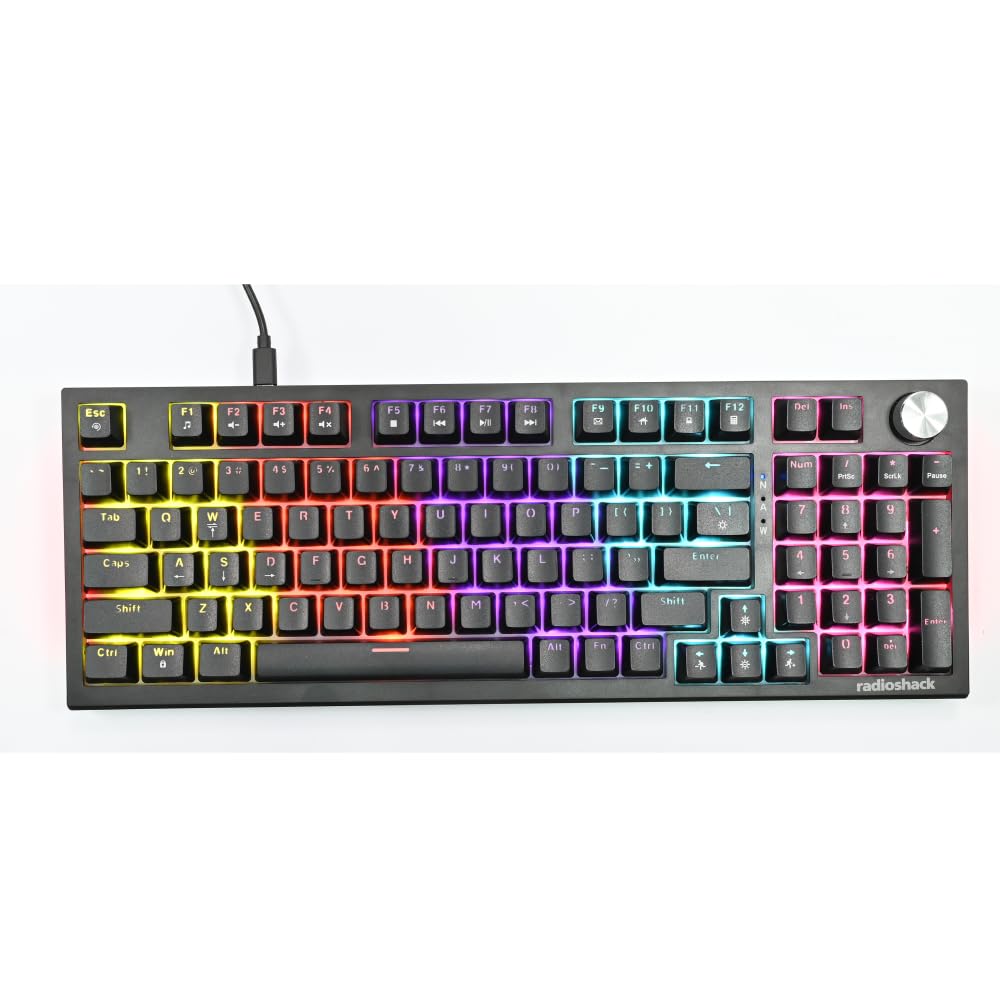
Image: The RadioShack Mechanical Gaming Keyboard, showcasing its 98-key layout and vibrant rainbow backlighting.
Package Awọn akoonu
Jọwọ ṣayẹwo awọn akoonu package lati rii daju pe gbogbo awọn ohun kan wa:
- 1x RadioShack Mechanical Gaming Keyboard
- 1x okun USB
- 1x Itọsọna olumulo (iwe yii)

Image: A graphic illustrating the contents of the product package, including the gaming keyboard and user manual.
Ṣeto
- Yọ Keyboard kuro: Carefully remove the keyboard and USB cable from its packaging.
- Sopọ si Kọmputa: Insert the USB-A connector of the provided USB cable into an available USB port on your computer.
- Fifi sori Awakọ: The keyboard is plug-and-play. Your operating system (Windows XP-10 compatible) will automatically detect and install the necessary drivers. No additional software installation is required.
- Ibi: Place the keyboard on a stable, flat surface. Adjust the rear feet for your preferred typing angle.

Image: An illustration highlighting key features such as the 1.5m USB cable length and compatibility with Windows XP through 10.
Awọn ilana Iṣiṣẹ
Ìṣètò àti Àwọn Iṣẹ́ Káàdì
The keyboard features a 98-key layout, providing a compact design while retaining essential keys, including a numeric keypad.
Rotari Knob Awọn iṣẹ
The dedicated rotary knob located on the top right of the keyboard controls audio volume.
- Yiyi lọna aago: Mu iwọn didun pọ si.
- Yipada Loju-aago: Din iwọn didun.
- Tẹ isalẹ: Mutes/mu ohun silẹ.

Image: A close-up of a hand interacting with the rotary knob, demonstrating its use for volume adjustment.
Backlighting Iṣakoso
The keyboard features adjustable rainbow backlighting with multiple modes and side-light effects. Specific key combinations (often Fn + a function key) are used to cycle through lighting modes, adjust brightness, or change speed. Refer to the keycap legends for specific lighting control functions.
- Ipo Yipada: Typically Fn + Ins, Home, PgUp, Del, End, PgDn.
- Atunse Imọlẹ: Typically Fn + Up/Down arrow keys.
- Titunṣe Iyara: Typically Fn + Left/Right arrow keys.

Image: A collage showing the keyboard with various backlighting patterns and side-light effects, illustrating the 17 available lighting modes.
Anti-Ghosting
The keyboard supports 25-key anti-ghosting, ensuring that multiple simultaneous key presses are registered accurately, which is crucial for gaming and fast typing.

Image: A user actively typing on the keyboard during a gaming session, emphasizing the accuracy provided by 25 anti-ghosting keys.
Itoju
- Ninu: Use a soft, dry cloth to wipe the surface of the keyboard. For deeper cleaning, use compressed air to remove dust and debris from between the keycaps. Avoid using liquid cleaners directly on the keyboard.
- Ibi ipamọ: Nigbati o ko ba wa ni lilo fun awọn akoko ti o gbooro sii, tọju keyboard ni mimọ, agbegbe gbigbẹ kuro lati orun taara ati awọn iwọn otutu to gaju.
- Yago fun Idasonu: Liquids can damage the internal components. Exercise caution to prevent spills on the keyboard.
Laasigbotitusita
Keyboard Ko Dahun
- Rii daju pe okun USB ti sopọ ni aabo si keyboard mejeeji ati kọnputa naa.
- Gbiyanju lati so keyboard pọ mọ ibudo USB ti o yatọ lori kọnputa rẹ.
- Tun kọmputa rẹ bẹrẹ.
- Ṣe idanwo keyboard lori kọnputa miiran lati pinnu boya ọrọ naa wa pẹlu keyboard tabi ibudo USB / awakọ kọnputa naa.
Ìmọ́lẹ̀ ẹ̀yìn kò ṣiṣẹ́
- Check if the backlighting has been turned off using the keyboard's function keys (e.g., Fn + brightness down key).
- Cycle through the lighting modes to see if it reactivates.
Keys Not Registering / Ghosting Issues
- Rí i dájú pé keyboard náà mọ́ tónítóní, kò sì ní ìdọ̀tí tó lè dí àwọn ìyípadà bọtini lọ́wọ́.
- The keyboard features 25-key anti-ghosting. If more than 25 keys are pressed simultaneously, some inputs may not register.
Awọn pato
| Nọmba awoṣe | 2607135 |
| Brand | RadioShack |
| Keyboard Iru | Ẹrọ Kokoro Ẹrọ |
| Ifilelẹ bọtini | 98-Kọtini |
| Asopọmọra | USB-A (Corded Electric) |
| Ìyípadà Àìnígbara | Titi di awọn bọtini bọtini 50 milionu |
| Imọlẹ afẹyinti | Rainbow (Adjustable modes, brightness, speed) |
| Anti-Ghosting | 25-Kọtini |
| Pataki Awọn ẹya ara ẹrọ | Rotary Volume Knob, Ergonomic Design |
| Awọn ẹrọ ibaramu | Laptop, PC (Windows XP-10) |
| Awọn irinše to wa | Okun USB |

Aworan: A alaye view of a mechanical switch, illustrating the 50-million keystroke life for long-term reliability.
Atilẹyin
For further assistance or inquiries, please refer to the official RadioShack support channels or webojula.