
Ọrọ Iṣaaju
The Roku Hiro 32-inch 720p HD Smart TV offers an integrated Roku streaming experience. This television features an HD display for clear picture quality and speakers with enhanced audio. It supports Bluetooth for private listening with headphones and includes Wi-Fi for internet connectivity. The Roku operating system provides a customizable home screen, access to numerous streaming channels, and automatic updates, making it suitable for various living spaces.
Ohun ti o wa ninu Apoti
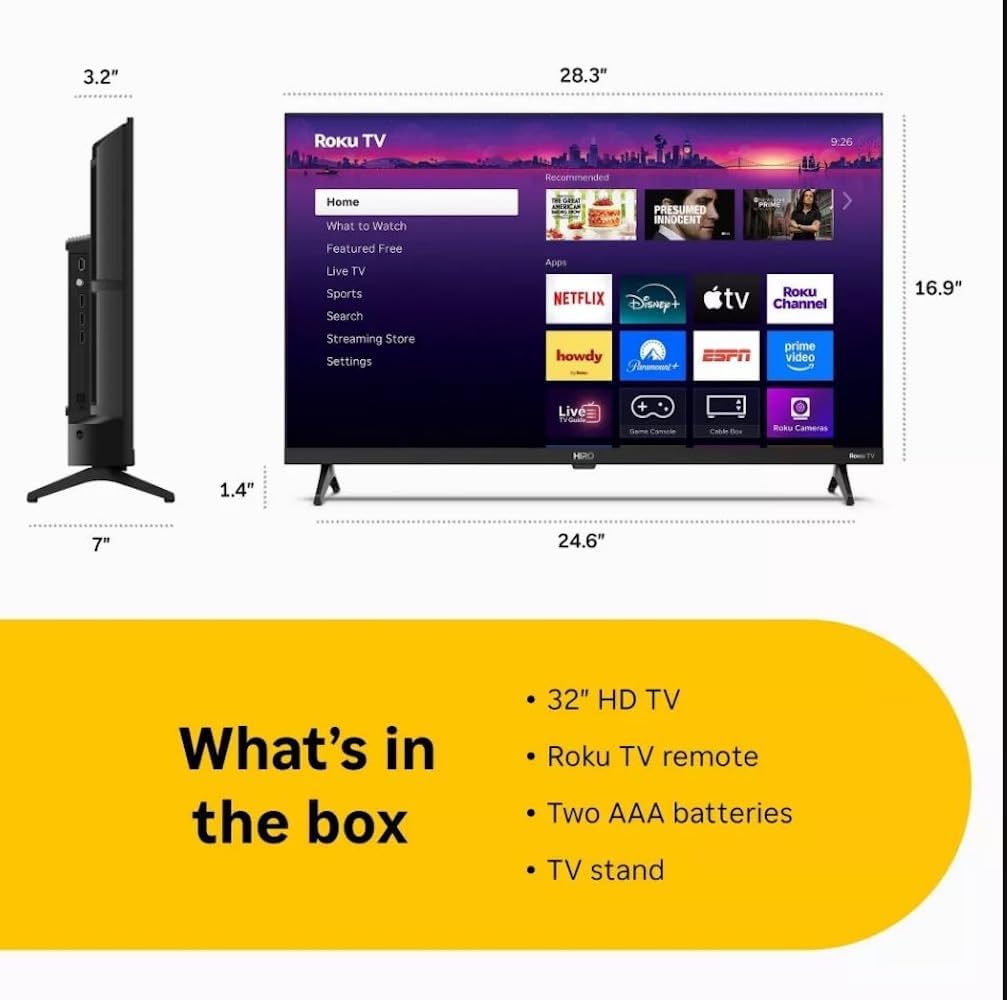
Diagram showing the dimensions of the Roku Hiro 32-inch TV and a list of included accessories: 32-inch HD TV, Roku TV remote, two AAA batteries, and TV stand.
- Hiro 32" 720p HD Smart TV Flat Screen LED Television with Roku TV
- Isakoṣo latọna jijin
- Iduro TV
- Okun agbara
- Itọsọna olumulo
Ṣeto
1. Duro sori
Carefully place the TV screen-down on a soft, clean surface to prevent damage. Align the TV stand with the designated slots on the bottom of the TV. Secure the stand using the provided screws. Ensure the stand is firmly attached before proceeding.
2. Nsopọ Awọn ẹrọ

Ẹyìn view of the Roku Hiro TV, showing the input/output ports including USB, HDMI, and antenna connections.
- Agbara: So okun agbara pọ si titẹ agbara TV ati lẹhinna si iṣan ogiri.
- HDMI: Connect external devices such as Blu-ray players, game consoles, or cable boxes to the HDMI ports. This TV features 3 HDMI ports.
- USB: Use the USB port for media playback from a USB drive.
- Ohun Ojú Connect an external sound system using an optical audio cable for enhanced sound.
- Antenna/Cable: Connect an antenna or cable TV feed to the RF input for over-the-air or cable channels.
3. Ni ibẹrẹ Oṣo
After connecting all necessary cables, power on the TV. Follow the on-screen instructions to:
- Yan ede rẹ.
- Sopọ si nẹtiwọki Wi-Fi rẹ.
- Activate your Roku account (or create a new one).
- Scan for available channels if an antenna is connected.
Awọn ilana Iṣiṣẹ
Awọn iṣẹ iṣakoso latọna jijin

Close-up of the Roku TV remote control, highlighting buttons for TV power, volume, mute, sleep timer, instant replay, options, and app shortcuts.
- Bọtini agbara: Tan TV si tan tabi paa.
- Paadi itọsọna (D-paadi): Lilọ kiri awọn akojọ aṣayan ko si yan awọn ohun kan.
- Bọtini O dara: Jẹrisi awọn aṣayan.
- Bọtini Ile: Pada si iboju ile Roku.
- Bọtini Pada: Pada si iboju ti tẹlẹ.
- Iwọn didun Soke/Isalẹ: Ṣe atunṣe iwọn didun TV.
- Bọtini Mute: Pa tabi mu ohun TV kuro.
- Awọn bọtini Ọna abuja App: Direct access to popular streaming services (e.g., Netflix, Disney+, Apple TV+, Prime Video).
- Akoko oorun: Sets a timer for the TV to turn off automatically.
- Sisisẹsẹhin lesekese: Jumps back a few seconds in supported content.
- Awọn aṣayan: Accesses additional settings or information for the current content.
Navigating the Roku OS

The Roku TV home screen interface, showing recommended content and various streaming applications.
The Roku home screen provides access to all your streaming channels, inputs, and settings. Use the D-Pad on your remote to navigate through the menu options on the left and the app grid on the right. You can customize the order of your channels by highlighting an app, pressing the * (Options) button, and selecting 'Move channel'.
Akoonu ṣiṣanwọle
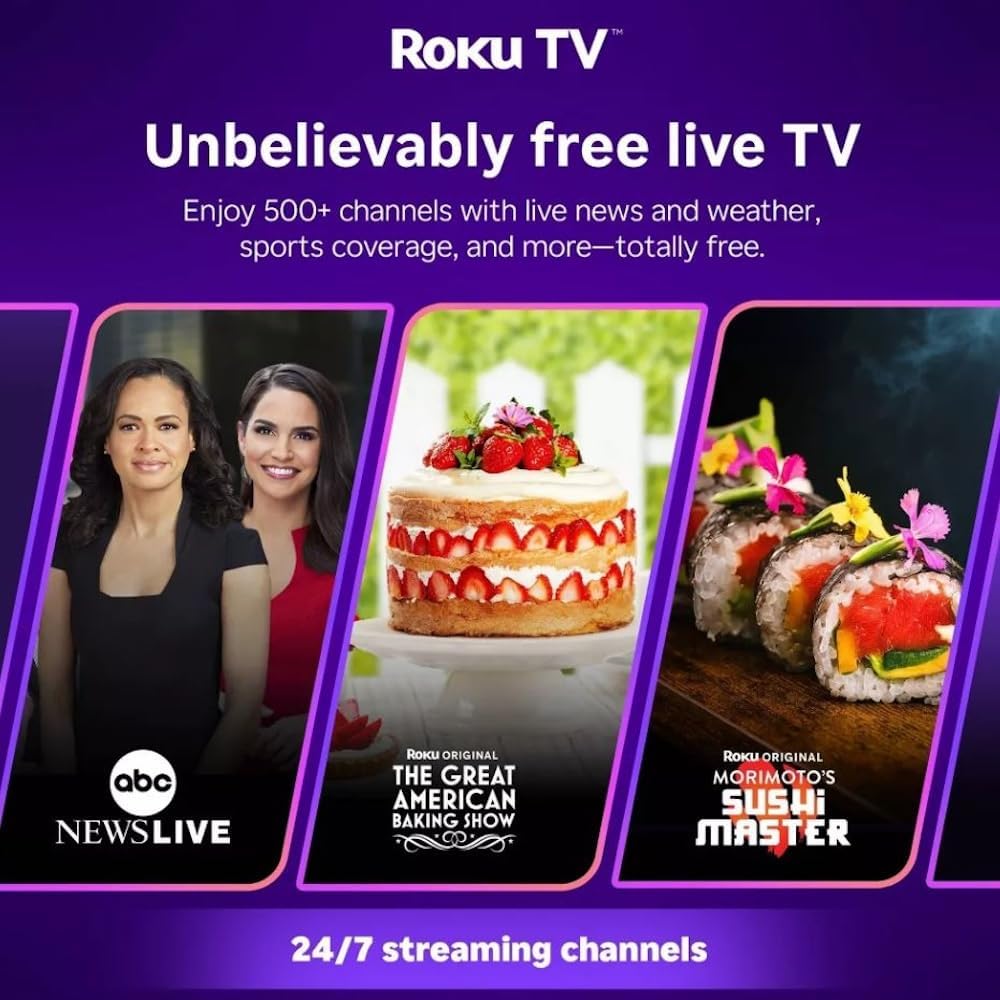
Roku TV interface promoting free live TV channels, featuring examples like ABC News Live, The Great American Baking Show, and Morimoto's Sushi Master.
Access a wide range of streaming services and free content through the Roku Channel Store. The Roku platform offers over 500 free channels, including live television, movies, and news. Use the 'Search' function on the home screen to find specific titles or channels.
Audio Awọn ẹya ara ẹrọ

Roku Hiro TV displaying the home screen with various streaming apps, emphasizing enhanced audio quality.
The TV features enhanced audio quality. For private listening, you can pair Bluetooth headphones directly with the TV. Navigate to Settings > Remotes & devices > Bluetooth devices > Pair new device to connect your headphones.
Itoju
Ninu TV
- Yọọ TV nigba gbogbo ṣaaju ṣiṣe mimọ.
- Lo asọ, asọ ti ko ni lint lati rọra nu iboju ati minisita.
- Fun awọn ami alagidi, fẹẹrẹ dampen asọ pẹlu omi tabi kan ìwọnba, ti kii-abrasive iboju regede. Maṣe fun sokiri regede taara sori iboju.
- Yẹra fun lilo awọn kẹmika lile, awọn paadi abrasive, tabi awọn olomi.
Awọn imudojuiwọn Software
The Roku TV automatically checks for and installs software updates when connected to the internet. To manually check for updates, go to Ètò > Ètò > Àtúnṣe sọ́fítíwè.
Laasigbotitusita
| Isoro | Ojutu |
|---|---|
| Ko si agbara | Rii daju pe okun agbara ti sopọ ni aabo si TV mejeeji ati iṣan itanna ti n ṣiṣẹ. Gbiyanju iṣan ti o yatọ. |
| Ko si aworan, ṣugbọn ohun wa | Ṣayẹwo orisun titẹ sii. Tẹ awọn Ile button on the remote and select the correct input. Ensure all HDMI cables are securely connected. |
| Ko si ohun, ṣugbọn aworan wa | Check the volume level and ensure the TV is not muted. If using external audio, verify connections and settings. |
| Ko le sopọ si Wi-Fi | Verify your Wi-Fi password. Restart your router and modem. Go to Settings > Network > Set up connection to reconfigure. |
| Isakoṣo latọna jijin ko ṣiṣẹ | Rọpo awọn batiri ni isakoṣo latọna jijin. Rii daju pe ko si awọn idena laarin isakoṣo latọna jijin ati sensọ IR ti TV. |
Awọn pato
| Orukọ awoṣe | H32C2C4 |
| Iwon iboju | 32 inches |
| Ifihan ọna ẹrọ | LED |
| Ipinnu | 720p |
| Oṣuwọn sọtun | 60 Hz |
| Eto isesise | Roku OS |
| Asopọmọra Technology | Bluetooth, HDMI, Optical Audio, USB, Wi-Fi |
| Total Number of HDMI Ports | 3 |
| Lapapọ Awọn ibudo USB | 1 |
| Awọn iwọn Ọja (D x W x H) | 3.2"D x 28.3"W x 16.9"H |
| Iwọn Nkan | 7.5 iwon |
| Voltage | 120 Volt (AC) |
| Iṣagbesori Iru | Table Mount |
| Àwọ̀ | Dudu |
Alaye atilẹyin ọja
This Roku Hiro TV is covered by a 90-day Replacement Warranty. Please retain your proof of purchase for any warranty claims. For detailed terms and conditions, refer to the warranty documentation included with your product or visit the official Roku support webojula.
Atilẹyin
For further assistance, troubleshooting guides, or to contact customer support, please visit the official Roku support website. You can find comprehensive FAQs and contact information there.