
Ọrọ Iṣaaju
Welcome to the VIBOX PC Gamer VTX-8 instruction manual. This guide provides essential information for setting up, operating, maintaining, and troubleshooting your new gaming computer. Please read this manual carefully to ensure optimal performance and longevity of your system.
The VIBOX VTX-8 is a high-performance gaming PC equipped with an AMD Ryzen 5 5500 processor, Nvidia RTX 5060 graphics card, 16GB of RAM, and a 1TB SSD, running on Windows 11 Home. It is designed to deliver an immersive gaming experience and handle demanding tasks with ease.

Image: The VIBOX PC Gamer VTX-8 desktop computer, showcasing its sleek white chassis and internal components.
Ṣeto
1. Unboxing ati Ibẹrẹ Ibẹrẹ
Carefully remove your VIBOX PC Gamer from its packaging. Ensure all accessories, including the power cable, USB Wi-Fi 6 AX900 and Bluetooth 5.4 adapter, and any included RGB lighting components, are present. Place the PC on a stable, flat surface with adequate ventilation around the chassis.
2. Asopọmọra Agbeegbe
Connect your monitor(s) to the graphics card's HDMI or DisplayPort outputs. Connect your keyboard and mouse to the available USB ports. Plug in any other peripherals such as a headset or external storage devices.
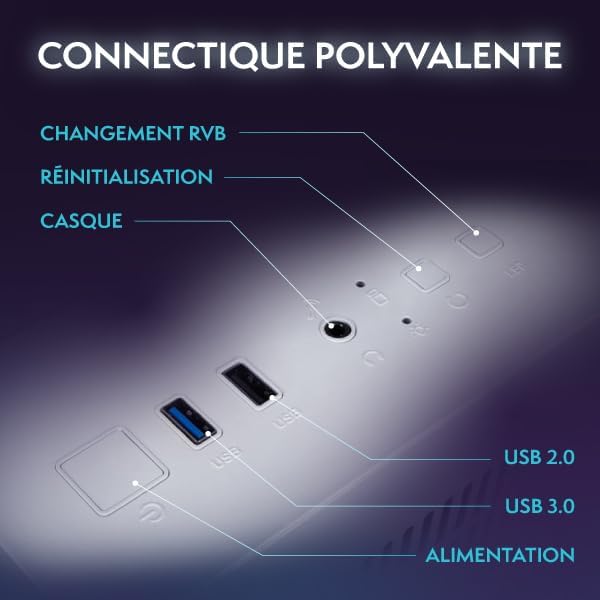
Aworan: A sunmọ-soke view of the versatile connectivity ports on the VIBOX PC Gamer, including USB 2.0, USB 3.0, headset jack, reset button, and RGB change button.
3. Asopọ agbara
Connect the power cable to the PC's power supply unit (PSU) and then to a wall outlet. Ensure the power switch on the PSU (if present) is in the 'ON' position.
4. Bọ́tì àkọ́kọ́ àti Ṣíṣeto Windows 11
Press the power button on the front of the PC. The system will boot up, and you will be guided through the initial setup process for Windows 11 Home. Follow the on-screen instructions to configure your language, region, network, and user account.
Ṣiṣẹ́ PC rẹ
1. Agbara Tan / Pa ati Tun bẹrẹ
- Agbara Tan: Tẹ bọtini agbara ni ẹẹkan.
- Paade: Tẹ bọtini Bẹrẹ, lẹhinna Agbara> Pa.
- Tun bẹrẹ: Tẹ bọtini Bẹrẹ, lẹhinna Agbara> Tun bẹrẹ.
2. Windows 11 Home Features
Your VIBOX PC Gamer comes pre-installed with Windows 11 Home, optimized for gaming. Key features include:
- DirectStorage: Enables faster game load times.
- AutoHDR: Automatically enhances game graphics for compatible displays.
- Xbox Game Pass Integration: Seamless access to a library of games.
- Optimized CPU Performance: Enhanced performance for gaming and multitasking.

Image: An illustration highlighting the gaming-centric features of Windows 11 Home, including faster load times, AutoHDR, Xbox Game Pass integration, and optimized CPU performance.
3. Network Asopọmọra
Your PC includes a USB Wi-Fi 6 AX900 and Bluetooth 5.4 adapter for wireless connectivity. To connect to Wi-Fi, click the network icon in the taskbar, select your network, and enter the password. For Bluetooth devices, go to Settings > Bluetooth & devices to pair.
4. Awọn ere Awọn ati Multimedia
The VIBOX VTX-8 is designed for gaming, photo editing, and video editing. Utilize the powerful Nvidia RTX 5060 graphics card and AMD Ryzen 5 5500 processor for demanding applications.
Itoju
1. Ninu
Regularly clean the exterior of your PC with a soft, dry cloth. For internal components, use compressed air to remove dust from fans and heatsinks. Ensure the PC is powered off and unplugged before cleaning. Pay attention to the air intake and exhaust vents to maintain optimal airflow.
2. Software imudojuiwọn
Keep your Windows operating system and graphics drivers updated. Windows updates can be managed via Settings > Windows Update. Graphics drivers can be downloaded from the official NVIDIA webojula.
3. Airflow and Cooling
The VTX-8 features an inverted airflow design and Hex RGB Infinity 120mm fans for efficient cooling. Ensure that the PC's vents are not obstructed to allow proper air circulation. Good airflow is crucial for maintaining system stability and performance, especially during intensive gaming sessions.
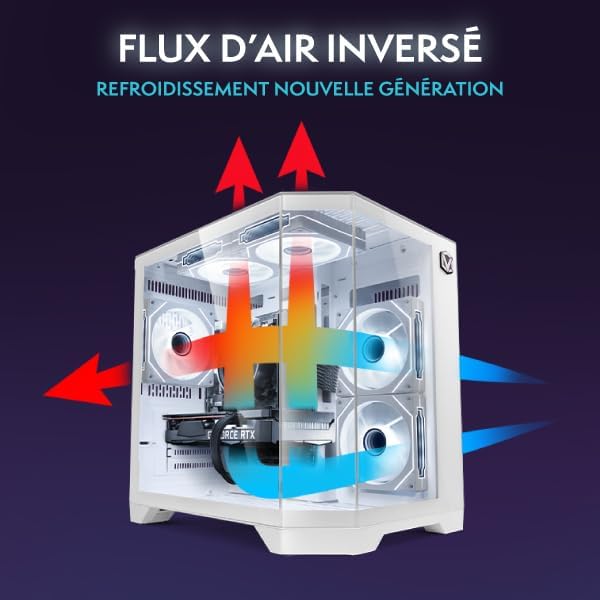
Image: A diagram illustrating the inverted airflow design of the VIBOX PC Gamer, showing how air is drawn in and expelled for next-generation cooling efficiency.

Image: A display of the Hex RGB Infinity 120mm fans, highlighting their customizable multiple colors and RGB modes for personalizing your setup.
Laasigbotitusita
This section addresses common issues you might encounter with your VIBOX PC Gamer.
Ko si Agbara
- Check if the power cable is securely connected to both the PC and the wall outlet.
- Rii daju pe iyipada agbara lori PSU wa ni ipo 'ON'.
- Gbiyanju iṣan agbara ti o yatọ.
Ko si Ifihan lori Atẹle
- Verify that the monitor is powered on and correctly connected to the graphics card (not the motherboard's integrated graphics ports, if any).
- Check the input source on your monitor.
- Gbiyanju okùn ifihan tabi atẹle miiran ti o ba ṣeeṣe.
Performance Issues / Lag
- Ensure all drivers (especially graphics drivers) are up to date.
- Ṣayẹwo fun awọn ohun elo abẹlẹ ti n gba awọn orisun eto.
- Monitor CPU and GPU temperatures to prevent thermal throttling. Ensure proper airflow and clean any dust buildup.
Windows Installation Issues (e.g., Bugs, Language Mix)
Some users have reported initial Windows installations being buggy or having mixed languages. If you experience this:
- Immediately run all available Windows Updates. Go to Settings > Windows Update and check for updates repeatedly until no more are found.
- Ensure your display language is correctly set in Settings > Time & Language > Language & Region.
- If issues persist, consider performing a clean reinstallation of Windows 11 Home using official Microsoft media creation tools. This can resolve deep-seated software conflicts.
Ariwo Fan
A slight fan noise can be normal, especially under load. However, if you notice an unusual or loud noise from a specific fan:
- Check for any obstructions (cables, dust) that might be hitting the fan blades.
- Rii daju pe awọn afẹfẹ wa ni aabo.
- If the noise is persistent and disruptive, contact VIBOX support.
Awọn pato
| Ẹya ara ẹrọ | Ẹ̀kúnrẹ́rẹ́ |
|---|---|
| Orukọ awoṣe | VTX-8 (V-506) |
| isise | AMD Ryzen 5 5500 (6 Cores, 3.6 GHz base, up to 4.2 GHz max) |
| Kaadi eya aworan | Nvidia GeForce RTX 5060 (8GB GDDR7, HDMI 2.1, DisplayPort) |
| Àgbo | 16GB DDR4 (2666 MHz) |
| Ibi ipamọ | 1TB SATA SSD |
| Eto isesise | Windows 11 Ile |
| Alailowaya Asopọmọra | USB Wi-Fi 6 AX900 & Bluetooth 5.4 (Dual-band support) |
| Ti firanṣẹ Asopọmọra | Ethernet, HDMI, DisplayPort, USB |
| Ọna Itutu | Air Cooling (Hex RGB Infinity 120mm Fans) |
| Apẹrẹ ọran | 3-Panel Tempered Glass |
| Awọn iwọn (L x W x H) | 35 x 28 x 38 cm |
| Ìpinnu Ìfihàn Púpọ̀ Jùlọ | 3840x2160 |
| Power Plug Iru | Type C/EF (European/Hybrid FR-DE plug) |

Image: The VIBOX PC Gamer VTX-8 case with dimensions indicated: 29.5cm (depth), 22cm (width), 37.5cm (height), and 8cm (base height).
Alaye atilẹyin ọja
Your VIBOX PC Gamer VTX-8 comes with a comprehensive warranty:
- Awọn ẹya: ọdun meji 2
- Iṣẹ: Igba aye
Please retain your proof of purchase for warranty claims. The warranty covers manufacturing defects and hardware failures under normal use conditions. It does not cover damage caused by misuse, accidents, unauthorized modifications, or improper maintenance.
Atilẹyin
For technical assistance, warranty claims, or any questions regarding your VIBOX PC Gamer, please contact VIBOX Gaming customer support. You can typically find contact information on the VIBOX official webojula tabi nipasẹ rẹ alagbata.
Fun afikun awọn orisun ati alaye ọja, ṣabẹwo si VIBOX Gaming Store on Amazon.