
Ọrọ Iṣaaju
This manual provides essential information for the safe and efficient use of your Xiaomi 55-inch 4K UHD Smart Quantum MagiQ S Mini LED Google TV. Please read these instructions thoroughly before operating the device and retain them for future reference.
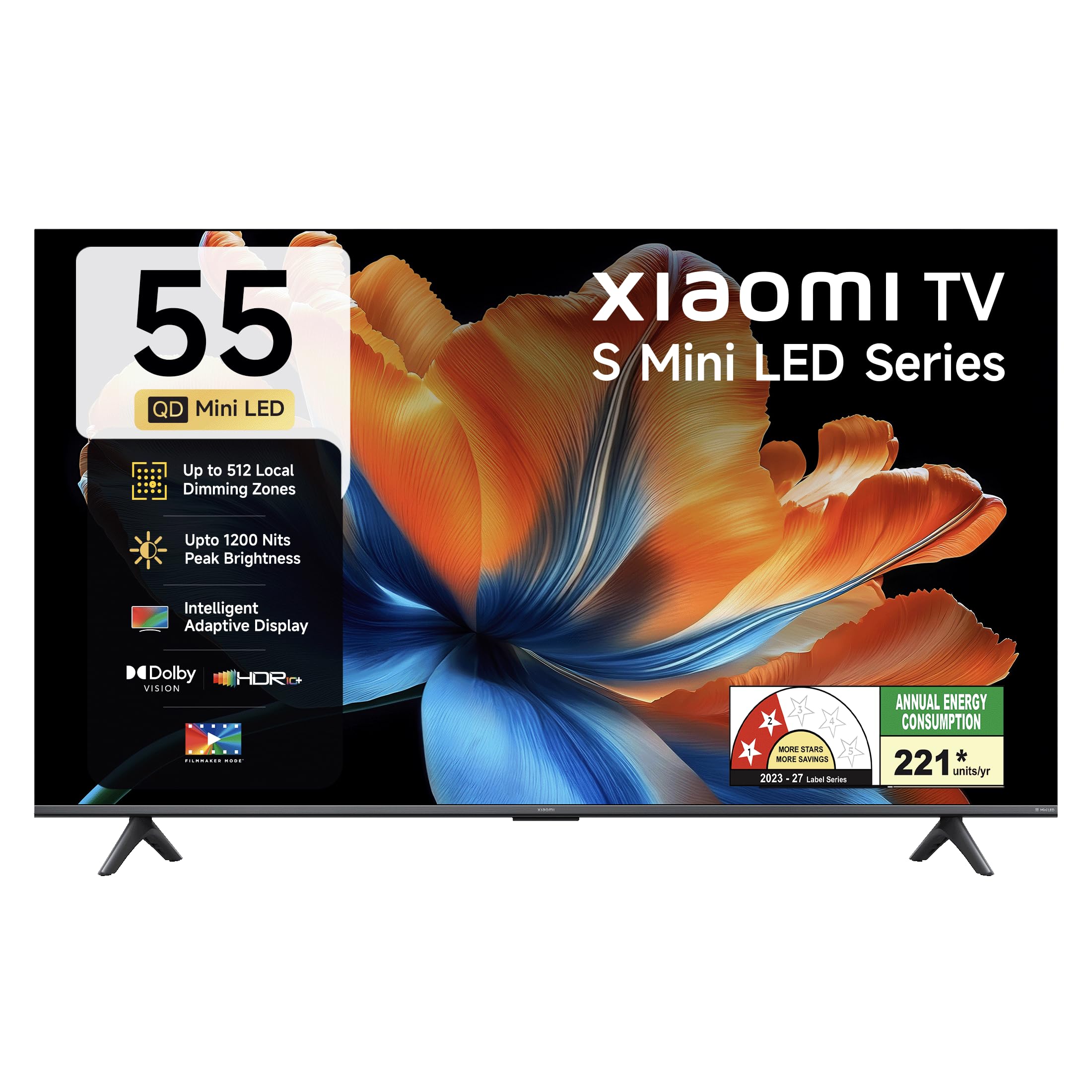
Aworan: Iwaju view of the Xiaomi 55-inch 4K UHD Smart Quantum MagiQ S Mini LED Google TV, showcasing its slim bezel design.
Eto Itọsọna
1. Unpacking ati To wa irinše
Carefully remove all items from the packaging. Ensure all components listed below are present and undamaged.

Image: Contents of the product box, including the TV unit, remote control, user manual, two stand units, four screws, two AAA batteries, and a power cord.
- Ẹ̀rọ tẹlifíṣọ̀n LED 1
- 1 Iṣakoso latọna jijin
- 1 Itọsọna olumulo (iwe yii)
- 2 Stand Units
- 4 Screws for stand installation
- Batiri AAA meji (fun iṣakoso latọna jijin)
- 1 Okun agbara
2. Duro fifi sori tabi odi iṣagbesori
Your television supports both table-top stand installation and wall mounting. Choose the method suitable for your environment.
- Fun fifi sori imurasilẹ: Attach the two provided stand units to the bottom of the TV using the four screws. Ensure they are securely fastened.
- Fun Iṣagbesori Odi: Use a compatible VESA wall mount (sold separately). Follow the instructions provided with your wall mount kit. Ensure the wall can support the TV's weight.
3. Nsopọ Ita Awọn ẹrọ
Connect your external devices such as set-top boxes, gaming consoles, or audio systems to the TV's ports.

Aworan: Ẹyin view of the TV highlighting connectivity ports: Optical, Earphone, AV In, 3 HDMI ports (one with eARC), 2 USB 2.0 ports, Antenna, and Ethernet.
- Awọn ibudo HDMI (x3): Connect gaming consoles, Blu-ray players, or set-top boxes. One port supports eARC for enhanced audio return channel functionality.
- Awọn ibudo USB (x2): So awọn ẹrọ ibi ipamọ USB pọ fun ṣiṣiṣẹsẹhin media.
- Àjọlò Port: Fun isopọ Ayelujara ti a firanṣẹ.
- Ijade Ojú: Fun sisopọ si awọn ọna ṣiṣe ohun ita.
- AV Ninu: Fún sísopọ̀ àwọn ẹ̀rọ àtijọ́ nípa lílo fídíò àdàpọ̀ àti ohùn sítíréò.
- Eriali: Fun sisopọ ori ilẹ tabi eriali okun.
4. Ibẹrẹ Agbara Tan ati Eto
After connecting all necessary cables, plug the power cord into an electrical outlet. Press the power button on the remote control or the TV to turn it on. Follow the on-screen instructions for initial setup, which typically includes:
- Aṣayan ede
- Asopọ nẹtiwọki (Wi-Fi tabi Ethernet)
- Wọle akọọlẹ Google
- Ṣiṣayẹwo ikanni
Operating Your Xiaomi Smart TV
1. Awọn iṣẹ Iṣakoso latọna jijin
The included remote control provides access to all TV functions. Insert the two AAA batteries into the remote control, ensuring correct polarity.

Image: Xiaomi remote control, featuring dedicated quick access buttons for popular streaming services and Google Assistant voice control.
- Bọtini agbara: Tan TV si tan tabi paa.
- Bọtini Iranlọwọ Google: Mu iṣakoso ohun ṣiṣẹ fun wiwa akoonu, ṣiṣakoso awọn ẹrọ ile ti o gbọn, ati diẹ sii.
- Paadi Lilọ kiri: Ti a lo lati lilö kiri ni awọn akojọ aṣayan ko si yan awọn ohun kan.
- Iwọn didun Soke/Isalẹ: Ṣe atunṣe iwọn didun ohun.
- Ikanni Soke/Isalẹ: Ayipada TV awọn ikanni.
- Awọn bọtini Wiwọle Yara: Dedicated buttons for Netflix, Prime Video, YouTube, Disney+ Hotstar, SonyLIV, and Live TV.
- Bọtini Mute: Ó pa ohùn tẹlifíṣọ̀n náà lẹ́nu mọ́.
2. Google TV Interface and Applications
Your TV runs on the Android 14 OS with Google TV, offering a personalized content experience. Access a wide range of applications from the Google Play Store.

Image: The PatchWall interface, providing customized content recommendations and curation from various streaming platforms.
- Àkóónú UI àkọ́kọ́: Organizes content from all your streaming services in one place.
- Pro ti ara ẹnifiles: Ṣẹda ẹni kọọkan profiles for personalized recommendations.
- Awọn ohun elo ti o ni atilẹyin: Pre-installed and downloadable apps include Netflix, Prime Video, YouTube, Zee5, JioCinema, SonyLiv, and more.
- Oluranlọwọ Google: Use voice commands for navigation, search, and smart home control.
3. Aworan ati Ohun Eto
Ṣe ilọsiwaju rẹ viewiriri gbigbọ ati gbigbọ nipasẹ awọn ipo aworan ati ohun oriṣiriṣi.
Eto aworan:
- Ipo onifiimu: Disables post-processing effects to display content as intended by the director.
- Dolby Vision: Enhances HDR content with dynamic metadata for optimized image quality frame by frame.
- HDR10+: Uses dynamic data to enhance every frame, providing an immersive viewiriri iriri.
- Ipo Itunu Oju: Reduces blue light and flicker for a more comfortable viewiriri iriri.
- MEMC Engine: Ìṣirò Ìṣírò, ìmọ̀ ẹ̀rọ Ìsanwó Ìṣírò fún ìṣírò tó rọrùn ní àwọn ìṣẹ̀lẹ̀ tó yára.
- AI Picture Optimization Engine: Advanced AI algorithms analyze content in real-time to enhance clarity, contrast, and color reproduction.

Image: Filmmaker Mode, designed to preserve original colors, contrast, and motion for an authentic cinematic experience.

Image: Dolby Vision technology, optimizing image quality with deeper blacks and brighter highlights.

Image: HDR10+ dynamic frame-by-frame tuning, ensuring consistent detail across dark and bright scenes.

Image: Eye Care Mode, providing flicker-free visuals with DC Dimming and reduced blue light for comfortable viewing.
Eto ohun:
- Ijade 34 Wattis: Powerful built-in box speakers.
- Dolby Audio: Pese ọlọrọ, ko o, ati ohun alagbara.
- DTS-X & DTS Foju:X: Pese immersive, ohun afetigbọ onisẹpo pupọ.
- Ohùn Xiaomi: Preset audio configurations developed for optimal sound quality.

Image: Xiaomi Sound, offering tailored audio experiences through expert-developed configurations.
4. Asopọmọra ati ṣiṣanwọle
Your TV offers versatile connectivity options for seamless streaming and device integration.
- Wi-Fi onigun meji: Connects to 2.4GHz and 5GHz wireless networks.
- Bluetooth: Connect wireless headphones, speakers, or other Bluetooth accessories.
- Google Cast Built-in: Stream content directly from compatible apps on your smartphone or tablet.
- Apple AirPlay 2: Awọn akoonu ṣiṣanwọle lati awọn ẹrọ Apple.
- Miracast: Mirror your Android device's screen wirelessly.

Image: Stream content from your phone using Google Cast or Apple AirPlay 2.
Itoju ati Itọju
Ìtọ́jú tó tọ́ ń jẹ́ kí tẹlifíṣọ̀n rẹ pẹ́ títí, ó sì ń ṣiṣẹ́ dáadáa.
- Isọsọ iboju: Rọra nu iboju naa pẹlu asọ ti ko ni lint. Fun awọn ami agidi, lo ojutu mimọ-iboju kan ti a lo si asọ, kii ṣe taara si iboju naa.
- Ninu ara: Wipe the TV's frame and back panel with a soft, dry cloth. Avoid abrasive cleaners or solvents.
- Afẹfẹ: Rii daju pe sisan afẹfẹ to peye ni ayika TV. Ma ṣe dina awọn ṣiṣi atẹgun.
- Agbara Pa: Máa pa TV náà nígbà gbogbo kí o sì yọ ọ́ kúrò nínú agbára iná mànàmáná kí o tó sọ ọ́ di mímọ́ tàbí tí a kò bá lò ó fún ìgbà pípẹ́.
- Awọn imudojuiwọn sọfitiwia: Periodically check for and install software updates to ensure optimal performance and security.
Laasigbotitusita Awọn ọrọ to wọpọ
Refer to this section for solutions to common operational problems.
| Isoro | Ojutu |
|---|---|
| TV ko ni tan | Ensure the power cord is securely plugged into both the TV and a working electrical outlet. Check if the power outlet is active. Try pressing the power button on the TV itself. |
| Ko si aworan, ṣugbọn ohun wa | Check the input source. Ensure the connected device (e.g., set-top box) is turned on and functioning. Try a different HDMI cable or port. |
| Ko si ohun, ṣugbọn aworan wa | Check the volume level and ensure the TV is not muted. Verify audio output settings (e.g., internal speakers, external sound system). Check audio cables for external devices. |
| Isakoṣo latọna jijin ko dahun | Replace the AAA batteries in the remote control. Ensure there are no obstructions between the remote and the TV. Re-pair the Bluetooth remote if necessary (refer to TV settings). |
| Ko le sopọ si Wi-Fi | Ensure your Wi-Fi router is on and working. Re-enter the Wi-Fi password. Try restarting both the TV and the router. Check if other devices can connect to the Wi-Fi network. |
Imọ ni pato
Detailed specifications for the Xiaomi 55-inch 4K UHD Smart Quantum MagiQ S Mini LED Google TV (Model L55MC-IN).

Image: Physical dimensions and weight of the Xiaomi 55-inch TV, both with and without the stand.
| Ẹya ara ẹrọ | Sipesifikesonu |
|---|---|
| Nọmba awoṣe | L55MC-IN |
| Iwon iboju | 55 inches (138 cm) |
| Ifihan ọna ẹrọ | LED mini |
| Ipinnu | 4K Ultra HD (3840 x 2160) |
| Oṣuwọn sọtun | 60 Hz (DLG 120 Hz) |
| Imọlẹ tente oke | Títí dé 1200 Nit |
| Eto isesise | Android 14 OS with Google TV |
| Àgbo | 2GB |
| ROM (Ibi ipamọ inu) | 32 GB |
| Ijade ohun | 34 Wattis |
| Awọn Imọ-ẹrọ Ohun | Dolby Audio, DTS-X, DTS Foju:X |
| Asopọmọra | Dual Band Wi-Fi, Bluetooth, 3 HDMI (1 eARC), 2 USB, Optical, Ethernet, AV In |
| Iboju Mirroring | Google Cast, Apple AirPlay 2, Miracast |
| Pataki Awọn ẹya ara ẹrọ | Filmmaker Mode, MEMC, Eye Comfort Mode, AI Picture Optimization Engine |
| Awọn iwọn Ọja (D x W x H) | 31.2D x 31.2W x 76.9H Centimeters (with stand) |
| Item Weight Without Stand | 11.6 kilo |
| Agbara agbara | 230 Wattis |
| Ilu isenbale | India |
Alaye atilẹyin ọja
Your Xiaomi TV comes with a comprehensive warranty provided by the brand from the date of purchase.
- Atilẹyin ọja boṣewa: 3-year comprehensive warranty for non-prebook customers (purchases between April 22nd - May 31st).
- Pre-book Customer Warranty: 4-year comprehensive warranty for pre-book customers (purchases between April 22nd - April 30th).
Warranty claims can be made using your Amazon invoice as proof of purchase. For detailed terms and conditions, please refer to the official Xiaomi warranty policy or contact customer support.
Onibara Support
For any assistance, service requests, or queries regarding your Xiaomi TV, please contact Xiaomi customer support.

Aworan: Pariview of Xiaomi's customer support commitments, including quick installation, prompt call-backs, and swift doorstep solutions.
- Awọn iṣẹ fifi sori ẹrọ: New TV installations are typically completed within 3 hours of your appointment.
- Service Requests: Reti ipe pada lati ọdọ ẹgbẹ atilẹyin laarin iṣẹju 60 fun eyikeyi ibeere iṣẹ.
- Atilẹyin lori aaye: Experts aim to arrive at your home within 24 hours of your service request.
Please visit the official Xiaomi India webaaye tabi tọka si alaye olubasọrọ ti a pese ninu apoti ọja rẹ fun awọn alaye atilẹyin ti o pọ julọ julọ.