
1. Ti pariview
This manual provides essential information for setting up, operating, maintaining, and troubleshooting your INSIGNIA 85-inch Class QF Series QLED 4K UHD Smart Fire TV. This television offers a high-quality viewing experience with 4K UltraHD resolution, Quantum Dot Technology for enhanced color, and Direct LED Backlight for uniform brightness. It integrates the Fire TV Smart OS, providing access to various streaming services and features like the Voice Remote with Alexa. The design features a metal bezel-less display for a modern aesthetic.
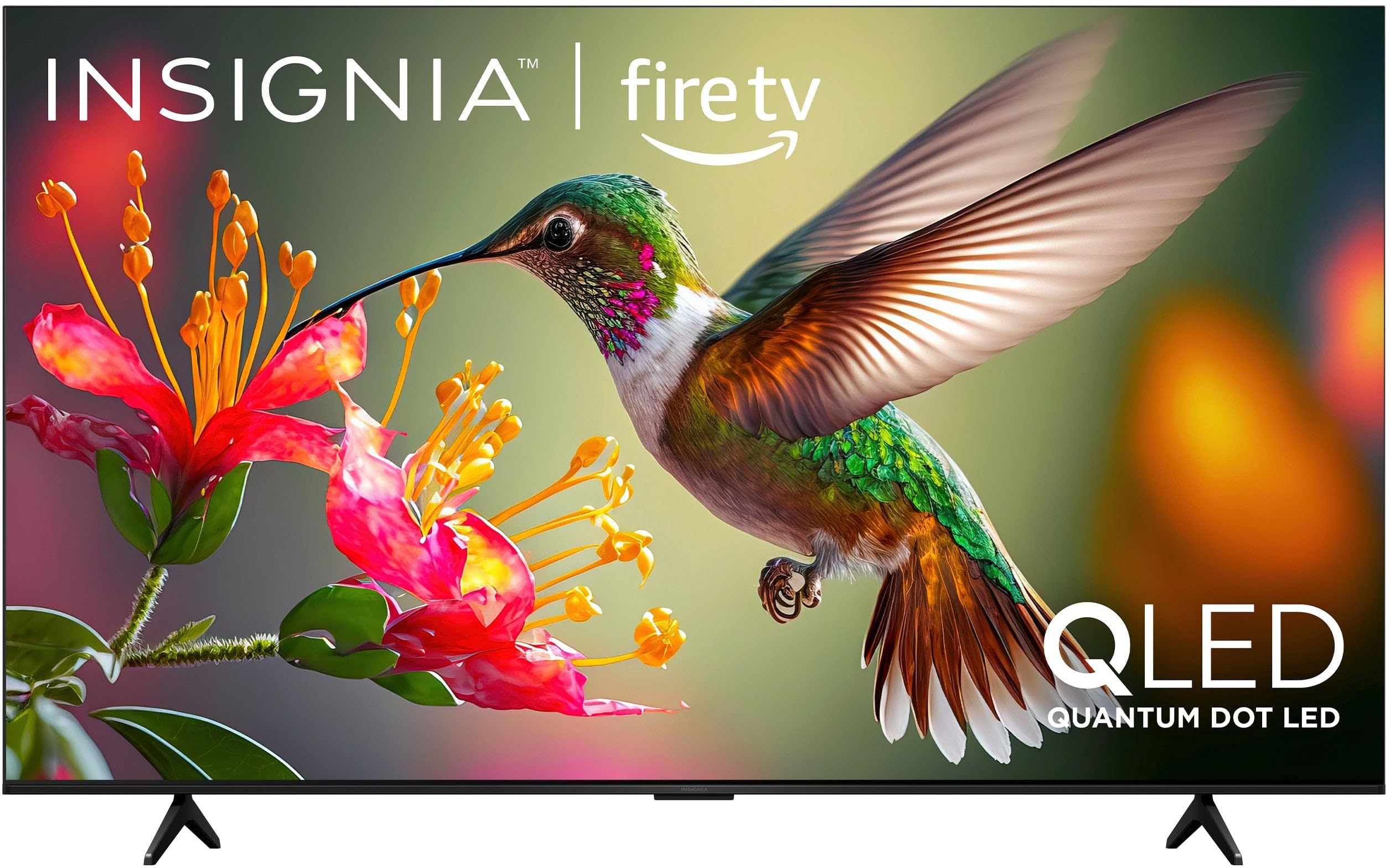
Aworan 1.1: Iwaju view of the INSIGNIA 85-inch QF Series QLED 4K UHD Smart Fire TV.
2. Ohun ti o wa ninu Apoti
Daju pe gbogbo awọn paati wa ṣaaju ki o to tẹsiwaju pẹlu iṣeto:
- INSIGNIA 85-inch QF Series QLED 4K UHD Smart Fire TV
- Latọna jijin ohun pẹlu Alexa
- Remote Control Batteries (2 AAA)
- Iduro TV
- Skru fun Imurasilẹ fifi sori
- Itọsọna Iṣeto ni kiakia (iwe yii)
3. Eto
3.1. Fifi Iduro TV sii
If you are not wall-mounting your TV, attach the included stand:
- Fi iṣọra gbe TV ni oju-isalẹ lori rirọ, dada mimọ lati ṣe idiwọ ibajẹ iboju.
- Ṣètò àwọn ẹsẹ̀ ìdúró náà pẹ̀lú àwọn ihò ìdènà tí ó wà ní ìsàlẹ̀ TV náà.
- Fi àwọn skru tí a pèsè so àwọn ẹsẹ̀ ìdúró náà mọ́. Rí i dájú pé wọ́n ti di wọ́n mú dáadáa.
3.2. Agbara akọkọ Lori ati Asopọ Nẹtiwọọki
- So okun agbara pọ si TV ati lẹhinna si iṣan agbara kan.
- Tẹ bọtini agbara lori TV tabi iṣakoso latọna jijin lati tan TV naa.
- Follow the on-screen instructions to select your language, connect to your Wi-Fi network, and sign in to your Amazon account.
3.3. Sísopọ̀ Láàárín Ọ̀nà
Your Voice Remote with Alexa should pair automatically. If it does not, press and hold the Ile button on the remote for 10 seconds until the LED indicator flashes blue, then release. The remote will attempt to pair.

Image 3.1: The Voice Remote with Alexa, used for controlling the TV and accessing smart features.
4. Awọn ilana Iṣiṣẹ
4.1. Fire TV Smart OS Navigation
The Fire TV Smart OS provides a centralized hub for all your entertainment. Use the navigation buttons on your remote to browse:
- Iboju ile: Access recommended content, recently used apps, and various streaming services.
- Awọn ohun elo: Download and manage your favorite streaming applications.
- TV Live: Integrate live TV channels from supported services or an antenna.
- Eto: Ṣatunṣe aworan, ohun, nẹtiwọki, ati awọn ayanfẹ ẹrọ.

Image 4.1: The Fire TV interface displaying a selection of streaming services and content.
4.2. Latọna jijin ohun pẹlu Alexa
Utilize the built-in Alexa voice assistant for hands-free control:
- Tẹ mọlẹ gbohungbohun bọtini lori rẹ latọna jijin.
- Speak commands such as "Find action movies," "Launch Netflix," "Switch to HDMI 2," or "Show me the weather."
- Alexa can also control compatible smart home devices.
4.3. Nsopọ Ita Awọn ẹrọ
Your TV is equipped with four HDMI inputs for connecting external devices:
- Connect gaming consoles, Blu-ray players, soundbars, or cable/satellite boxes to the HDMI ports.
- One HDMI port supports eARC for enhanced audio return channel functionality with compatible sound systems.
- To switch inputs, press the Iṣawọle button on your remote and select the desired source.

Image 4.2: Illustration of the TV's connectivity options, including HDMI ports.
4.4. Aworan ati Ohun Awọn ilọsiwaju
This TV features advanced technologies for an immersive experience:
- QLED (Quantum Dot LED): Delivers vibrant, lifelike colors and improved brightness.
- 4K UltraHD Ipinnu: Provides four times the detail of Full HD TVs.
- Dolby Vision & Dolby Atmos: Supports advanced HDR for enhanced contrast and accurate colors, along with immersive spatial audio.

Image 4.3: Visual representation of Dolby Vision and Dolby Atmos features, highlighting cinematic picture and immersive sound.
5. Itọju
5.1. Ninu rẹ TV
Láti mú kí ìrísí àti ìṣe TV náà máa dára síi:
- Yọọ TV nigba gbogbo ṣaaju ṣiṣe mimọ.
- Lo asọ, gbẹ, asọ ti ko ni lint lati rọra nu iboju ati minisita.
- Fun abori aami lori iboju, sere dampen awọn asọ pẹlu omi tabi a specialized iboju regede. Maṣe fun omi sokiri taara sori iboju.
- Yago fun lilo abrasive ose, waxes, tabi epo.
5.2. Software imudojuiwọn
Your Fire TV automatically receives software updates to improve performance and add new features. Ensure your TV is connected to the internet to receive these updates. You can manually check for updates in the Settings menu.
6. Laasigbotitusita
Ti o ba pade awọn ọran pẹlu TV rẹ, tọka si awọn solusan ti o wọpọ wọnyi:
| Isoro | Ojutu |
|---|---|
| Ko si agbara | Rii daju pe okun agbara ti wa ni edidi ni aabo sinu TV mejeeji ati iṣan itanna ti n ṣiṣẹ. Gbiyanju iṣan ti o yatọ. |
| Ko si aworan, ṣugbọn ohun wa | Ṣayẹwo orisun titẹ sii. Tẹ awọn Iṣawọle button on the remote to cycle through inputs. Verify external devices are powered on and connected correctly. |
| Latọna jijin ko dahun | Replace the AAA batteries in the remote. If the issue persists, re-pair the remote by holding the Ile bọtini fun 10 aaya. |
| Ko le sopọ si Wi-Fi | Ensure your Wi-Fi router is on and within range. Restart your router and TV. Check Wi-Fi settings in the TV's menu to ensure the correct network and password are entered. |
| Didara aworan ti ko dara | Adjust picture settings (brightness, contrast, color) in the TV's menu. Ensure the content source is high-quality (e.g., 4K content for 4K resolution). |
| Ko si ohun | Check the volume level and ensure the TV is not muted. Verify external audio devices (soundbar, receiver) are connected and configured correctly. |
7. Awọn pato
| Ẹya ara ẹrọ | Ẹ̀kúnrẹ́rẹ́ |
|---|---|
| Orukọ awoṣe | NS85-UQFL27 |
| Iwon iboju | 84.6 inches (kilasi 85-inch) |
| Ifihan ọna ẹrọ | QLED (Kuatomu Dot LED) |
| Ipinnu | 4K Ultra HD (3840 x 2160) |
| Oṣuwọn sọtun | 60 Hz |
| Eto isesise | FireOS |
| HDR atilẹyin | Dolby Vision |
| Ohun Technology | Dolby Atmos |
| Asopọmọra | Wi-Fi |
| Awọn igbewọle HDMI | 4 (pẹ̀lú eARC 1) |
| Pataki Awọn ẹya ara ẹrọ | Voice Remote with Alexa, Apple Airplay |
| Awọn iwọn Ọja (D x W x H) | 2.5"D x 74.4"W x 42.8"H |
| Item Weight Without Stand | 64.6 iwon |
| Awọn irinše to wa | Remote Control, Remote Control Battery, Screws, Stand |
| UPC | 600603325472 |
8. Atilẹyin ọja & Atilẹyin
8.1. atilẹyin ọja Information
This INSIGNIA TV comes with a 1-odun atilẹyin ọja. For specific terms and conditions, please refer to the warranty card included with your product or visit the official INSIGNIA support webojula.
8.2. Onibara Support
If you require further assistance or encounter issues not covered in this manual, please contact INSIGNIA customer support. Contact information can typically be found on the manufacturer's webaaye tabi ninu apoti ọja rẹ.