
1. Ifihan
The Next Cine800S GoogleTV Projector is designed to provide a versatile and immersive home entertainment experience. This manual offers essential information for the safe and efficient setup, operation, and maintenance of your projector. Please read this manual thoroughly before using the device.
2. Alaye Aabo
- Ibi ti ina elekitiriki ti nwa: Use only the specified power adapter. Ensure the power cord is not damaged or pinched.
- Afẹfẹ: Do not block ventilation openings. Maintain adequate space around the projector for proper airflow to prevent overheating.
- Ibi: Gbé ẹ̀rọ ìfihàn náà sí orí ilẹ̀ tí ó dúró ṣinṣin, tí ó tẹ́jú. Yẹra fún gbígbé e sí ibi tí oòrùn tààrà wà, nítòsí àwọn ibi tí ooru ti ń mú, tàbí ní àyíká tí ọ̀rinrin tàbí eruku pọ̀ sí.
- Ninu: Ge asopọ agbara ṣaaju ṣiṣe mimọ. Lo asọ asọ ti o gbẹ. Ma ṣe lo olomi tabi awọn olutọpa aerosol.
- Itọju lẹnsi: Avoid touching the projector lens directly. Use a soft, lint-free cloth specifically designed for optical lenses if cleaning is necessary.
- Ṣiṣẹ: Má ṣe gbìyànjú láti tún ẹ̀rọ ìṣiṣẹ́ náà ṣe fúnra rẹ. Tọ́ka gbogbo iṣẹ́ ìtọ́jú náà sí àwọn òṣìṣẹ́ tó péye.
3. Ọja Ipariview
The Next Cine800S is a Full HD LED projector featuring Google TV. Below are key components and features.

olusin 3.1: Iwaju view of the Next Cine800S GoogleTV Projector, highlighting its design and key features like 800 ANSI Lumens and Google TV integration.
3.1. Key Awọn ẹya ara ẹrọ
- Ipinnu Ifihan: Full HD 1920x1080, supporting screen sizes from 40 to 200 inches.
- Imọlẹ: 800 ANSI Lumens.
- Ṣiṣẹ Fidio: Supports 4Kx2K @ 60fps encode/decode.
- Focus & Keystone: Automatic or Manual Focus, Automatic Keystone Correction.
- Eto isesise: Google TV with Android 14.
- Awọn iṣẹ ṣiṣanwọle: Netflix L1, Prime Video, YouTube, Disney+ with L1 DRM Certification.
- Asopọ Alailowaya: Wi-Fi 802.11 a/b/g/n/ac (2.4G & 5G) and Bluetooth 5.0.
- Iranti: 2GB LPDDR4 RAM / 8GB eMMC Storage.
- Ohun: Integrated 12W (4W) Speaker.
- Eto Ojú: Dust-Sealed Optical Mechanism.
- Iboju iboju: Air Screen and Google Cast for iOS & Android devices.
3.2. Awọn ibudo ati awọn isopọ
Identify the various input and output ports on your projector.
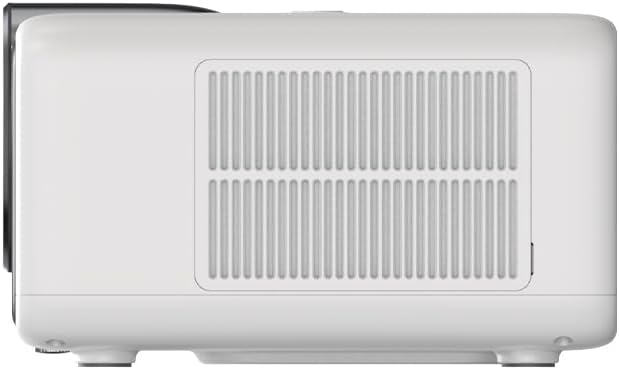
Figure 3.2: Rear panel of the projector, displaying available ports. Note: Actual ports may vary slightly by region or production batch. This model typically includes HDMI, USB, and a 2.5mm Audio Jack.
- HDMI: Connect to external video sources such as Blu-ray players, gaming consoles, or computers.
- USB: Fun sisopọ awọn ẹrọ ipamọ USB lati mu media ṣiṣẹ files.
- Jack Audio 2.5mm: Fun sisopọ awọn ẹrọ ohun afetigbọ ita bi agbekọri tabi agbohunsoke.
4. Eto
4.1. Unpacking ati Ibẹrẹ Ayewo
- Fi ìṣọ́ra yọ àwòrán àti gbogbo àwọn ohun èlò míì kúrò nínú àpótí náà.
- Check for any signs of damage during transit. If damage is found, contact your retailer immediately.
- Ensure all listed accessories are present.
4.2. Pirojekito Placement
Optimal placement is crucial for the best viewiriri iriri.

Olusin 4.1: Example of projector placement and adjustable screen sizes (40" to 200").
- Ijinna: Position the projector at a suitable distance from the screen or wall to achieve your desired screen size (40 to 200 inches).
- Giga: Place the projector on a stable surface or mount it to project the image at the desired height.
- Iṣagbesori: The projector includes a mounting point on its base. Ensure any tripod or mount used is compatible with the projector's screw size and weight. Note that some standard tripod screws may not fit.
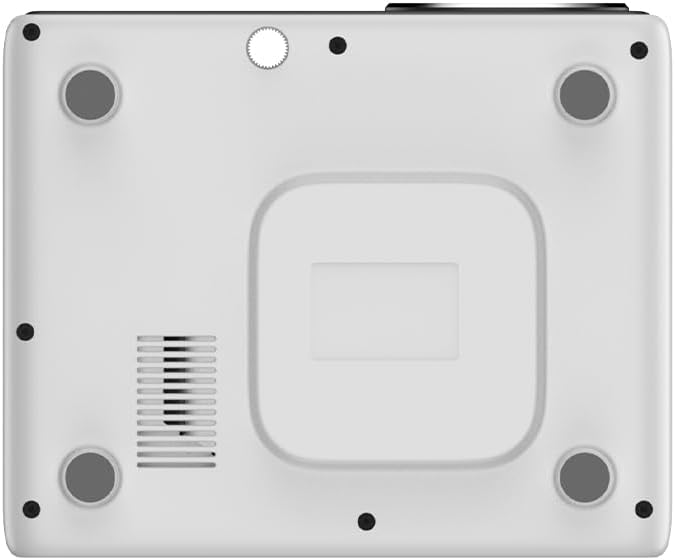
olusin 4.2: Isalẹ view of the projector, indicating the mounting point and ventilation grilles.
4.3. Asopọ agbara
- So ohun ti nmu badọgba agbara si awọn pirojekito ká agbara input ibudo.
- Pulọọgi ohun ti nmu badọgba agbara sinu iṣan itanna to dara.
- Tẹ bọtini agbara lori pirojekito tabi isakoṣo latọna jijin lati tan-an.
4.4. Iṣeto akọkọ ati Asopọ nẹtiwọki
- Upon first power-on, the projector will guide you through the initial Google TV setup process.
- Follow the on-screen instructions to select your language, connect to a Wi-Fi network (2.4G or 5G), and log in with your Google account.
- The projector features automatic focus and keystone correction. If the image is not perfectly clear or rectangular, you can access manual adjustment options in the settings menu.
5. Awọn ilana Iṣiṣẹ
5.1. Lilọ kiri lori Google TV
The projector runs on Google TV, providing a user-friendly interface for accessing content.

Figure 5.1: The Google TV interface on the Next Cine800S Projector, showing recommended content and installed applications.
- Use the remote control to navigate through menus, select apps, and control playback.
- The home screen provides personalized recommendations and quick access to your favorite streaming services.
5.2. Streaming Applications
Access popular streaming platforms directly from your projector.

Figure 5.2: Supported streaming applications and Google Play Store access.
- Pre-installed apps include Netflix, Prime Video, YouTube, and Disney+.
- Download additional applications from the Google Play Store.
- Ensure you are logged into your respective service accounts to access content.
5.3. Nsopọ Ita Awọn ẹrọ
- HDMI: Connect your device to an HDMI port. The projector will automatically detect the input or you can manually select it from the input source menu.
- USB: Insert a USB drive into the USB port. The media player application will typically launch automatically, allowing you to browse and play supported media files (JPG, PNG, BMP, JPEG, MP3, M4A, MP2, WAV, FLAC, MP4, MOV, TS, DAT, F4V, 3GP).
5.4. Iboju Mirroring
The projector supports Air Screen and Google Cast for mirroring content from your iOS or Android devices.
- Rí i dájú pé ẹ̀rọ alágbèéká rẹ àti projector náà so pọ̀ mọ́ nẹ́tíwọ́ọ̀kì Wi-Fi kan náà.
- On your mobile device, open the screen mirroring function (e.g., 'Screen Cast', 'Smart View', 'AirPlay').
- Select the projector from the list of available devices.
6. Itọju
Itọju deede ṣe idaniloju iṣẹ ṣiṣe to dara julọ ati fa igbesi aye pirojekito rẹ pọ si.
6.1. Ninu awọn lẹnsi

Figure 6.1: Close-up of the projector lens, which requires careful cleaning.
- Use a soft, lint-free cloth or a lens cleaning brush to gently remove dust from the lens surface.
- For stubborn smudges, use a specialized lens cleaning solution applied to a microfiber cloth, not directly to the lens.
- Avoid abrasive materials or excessive force, which can scratch the lens.
6.2. Cleaning Ventilation Ports
- Periodically check the ventilation grilles for dust accumulation.
- Use a soft brush or a vacuum cleaner with a brush attachment to gently clean the grilles.
- Ma ṣe fi ohun kan sii sinu awọn ṣiṣi atẹgun.
6.3. Software imudojuiwọn
- Ensure your projector is connected to the internet.
- Navigate to the system settings to check for and install available software updates. Updates can improve performance and add new features.
7. Laasigbotitusita
Abala yii n ṣalaye awọn ọran ti o wọpọ ti o le ba pade pẹlu pirojekito rẹ.
| Isoro | Owun to le Fa | Ojutu |
|---|---|---|
| Ko si agbara | A ti ge okùn agbára náà, ìṣòro ìjáde agbára | Ṣayẹwo asopọ okun agbara. Gbiyanju iṣan agbara ti o yatọ. |
| Ko si aworan | Input source not selected, device not connected, lens cap on | Ensure input source is correctly selected. Check HDMI/USB connections. Remove lens cap. |
| Aworan jẹ blurry | Idojukọ ko tunṣe | Adjust focus manually using the projector's focus ring or through the settings menu if automatic focus is not sufficient. |
| Image is distorted/trapezoidal | Keystone not adjusted, projector not perpendicular to screen | The projector has automatic keystone correction. If the image is still distorted, access the manual keystone correction settings to fine-tune the image. |
| Ko si ohun tabi didara ohun ti ko dara | Volume too low, external audio device not connected, speaker issue | Increase volume. Check external audio connections if used. If internal speaker sound is distorted at low volumes, consider connecting external speakers via the 2.5mm audio jack or Bluetooth. |
| Awọn oran asopọ Wi-Fi | Ọrọigbaniwọle ti ko tọ, awọn ọran olulana, kikọlu ifihan agbara | Verify Wi-Fi password. Restart router. Ensure projector is within Wi-Fi range. |
| Isakoṣo latọna jijin ko ṣiṣẹ | Batteries low/dead, IR sensor blocked | Replace batteries. Ensure no obstructions between remote and projector's IR sensor. |
8. Awọn pato
Detailed technical specifications for the Next Cine800S GoogleTV Projector.
| Ẹya ara ẹrọ | Sipesifikesonu |
|---|---|
| Awoṣe | Cine800S |
| Ifihan ọna ẹrọ | LED pirojekito |
| Ipinnu abinibi | HD ni kikun 1920x1080 |
| Imọlẹ | 800 ANSI Lumens |
| Iwọn Isọtẹlẹ | 40" — 200" |
| Iyipada fidio | 4Kx2K @ 60fps |
| Idojukọ | Laifọwọyi tabi Afowoyi |
| Keystone Atunse | Laifọwọyi |
| Eto isesise | Google TV, Android 14 |
| DRM Certification | Netflix L1, Prime Video, YouTube, Disney+ L1 |
| Wi-Fi | 802.11 a/b/g/n/ac (2.4G & 5G) |
| Bluetooth | 5.0 |
| Àgbo | 2GB LPDDR4 |
| Ibi ipamọ inu | 8GB eMMC |
| Ijade Agbọrọsọ | 12W (4W) |
| Awọn ibudo | HDMI, 2.5mm Audio Jack, USB |
| Awọn ọna kika Media atilẹyin | JPG, PNG, BMP, JPEG, MP3, M4A, MP2, WAV, FLAC, MP4, MOV, TS, DAT, F4V, 3GP, FAT, NTFS |
| Opitika Mechanism | Dust-Sealed System |
| Iboju Mirroring | Air Screen, Google Cast (iOS & Android) |
9. Atilẹyin ọja ati Support
For warranty information, please refer to the documentation provided with your purchase or visit the official Next website. For technical support, product inquiries, or service requests, please contact Next customer service through their official channels.
Jeki ọjà rira rẹ ati nọmba ni tẹlentẹle ọja ni ọwọ nigbati o ba kan si atilẹyin.